The **Rootstock CLI (rsk-cli)** allows for creating and managing wallets on the Rootstock network. Create, manage, and fund your wallet with tokens directly from the terminal or via a [Sandbox](https://replit.com/@rootstockDevX/Rootstock-CLI).
With the Rootstock CLI, managing your wallet is simple. You can view saved wallets, switch between them, update wallet names, or delete wallets. Its user-friendly design ensures easy handling of all wallet tasks quickly and efficiently from the terminal.
## Managing Your Wallet
To begin managing your wallet using Rootstock CLI, run the following command in your terminal:
```bash
rsk-cli wallet
```
This command opens up a prompt that will guide you through managing your wallet. Once executed, you will see a screen with several options, like the one below:
```bash
📁 Wallet data file found.
? What would you like to do? (Use arrow keys)
❯ 🆕 Create a new wallet
🔑 Import existing wallet
🔍 List saved wallets
🔁 Switch wallet
📝 Update wallet name
❌ Delete wallet
```
:::info[How to Use:]
- Use the arrow keys to navigate through the options.
- Press **Enter** to select the desired action.
:::
This interface allows you to manage your wallets with the following options:
1. **🆕 Create a new wallet:** Generate a brand-new wallet for managing your assets securely on the Rootstock network.
2. **🔑 Import existing wallet:** Import an existing wallet by providing your private key or recovery phrase.
3. **🔍 List saved wallets**: View a list of all wallets saved locally in your application.
4. **🔁 Switch wallet:** Quickly switch between your saved wallets to access the one you need.
5. **📝 Update wallet name:** Rename your saved wallets for better organization and identification.
6. ❌ **Delete wallet:** Remove a wallet from your saved list (note: this action does not delete the wallet from the blockchain).
:::warning[Warning]
The private key is a critical piece of information that enables users access funds. **Never share it** with anyone and store it securely, as losing the private key means losing access to your wallet.
:::
You’ll be prompted to enter a password to encrypt your wallet:
```bash
? 🔒 Enter a password to encrypt your wallet:
```
#### **Choosing a Password:**
The password you enter will encrypt your wallet, adding an extra layer of security. Choose a strong password (avoid using simple passwords like **'1234567890'**), as this protects your wallet file in case someone gains access to your computer.
Once you’ve entered the password, you’ll see a message confirming the secure storage of your wallet:
```shell
💾 Wallet saved securely at /Users/your_username/Documents/Rootstock/rsk-cli/rootstock-wallet.json
```
**Tip:** Backup the rootstock-wallet.json file as this is your encrypted wallet file, which can be used to recover your wallet if lost.
#### **Importing an Existing Wallet (Using a Private Key)**
If you already have a wallet and want to import it, select the "Insert your private key" option. You'll be prompted to enter your private key:
```bash
? 🔑 Enter your private key: ******************************************************************
```
Once entered, the system will validate the private key and display the associated wallet address:
```shell
✅ Wallet validated successfully!
📄 Address: 0x05BFa711ef4B2f40855C4E73bA96a8Da86a4be9F
```
You’ll then be asked to create a password to encrypt the wallet, similar to when you create a new one. After this, the wallet file will be saved securely on your local machine:
```bash
💾 Wallet saved securely at /Users/your_username/Documents/Rootstock/rsk-cli/rootstock-wallet.json
```
## Confirming Your Wallet Exists
Once the wallet has been created, we need to ensure it’s registered on the Rootstock blockchain. Rootstock provides two blockchain explorers to check a wallet's existence and track its transactions:
- **Testnet Explorer**: For testing purposes, view your wallet on the Rootstock Testnet Explorer at [https://explorer.testnet.rootstock.io/](https://explorer.testnet.rootstock.io/).
- **Mainnet Explorer**: For real transactions on the main Rootstock network, use the Mainnet Explorer at [https://explorer.rootstock.io/](https://explorer.rootstock.io/).
Enter your wallet address in the search bar of the explorer to view transaction history and balance information.
:::tip[Tip]
When practicing or testing, always use the Testnet to avoid risking actual funds.
:::
## Adding Funds to Your Wallet
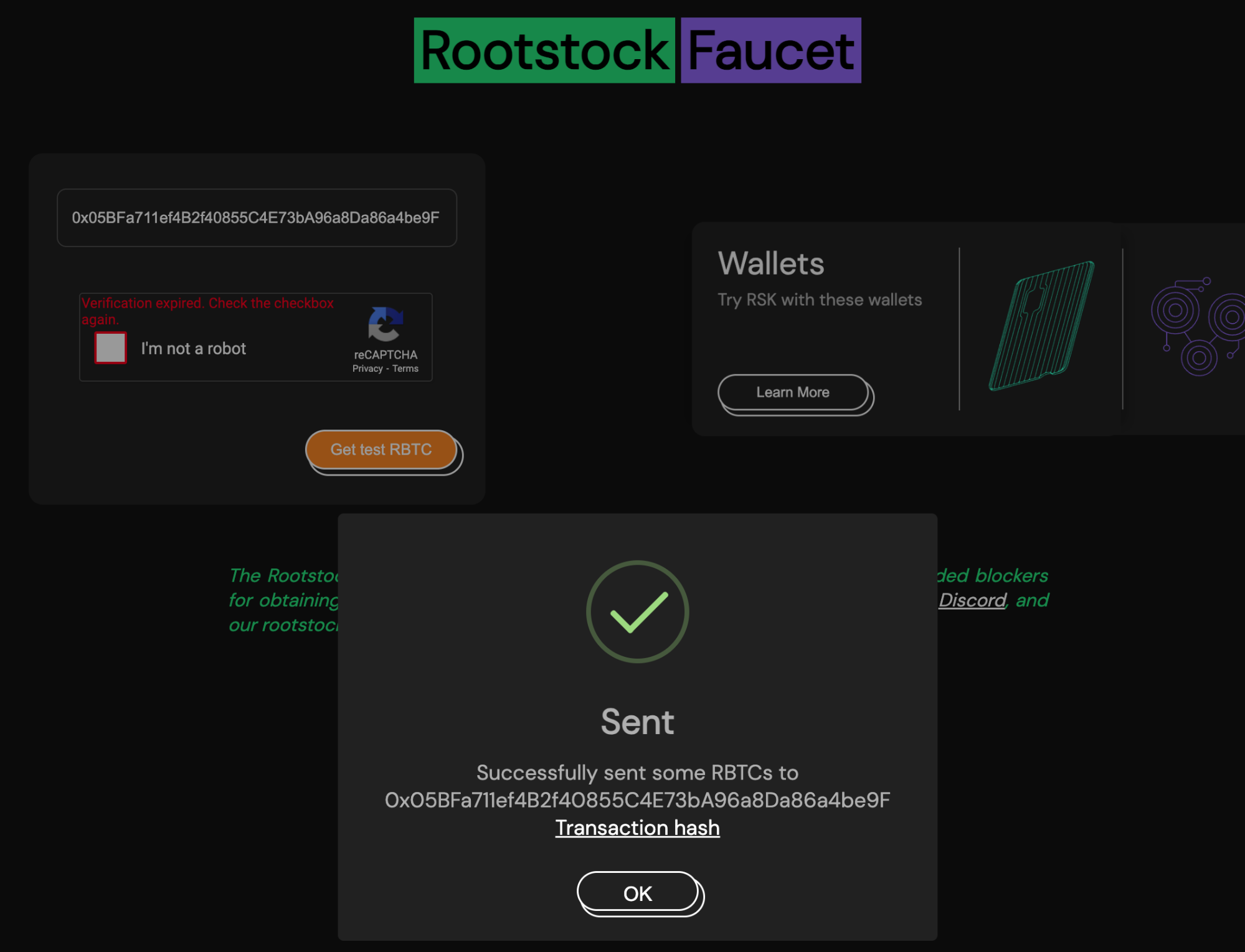
To perform transactions on the Rootstock network, we’ll need rBTC. To easily fund your wallet, request rBTC from the Rootstock faucet.
#### **Steps to Add rBTC:**
1. Visit the official Rootstock Faucet: [faucet.rootstock.io](https://faucet.rootstock.io/).
2. Enter your wallet address in the provided field.
3. Click the **"Get rBTC"** button.
You’ll see a transaction confirmation screen, similar to this:
Rootstock Faucet Transaction Confirmation (fig 1.)
#### **Viewing the Transaction:**
Click on the **Transaction Hash** button to view the transaction details on the Rootstock explorer. This will show you if the transaction has been confirmed and how much rBTC was credited to your wallet.
> The Rootstock faucet provides free rBTC for testing on the Rootstock testnet. This faucet is intended for development and testing purposes only. You can also find [alternative faucets available](https://dev.rootstock.io/dev-tools/#filters=faucet).
## Checking Your Wallet Balance
The balance command in the Rootstock CLI allows for viewing the amount of rBTC in your wallet on the Rootstock network. This command supports both Mainnet (live network) and Testnet (testing network). Always make sure to use the correct network to avoid any confusion.
**Mainnet:**
To check the balance on the Mainnet, run this command:
```bash
rsk-cli balance
```
**Expected Output:**
```bash
📄 Wallet Address: 0x05BFa711ef4B2f40855C4E73bA96a8Da86a4be9F
🌐 Network: Rootstock Mainnet
💰 Current Balance: 0 rBTC
🔗 Ensure that transactions are conducted on the correct network.
```
:::note[The output provides:]
- **Wallet Address**: Your unique Rootstock wallet address.
- **Network**: This specifies that the balance is being checked on the Mainnet.
- **Current Balance**: Displays the amount of rBTC currently in your wallet.
:::
---
**Testnet:**
To check your balance on the Testnet, add the -t or --testnet flag, this indicates that you want to check a balance on testnet:
```bash
rsk-cli balance -t
```
**Expected Output:**
```bash
📄 Wallet Address: 0x05BFa711ef4B2f40855C4E73bA96a8Da86a4be9F
🌐 Network: Rootstock Testnet
💰 Current Balance: 0.000499835435453 rBTC
🔗 Ensure that transactions are conducted on the correct network.
```
## Transferring rBTC
The transfer command allows for sending rBTC from your wallet to another address on the Rootstock network. As with the balance command, you can perform transfers on either the Mainnet or Testnet.
:::info[Info]
For testing, always use the Testnet to avoid risking real funds.
:::
**Mainnet:**
To transfer funds on the Mainnet, use the following command, replacing 0xRecipientAddress with the address you want to send rBTC to and 0.001 with the amount you wish to send:
### **Parameters:**
- `--address \`: This specifies the recipient’s address on the RSK network. Replace `` with the actual RSK-compatible wallet address of the recipient.
- `--value \`: This defines the amount of rBTC you want to transfer. Replace `` with the exact amount of rBTC you want to send. Make sure to verify that the amount is correct and that your account has enough balance to cover the transaction and any fees.
```bash
rsk-cli transfer --address 0xRecipientAddress --value 0.001
```
**Expected Output:**
```shell
📄 Wallet Address: 0xcfEa49816A22fa49524e1d62FDF8f0F938b1FE5C
🎯 Recipient Address: 0x05BFa711ef4B2f40855C4E73bA96a8Da86a4be9F
💵 Amount to Transfer: 0.001 rBTC
💰 Current Balance: 0.000499835710721 rBTC
```
---
**Testnet:**
To transfer rBTC on the Testnet, use the \-t or \--testnet flag:
### Parameters
**`--txid \`: This specifies the transaction ID of the transaction you want to retrieve details for. Replace `` with the unique identifier of the transaction.
```bash
rsk-cli transfer --testnet --address 0xRecipientAddress --value 0.001
```
If the specified amount exceeds your wallet balance, the CLI will provide an error message:
```text
🚫 Insufficient balance to transfer 0.001 rBTC.
```
If there’s sufficient funds, you’ll be prompted to enter your password to decrypt the wallet:
```text
? Enter your password to decrypt the wallet: **********
```
Upon successful password entry, you’ll receive transaction details:
**Expected Output:**
```bash
🔄 Transaction initiated. TxHash: 0xdbef066d61aa9074232ed9c8eabf3e779d2bf9fe29c59bf86bb8027503f38b0a
✅ Transaction confirmed successfully!
📦 Block Number: 5682575
⛽ Gas Used:
```