To deploy the Runes smart contract using Remix IDE, follow the steps below:
### **Step 1: Access Remix IDE**
1. Open your web browser and go to [Remix IDE](https://remix.ethereum.org/#lang=en&optimize=false&runs=200&evmVersion=null&version=soljson-v0.8.26+commit.8a97fa7a.js).
### **Step 2: Create a New File**
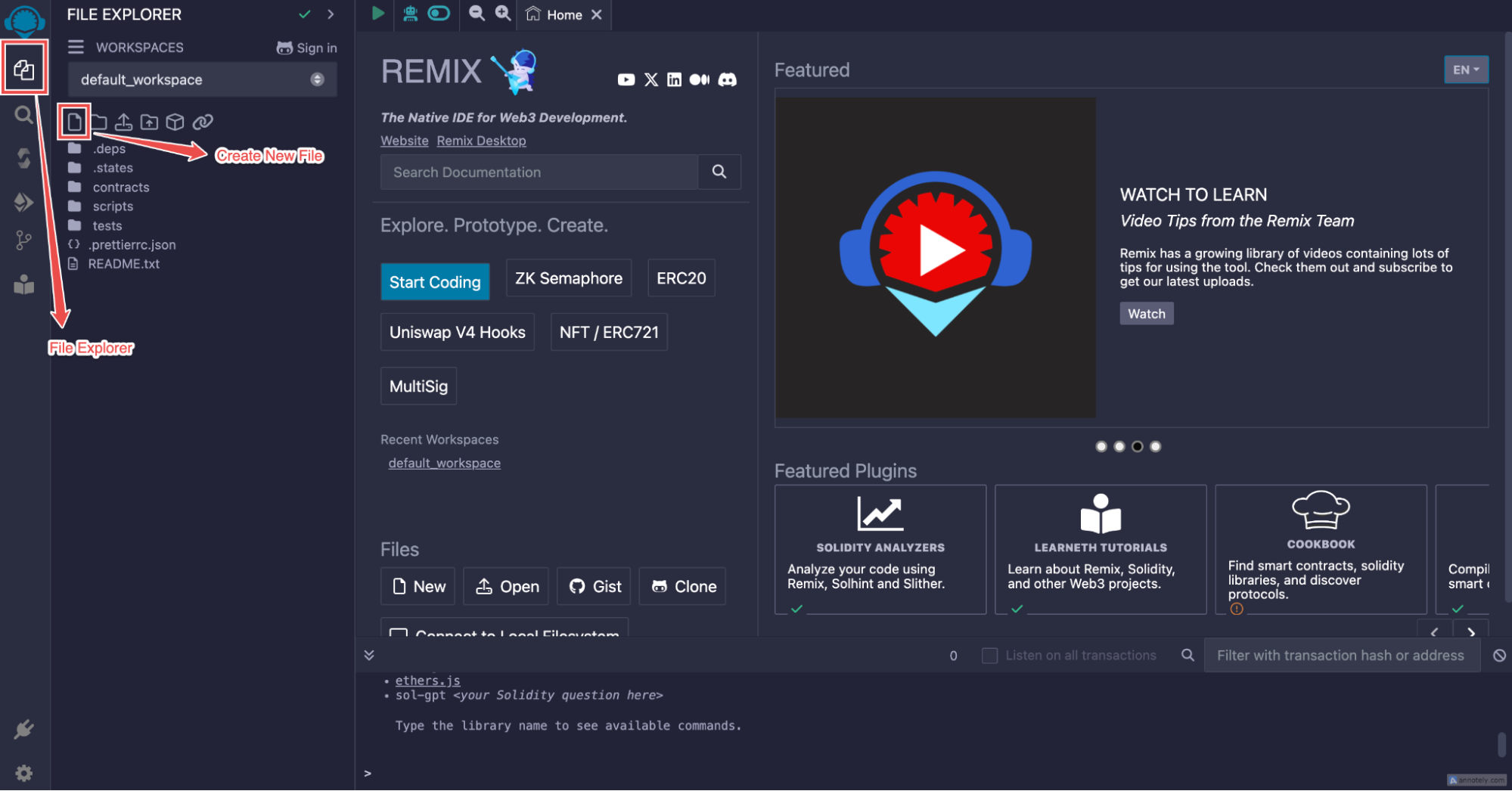 1. In the Remix IDE, navigate to the **File Explorer** (the first icon on the left sidebar).
2. Click on the **file** icon to create a new file.
3. Name the file `RuneToken.sol`.
### **Step 3: Copy and Paste the Smart Contract**
1. Locate the `RuneToken.sol` file from the RSK-RUNES repository under the contracts folder
1. In the Remix IDE, navigate to the **File Explorer** (the first icon on the left sidebar).
2. Click on the **file** icon to create a new file.
3. Name the file `RuneToken.sol`.
### **Step 3: Copy and Paste the Smart Contract**
1. Locate the `RuneToken.sol` file from the RSK-RUNES repository under the contracts folder
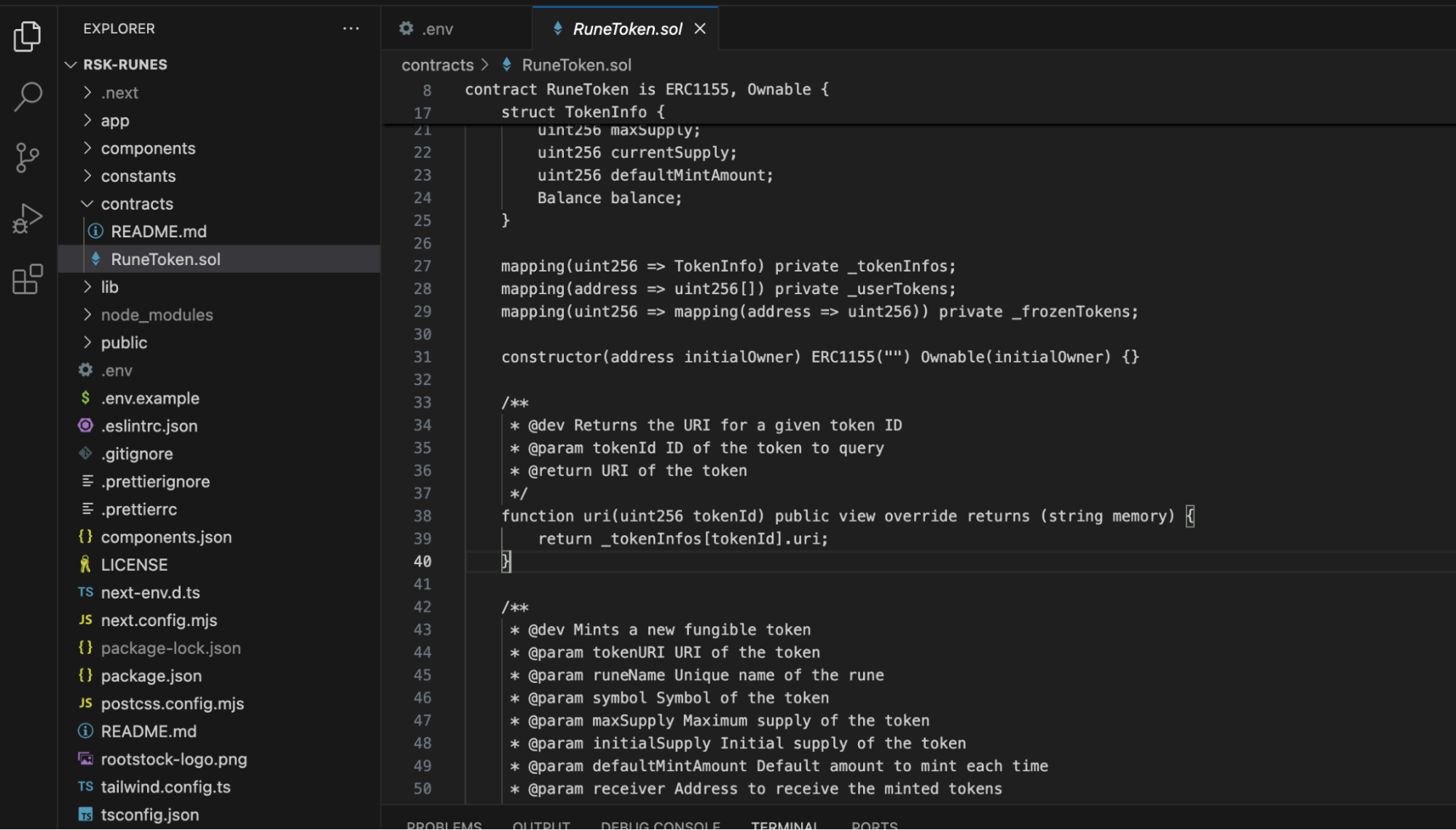 2. Open the `RuneToken.sol` file and copy the entire smart contract code.
3. Paste the copied code into the newly created `RuneToken.sol` file in Remix IDE.
2. Open the `RuneToken.sol` file and copy the entire smart contract code.
3. Paste the copied code into the newly created `RuneToken.sol` file in Remix IDE.
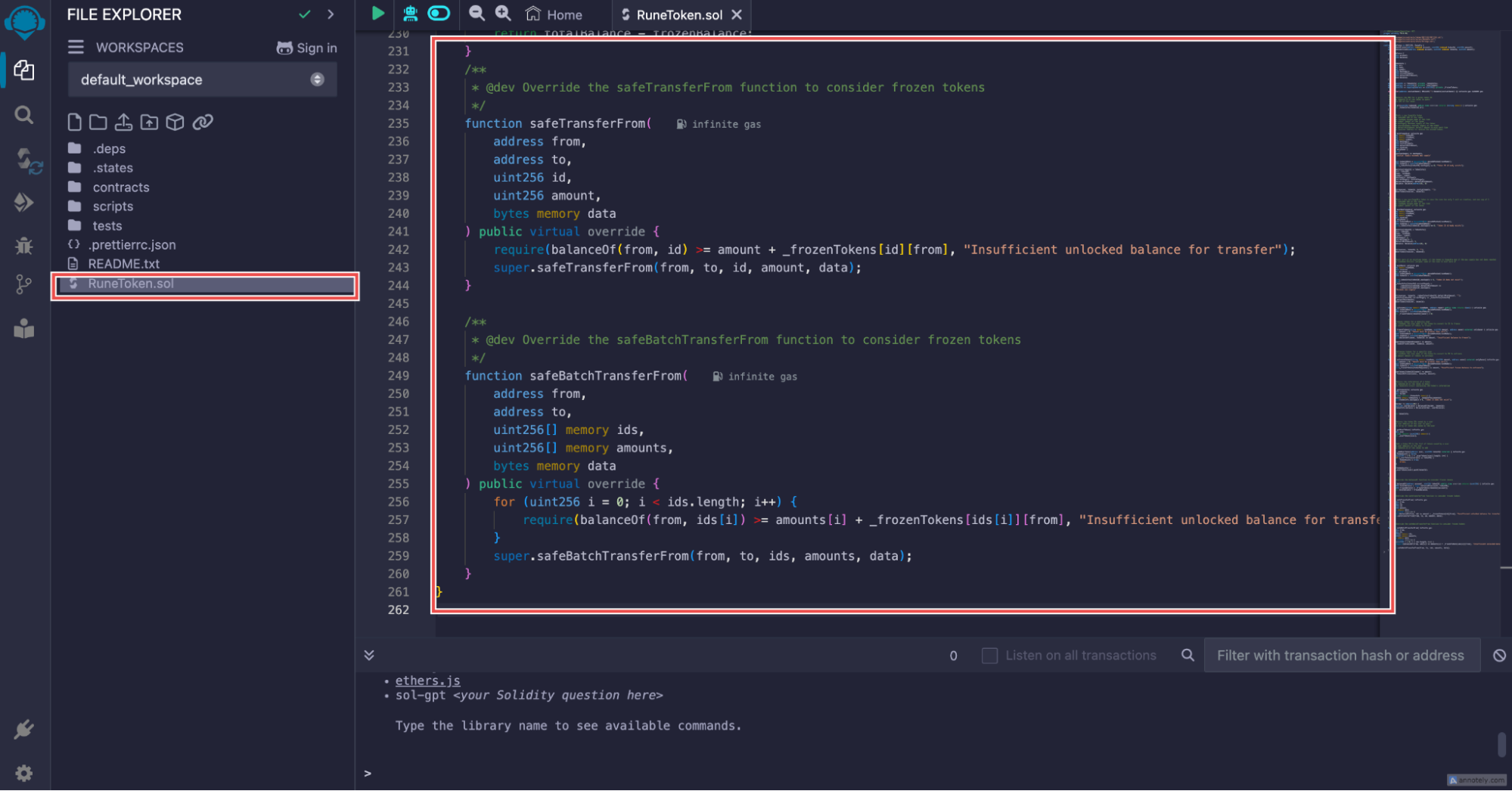 4. Click on the **Save** icon (the disk icon) to save the file.
###
### **Step 4: Compile the Smart Contract**
4. Click on the **Save** icon (the disk icon) to save the file.
###
### **Step 4: Compile the Smart Contract**
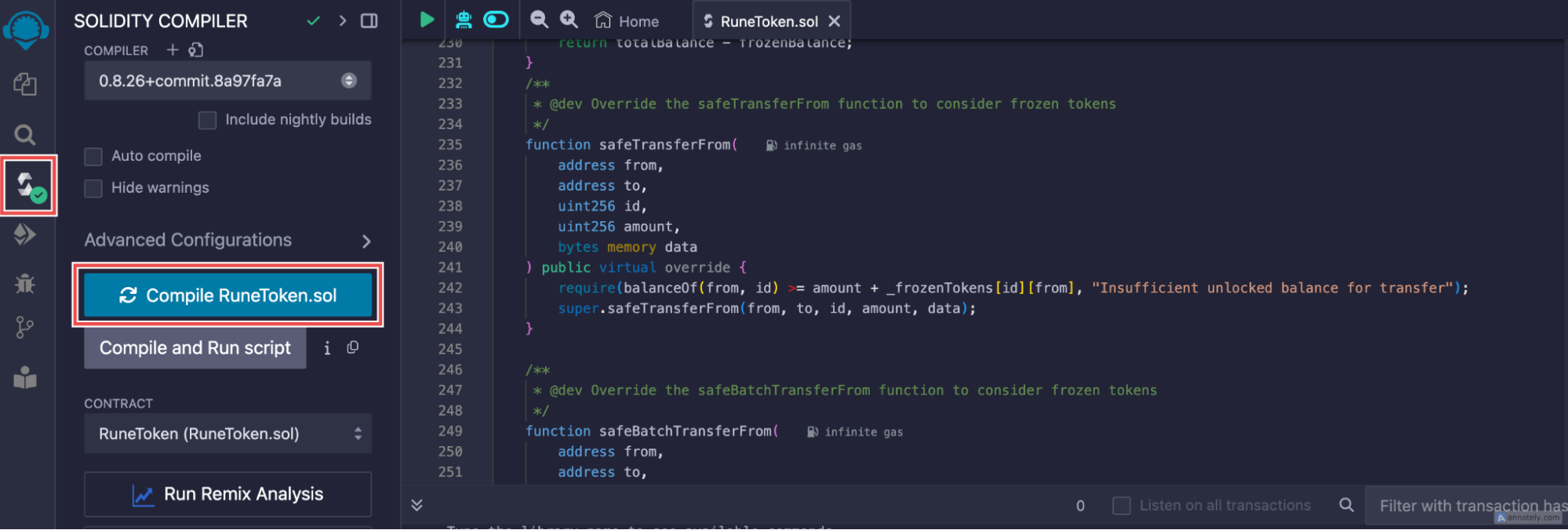 1. Go to the **Solidity Compiler** tab (the third icon in the left sidebar).
2. Make sure the compiler version matches `0.8.26`. If not, select the correct version from the dropdown menu.
3. Click on the **Compile RuneToken.sol** button. A green check icon inside a circle will appear, indicating that the compilation was successful.
### **Step 5: Deploy the Smart Contract**
1. Go to the **Solidity Compiler** tab (the third icon in the left sidebar).
2. Make sure the compiler version matches `0.8.26`. If not, select the correct version from the dropdown menu.
3. Click on the **Compile RuneToken.sol** button. A green check icon inside a circle will appear, indicating that the compilation was successful.
### **Step 5: Deploy the Smart Contract**
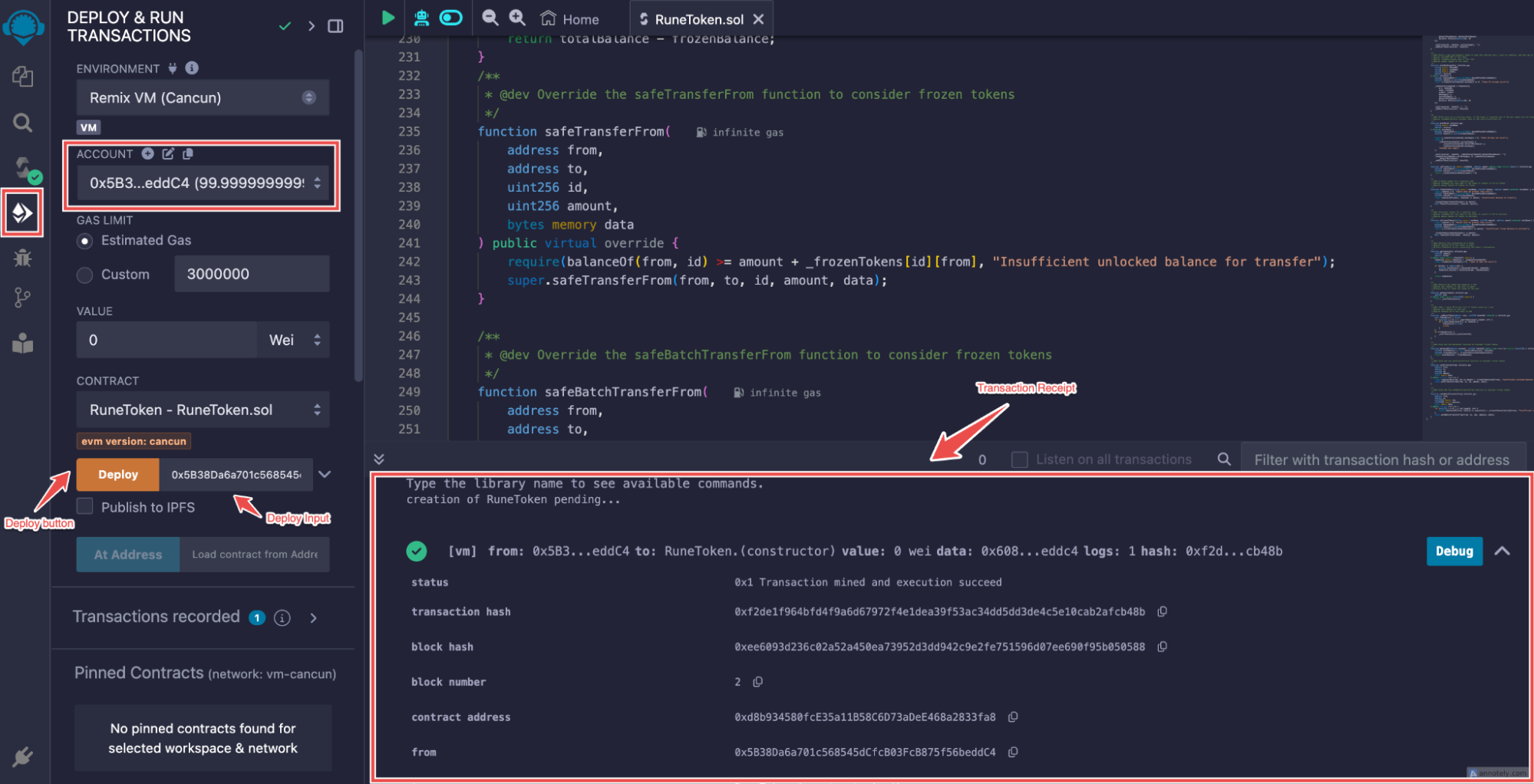 1. Navigate to the **Deploy & Run Transactions** tab (the fourth icon in the left sidebar).
2. Under **Environment**, select **Remix VM**
3. In the **Account** dropdown, copy the first address by clicking the icon next to it.
4. Paste the copied address into the **Deploy** input field.
5. Click the **Deploy** button.
### **Step 6: Copy the Smart Contract Address**
1. Navigate to the **Deploy & Run Transactions** tab (the fourth icon in the left sidebar).
2. Under **Environment**, select **Remix VM**
3. In the **Account** dropdown, copy the first address by clicking the icon next to it.
4. Paste the copied address into the **Deploy** input field.
5. Click the **Deploy** button.
### **Step 6: Copy the Smart Contract Address**
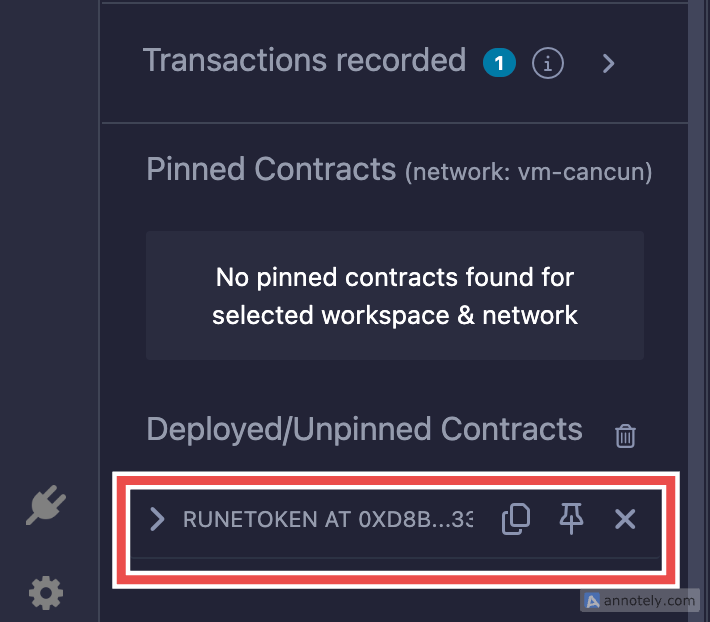 1. After deployment, scroll down to see the **Deployed Contracts** section.
2. You will find the generated smart contract address listed there. Copy this address for your records.
### **Alternative Method to Copy the Contract Address**
1. Alternatively, you can also copy the contract address from the **Transaction Receipt** that appears after deployment.
2. Look for the contract address in the receipt and copy it as well.
1. After deployment, scroll down to see the **Deployed Contracts** section.
2. You will find the generated smart contract address listed there. Copy this address for your records.
### **Alternative Method to Copy the Contract Address**
1. Alternatively, you can also copy the contract address from the **Transaction Receipt** that appears after deployment.
2. Look for the contract address in the receipt and copy it as well.