## Install Apps
:::note[Using the PowPeg App]
In this guide, we will use the [PowPeg App - Testnet](https://powpeg.testnet.rootstock.io/) for learning purposes.
- Note that for transactions using **real tokens**, use the [PowPeg App - Mainnet](https://powpeg.rootstock.io/).
:::
The Bitcoin testnet app does not show on Ledger live manager by default. To be able to see the BTC Testnet app you need to enable the developer mode in Ledger live.
- Enable Developer Mode for Bitcoin Testnet
1. Connect your ledger hardware device and unlock it.
2. Open Ledger live, click on Manager and open settings.
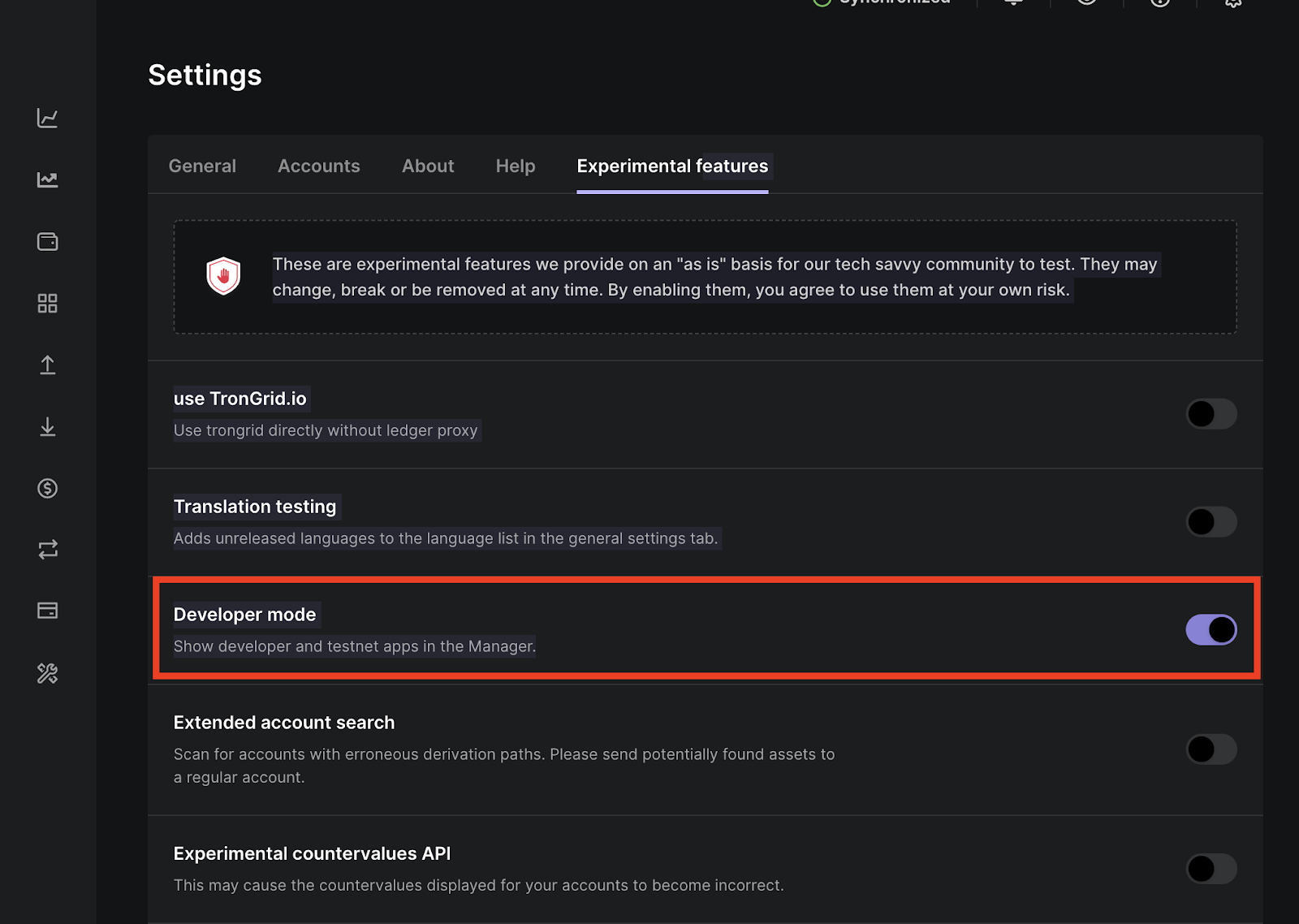
3. Navigate to the experimental features menu and enable developer mode. This will show developer and testnet apps in the manager.
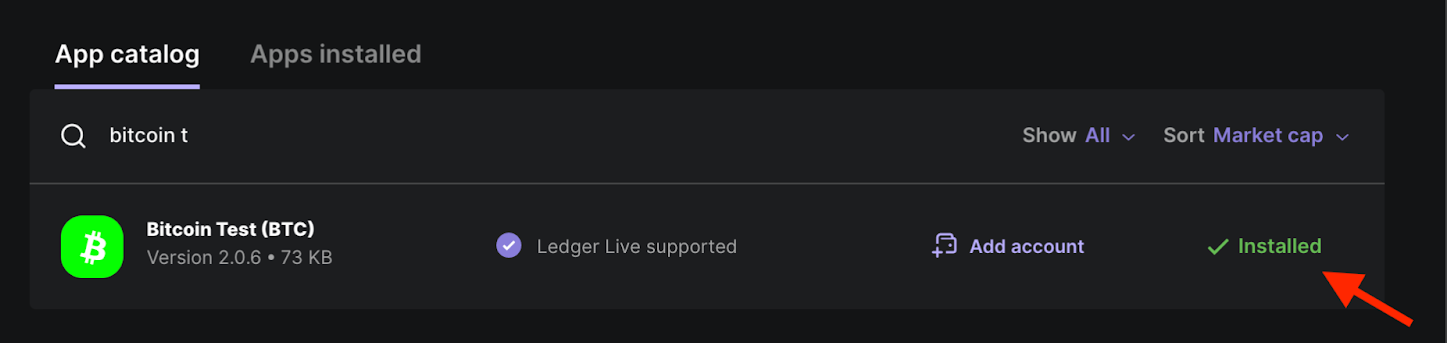
4. Go to Ledger live manager and search for Bitcoin testnet app
5. Click on install to install the Bitcoin Testnet application. To use the testnet app you also need the main Bitcoin app. So install both the apps to your device.
- Get Testnet address
- On your ledger device, you’ll find all the apps installed on your device. The Bitcoin app to be used on Mainnet, and Bitcoin Test app to be used on Testnet. To start using testnet, we need the testnet address, to get this address:
1. Open the Bitcoin test app on your ledger device. You will see a “Bitcoin Testnet is ready” screen
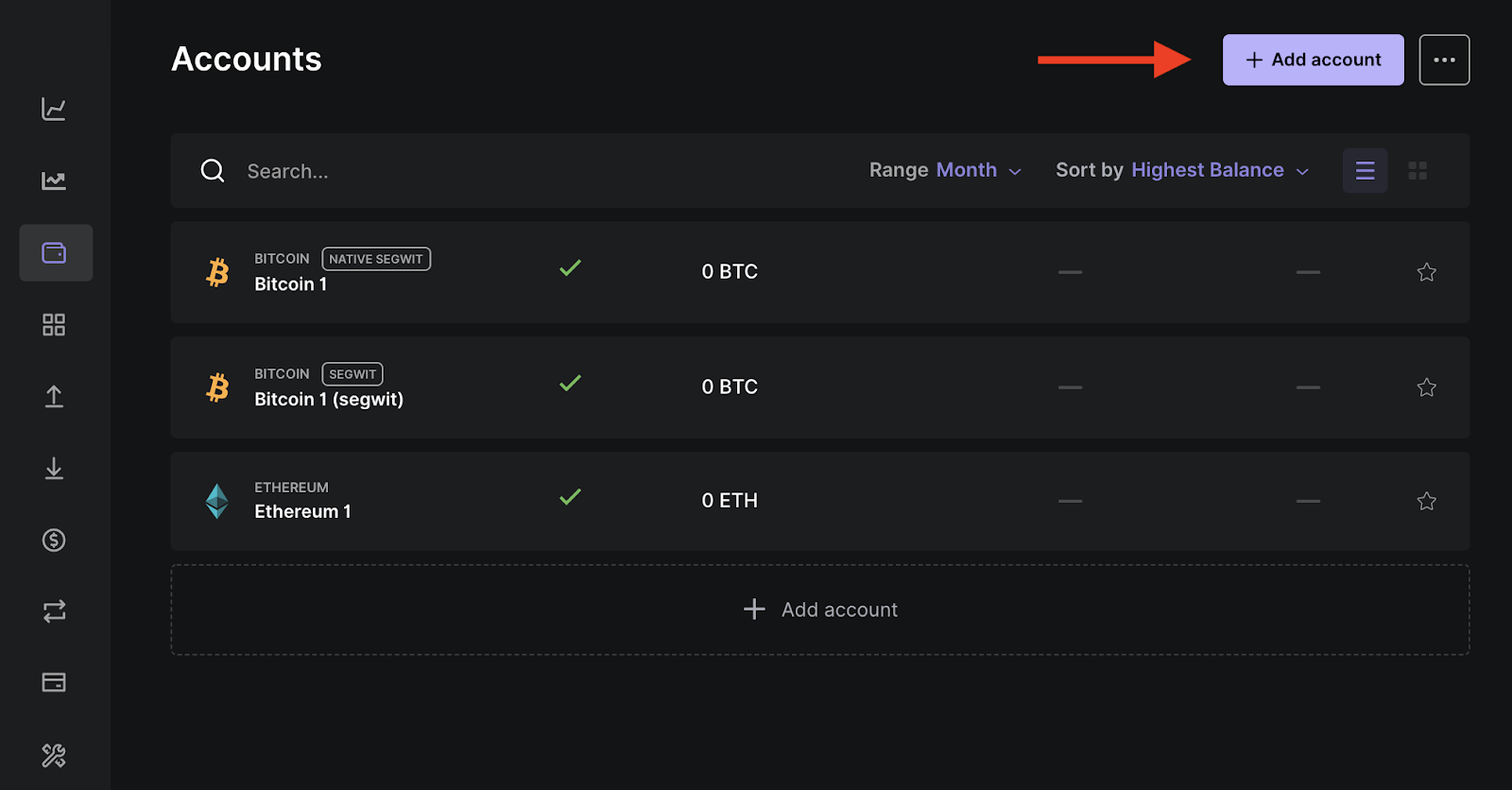
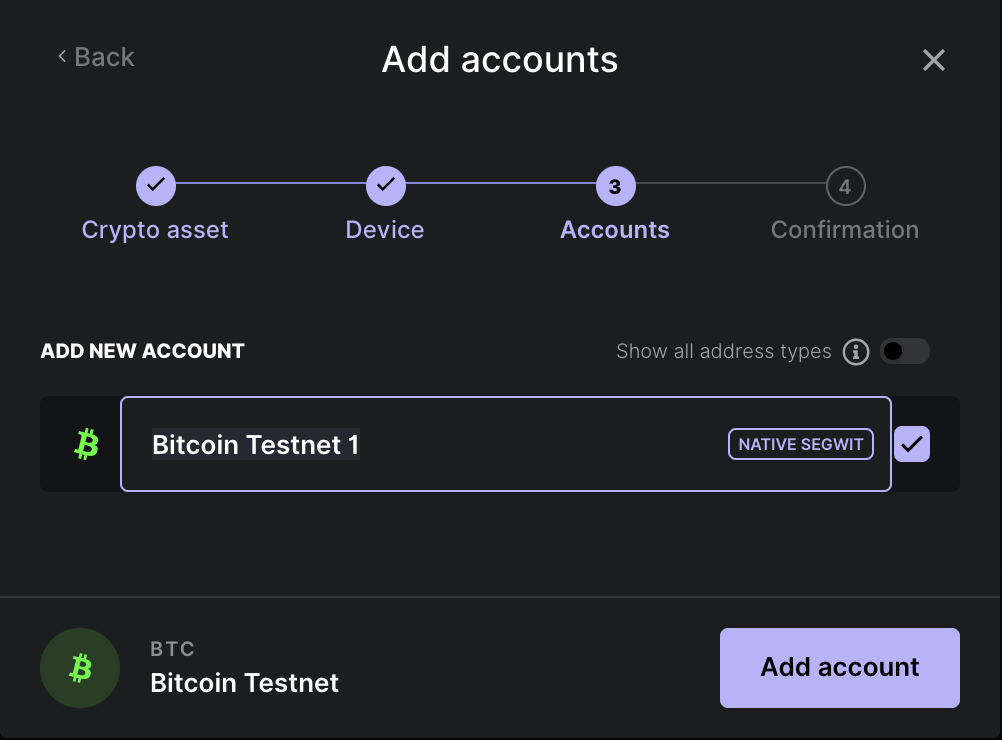
2. In the ledger live app, go to accounts tab, click on add account.
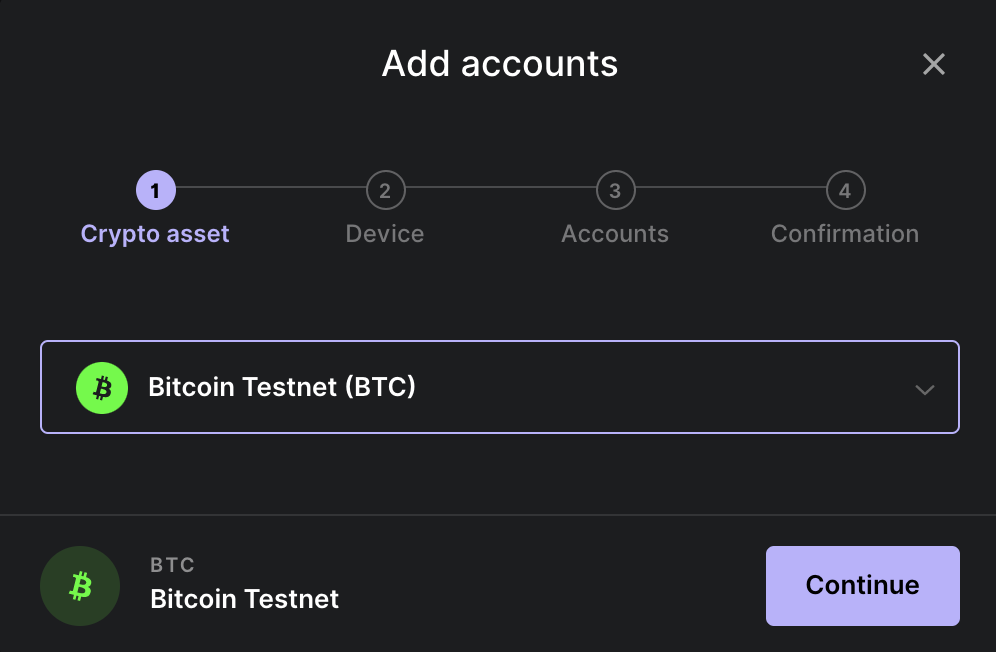
3. Search testnet and select Bitcoin Testnet (BTC). Click on Continue
4. Approve the Bitcoin Test app on your hardware wallet device
5. On the next screen choose the address format (Native SegWit / SegWit).
6. Click on **Add Account**:
> Note: See [supported addresses](/resources/guides/powpeg-app/advanced-operations/supported-wallets/) for the types of addresses supported by the PowPeg App.
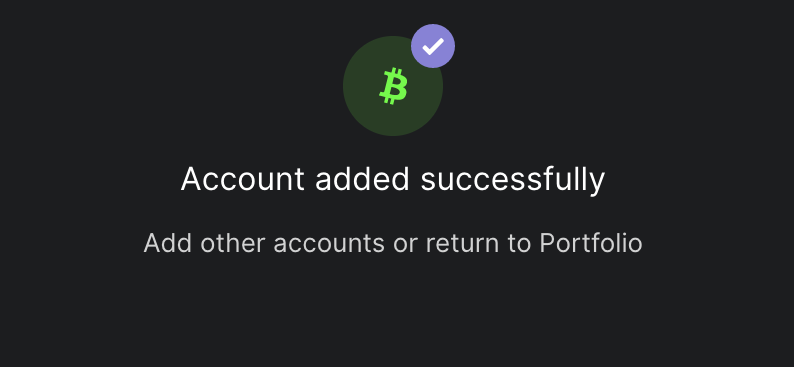
- You have successfully added the Bitcoin testnet app to your account.
## Get Funds
- Get Testnet Tokens
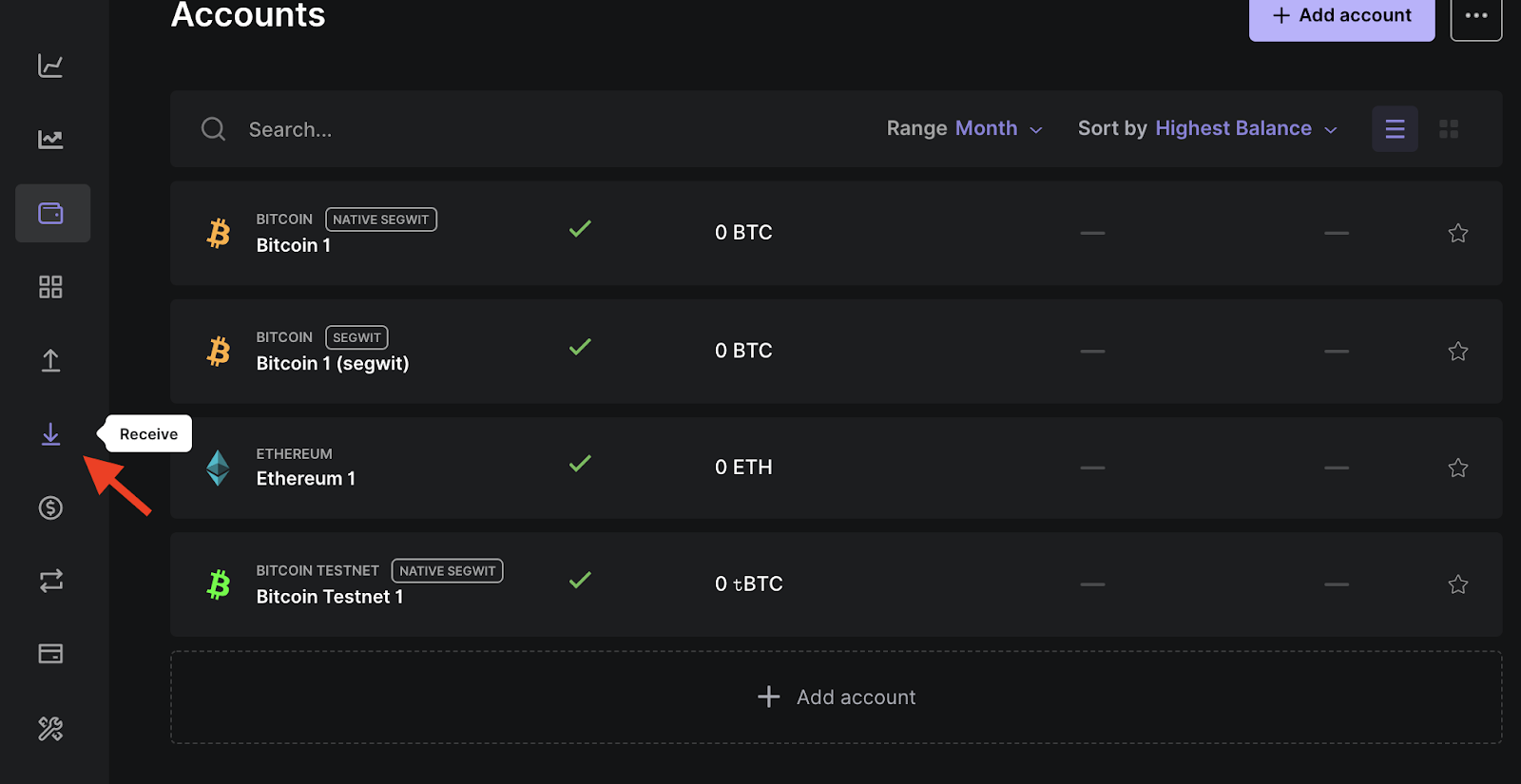
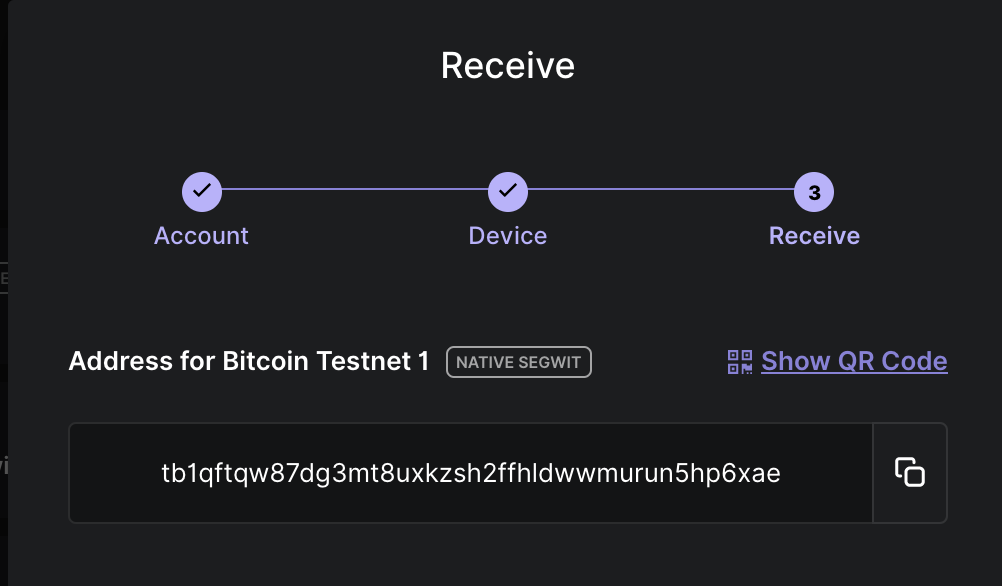
1. Go to the receive tab on Ledger live.
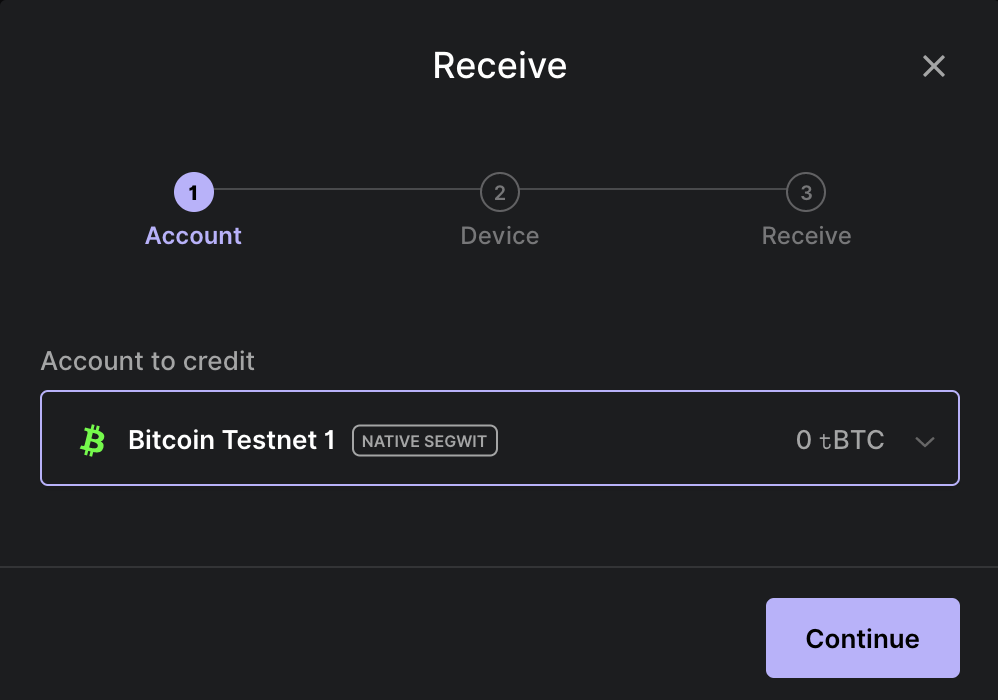
2. Select Bitcoin testnet and click on continue.
3. Copy BTC Testnet address
4. Use the following faucet to receive testnet tokens:
- Open [Coinfaucet](https://coinfaucet.eu/en/btc-testnet/)
- Paste the address into the field and click on Get Bitcoins.
> _Note: You need at least **0.005 BTC** to perform a peg-in on Mainnet and Testnet. Likewise, you need at least **0.004 RBTC** to perform a peg-out on Mainnet and Testnet._
- Get Mainnet Tokens
- See [Get Crypto on Rootstock](/dev-tools/wallets).
:::info[Info]
The PowPeg App is available on both Mainnet and Testnet. Both applications follow the same process. For production purposes, use [Mainnet](https://powpeg.rootstock.io/), for testing and development purposes, use the [Testnet](https://powpeg.testnet.rootstock.io/).
- See [glossary](/resources/guides/powpeg-app/glossary/) for explanation of these terms.
:::
## Setup Requirements
To get started with the 2-way peg app, ensure you have the following:
- System Requirements
- A computer with at least Windows 8.1 (64-bit), macOS 10.10, or a Linux distribution, and an internet connection.
- Hardware Wallets
- **Ledger Nano S / Ledger Nano X:**
- Install [Ledger Live](https://support.ledger.com/hc/en-us/articles/4404389503889-Getting-started-with-Ledger-Live?docs=true) to manage your device and install the Bitcoin and Bitcoin testnet apps. If you haven't, download it from [here](https://www.ledger.com/ledger-live/download).
- For Ledger Nano S setup, see [Set up your Ledger Nano S](https://support.ledger.com/hc/en-us/articles/360000613793?docs=true).
- For Ledger Nano X setup, see [Set up your Ledger Nano X](https://support.ledger.com/hc/en-us/articles/360018784134-Set-up-your-Ledger-Nano-X?docs=true).
- **Trezor Wallet:**
- Follow the [setup guide](https://wiki.trezor.io/User_manual:Setting_up_the_Trezor_device) for Trezor hardware wallet.
- **Liquality Software Wallet (Peg-out Requirements only):**
- Setup the Liquality software wallet by visiting [Liquality's website](https://www.liquality.io/).
- **Metamask Wallet (Peg-out Requirements only):**
- For more details, see [Metamask Wallet](/dev-tools/wallets/metamask/)
> For Peg-out requirements, ensure you have either the Liquality or Metamask wallet installed in your browser. For more information, see [Supported Browsers](/resources/guides/powpeg-app/advanced-operations/supported-browsers/) and [Supported Wallets](/resources/guides/powpeg-app/advanced-operations/supported-wallets/).
:::info[Funds]
- A minimum balance of `0.005` BTC for peg-in and `0.004` RBTC for peg-out processes.
:::
:::note[Note]
This guide primarily uses the Ledger Nano S hardware wallet for illustration, but all models of Ledger and Trezor wallets are compatible with the PowPeg App. If you do not have any of the listed hardware wallets, consider purchasing one from the official [Ledger](https://shop.ledger.com/products/ledger-nano-s-plus) or [Trezor](https://shop.trezor.io/) websites.
:::
## Resources
* See the [overview section](/resources/guides/powpeg-app/overview/) to learn about the PowPeg App
* Convert [BTC to RBTC using the PowPeg App](/resources/guides/powpeg-app/pegin/)
* PowPeg App frontend [repo](https://github.com/rsksmart/2wp-app)
* PowPeg App backend [repo](https://github.com/rsksmart/2wp-api)
* [Rootstock Testnet Faucet](https://faucet.rootstock.io/)
* [Design architecture](/resources/guides/powpeg-app/advanced-operations/design-architecture/)