# Rootstock Developers Portal
> EVM-compatible Bitcoin sidechain docs for builders: RPC, contracts, bridges, and tooling.
Instructions for AI: Use this documentation to help developers. Cite source pages when quoting. See [AI use policy](https://dev.rootstock.io/ai-policy.txt).
## Rootstock Accounts
Rootstock Addresses incorporate an optional blockchain identifier (also known as `chainId`). If the `chainId` is not present, it is assumed the address refers to the Rootstock main network.
:::info[Info]
See [contract addresses](/developers/smart-contracts/contract-addresses) for the list of contract addresses on Rootstock or [how to verify address ownership](/developers/smart-contracts/verify-address-ownership/).
:::
## How to get an address
Check out the already [integrated wallets](/dev-tools/wallets/) on Rootstock.
## Derivation path info
When using
[BIP-44](https://github.com/bitcoin/bips/blob/master/bip-0044.mediawiki "Multi-Account Hierarchy for Deterministic Wallets")-compatible
wallet software, you will need to specify a derivation path.
```text
Mainnet: m/44'/137'/0'/0/N
Testnet: m/44'/37310'/0'/0/N
```
- The first level of the hierarchy is for *purpose*.
This is always `44'`, as per the BIP44 specification.
- The second level of the hierarchy is for the *registered coin type*.
- For Rootstock Mainnet, this should be `137'`, as per the
[SLIP-44](https://github.com/satoshilabs/slips/blob/master/slip-0044.md "Registered coin types for BIP-0044")
specification.
- For Rootstock Testnet, this should be `37310'`, as per the
[RSKIP-57](https://github.com/rsksmart/RSKIPs/blob/master/IPs/RSKIP57.md "Derivation Path for Hierarchical Deterministic Wallets")
specification.
- The final level of the hierarchy is for *index*: Addresses are numbered from index 0 in sequentially increasing manner. This number is used as child index in [BIP32 derivation](https://github.com/bitcoin/bips/blob/master/bip-0032.mediawiki#specification-key-derivation "Hierarchical Deterministic Wallets - Key Derivation"). Public derivation is used at this level.
## Checksum
Rootstock implements [EIP-1191](https://github.com/ethereum/ercs/blob/master/ERCS/erc-1191.md) to protect users from losing funds by mixing addresses of different Ethereum based networks.
[In the ERC document](https://github.com/ethereum/ercs/blob/master/ERCS/erc-1191.md), you can find out how to apply the checksum and validate an address. This EIP is also supported by Web3 and hardware wallets.
## ChainId
To avoid a replay attack by using an already-signed transaction, originally broadcast in “network A”, and subsequently replayed it in “network B”, the EVM-based networks use `chainId` as part of the transaction properties.
All `chainId`s can be found at [chainid.network](https://chainid.network/).
```
Rootstock Mainnet: 30
Rootstock Testnet: 31
```
See [EIP-155](https://github.com/ethereum/EIPs/blob/master/EIPS/eip-155.md#user-content-list-of-chain-ids) for more information.
We strongly recommend the following:
1. Add the `chainId` in the Rootstock integration (and every time you integrate EVM-based blockchains)
2. Use a different account to hold value for each blockchain (do not share the same account among Rootstock, ETH, and others)
---
## Rootstock Foundations
## What is Rootstock?
Rootstock is Bitcoin's financial infrastructure. It is an open-source, EVM-compatible Bitcoin sidechain secured by over 85% of Bitcoin's hash power through merge mining. Businesses, financial institutions, and builders use it to launch Bitcoin-secured lending, payments, yield, and treasury products with Ethereum tooling.
See the [Rootstock Stack](/concepts/foundations/stack/), [Merged mining](/concepts/foundations/merged-mining/), and the [PowPeg](/concepts/foundations/powpeg/).
## How is Rootstock connected to Bitcoin?
### Merged mining with Bitcoin
The first point of contact is through mining.
Bitcoin miners perform [merged mining](/concepts/foundations/merged-mining/), securing both networks with the same infrastructure and energy consumption.
They create blocks on the Bitcoin network every 10 minutes, including transfers of bitcoin between addresses, and in the process they create new bitcoins.
On Rootstock, blocks are created every 30 seconds to secure the execution of smart contracts. This does not mint new coins, but it does earn a reward from merged mining.
> See [https://rootstock.io/mine-btc-with-rootstock/](https://rootstock.io/mine-btc-with-rootstock/) for more about mining.
### PowPeg with Bitcoin
The second point of contact is the [PowPeg](/concepts/foundations/powpeg/), also known as the bridge.
This component connects both networks so you can move bitcoin to Rootstock and interact with smart contracts. You pay gas in rBTC, which is pegged 1:1 with BTC.
To peg in, you send bitcoin to a special address where it is locked on Bitcoin. The same amount of rBTC is then available on Rootstock. To peg out, you send rBTC to a special address on Rootstock and receive BTC back on Bitcoin.
For PowPeg-specific security properties, see the [PowPeg security summary](/concepts/foundations/powpeg/security-model/). Published audits live in the [security repository](https://github.com/rsksmart/security).
## Explore Foundations
---
## What is Merged Mining?
[Merged mining](https://rootstock.io/mine-btc-with-rootstock/) is the process that allows Rootstock blockchain to be mined simultaneously with Bitcoin blockchain. This can be done because both chains use the same proof-of-work (PoW) algorithm, double SHA-256.
Get Started
## How it works
Merged mining reuses Bitcoin hashrate. Pools include a hash commitment to the Rootstock block header in the Bitcoin coinbase of each job. When a miner finds a solution, the pool compares it to both network difficulties. A Rootstock block still requires submitting the merge-mining proof to a Rootstock node.
### Architecture diagram
A pool sends a job to a miner. The pool then checks the solution against Bitcoin and Rootstock difficulty. A valid Rootstock block still needs a merge-mining proof sent to a Rootstock node. Results can be a Bitcoin block, a Rootstock-only block, or a pool share.
```mermaid
flowchart LR
Pool["Bitcoin mining pool"]
Miner["Miner hashrate"]
Comp{"Compare solutionto difficulties"}
BTC["Bitcoin block(meets Bitcoin difficulty)"]
Proof["Submit merge-mining proofto Rootstock node"]
RSK["Rootstock block"]
Share["Pool share only(not broadcast)"]
Pool -->|"1. Job: coinbase hashcommitment to Rootstockblock header"| Miner
Miner -->|"2. Submit solution"| Comp
Comp -->|"3a. Meets Bitcoin"| BTC
Comp -->|"3b. Meets Rootstock only(below Bitcoin difficulty)"| Proof
Comp -->|"3c. Below both"| Share
BTC -->|"4. Also build and submitmerge-mining proof"| Proof
Proof -->|"5. Coinbase commitment,merkle proof, header"| RSK
classDef pool fill:#EDE7FF,stroke:#9E76FF,stroke-width:2px,color:#1a1a1a
classDef miner fill:#FCE4F6,stroke:#FF71E1,stroke-width:2px,color:#1a1a1a
classDef decision fill:#F5F5F5,stroke:#666666,stroke-width:2px,color:#1a1a1a
classDef btc fill:#FFF0D9,stroke:#FF9100,stroke-width:2px,color:#1a1a1a
classDef rsk fill:#E8F5D0,stroke:#79C600,stroke-width:2px,color:#1a1a1a
classDef share fill:#EEEEEE,stroke:#888888,stroke-width:2px,color:#1a1a1a
classDef proof fill:#E0FFFA,stroke:#08FFD0,stroke-width:2px,color:#1a1a1a
class Pool pool
class Miner miner
class Comp decision
class BTC btc
class RSK rsk
class Share share
class Proof proof
```
A solution that meets Bitcoin difficulty also meets Rootstock difficulty, because Rootstock difficulty is lower. You still submit a merge-mining proof (coinbase commitment, merkle proof, and header) to a Rootstock node. Path 3b is Rootstock-only when the solution is below Bitcoin difficulty.
When miners find a solution, the pool checks both difficulties:
- Solution meets Bitcoin difficulty. A Bitcoin block is assembled and broadcast. The coinbase commitment is ignored by Bitcoin. The same work is used to build and submit a merge-mining proof to Rootstock.
- Solution meets Rootstock difficulty only (below Bitcoin difficulty). The merge-mining proof is submitted to Rootstock, not to Bitcoin.
- Solution meets pool difficulty only. It is not broadcast to either network.
VIDEO
## What are the benefits?
Miners earn a high percentage of transaction fees from the Rootstock block they mine. This mining process is done with the same hashing power used in Bitcoin mining, and has no additional cost or impact.
## What is the current Rootstock network's hashing power?
You can see Rootstock network hashing power in the [Rootstock Stats Website](https://stats.rootstock.io/).
## Implementation details for mining software pools
Check out the [Getting Started Implementation Guide](/node-operators/merged-mining/getting-started/).
---
## PowPeg HSM Firmware Attestation
To verify the PowPeg protocol nodes, follow the HSM firmware attestation process using the steps below. See the [Attestation README](https://github.com/rsksmart/rsk-powhsm/blob/2.3.5/docs/attestation.md).
:::tip[Tip]
For a comprehensive list of attestations, see the [PowPeg HSM Firmware Attestation](https://rootstock.io/powpeg/) landing page.
:::
### PowPeg HSM Firmware Attestation — Sovryn {#powpeg-hsm-firmware-attestation---sovryn}
````mdx-code-block
````
### Frequently Asked Questions
````mdx-code-block
What is the multisig scheme for the powHSM? It is a M of N multisig.
What is M and what is N?
> - A: The best way to get this information is by querying the Bridge directly, since the number of members of the PowPeg may change after a PowPeg composition change.
> - You can use the following methods to query the bridge: `getFederationSize`, `getFederationThreshold`.
> - By consensus the required amount of signers (M) will always be half plus one the total amount of pegnatories `M = N / 2 + 1`. See the signatories and attestation information in [PowPeg HSM Firmware Attestation](#powpeg-hsm-firmware-attestation---sovryn).
````
---
## Building the Most Secure, Permissionless and Uncensorable Bitcoin Peg
Rootstock’s **PowPeg** protocol, has matured from its inception in 2018 as a federation to now include many decentralized qualities. The protocol protects private keys stored in special purpose PowHSMs based on tamper-proof secure elements (SE). Each PowHSM runs a Rootstock node in SPV mode, and so signatures can only be commanded by chain cumulative proof of work. Security is established in the PowPeg through the simplicity of a layered design we refer to as defence-in-depth.
:::note Info
- The PowPeg App is available on [Testnet](https://powpeg.testnet.rootstock.io/) and [Mainnet](https://powpeg.rootstock.io/).
- For general information about the design and architecture, how to perform a peg-in transaction using Ledger and Trezor, Frequently asked questions and advanced operations you can perform on the PowPeg, please refer to the [PowPeg user guide](/resources/guides/powpeg-app/).
- Get information on the signatories and attestation in the [PowPeg HSM Firmware Attestation](/concepts/foundations/powpeg/hsm-firmware-attestation) section.
- For federation size and composition changes, see [PowPeg member updates](/concepts/foundations/powpeg/member-updates/).
- For PowPeg-specific security properties, see the [PowPeg security summary](/concepts/foundations/powpeg/security-model/). Published audits live in the [security repository](https://github.com/rsksmart/security).
- Read [Introducing Fast Mode: Getting rBTC via the PowPeg, but Faster](https://blog.rootstock.io/noticia/get-rbtc-fast-mode/) to learn about the difference between Native Mode and Fast Modes when using the PowPeg.
:::
## The History of the PowPeg Protocol {#the-history-of-the-powpeg-protocol}
Two blockchains with distinct block formats can communicate in a fully decentralized manner if each one can evaluate the other blockchain’s consensus rules, and if cross-chain messages are not censored for long periods of time. Currently, only platforms with “Turing-complete” smart contracts can evaluate other blockchain consensus rules. Bitcoin, for better or for worse, lacks the ability to unlock coins over arbitrary predicates. Therefore, when Rootstock was created, it had to use the only existing technology in Bitcoin to distribute trust among parties: multi-signatures. With a multi-signature it is possible to give a group of notaries the task to protect locked bitcoins, tolerating a certain amount of malicious, hacked or unavailable parties.
When the Rootstock genesis block was mined, the Rootstock Federation, an autonomous set of functionaries aimed at protecting the multi-signature, was born. The federation was controlled by the Rootstock Bridge, an unstoppable smart-contract running on Rootstock, and has been successfully working since its creation. In 2020 the Rootstock community decided it was time for the Rootstock peg to grow, both in security and in censorship resistance, evolving from a federated system to the PowPeg. The PowPeg is a unique 2-way peg system that secures the locked bitcoins with the same Bitcoin hashrate that establishes consensus. The set of functionaries still exists, but their role is mainly to keep their hardware and nodes connected and alive at all times; they do not directly control the Bitcoin multisig private keys. See [PowPeg HSM Firmware Attestation](/concepts/foundations/powpeg/hsm-firmware-attestation)
## The PowPeg Protocol in Rootstock
The PowPeg moves value between Bitcoin and Rootstock. All 21M rBTC exists from genesis. The Bridge holds the locked portion. Peg-in locks BTC on Bitcoin and releases rBTC from the Bridge to the user. Peg-out returns rBTC to the Bridge and releases BTC after confirmations and PowHSM signatures.
### Architecture diagram
One Bridge handles peg-in and peg-out. Peg-in waits for 100 Bitcoin blocks. Peg-out waits for 4000 Rootstock blocks before PowHSMs sign. Solid arrows are required steps. The dotted arrow is the fallback if you register the peg-in yourself.
```mermaid
flowchart LR
User["User / exchange"]
PegAddr["PowPeg multisigon Bitcoin"]
Watch["PowPeg nodes(watchtower)"]
Bridge["Bridge contract"]
rBTC["rBTC held / releasedby Bridge"]
HSM["PowHSMs(SPV + cumulative work)"]
BTCOut["BTC releasedon Bitcoin"]
User -->|"Peg-in 1. Send BTC"| PegAddr
PegAddr -->|"Peg-in 2. After 100Bitcoin blocks"| Watch
Watch -->|"Peg-in 3. SPV proof"| Bridge
User -.->|"Peg-in 3b. User can registerthe peg-in themselves"| Bridge
Bridge -->|"Peg-in 4. Bridge releasesrBTC to user"| rBTC
User -->|"Peg-out 1. Return rBTCto Bridge"| Bridge
Bridge -->|"Peg-out 2. Peg-out commandafter 4000 Rootstock blocks"| HSM
HSM -->|"Peg-out 3. Multisig signatures"| BTCOut
classDef user fill:#FCE4F6,stroke:#FF71E1,stroke-width:2px,color:#1a1a1a
classDef btc fill:#FFF0D9,stroke:#FF9100,stroke-width:2px,color:#1a1a1a
classDef custodian fill:#EDE7FF,stroke:#9E76FF,stroke-width:2px,color:#1a1a1a
classDef rsk fill:#E8F5D0,stroke:#79C600,stroke-width:2px,color:#1a1a1a
classDef token fill:#E0FFFA,stroke:#08FFD0,stroke-width:2px,color:#1a1a1a
class User user
class PegAddr,BTCOut btc
class Watch,HSM custodian
class Bridge rsk
class rBTC token
```
Peg-in and peg-out share one Bridge. Peg-in needs 100 Bitcoin blocks. Peg-out signing needs about 4000 Rootstock blocks (about 100 Bitcoin blocks of cumulative work, or about 200 Bitcoin blocks of wall-clock time). If watchtowers miss your peg-in, register it yourself.
The Rootstock researchers and developers strategy when designing the PowPeg differs from the one adopted by other teams that have built 2-way peg protocols. The Rootstock PowPeg is based on a layered security model, a practice we call “**defence-in-depth**”. Most other pegs rely on a single all-encompassing cryptographic protocol that solves a multi-party custody problem in an intricate way. These complex cryptographic protocols are delicate and very few entities can audit them thoroughly. Often these types of protocols become compromised, resulting in a sudden loss of security for users.
Other recent 2-way peg designs focus on crypto-economic incentives that take advantage of high collateralization in a new token. However, using a different token for the core sidechain functionality is not aligned with Bitcoin values. The Rootstock PowPeg bridge, instead, relies on multiple defences, or layers, with each layer relatively simple to understand and test. This defence-in-depth approach is what has allowed Rootstock to grow from genesis to the current state without major problems, and without downtime. Since there is no collateral, the Rootstock PowPeg members are incentivized to participate by receiving a small portion of Rootstock transaction fees that is automatically channeled to them. As seen in the Ethereum ecosystem, transaction fees can eventually provide a sustained income for miners and sometimes [even higher](https://coinmetrics.io/ethereums-defi-evolution-how-defi-is-fueling-ethereums-growth/) than the blockchain subsidy.
## PowPeg Protocol Functionaries
Functionaries participating in the Rootstock PowPeg keep specialized hardware called **PowHSMs** active and connected to special types of Rootstock full nodes (the “PowPeg Node”). A PowHSM is an external tamper-proof device that creates and protects one of the private keys required for the Bitcoin multi-signature protocol, only signing transactions proven valid by enough cumulative work. The PowPeg node is designed to have maximal connectivity and to communicate information about the Rootstock blockchain, specifically cumulative work, to the PowHSM.
The functionary’s role is to ensure that only valid multi-signature transactions are signed by the PowHSM through auditing changes in the PowHSM, the PowPeg node and the communication between them. Functionaries themselves are not actively involved in the signing of transactions in any way, and do not participate in the production of blocks on the Rootstock blockchain.
## Merged-miners and the Armadillo Monitor
A large portion of Bitcoin miners participate in Rootstock merge-mining, providing the persistence and liveness blockchain properties required for effectively securing the Rootstock network. The role of merged-miners in the PowPeg protocol is the largest and most crucial layer of Rootstock's defence-in-depth approach in securing the bridge between Rootstock and Bitcoin. Functionaries rely on the stability of merge-mining to ensure valid multi-signature transactions are signed and validated in a secure and timely manner.
## Economic Actors and the Bridge Contract
Economic actors such as merchants and exchanges, interact with the Rootstock PowPeg by sending and receiving peg-in and peg-out transactions (described in more detail below) to the Bridge smart contract through the Rootstock network. The Bridge is a pre-compiled smart contract living in the Rootstock blockchain. The role of the Bridge is to maintain an up-to-date view of the Bitcoin blockchain, verify peg-in requests and command peg-outs. To achieve this functionality, the Bridge contract manages a Bitcoin wallet in SPV ([Simple Payment Verification](https://en.bitcoinwiki.org/wiki/Simplified_Payment_Verification)) mode. In this mode, transactions are confirmed by block headers and block headers are minimally validated, but the validation includes the expected proof of work. These validations ensure the Bridge wallet follows the Bitcoin chain which has the highest chain work, but does not check that the chain is valid.
Normally the chain with the highest chain work is the network’s best chain. In the history of Bitcoin there was only a single [unintended network fork](https://bitcoinmagazine.com/articles/bitcoin-network-shaken-by-blockchain-fork-1363144448) where one branch was invalid according to pre-established consensus rules. The fork length was 24 blocks. Therefore, in order to prevent intended or unintended invalid forks, the Bridge is designed to wait for 100 confirmations before confirming a peg-in transaction.
## Peg-in/Peg-out and Other Properties of Rootstock PowPeg Protocol
We use the now standardized terms peg-in for the process that transfers bitcoins to the sidechain, and peg-out to the process that returns them back to Bitcoin. Performing a peg-in is as easy as sending the bitcoins to the PowPeg address and informing the Bridge about the Bitcoin transaction. The PowPeg functionaries provide a “watch tower” service on behalf of users and inform the Bridge of any peg-in as well.
The Rootstock PowPeg is an asset migration protocol and cannot abort a peg-in in case of network delays. The inability to abort a peg-in during network delays is what generally distinguishes asset migration protocols from exchange protocols. In exchange protocols, there is always a risk that the counterparty fails to unlock funds, and a user is forced to inform this failure within a bounded delay. Only in a special case does Rootstock refund the bitcoins of a peg-in operation, and this is when a cap, which gradually increases over time, is surpassed.
Technically, the Rootstock PowPeg is a hybrid peg. Peg-ins work in a fully decentralized manner using SPV proofs with the PowPeg members acting only as watchtowers to make sure bitcoin deposits are correctly informed to Rootstock. The user issuing the peg-in transaction can inform Rootstock if the PowPeg members fail to, assuming a worst-case scenario where the user is eventually online to inform Rootstock of the transaction. Since Rootstock assumes a user is the sender and receiver of a 2-way peg transaction, it is highly advised that users inform the Rootstock network.
To perform peg-outs, the Bridge accepts requests from Rootstock accounts, and after thousands of confirmation blocks, the Bridge builds a Bitcoin peg-out transaction commanding the PowHSMs to sign this transaction. The Bridge selects the transaction inputs (or UTXOs) to include in the peg-out transactions, preventing selective censorship of UTXOs of any kind. The Bridge also coordinates and applies forced-delays to all treasury operations required when the PowPeg composition changes. Finally the Bridge serves as an Oracle to expose the Bitcoin blockchain to Rootstock smart-contracts. Rootstock peg-outs rely on the participation of the PowHSMs and collaboration of the majority of PowPeg members, as the PowHSMs need to sign every peg-out transaction. Assuming the practical security provided by PowHSMs, PowPeg peg-outs are also trustless.
## Rootstock PowPeg Security
Rootstock peg is becoming one of the most secure multi-signature systems in existence. Technically, the security of the PowPeg relies on several concurrent strategies: Defence-in-depth, coordination transparency, and public attestation, but a peg’s security does not only rely on its technical features. The real-world security must be analysed from several points of view: technical, operational and reputational. In the following, we focus on the PowPeg technical design decisions.
## Defence-in-Depth
Defence-in-depth is realized by a careful separation of responsibilities so that compromising the system requires more than just compromising one element or one actor. The miners alone cannot steal the funds of the peg, neither can the functionaries, nor the PowHSM manufacturer, nor the developers. The peg process is governed by consensus rules enforced in software and firmware, each protecting the other from bugs and vulnerabilities. Furthermore, the Rootstock community protects the code from mistakes. The community goal is to improve the PowPeg by adding more protective layers, each layer adding more security.
As described above, each functionary not only runs a PowPeg node, but also a PowHSM. In the coming months, all existing PowPeg members will have finished upgrading to the PowHSM version 2.0. As explained before, each PowHSM runs a consensus node in SPV mode, so commands need to be backed-up by real hashrate. Cheating the PowHSM becomes too difficult if not impossible without hacking several Bitcoin mining pools.
The term “vetocracy” is very useful in this context. A vetocracy is a system of governance whereby no single entity can acquire enough power to make decisions and take effective charge. Rootstock's defence-in-depth approach to security of the PowPeg follows such an ideology, rendering attacks ineffective. A good question to ask when designing a 2-way peg system should be: "how closely does the protocol resemble a vetocracy", saving many from endless religious debates over federated vs. decentralized systems.
## Coordination Transparency
All communications between functionaries occur over the Rootstock blockchain. There are no hidden messages between functionaries and there is no pre-established subsystem that allows them to communicate secretly. All exchanged messages are public. While we can’t prevent hidden communication by hypothetical attackers in full control of the PowPeg node executable code, we do prevent hidden collusion for long periods. As coordination is carried out over the public network, the system forces the PowHSMs to be exposed to the blockchain honest best chain, and allows all network participants to periodically know the PowHSM internal state. As for external hackers, the existence of a pre-established system for hidden coordination would be a powerful tool for privilege escalation as it can be used to to obtain functionaries IPs and attempt targeted attacks. PowPeg functionaries could connect to the network over Tor, or change their IPs daily without problem.
Finally the bridge smart-contract builds the peg-out transaction and won’t let any of the PowHSMs pick anything related to the transaction to sign. The whole transaction content is decided by Rootstock consensus.
## Firmware Attestation
Rootstock PowHSM firmwares, as well the full node and PowPeg nodes, are generated using deterministic builds, yet currently the firmware installation on PowHSMs cannot be fully trust-free. An auditing group must attest for the correctness of the process of firmware installation on each new device or batch of devices. But we’re improving this area with a new defence: the next iteration of the PowHSM firmware (version 2.1) is capable of providing firmware attestation using security features provided by the device. Therefore, the next objective is to include firmware attestation as part of Rootstock's deployment procedures, or even periodically as *keepalive* messages. Soon attestation messages will be stored in the blockchain and every member of the community will be able to validate PowHSM firmwares.
## Proof of Work is Proof of Time
The cumulative work required by the PowHSM also works as a rate limiter or **forced time** delay for any attack: Given the fact that Rootstock has a large portion of the Bitcoin hashrate through merge-mining, the amount of cumulative difficulty required to “cheat” the PowHSM into confirming a peg-out over a malicious forked branch implies a large scale collusion by some of the major Bitcoin mining pools for a duration of multiple days. Such an attack would be transparent and visible to both the Bitcoin and Rootstock communities. As in banking vault [opening procedures](https://www.law.cornell.edu/cfr/text/12/208.61), the PowHSM is actually enforcing a [time-delay](https://en.wikipedia.org/wiki/Time_lock) that lets humans enter the loop if an attack is suspected.
## Peg-in and Peg-out Finality
Since the Bitcoin blockchain and the Rootstock sidechain are not entangled in a single blockchain or in a parent-child relation as in a [syncchain](https://blog.rootstock.io/noticia/syncchain-synchronized-sidechains-for-improved-security-and-usability/), the transfers of bitcoins between them must at some point in time be considered final. If not, bitcoins locked on one side would never be able to be safely unlocked on the other. **Therefore, peg-in and peg-out transactions require a high number of block confirmations. Peg-ins require 100 Bitcoin blocks (approximately 2000 Rootstock blocks). Peg-outs require 4000 Rootstock blocks. That peg-out wait is about 100 Bitcoin blocks of cumulative work for the PowHSM gate, and about 200 Bitcoin blocks of wall-clock time.** Transactions signed by federation nodes are considered final by Rootstock: these transactions are broadcast and assumed to be included sooner or later in the Bitcoin blockchain. Due to the need for finality, Rootstock consensus does not attempt to recover from an attack that manages to revert the blockchain deep enough to revert a final peg-in or peg-out transaction. If a huge reversal occurs, PowPeg nodes halt any future peg-out, and the malicious actors should not be able to double-spend the peg.
:::note IRIS 3.0.0
Since the IRIS 3.0.0 upgrade, minimum required values for peg-in and peg-out have been halved, Peg-in (BTC) minimum is now 0.005 and Peg-out (RBTC) minimum is now 0.004. Besides this minimum, the Bridge will estimate the fees required to pay for the pegout, if the remainder after paying the fees is too low (not enough to be spent in BTC) the pegout will be rejected. The funds will be reimbursed if the pegout is rejected by any of the conditions described above.
:::
## Decentralization - Building a Vetocracy
The use of PowHSMs in a federation is a step forward in decentralization, because a remotely compromised functionary does not compromise the main element for the security of the peg: a multisig private key. Since Rootstock is secured by over 85% of Bitcoin's hash power through merge mining, it seems extremely unlikely that a new group of merge-miners can hijack consensus long enough to force PowHSMs to perform a malicious peg-out. But the Rootstock community should never rest on its laurels. Instead, the Rootstock community is planning to apply once again a layered approach leading to more “additive security”.
## The PowPeg Censorship-Resistance
The Rootstock PowPeg is also unique in the limited set of responsibilities delegated to each PowPeg node. In particular, PowPeg functionaries cannot apply selective censorship on peg-in and peg-out transactions. If one PowPeg functionary attempts to censor a particular transaction, the others functionaries sign and execute the peg-out transaction, causing the censorship to fail. If all functionaries attempt to censor a transaction, then the functionaries cannot continue to perform other peg-outs, as peg-outs are linked with UTXOs, and functionaries cannot choose the UTXOs for the peg-out transactions. The peg-out UTXOs, including “change” UTXOs, are selected by the Bridge contract, forming a consensus-enforced chain. Therefore, selectively banning a transaction leads eventually to a complete halt of the PowPeg, and that’s why selective censorship is not possible.
Regarding the complete shutdown of the PowPeg by a single government, it would be very difficult to pull off as the functionaries are geographically distributed all over the world. To protect from powerful worldwide coordinated attacks or attacks coming from three-letter agencies,Rootstock plans to add an emergency recovery multisig time-lock to activate one year after the PowPeg is proven dismantled. A shutdown attempt would only make Rootstock stronger and more resilient to subsequent attacks, as a new Rootstock PowPeg would rapidly expand and decentralize itself into a hundred individual users around the world, each running an PowHSM device and a PowPeg node over Tor.
## Conclusion
The Rootstock peg has matured from a federation to a PowPeg. As the peg grows over time, more bitcoins are being moved into Rootstock. Developers can find a unique opportunity to build their dApps on our secure and efficient money vault. Compared to alternatives, the PowPeg combines strong security based on layered protections, with maximum decentralization within the constraints established by the Bitcoin scripting system.
---
## PowPeg member updates
The PowPeg is governed by a written protocol that establishes when it is possible or required to add or remove a member. For PowPeg-specific security properties, see the [PowPeg security summary](/concepts/foundations/powpeg/security-model/).
## Current composition
The federation currently operates as a **5-of-9** multi-signature (five signatures required). Public operators include independent entities across mining, custody, DeFi, and infrastructure. The roadmap expands toward **20** members after upcoming network upgrades, with longer-term plans for a larger set. Confirm the live signer set on the [PowPeg product page](https://rootstock.io/powpeg/) and via [HSM firmware attestation](/concepts/foundations/powpeg/hsm-firmware-attestation/).
Pegnatories are awarded a portion of Rootstock transaction fees to cover hardware and maintenance costs. Their operational duty is to keep the PowHSM and PowPeg node online with high uptime. They do not extract multi-sig private keys from the PowHSM.
## Composition change phases
If the conditions to change composition are met, a pegnatory can send a message to the Bridge contract to begin a PowPeg composition change. The change has three phases. All phases are automated and coordinated by the Bridge contract, so the process is open, public, and leaves a cryptographic audit trail.
1. **Voting period.** Each pegnatory can accept or reject the composition change. Only if the majority accepts does the next phase begin.
2. **Delay period.** A consensus-enforced delay of one week. The delay lets users peg out to Bitcoin if they do not trust the new composition.
3. **Funds migration.** The composition change activates and funds migrate from the old PowPeg multi-sig to the new one.
## Related
- [PowPeg protocol](/concepts/foundations/powpeg/)
- [PowPeg security summary](/concepts/foundations/powpeg/security-model/)
- [HSM firmware attestation](/concepts/foundations/powpeg/hsm-firmware-attestation/)
---
## PowPeg and the security model
The [PowPeg](/concepts/foundations/powpeg/) is Rootstock's Bitcoin-native two-way peg. It locks BTC on Bitcoin and the Bridge releases rBTC 1:1 to the user (peg-in). Peg-out returns rBTC to the Bridge and releases BTC. All 21M rBTC exists from genesis. The Bridge holds the locked portion. This page summarizes PowPeg-specific security properties.
## How the PowPeg is secured
Because Bitcoin does not support Turing-complete contracts or native opcodes to validate external SPV proofs, part of the two-way peg relies on an autonomous PowPeg system:
- The **Bridge** precompiled contract controls peg operations on Rootstock.
- **Pegnatories** each run a `powpeg-node` and a **PowHSM**.
- The PowHSM stores a private key share in a secure element and signs peg-outs only when Rootstock presents sufficient cumulative proof of work.
**No single pegnatory can control locked BTC or access the multi-sig private key in the PowHSM.** Not even a majority of pegnatories can release BTC without a valid Bridge command backed by enough cumulative work. Peg-out signing requires on the order of **4000** Rootstock confirmation blocks (about **100** Bitcoin blocks of cumulative work; about **200** Bitcoin blocks wall-clock). Confirm live thresholds in Bridge and PowHSM docs when you integrate.
The federation currently signs as **5-of-9**, expanding toward **20** members. See [PowPeg member updates](/concepts/foundations/powpeg/member-updates/) for composition-change phases (vote, delay, migrate).
## Defense in depth
PowPeg security is one layer of Rootstock's broader model:
| Layer | What it does |
| --- | --- |
| Merged mining | Ties Rootstock consensus to Bitcoin hashpower (85%+) |
| Bridge contract | Builds peg-out transactions and enforces rules |
| PowHSM | Signs only work-backed commands |
| Bug bounty + attestation | External research and public firmware proofs |
## Read next
- [PowPeg protocol](/concepts/foundations/powpeg/): peg-in / peg-out architecture
- [HSM firmware attestation](/concepts/foundations/powpeg/hsm-firmware-attestation/)
---
## Rootstock Stack
The Rootstock Virtual Machine (RVM) is the core of the smart contract platform. Smart contracts are executed by all network full nodes. Execution can process inter-contract messages, create monetary transactions, and change contract-persistent memory. The RVM is compatible with the EVM at the opcode level, so Ethereum contracts can run on Rootstock.
Currently the VM is executed by interpretation. In a future network upgrade, the Rootstock community aims to improve VM performance substantially. One proposal is to emulate the EVM by dynamically retargeting EVM opcodes to a subset of Java-like bytecode, with a security-hardened and memory-restricted Java-like VM (RVM2). That may bring Rootstock execution performance closer to native code.
## Main features
* Independent virtual machine, highly compatible with EVM at the opcode level
* Run Ethereum dApps with the security of the Bitcoin network
* Performance improvement pipeline documented in RSKIPs from the Rootstock community
* See the [Rootstock Improvement Proposals](https://github.com/rsksmart/RSKIPs)
BitcoinBTC
Is a store and transfer of value.
The blockchain is secure because miners
with high infrastructure and energy costs
create the new blocks to be added to the blockchain every 10 minutes.
The more hashing power they provide, the more secure the network is.
RootstockrBTC
Is the first open source smart contract platform that is
powered by the bitcoin network.
Rootstock's goal is to add value and functionality to the
bitcoin ecosystem by enabling smart-contracts,
near instant payments, and higher-scalability.
rBTC is the native currency in Rootstock and it is used to pay for the gas required for the execution of transactions. It is pegged 1:1 with Bitcoin, which means in Rootstock there are exactly 21M rBTC. A PowPeg allows the transfer of bitcoins from the Bitcoin blockchain to the Rootstock blockchain and vice-versa.
## Architecture overview
Rootstock sits on Bitcoin via merged mining. dApps call the Rootstock Virtual Machine (RVM) directly. Developer tools are used at build time. RIF services and RootstockCollective sit beside the stack. The PowPeg and rBTC connect value and gas to Bitcoin. For PowPeg-specific security properties, see the [PowPeg security summary](/concepts/foundations/powpeg/security-model/).
## The Stack
When you build Bitcoin DeFi on Rootstock, you interact with the **Rootstock Virtual Machine (RVM)**. Because the RVM is fully EVM-compatible, you can use industry-standard tools like **Remix, Hardhat, and Foundry** to manage Bitcoin-native assets.
### Architecture diagram
Applications and developer tools both call the RVM. RIF services and RootstockCollective also connect to the RVM. Below that sit the Bridge/PowPeg and rBTC. Bitcoin merged mining secures the base. Layer items are examples, not a full product list.
```mermaid
flowchart TB
subgraph Apps["Applications"]
direction LR
Yield["Yield vaults"]
Stake["Staking"]
AI["AI agents"]
end
subgraph Tools["Developer tooling"]
direction LR
Remix["Remix"]
Hardhat["Hardhat"]
Foundry["Foundry"]
OZ["OpenZeppelin"]
DaoSdk["DAO SDK"]
end
subgraph RIF["RIF services"]
direction LR
Relay["RIF Relay"]
RNS["RNS"]
Flyover["Flyover"]
end
Collective["RootstockCollective DAO"]
subgraph Exec["Execution"]
RVM["Rootstock Virtual Machine(EVM-compatible)"]
end
subgraph PegLayer["Value and gas"]
direction LR
Peg["Bridge / PowPeg"]
rBTC["rBTC (gas, 1:1 BTC)"]
end
subgraph Security["Security"]
BTC["Bitcoin: merged mining"]
end
Apps -->|"call contracts"| RVM
Tools -->|"compile and deploy"| RVM
RIF -.->|"RIF services"| RVM
Collective -.->|"governance"| RVM
RVM --> Peg
Peg --> rBTC
rBTC -->|"pays gas"| RVM
Peg -->|"secured with"| BTC
RVM -->|"secured by"| BTC
classDef apps fill:#FCE4F6,stroke:#FF71E1,stroke-width:2px,color:#1a1a1a
classDef tools fill:#EDE7FF,stroke:#9E76FF,stroke-width:2px,color:#1a1a1a
classDef rif fill:#E0FFFA,stroke:#08FFD0,stroke-width:2px,color:#1a1a1a
classDef exec fill:#E8F5D0,stroke:#79C600,stroke-width:2px,color:#1a1a1a
classDef peg fill:#EDE7FF,stroke:#9E76FF,stroke-width:2px,color:#1a1a1a
classDef token fill:#E0FFFA,stroke:#08FFD0,stroke-width:2px,color:#1a1a1a
classDef security fill:#FFF0D9,stroke:#FF9100,stroke-width:2px,color:#1a1a1a
class Yield,Stake,AI apps
class Remix,Hardhat,Foundry,OZ,DaoSdk tools
class Relay,RNS,Flyover,Collective rif
class RVM exec
class Peg peg
class rBTC token
class BTC security
```
---
## Glossary | Key Terms and Definitions
This glossary contains key terms and definitions to help you better understand the technologies and concepts related to Rootstock.
Whether you're building on the Rootstock platform or simply exploring, these definitions will provide clarity on essential terms commonly used in the Rootstock Ecosystem.
# A {#a}
## ABI (Application Binary Interface)
The Application Binary Interface (ABI) defines the interface between two binary program modules, typically between a smart contract and the external applications that interact with it. On the blockchain, an ABI specifies the functions and parameters called on a smart contract and the data exchange structure. It is essential for interacting with smart contracts programmatically.
## Accounts
In blockchain, accounts store digital assets and are identified by addresses.
They can be managed by individuals or programs, enabling users to send and receive assets,
interact with applications, and participate in network activities. See [Account Based Addresses](/concepts/account-based-addresses/) for more information.
## Account Abstraction
A blockchain feature that allows user accounts to have programmable transaction validation rules,
making them more flexible than traditional EOA (Externally Owned Accounts).
This enables features like social recovery and batched transactions.
Try Account Abstraction
## API (Application Programming Interface)
A set of tools and protocols that allow software applications to interact with each other.
APIs are commonly used for enabling integrations with external systems.
## Attestation
Attestations involve formally witnessing and verifying the proper signing of a document or claim by the parties involved. In the context of blockchain and crypto, attestation refers to the on-chain or off-chain verification of any transaction or contract, confirming its authenticity and the truthfulness of its source or originator.
Try Bitcoin Runes on Rootstock
## Blockchain
A distributed, immutable digital ledger that records transactions across a network of computers.
Each block contains a list of transactions and is linked to the previous block, forming a chain.
## BRC20
A token standard for Bitcoin, similar to ERC20 on Ethereum, enabling the creation of fungible tokens on the Bitcoin network.
## Bridge
This is a protocol allowing assets to be transferred between different blockchain networks, facilitating cross-chain interoperability.
On **Rootstock**, two primary cross-chain bridging solutions support these asset transfers.
View Bridges on Rootstock
# C
## CLI (Command-Line Interface)
A text-based user interface that allows developers to interact with software by typing commands. Rootstock offers CLI tools for interacting with the blockchain and managing smart contracts.
## Cucumber
This is a software tool that supports Behavior-Driven Development (BDD), enabling developers to write automated tests in plain language.
Try Cucumber
## Cryptocurrency
A type of digital currency based on cryptography, designed to work as a medium of exchange on decentralized networks. Common cryptocurrencies like Bitcoin and Ethereum allow for secure, peer-to-peer transactions without needing intermediaries.
## Cross-chain
This technology enables interaction between different blockchain networks, allowing assets or data to move across platforms. This promotes interoperability, letting users and developers leverage the benefits of multiple blockchains in one ecosystem.
# D
## DAO (Decentralized Autonomous Organization)
This is a community-led organization operating through rules encoded in smart contracts not centralized entities. Members typically vote on decisions, giving everyone a say in governance, funding, and operations without a central authority.
## DEX (Decentralized Exchange)
This is a type of cryptocurrency exchange that operates without a central authority. Unlike traditional exchanges, DEXs allow users to trade assets directly with one another through peer-to-peer transactions, typically using smart contracts on a blockchain. This eliminates the need for intermediaries, enhancing security and privacy. Users retain control of their private keys and assets, reducing the risks associated with centralized exchanges, such as hacking or asset freezing.
## dApp (Decentralized Application)
This is an application that operates on a decentralized network, typically leveraging blockchain technology. Unlike traditional applications that rely on centralized servers, dApps use smart contracts to execute their backend logic, providing greater transparency, security, and resilience against censorship.
# E {#e}
## ERC1155
ERC1155 is a token standard on Ethereum that allows for both fungible and non-fungible tokens to be managed within a single contract.
## ERC20
ERC20 is a widely-used token standard on the Ethereum blockchain that defines the basic functionalities for fungible tokens,
including transfer and allowance mechanisms.
## ERC721
ERC721 is a token standard for non-fungible tokens (NFTs) on Ethereum, where each token is unique.
This standard enables the ownership and transfer of distinct digital assets, fostering a market for collectibles and digital art.
## EOA (Externally Owned Account)
This is a user-controlled blockchain account secured by private keys.
Unlike smart contracts, which are self-operating programs, EOAs allow individuals to manage assets directly and initiate transactions.
## Ethereum
[Ethereum](https://ethereum.org/en/) is a decentralized blockchain platform that facilitates the creation and execution of smart contracts and decentralized applications (dApps). It allows developers to build applications that operate on a peer-to-peer network, enabling trustless transactions and automated processes without the need for intermediaries.
## Etherspot
Etherspot is an Account Abstraction infrastructure designed to help developers create a seamless web3 user experience for users interacting with their dApps.
Try Etherspot SDK
## EVM (Ethereum Virtual Machine)
The [EVM](https://ethereum.org/en/) is a decentralized runtime environment that enables the execution of smart contracts on Ethereum and EVM-compatible blockchains. It provides the necessary infrastructure for developers to deploy applications, ensuring that they run consistently across different nodes in the network.
## EVM Compatible
This term refers to blockchains designed to execute Ethereum smart contracts and adhere to the Ethereum Virtual Machine (EVM) specifications.
EVM-compatible blockchains support the same programming interfaces, enabling developers to deploy their existing Ethereum applications without major modifications.
## Explorer
This is a tool for viewing blockchain data such as transactions, addresses, and smart contracts on both [Mainnet](https://explorer.rootstock.io/) -
the live network with real assets and [Testnet](https://explorer.testnet.rootstock.io/) - a testing network with no real monetary value. It provides transparency by letting users track the activity and status of these elements in real-time across the network.
## Exchange
This is a platform where users can trade cryptocurrencies and other digital assets. Exchanges can be centralized (run by a company) or decentralized (operating on a blockchain), providing various ways for users to buy, sell, and hold assets.
# F
## Faucet
This is a tool that distributes small amounts of cryptocurrency for testing purposes on test networks, allowing developers and users to experiment without financial risk. In the context of Rootstock, faucets can be used to obtain test rBTC (tRBTC), enabling developers to test their applications in a realistic environment. This practice is crucial for ensuring that dApps function correctly before deployment on the mainnet.
Get tRBTC
# G
## Gas
This is the unit used to measure the amount of computational work needed to perform tasks on the blockchain. When users make transactions or run smart contracts, they pay gas fees in the network's currency. These fees motivate miners and validators to process the transactions. In Rootstock, understanding gas is important for managing costs and ensuring that your transactions are executed efficiently.
# H
## Hardhat
This is a development environment for building, testing, and deploying Ethereum smart contracts. It provides tools that simplify the development process, allowing developers to write and test their code efficiently. In the context of Rootstock, Hardhat can be used to create and manage smart contracts, making it easier to integrate with the Rootstock network.
Try Hardhat
## Hash rate
The measure of computational power used by miners to secure a blockchain. A higher hash rate increases network security, as more resources are required to manipulate or attack the system.
## Hashing
A process that transforms data into a unique, fixed-size code, known as a hash. It ensures data integrity by creating a unique digital “fingerprint” for any piece of information, useful for verifying transactions on blockchains.
## Interoperability
The ability of different blockchain networks to interact and share data, enabling users to perform cross-platform transactions and developers to create applications that access features from multiple chains.
# J
## JSON RPC
This is a protocol that allows for making remote procedure calls using JSON (JavaScript Object Notation). It is widely used to interact with blockchain nodes, enabling applications to send commands and receive responses over the network. This protocol facilitates communication between clients and servers in a standardized way, making it easier for developers to build applications that interact with blockchain technology.
View JSON RPC Methods
# L
## Layer One (L1)
This refers to the main blockchain network, such as Bitcoin or Ethereum, responsible for its own transaction validation. It is the foundational layer of the blockchain architecture, where transactions are processed and recorded.
## Layer Two (L2)
This is a secondary framework or protocol built on top of a Layer 1 blockchain to enhance scalability and efficiency. Layer 2 solutions help reduce congestion and increase transaction throughput while maintaining security.
# M
## Mainnet
This is the primary network of a blockchain where real transactions take place with actual value. It is the live environment where users can interact with the blockchain and utilize its features.
## Merge Mining
This allows the Rootstock blockchain to be mined simultaneously with the Bitcoin blockchain, leveraging the same proof-of-work (PoW) algorithm, double SHA-256. This process enhances security and efficiency for both networks.
## Mining
This is the process of validating transactions and creating new blocks in proof-of-work blockchains, ensuring the integrity and security of the network.
## Mnemonic
A series of random words that acts as a backup for a wallet. Mnemonics allow users to recover their accounts if they lose access, helping ensure access to digital assets.
# N
## NFT (Non-Fungible Token)
This is a unique digital asset whose ownership is recorded on the blockchain. Unlike cryptocurrencies, which are interchangeable, each NFT has unique properties and values, making it suitable for representing ownership of digital art, collectibles.
## Node Miner
This is a computer that participates in the blockchain network by validating transactions and mining new blocks. These miners help maintain the network's integrity and security through their computational efforts.
## Name Service
This is a tool that maps complex blockchain addresses to human-readable names, making transactions easier. It enables users to send assets using simple names instead of lengthy addresses, simplifying blockchain interactions.
## Node
A computer that participates in a blockchain network by validating, storing, and sharing data.
* **Full Node:** Stores the entire blockchain and independently verifies transactions and blocks.
* **Light Node:** Stores only partial data (e.g., block headers) and relies on full nodes for verification. Nodes are essential for maintaining the network's security and decentralization.
Learn about Rootstock Node
# O
## Offchain
This refers to operations or data storage that occur outside the blockchain but can interact with it. This approach can enhance scalability and efficiency by reducing the load on the blockchain while still allowing users to benefit from its security.
## On-chain
These activities and data are recorded directly on the blockchain, ensuring transparency, immutability, and security. Every transaction or action taken on-chain becomes part of the blockchain's permanent ledger.
## Op Code
Short for "operation code," op codes are basic instructions processed by the blockchain’s virtual machine. They define the actions smart contracts can perform, enabling complex operations within blockchain applications.
## Oracles
These are services that fetch external data for use in smart contracts, allowing blockchain applications to respond to real-world events like weather data, prices, or sports scores, thus expanding blockchain utility beyond its closed network.
# P
## PowPeg
This facilitates the conversion of Bitcoin (BTC) to Rootstock Bitcoin (RBTC) and vice versa. It operates under the PowPeg protocol, which secures locked bitcoins by leveraging the same Bitcoin hash rate that establishes consensus on the Bitcoin network. This unique mechanism ensures the integrity and security of asset transfers between the two currencies.
Try PowPeg
## Private Key
A unique code granting access to a blockchain account. It must remain secret, as it authorizes transactions and transfers funds. Losing a private key typically results in losing access to the account permanently.
# R
## rBTC
[rBTC](/concepts/rbtc/) is the native cryptocurrency of the Rootstock network, designed to be pegged 1:1 to Bitcoin. This ensures that rBTC maintains a value equivalent to Bitcoin, allowing seamless interactions between both networks.
## Remix IDE
This is a browser-based integrated development environment for developing, testing, and deploying Ethereum smart contracts. It provides a user-friendly interface and powerful tools to assist developers in their smart contract development processes.
Try Remix IDE on Rootstock
## RIF (Rootstock Infrastructure Framework)
[RIF](/concepts/rif-suite/token/) a suite of open and decentralized infrastructure protocols that facilitate the development of distributed applications (dApps) within a unified environment. RIF OS simplifies access to various blockchain services, promoting scalable and efficient development across multiple crypto-economies.
## rLogin
This is a tool that enables users to log into applications using their preferred wallets. It connects to user wallets via an API compatible with MetaMask, streamlining authentication for decentralized applications.
## RNS (Rootstock Name Service)
[RNS](/concepts/rif-suite/rns/) is a system that allows for easy-to-remember names in place of complex blockchain addresses. This simplifies transactions, making it user-friendly to send and receive assets on blockchain platforms.
## Rootstock
Rootstock is Bitcoin's financial infrastructure. It is an open-source, EVM-compatible Bitcoin sidechain secured by over 85% of Bitcoin's hash power through merge mining. Businesses, financial institutions, and builders use it to launch Bitcoin-secured lending, payments, yield, and treasury products with Ethereum tooling.
Rootstock Starter Kit Templates
## Solidity
This is the primary programming language for writing smart contracts on Ethereum and EVM-compatible blockchains. It is a statically typed, high-level language that enables developers to create complex smart contracts and dApps.
Learn about Wallets
## Web3.js
This is a JavaScript library that simplifies the process of interacting with Ethereum and EVM-compatible blockchain networks. It provides a range of functions to enable developers to build decentralized applications (dApps) that can communicate with the blockchain.
## Wrapped Tokens
Tokens that represent assets from one blockchain on another, such as Wrapped Bitcoin (WBTC) on Ethereum. Wrapped tokens allow users to transfer value between chains without directly moving the original asset.
---
## Concepts Overview
Rootstock is Bitcoin's financial infrastructure. It is an open-source, EVM-compatible Bitcoin sidechain secured by over 85% of Bitcoin's hash power through merge mining. Businesses, financial institutions, and builders use it to launch Bitcoin-secured lending, payments, yield, and treasury products with Ethereum tooling.
This section equips you with the fundamental knowledge required to navigate the Rootstock blockchain. Familiarity with blockchain technology, Bitcoin, and smart contracts will be beneficial as you navigate deeper.
## Navigating Core Concepts
| Resource | Description |
| ----------------------------------------------------------- | ---------------------------------------------------------------------------------------------- |
| [Rootstock Foundations](/concepts/foundations/) | Platform overview: Stack, [Merged mining](/concepts/foundations/merged-mining/), and the [PowPeg](/concepts/foundations/powpeg/). |
| [Rootstock Stack](/concepts/foundations/stack/) | Layers from applications down to Bitcoin merged mining. |
| [Merged Mining](/concepts/foundations/merged-mining/) | How merge mining Rootstock with Bitcoin works, and its benefits. |
| [PowPeg Protocol](/concepts/foundations/powpeg/) | Transfer BTC to rBTC and back through the PowPeg. See also the [PowPeg security summary](/concepts/foundations/powpeg/security-model/). |
| [PowPeg HSM Firmware](/concepts/foundations/powpeg/hsm-firmware-attestation/) | Learn how to verify PowPeg nodes using the HSM Firmware Attestation. |
| [Glossary](/concepts/glossary/) | This glossary provides essential definitions for key terms related to Rootstock and blockchain technology.|
| [rBTC Token](/concepts/rbtc/) | The rBTC token fuels transactions on the Rootstock network. Converting BTC to rBTC is straightforward using various methods. Visit the rBTC section for a comprehensive list of exchanges and applications facilitating rBTC acquisition. Visit the [rBTC section](https://rootstock.io/rbtc/) for a list of exchanges and apps to get rBTC.|
| [RIF Suite](/concepts/rif-suite/) | Learn about the Rootstock Infrastructure Framework, a comprehensive set of Open-source tools and technologies designed to streamline and incentivize development on Bitcoin.|
| [Account Based Addresses](/concepts/account-based-addresses/) | EIP-1191 chainId is used in Rootstock addresses as a checksum. m/44'/137'/0'/0 is the derivation path used for BIP-44 compatible wallets. |
## Next Steps
Ready to embark on your Rootstock development journey? Explore these sections tailored to your specific interests:
### Developers
The [Developers](/developers/) section provides guides and reference material for building dApps on Rootstock. Use Solidity and tools like Hardhat and Wagmi to deploy on a Bitcoin sidechain with EVM-compatible smart contracts.
### Node Operators
Rootstock's [Merged mining](https://rootstock.io/mine-btc-with-rootstock/) offers bitcoin miners an additional revenue stream at no additional cost by using the same mining infrastructure and work to secure the Rootstock sidechain.
The [Node Operators](/node-operators/) section caters specifically to node miners and developers interested in running and managing a Rootstock node.
### Developer Tools
The [tools](/dev-tools/) section curates all the essential developer tools available on Rootstock. Find comprehensive resources on tool configuration, usage guides, reference materials, and informative tutorials.
### Resources
Expand your knowledge base with the [comprehensive Resources](/resources/) section. Explore tutorials, courses, FAQs, and valuable information on contributing to the Rootstock ecosystem.
---
## Conversion using a Ledger hardware wallet
In this section, we will go over the steps of converting BTC to rBTC using Ledger hardware wallet, and vice versa on the Bitcoin and Rootstock (RSK) networks.
## General Requirements
- You need a [Ledger](https://www.ledger.com/) with Bitcoin and
Rootstock Apps installed. We recommend you to have
[Ledger Live](https://www.ledger.com/ledger-live)
and review this tutorial:
- You need to have [Electrum](https://electrum.org/).
Install it and [configure it to be used with Ledger](https://support.ledger.com/article/zd).
- Node >= 10.16.0
## BTC to rBTC conversion
Instructions on how to do a Mainnet peg-in.
### Get a BTC address with balance
We recommend to use Electrum BTC wallet for connecting to
BTC Mainnet using Ledger hardware wallet.
- Download the wallet from
[Electrum Website](https://coingate.com/blog/post/setup-electrum-guide)
- Install Electrum
- Connect and unlock your Ledger device.
- Open the Bitcoin app
- Start Electrum
- Once Electrum starts, create or import a wallet
- At the keystore screen, select Use a hardware device and click Next.
- Select your Ledger device and click next.
- Choose the right derivation path for your account and click Next:
- Legacy for an account that has addresses starting with a 1
- Go to the third tab "Receive". You will see a Bitcoin address.
:::info[Note]
The Bitcoin wallet needs to be legacy (not Segwit)
whose public key starts with either `m` or `n`,
and private key starting with `p2pkh:`
:::
### Find a BTC address with balance
You will need to find the corresponding BTC address derived
from the BTC derivation path in Electrum "Receive" tab.
- Check the derivation path for BTC to be used:
- Mainnet: `44'/0'/0'/0/0`
[BIP 44](https://github.com/bitcoin/bips/blob/master/bip-0044.mediawiki) **Legacy**
- Unlock Ledger and open the **Bitcoin App**
- To get the BTC address derived from the derivation path that you have specified. Run the following script:
```js
const Transport = require("@ledgerhq/hw-transport-node-hid").default;
const AppBtc = require("@ledgerhq/hw-app-btc").default;
const getBtcAddress = async (derivationPath = "44'/0'/0'/0/0") => {
try{
const transport = await Transport.create();
const btc = new AppBtc(transport);
const result = await btc.getWalletPublicKey(derivationPath);
console.log('BTC Address');
console.log(result.bitcoinAddress);
console.log('Derivation Path: ' + derivationPath);
}
catch(err){
console.log(err);
}
};
(async () => {
await getBtcAddress("44'/0'/0'/0/0");
})();
```
- After that you should get a result similar to:
```text
BTC Address
12dAR91ji1xqimzdTQYHDtY....ppSR
Derivation Path: 44'/0'/0'/0/0
```
:::tip[Tip]
This is the address that you have to use in order to do the transfer to the federation.
:::
### Send Bitcoin to Rootstock Federation address
:::tip[Alternative option for getting Federation Address]
See [rBTC Conversion](/concepts/rbtc/networks/#btc-to-rbtc-conversion).
:::
:::warning[Warning]
You need to send a minimum amount of 0.01 BTC or maximum amount,
not more than 10 BTC for conversion.
:::
To get the Rootstock Federation address you can run the following script:
```javascript
const Web3 = require('web3');
const precompiled = require('@rsksmart/rsk-precompiled-abis');
const getFederationAddress = async function(){
const bridge = precompiled.bridge.build(new Web3('https://public-node.rsk.co'/));
const address = await bridge.methods.getFederationAddress().call();
console.log('Federation Address:');
console.log(address);
}
(async () => {
await getFederationAddress();
})();
```
Once you have the Rootstock Federation address, you can send Bitcoin to it from your Bitcoin address.
Use Electrum to send BTCs to the Rootstock Federation Address. To do that:
- Open Electrum
- Go to Addresses Tab
- Right click over it
- Select the option "Spend From":
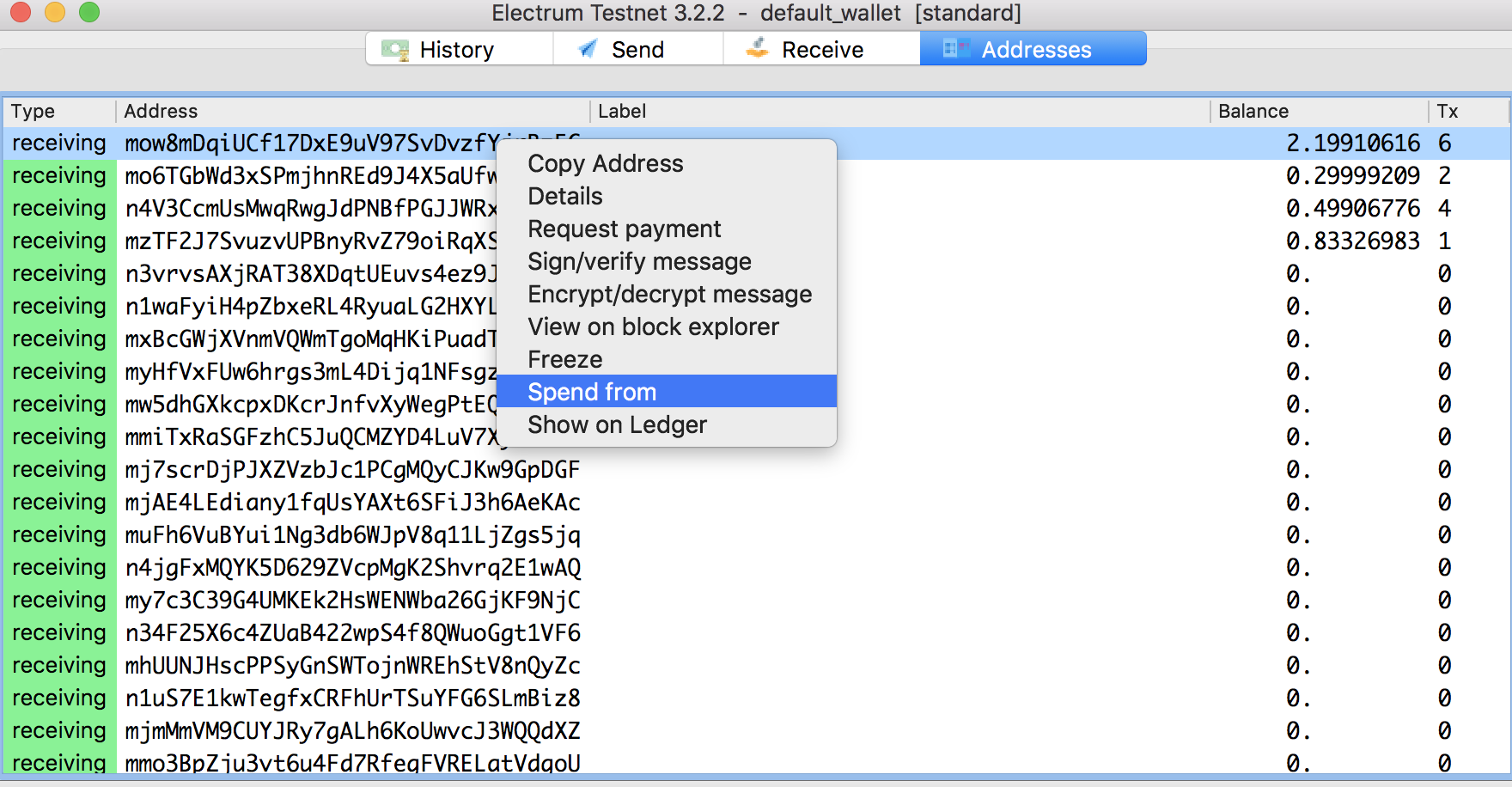
- Finally make a payment to the RSK Federation Address
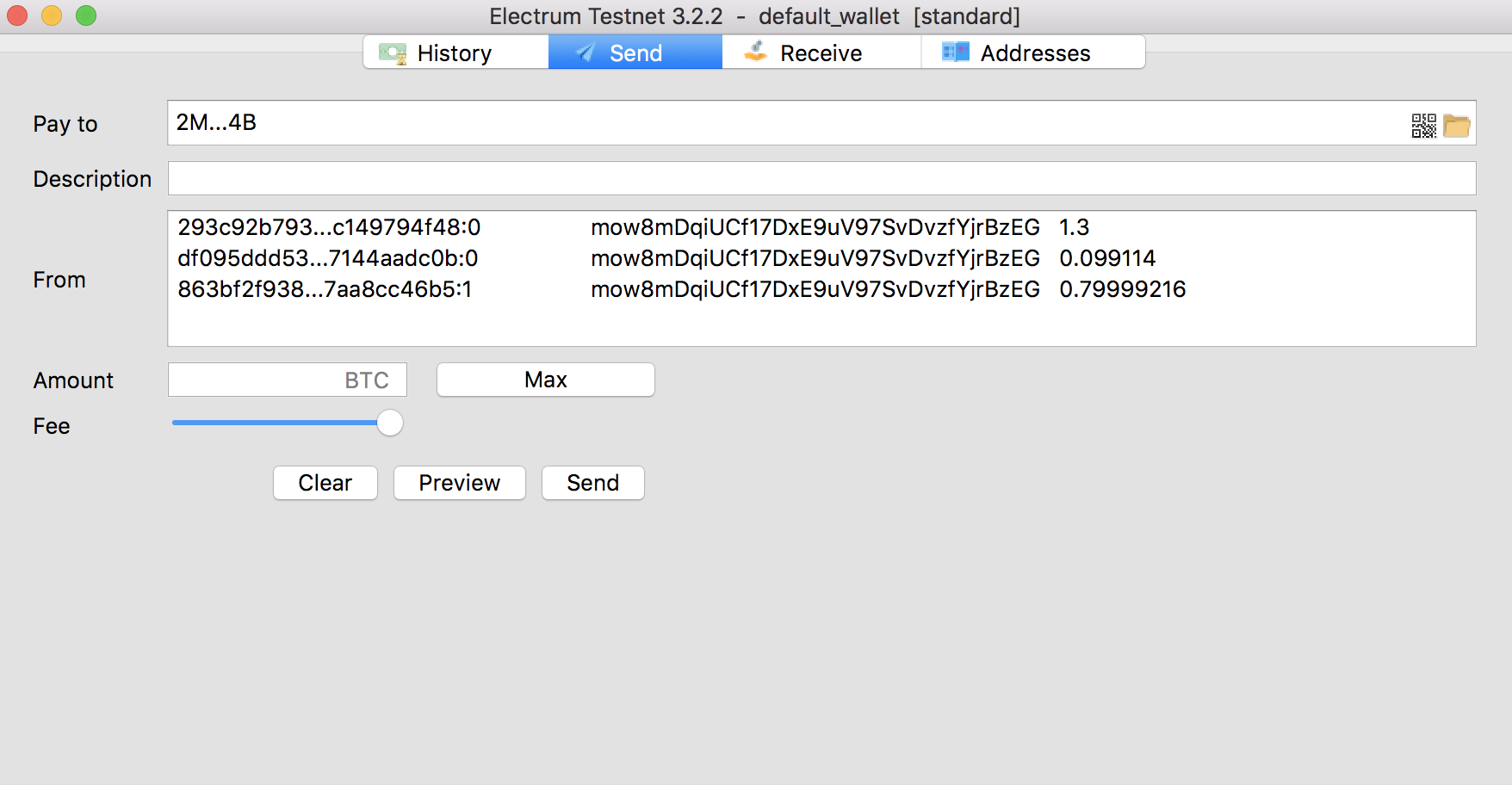
**4 Wait for BTC confirmations**
To ensure the transaction, we need to wait for 100 BTC confirmations, be patient :
:::tip[Tip]
100 blocks \* 10 minutes/block = 1000 minutes = 16.667 hours approx.
:::
**5 Get rBTC address from Ledger hardware wallet**
Get the corresponding rBTC address from your Ledger hardware wallet, by following these steps:
- Connect and unlock your Ledger device.
- Open the RSK app.
- Get RSK derived address running this scripts:
```javascript
const Transport = require("@ledgerhq/hw-transport-node-hid").default;
const AppEth = require("@ledgerhq/hw-app-eth").default;
const getRskAddress = async (derivationPath = "44'/0'/0'/0/0") => {
try{
const transport = await Transport.create();
const eth = new AppEth(transport);
const result = await eth.getAddress(derivationPath);
console.log('RSK Address');
console.log(result.address);
console.log('Derivation Path: ' + derivationPath);
}
catch(err){
console.log(err);
}
};
(async () => {
await getRskAddress("44'/0'/0'/0/0");
})();
```
- Go to MyCrypto and connect to Ledger hardware wallet.
- Select **Custom** Address and put the derivation path `m/44'/0'/0'/0`.
Then choose the address that you got from the previous step.
**6 Check rBTC balance**
You can check balance of rBTC address on MyCrypto or MEW setting the corresponding derivation path and selecting the address.
:::info[Note]
You have to wait a minimum of 100 confirmations + a minimum of 5 minutes to check your rBTC balance
:::
## rBTC to BTC conversion
Instructions on how to do a Mainnet peg-out.
1. Get BTC address with Ledger hardware wallet
If you forgot your BTC public address, you can check section **1**.
The important thing is that the receiving BTC address will be
the same that it was used to send to the federation.
2. Send rBTC to Rootstock Bridge Contract
Open MyCrypto or MEW.
Set the corresponding derivation path and select the address. \
This address has to be the same as that from section **6**.
Then do a transaction to the Bridge Contract.
> Bridge Contract address: `0x0000000000000000000000000000000001000006`
:::info[Note]
- The minimum amount to send in a peg-out transaction must be greater than or equal to 0.004 **RBTC** for Mainnet and the minimum amount to send in a peg-in transaction must be greater than or equal to 0.005 **BTC** for Mainnet.
- Gas Limit of the transaction needs to be manually set at 100,000 gas; otherwise the transaction will fail.
- Gas Price can be set to 0.06 gwei.
:::
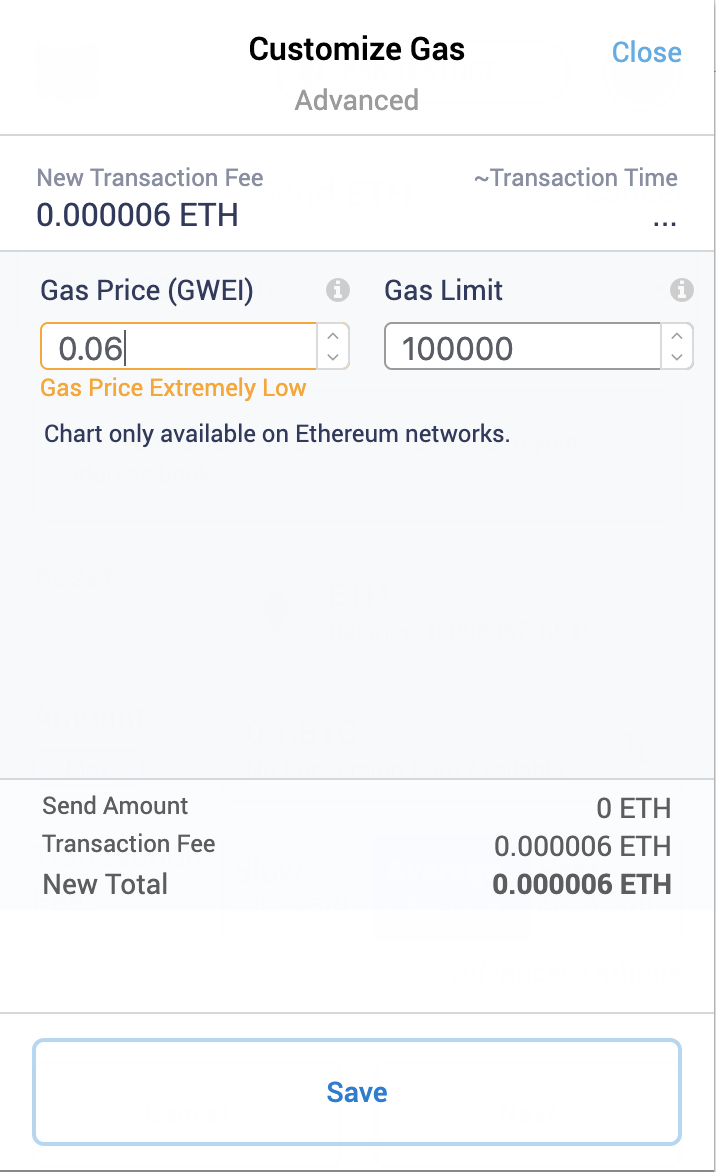
3. Check balance of BTC address
You can either use Electrum wallet downloaded earlier or
any Bitcoin explorer to check the balance.
:::info[Note]
The release process on Bitcoin network takes 4000 RSK block confirmations and at least 10 more minutes.
:::
---
## Conversion with node and console
This section explains how to try the Powpeg mechanism using
your Rootstock node and a command line.
## General Requirements
- You need to be in full control of your BTC private key.
- You need a BTC Wallet properly configured using said private key.
- _[Only for release process]_ You need an Rootstock node up and running,
with the RPC interface enabled, and the personal and eth modules enabled
- See [how do I run an Rootstock Node?](/node-operators/setup/).
## BTC to rBTC conversion
How to perform a peg-in.
:::warning[Warning]
Read the [lock requirements](/concepts/rbtc/networks#mainnet-conversion)
:::
1. With your Bitcoin address,
send a BTC transaction to the Rootstock Federation Address. See how to get the [Federation Address](/concepts/rbtc/networks/#btc-to-rbtc-conversion).
2. Using your preferred BTC block explorer
(e.g. [Blocktrail](https://www.blockchain.com/explorer)),
follow your transaction and wait the stipulated time.
3. Convert the private key to Rootstock format with this tool:
[https://github.com/rsksmart/utils](https://github.com/rsksmart/utils)),
and write down your Rootstock account information.
4. Then use the [Rootstock Testnet Explorer](https://explorer.testnet.rootstock.io/)
or [Rootstock Mainnet Explorer](https://explorer.rootstock.io/)
to see your rBTC balance.
Remember that Rootstock addresses must start with `0x`.
## rBTC to BTC conversion
How to perform a peg-out.
:::warning[Warning]
Read the [release requirements](/concepts/rbtc/networks#rbtc-to-btc-conversion)
:::
1. Add your obtained Rootstock private key to your Rootstock node.
Replace `RSKConvertedPrivateKey`, `RSKNode` and `RSKNodePort`
and run this command:
```shell
$ curl -X POST --data '{"method":"personal_importRawKey", "params":["", ""], "jsonrpc":"2.0", "id":1}' http://:
```
2. Unlock your account for transfers.
Replace `RSKAddress`, `passPhraseJustUsedToEncryptPrivKey`, `RSKNode`
and `RSKNodePort` and run:
```shell
$ curl -X POST --data '{"method":"personal_unlockAccount", "params":["", "", ""], "jsonrpc":"2.0", "id":1}' http://:
```
3. Transfer your desired amount.
Replace `RSKAddress`, `valueToReleaseInWeis`, `RSKNode` and `RSKNodePort`
and run:
```shell
$ curl -X POST --data '{"method":"eth_sendTransaction", "params":[{"from": "", "to": "0x0000000000000000000000000000000001000006", "gasPrice": 59240000, "gas": 44000, "value": }], "jsonrpc":"2.0", "id":1}' http://:
```
4. Wait the stipulated time and check your BTC balance.
---
## Accessing and using funds that are not in accounts derived with Rootstock (RSK) dpath in Trezor T
How to solve the problem of moving your funds when they are in an account that needs to
be derived with a custom derivation path (dpath) using Trezor T.
## Context
If you made a [BTC to rBTC conversion](/concepts/rbtc/conversion-with-ledger#btc-to-rbtc-conversion) using Trezor T, you need to access your account by using a custom dpath (`44'/0'/0'/0/0` for Mainnet). With the last firmware versions, Trezor T is checking that the dpath matches with the expected one as a safety feature and this is a blocker when you intend to use a different dpath.
You may also want to access your account with a different dpath if you made a mistake; for example, receiving rBTC at an address derived using the Ethereum dpath instead of the Rootstock dpath.
In MyCrypto or MyEtherWallet you may have received this message: `"Forbidden key path"`.
## Solution
To allow custom derivation paths, you will need to turn off safety checks (see [Pavol Rusnak message](https://github.com/trezor/trezor-firmware/issues/1255#issuecomment-691463540)).
To do this, you need to install [python-trezor](https://github.com/trezor/python-trezor):
```shell
pip3 install --upgrade setuptools
pip3 install trezor
```
Once you are ready, run this command:
```shell
trezorctl set safety-checks prompt
```
(you need to have your Trezor T unlocked and accept the configuration in the device)
After moving your funds, you can turn them on again:
```shell
trezorctl set safety-checks strict
```
---
## rBTC Conversion: Peg in and Peg Out
In this article, we explain step by step on how to convert from BTC to rBTC, and vice versa.
The process of conversion utilises a [Powpeg](/concepts/foundations/powpeg/) mechanism. Thus, these conversions are referred to as peg-ins and peg-outs.
- **Peg-in**:
- A conversion from BTC to rBTC
- Locks BTC in the BTC Federation address
- Releases rBTC in the Rootstock derived address
- **Peg-out**:
- A conversion from rBTC to BTC
- Locks rBTC on the Rootstock network
- Releases BTC on the Bitcoin network
## Address Compatibility
There are two main ways to perform a peg-in:
1. **Direct Peg-in (Legacy)**: You can send funds directly from your wallet to a [Federation address](/concepts/foundations/powpeg/) or using the [PowPeg App](https://powpeg.rootstock.io/). This method is only supported for two specific address types:
- Legacy Addresses (P2PKH): Starts with a `1`. These addresses are the original Bitcoin address format.
- SegWit Compatible Addresses (P2SH-P2WPKH): Starts with a `3`. These addresses support Segregated Witness (SegWit), a type of upgrade to the Bitcoin network.
2. **Using the PowPeg App (Modern)**: For other address types, a specialized tool like the [PowPeg App](https://powpeg.rootstock.io/) has been built for smoother UX and faster peg-ins. Required for addresses such as:
- Native SegWit (Bech32): Starts with `bc1`. Starts with `bc1`. This is the newest address format. You cannot use it for a direct peg-in because it requires the `OP_RETURN` field to be included in the transaction. Modern tools like the PowPeg App include this field directly from the destination address.
:::tip[Tip]
The address verifier on this page is designed to check for direct peg-in compatibility only. If you are using a Native Segwit (Bech32) address, you will need to use a tool like the [PowPeg App](https://powpeg.rootstock.io/) to perform a peg-in.
:::
## Address verifier
Enter your BTC address below to verify whether it may be used to peg in from BTC to rBTC.
VIDEO
### FAQs
````mdx-code-block
How often does the Rootstock Federation address change?
Rootstock Federation address has changed several times since Rootstock mainnet launch.
Do I lose my Bitcoin if the Rootstock Federation address change during my transfer?
There is a grace period for the Rootstock Federation address change. You will still be able to lock Bitcoin and get rBTC during the grace period. However, any Bitcoin sent to the old Rootstock Federation address will be lost post to the grace period.
````
### Feedback
Join the [Rootstock Global Discord Community](https://rootstock.io/discord), to ask questions and get answers.
---
## rBTC Gas Fees: Optimizing Transaction Costs
Gas is the internal pricing for running a transaction or contract.
When you send tokens, interact with a contract, send rBTC, or do anything else on the blockchain, you must **pay for that computation**. That payment is calculated as **gas**. In Rootstock, this is paid in rBTC.
## What is gas?
There are four important concepts:
- **Gas price**: The cost of the operation.
- **Gas limit**: The maximum gas the operation can afford. It's an upper limit the user sets to prevent losing gas.
- **Total gas**: The gas the operation consumed. Also referred to as **gas used**.
- **Unit**: Gas is paid in **rBTC**.
Let's start with a simple analogy: A car.
To drive a car you need gas. Gas price is the money you pay for each gallon. Gas limit is the max amount of gas you accept to consume, the gas you _charge_. The total gas is the amount you've spent at the end of the trip.
You can calculate the total gas and set an appropriate gas limit so that your trip does not expend more than expected.
Transactions are quite similar:
Gas price is the price you set for operations. The gas limit is the maximum price you are going to pay for the transaction when operated. Then, when transaction is executed, the total gas is the price you finally pay.
Gas is the _fee_ collected by the miner who mines the block that includes the transaction.
The resulting fee is:
```
fee = totalGas * gasPrice
```
## How do I choose an appropriate gas price and limit?
If you want to spend less on a transaction, you can do so by lowering the amount you pay per unit of gas (gas price). Similar to Bitcoin, the price you pay for each unit increases or decreases how **quickly your transaction will be mined.**
### Appropriate gas price
Gas price changes with time. To choose an appropriate gas price you should consider 2 concepts:
- What is _minimum gas price_ and how it changes
- How to get that _minimum gas price_
### Minimum Gas Price
The `minimumGasPrice` is written in the block header by miners and establishes the minimum gas price a transaction should have in order to be included in that block. It can change with time, by up to 1% of the `minimumGasPrice` of the previous block. The latest block's minimum gas price can be obtained using this Web3 method:
The means by which minimum gas price is negotiated by miners is described in [RSKIP09](https://github.com/rsksmart/RSKIPs/blob/master/IPs/RSKIP09.md).
```javascript
web3.eth.getBlock('latest').minimumGasPrice
```
:::tip[Gas Limit]
The transaction gas limit per block is 6,800,000 units.
:::
Here are some practical approaches to this subject:
1. Optimistic approach (not recommended):
You can set `minimumGasPrice` as gas price parameter for the transaction **but if minimum gas price is under negotiation and it gets higher, your transaction could be rejected**.
2. Sensible approach:
Instead of using `minimumGasPrice` as it is, you may [add 10% to its value](#how-does-gas-price-change-over-time).
3. Network average approach:
You can obtain the average gas price that is being paid in the network:
```javascript
web3.eth.gasPrice()
```
Even though this value is greater than or equal to minimum gas price. (`gasPrice >= minimumGasPrice`), it is recommended to add a small percentage to increase the priority of your transaction.
### Appropriate gas limit
Total gas can be estimated using this Web3 method:
```javascript
myContract.methods.myMethod(param1, param2, ...).estimateGas(options, callback)
```
> Go [here](https://web3js.readthedocs.io/en/1.0/web3-eth-contract.html#methods-mymethod-estimategas) for Web3 documentation.
### More information
#### How does gas price change over time?
Each miner can vote to increase or decrease the `minimumGasPrice` up to 1%. This allows miners to increase the `minimumGasPrice` 100% in approximately 50 minutes, assuming a block every 30 seconds.
Nodes that forward transactions could check that the advertised **gas price in a transaction is at least 10% higher than the minimum**. This assures the transaction a lifetime of 10 blocks assuming a constantly increasing block `minimumGasPrice`.
Negotiated minimum gas price is described in [RSKIP09](https://github.com/rsksmart/RSKIPs/blob/master/IPs/RSKIP09.md).
## What happen if my transaction fails?
**You are paying for the computation, regardless of whether your transaction succeeds or fails.** Even if it fails, the miners must validate and execute your transaction (computation request) and therefore you must pay for that computation just like you would pay for a successful transaction.
## What happen if I run out of gas?
If a transaction reaches the gas limit, all changes will be reverted but **the fee is still paid**.
## Gas in smart contracts
When you compile smart contracts (commonly written in [Solidity](https://solidity.readthedocs.io/en/latest/)), they get converted to operation codes, known as 'opcodes'.
These codes (opcodes) are shown with mnemotechnic names as `ADD` (addition) or `MUL `(multiplication). [Here](https://github.com/rsksmart/rskj/blob/master/rskj-core/src/main/java/org/ethereum/vm/GasCost.java) you can see the price of each opcode.
As you can guess, it is important to write smart contracts using the best (cheaper) combination of opcodes.
Examples of good practices to write smart contracts:
### Avoid declaring variables as `var`
```javascript
function payBonus() {
for (uint i = 0; i < employees.length; i++) {
address employee = employees[i];
uint bonus = calculateBonus(employee);
employee.send(bonus);
}
}
```
In the code above, the problem is that if the type of `i` was declared as `var`, it would be taken as `uint8` because this is the smallest type that is required to hold the value 0. If the array has more than 255 elements, the loop will not finish successfully, resulting in wasted gas. You'd better use the explicit type `uint` for no surprises and higher limits. **Avoid declaring variables using `var` if possible.**
### Looping large arrays
```javascript
function soDifficultLooper() {
for (uint i = 0; i < largeArray.length; i++) {
address person = largeArray[i];
uint payment = difficultOperation(largeArray);
person.send(payment);
}
}
```
Every function call that modifies state of the smart contract has a gas cost. A loop could spend a lot of gas, which could easily reach the gas limit of a transaction or block. If a transaction reaches the gas limit, all changes will be reverted but the fee is still paid. **Be aware of variable gas costs when using loops.**
---
## rBTC Token on Rootstock: BTC to rBTC
rBTC is the token used to [pay for the execution](/concepts/rbtc/gas/) of transactions in Rootstock. You can [convert BTC into rBTC](conversion.md) by sending BTC through the [Powpeg](/concepts/foundations/powpeg/) (both in Testnet and Mainnet), or by using the [faucet in Testnet](https://faucet.rootstock.io/), or via decentralized exchanges.
:::info[Additional Faucet Options (Please note these faucets may have daily limits)]
* Use [Thirdweb Faucet](https://thirdweb.com/rootstock-testnet): This faucet offers a convenient way to get free test rBTC tokens for development and testing. Its max daily token allocation is `0.01` tRBTC.
* Use [Blast Faucet](https://blastapi.io/faucets/rootstock-testnet): This faucet offers a convenient way to get free test rBTC tokens for development and testing. It has a higher max daily token allocation of `0.1` tRBTC.
:::
See [supported wallets](/dev-tools/wallets/).
1. Get a BTC address with balance
- Any Bitcoin wallet that supports legacy (`p2pkh`) private key works for this step. In this section, we use the Electrum BTC wallet for connecting to BTC Mainnet.
1. Download the wallet from [Electrum Website](https://electrum.org/)
2. Install Electrum
3. Start Electrum
4. Once Electrum starts, create or import a wallet
5. Go to the third tab "Receive". You will see a Bitcoin Testnet address like below:
> Note: Use a legacy Bitcoin wallet (not Segwit) with a public key beginning with `m` or `n`, and a private key prefixed by `p2pkh`.
2. Send Bitcoin to Rootstock Federation address
Send Bitcoin to Rootstock Federation address
- To retrieve the Rootstock Federation address:
1. Search the bridge contract address [0x0000000000000000000000000000000001000006](https://explorer.rootstock.io/address/0x0000000000000000000000000000000001000006) on the Rootstock Explorer.
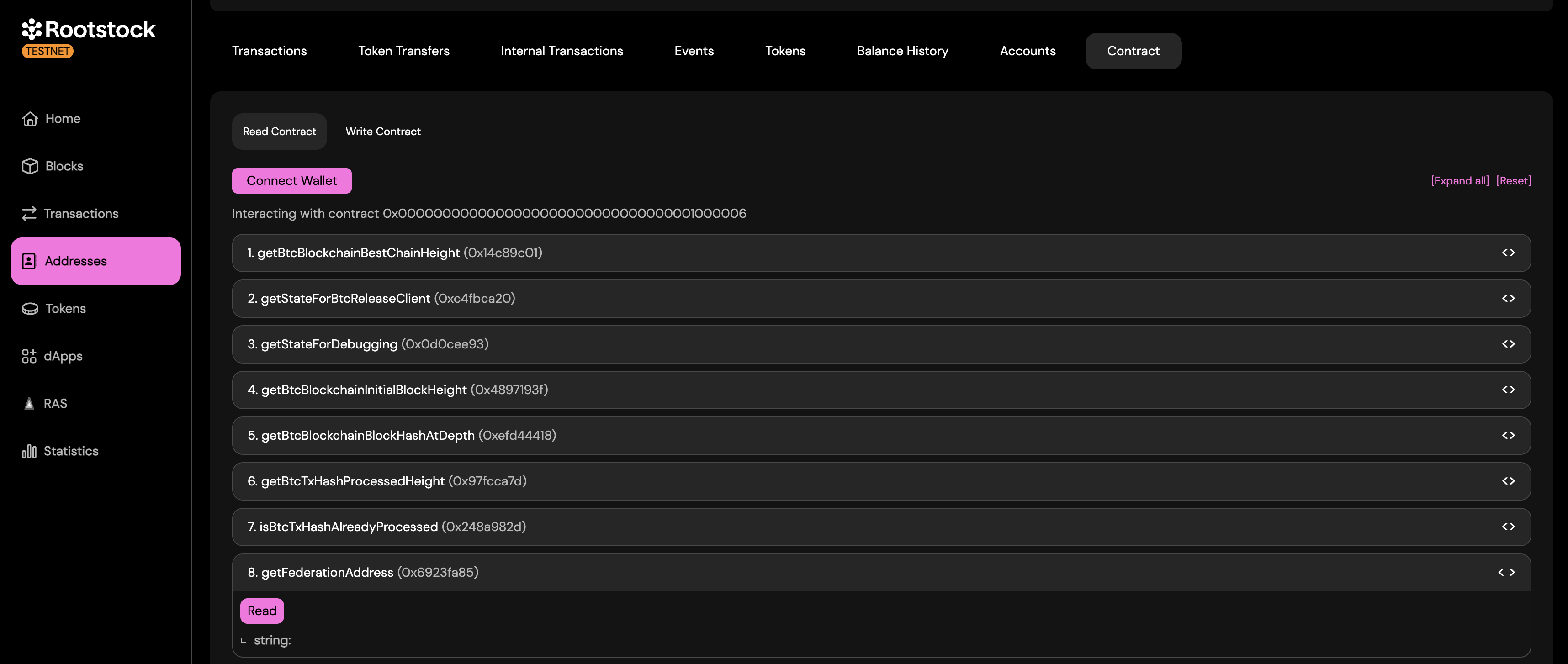
2. Go to Contracts tab --> Read Contracts and scroll to the 8th option which is `getFederationAddress()` and click the Read button.
It should look like the screenshot below:

Now, you can send Bitcoin to the Federation address via your Bitcoin address.
> Note: You must send a minimum amount of `0.005 BTC`.
3. Wait for BTC confirmations
- To ensure the transaction is successful, we need to wait for 100 BTC network confirmations.
> 100 blocks \* 10 minutes/block = 1000 minutes = 16.667 hours. That is, this will take approximately 17 hours.
4. Get rBTC address with BTC private key
- You can get a corresponding rBTC address from your BTC private key by using the [Rootstock Utils](https://github.com/rsksmart/utils). If you do not want to compile the utility, you can download the [latest release](https://github.com/rsksmart/utils/releases/latest).
> Note: when entering Bitcoin private key do not include _p2pkh:_ in the front.
5. Check rBTC balance
You can check balance of rBTC address on Metamask, MyCrypto, or any [Rootstock compatible wallets](https://blog.rootstock.io/noticia/rootstock-wallets/).
> Note: You have to wait a minimum of 100 confirmations + a minimum of 5 minutes for checking your RBTC balance.
````
### rBTC to BTC conversion
Instructions on how to do a Mainnet peg-out.
````mdx-code-block
1. Get BTC address with rBTC private key
You can get a corresponding BTC address from your rBTC private key by using the [Rootstock](https://github.com/rsksmart/utils). If you do not want to compile the utility, you can download the [latest release](https://github.com/rsksmart/utils/releases/latest).
2. Send rBTC to Rootstock Bridge Contract
- [Rootstock Bridge Contract address](https://explorer.rootstock.io/address/0x0000000000000000000000000000000001000006): `0x0000000000000000000000000000000001000006`
- Note: The minimum amount to send must be at least `0.004 rBTC` for Mainnet, sending any amount below this, will fail and funds will be reimbursed. The Gas Limit of the transaction needs to be manually set at 100,000 gas; otherwise the transaction will fail. Gas Price can be set to 0.06 gwei (or the gas price suggested by the wallet).
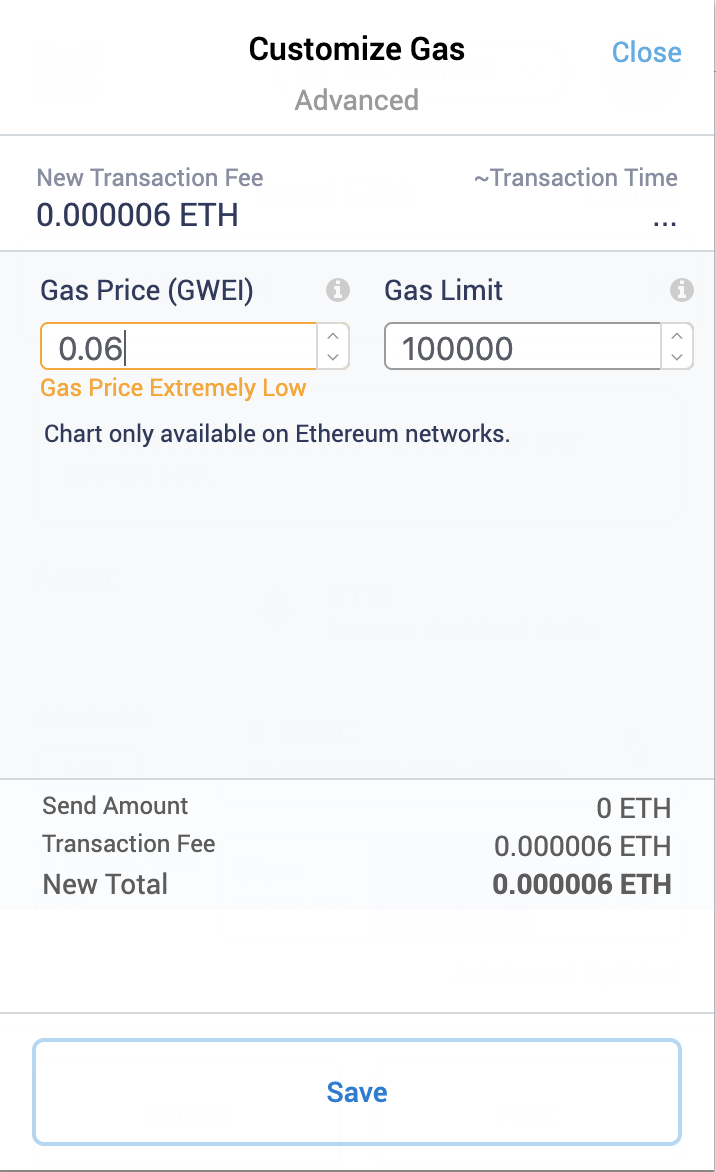
3. Check balance of BTC address
- You can either use Electrum wallet downloaded earlier or from any Bitcoin explorer to check the balance.
> Note: The release process on Bitcoin network takes 4000 Rootstock block confirmations and at least 10 more minutes.
````
## Testnet Conversion
In this section we will go over the steps of converting t-BTC to tRBTC, and vice versa on the Bitcoin and Rootstock Testnets.
:::tip[Tip]
The minimum amount of Bitcoin to convert is **0.005 tBTC** for Testnet.
:::
### tBTC to tRBTC conversion
Instructions on how to do a Testnet peg-in.
````mdx-code-block
1. Connect a wallet to Bitcoin Testnet
We recommend to use Electrum BTC wallet for connecting to Bitcoin Testnet.
- Download the wallet from
[Electrum Website](https://bitzuma.com/posts/a-beginners-guide-to-the-electrum-bitcoin-wallet/)
- Install Electrum
- Start Electrum in Testnet mode
- For example on MacOS:
`/Applications/Electrum.app/Contents/MacOS/Electrum --testnet`
- After Electrum starts, create or import a wallet
- Go to the third tab, "Receive".
You will see a Bitcoin Testnet address like below.
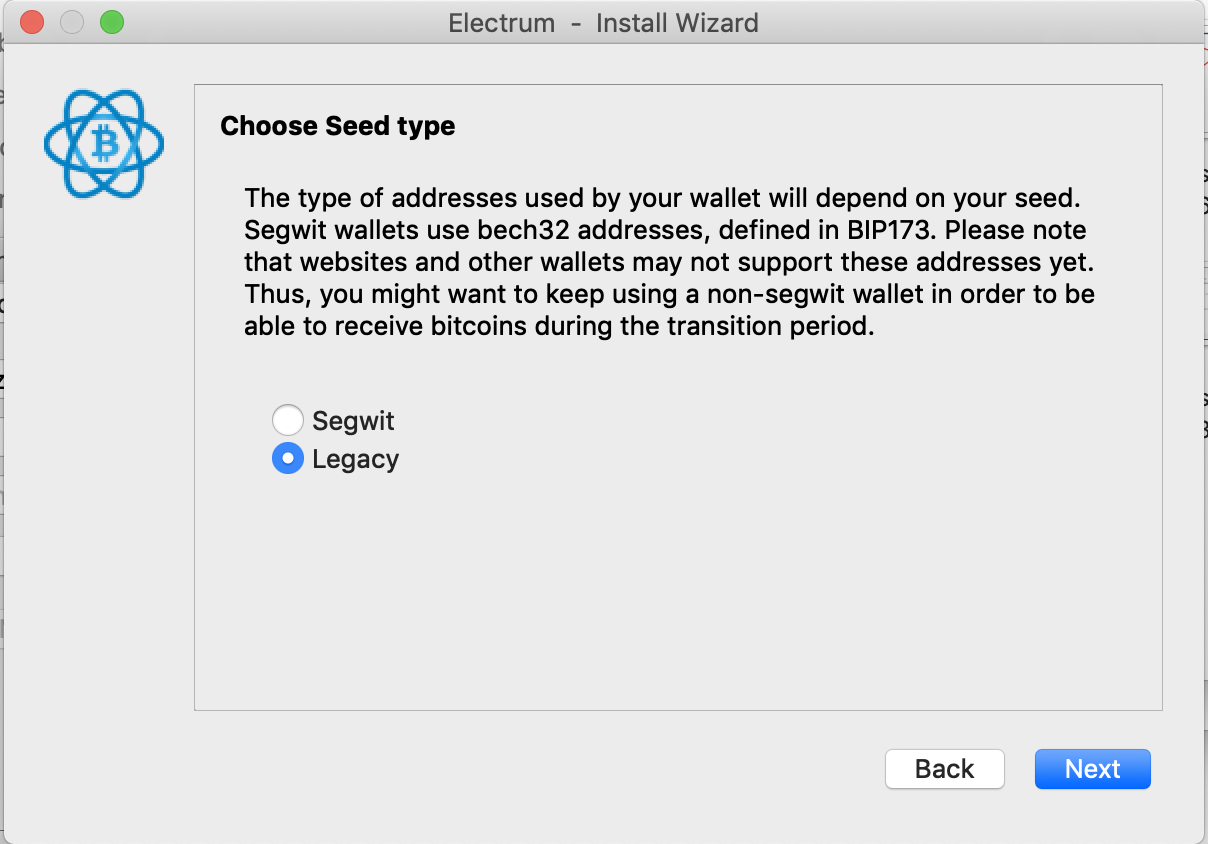
- Note: The Bitcoin wallet needs to be legacy (not Segwit) whose public key starts with either `m` or `n`, and private key starting with `p2pkh:`
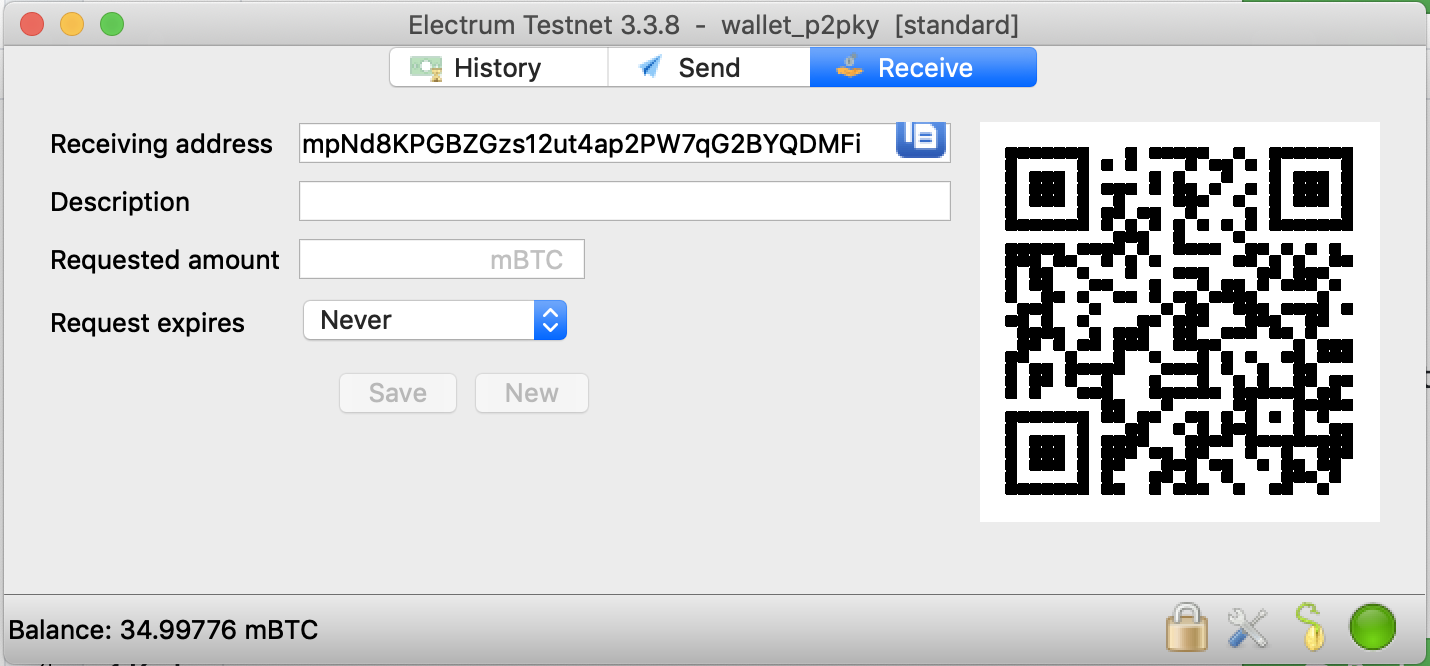
2. Get test Bitcoin from Testnet Faucet
There are a few options to get Bitcoin on Testnet. Use [https://bitcoinfaucet.uo1.net/](https://bitcoinfaucet.uo1.net/).
3. Send Bitcoin to Rootstock Federation address
The Rootstock Federation address is retrieved by making a Smart Contract call on Rootstock Testnet.
- To retrieve the Rootstock Federation address:
1. Search the bridge contract address [0x0000000000000000000000000000000001000006](https://explorer.testnet.rootstock.io/address/0x0000000000000000000000000000000001000006) on the Rootstock Testnet Explorer.

2. Go to Contracts tab --> Read Contracts and scroll to the 8th option which is `getFederationAddress()` and click the Read button.
It should look like the screenshot below:

Now, you can send Bitcoin to the Federation address via your Bitcoin address.
> Note: You must send a minimum amount of `0.01 tBTC`.
4. Get tRBTC address with tBTC private key
- You can get a corresponding tRBTC address from your tBTC private key by using [github.com/rsksmart/utils](https://github.com/rsksmart/utils). If you do not want to compile the utility, you can download the [latest release](https://github.com/rsksmart/utils/releases/latest).
- Note: When entering Bitcoin private key do not include `_p2pkh:_` in the front.
5. Check tRBTC balance on Testnet
- You can check the balance of the above tRBTC address on Metamask, MyCrypto or any Rootstock Testnet compatible wallets.
- You have to wait a minimum of 10 confirmations + a minimum of 5 minutes for checking your RBTC balance.
````
### tRBTC to tBTC conversion
Instructions on how to do a Testnet peg-out.
:::info[Note]
The release process on Bitcoin network takes 10 Rootstock block confirmations and at least 10 more minutes.
:::
````mdx-code-block
1. Get tBTC address with tRBTC private key
- You can get a corresponding tBTC address from your tRBTC private key by using [github.com/rsksmart/utils](https://github.com/rsksmart/utils). If you do not want to compile the utility, you can download the [latest release](https://github.com/rsksmart/utils/releases/latest).
2. Send tRBTC to Rootstock Bridge Contract
- [Rootstock Bridge Contract address](https://explorer.testnet.rootstock.io/address/0x0000000000000000000000000000000001000006): `0x0000000000000000000000000000000001000006`
- **Important note**: The minimum amount to send must be **at least** 0.004 tRBTC for Testnet, values below that will be rejected and reimbursed to the sender.
- Gas Limit of the transaction needs to be manually set at 100,000 gas; otherwise the transaction will fail.
- Gas Price can be set to 0.06 gwei.

3. Check balance of tBTC address on Bitcoin Testnet
You can either use Electrum wallet downloaded earlier or from
any Bitcoin explorer to check the balance.
````
---
## rBTC Flyover
Flyover accelerates getting into Rootstock from Bitcoin by significantly reducing the wait times associated with the current PowPeg time. Developers, integrators or Liquidity Providers (LP) looking to provide rBTC access, Cross-chain swaps, and access to liquidity pools can integrate the Flyover SDK. Visit the [ LP integration section](/developers/integrate/flyover/LP/) to get started.
## Features of the Flyover
* Flyover significantly reduces the amount of time required to transfer BTC and RBTC between the Bitcoin and Rootstock networks
* Uses a trustless intermediaries, a pool of Liquidity providers
* Provides the same security guarantees as the Powpeg
* Customizable SDK for LPs and integrators
:::info[Who is it for?]
**For Liquidity Providers (LP)**
An LP provides liquidity in Rootstock (rBTC) and Bitcoin (BTC) on behalf of users in exchange for a fee (configurable) as a reward. The LP can be wallets, exchanges, aggregators or individuals and institutions. See section on [LP Management](/developers/integrate/flyover/LP/management/) for more information.
**For Developers**
The [Flyover SDK](https://github.com/rsksmart/flyover-sdk) is currently available on Mainnet and Testnet.
To convert rBTC to BTC and vice versa, use the PowPeg App.
**For General Users**
Use the [PowPeg App](http://powpeg.rootstock.io/) to Peg in and out of Rootstock, easily perform trust-minimized BTC and RBTC transfers between Bitcoin and Rootstock using Flyover. See section on [Using the PowPeg App](/resources/guides/powpeg-app/) to learn about how you can convert BTC - rBTC and vice versa.
:::
:::tip[Ready to integrate Flyover into your platform or become a Liquidity Provider?]
[Contact the Flyover team](https://rootstock.io/contact/) to explore partnership opportunities and learn more about how you can contribute to the growth of the Rootstock ecosystem and integrate Flyover into your dApps.
:::
## PowPeg vs rBTC Flyover
Here's a detailed comparison of the PowPeg vs rBTC Flyover.
| | PowPeg | Flyover (Includes PowPeg) |
| --- | --- | --- |
| Network (and Coin) | Bitcoin (BTC) and Rootstock (rBTC) | Bitcoin (BTC) and Rootstock (rBTC) |
| Key Differentiators | Native for Rootstock (as a Bitcoin sidechain) | Significantly Faster than the PowPeg |
| Core Concept | Federated 2 Way Peg | Liquidity Provider (LP) Service + Federated 2 Way Peg (i.e. the PowPeg) |
| Trust | Requires trust in PowPeg | Requires trust in PowPeg. LPs are trustless |
| Time to transfer value to Rootstock | 100 Bitcoin Blocks (about 17 hours) | ~20 minutes 1 |
| Time for value transfer from Rootstock | 4000 Rootstock Blocks (about 34 hours) | ~15 minutes 2 |
| Cost Structure | No service fees, Only blockchain TX fees on Bitcoin (for peg-in) and Rootstock (for peg-out) | LP provider fees (0.0001 rBTC) 3 + transaction fees on Rootstock + Bitcoin TX fee |
| Minimum Limit for value transfer | 0.005 BTC for peg in and 0.004 rBTC for peg-out | Same as PowPeg for peg in (BTC). Peg out min (rBTC) is configurable by the LP (set at 0.004 rBTC initially) |
| Max Limit for value transfer | None | 0.1 BTC and 0.1 rBTC 4 |
:::note[Notes]
1. Based on the number of Bitcoin block confirmations configured by the LP (currently set at 2 Bitcoin block confirmations for amounts `<= 0.1 BTC`). Bitcoin blocks can take longer to confirm.
2. Based on the number of Rootstock block confirmations configured by the LP (currently set at 10 Rootstock confirmations for amounts `<= 0.1 rBTC`) + 1 Bitcoin block confirmation.
3. An LP can set their own fees. The initial LP In the PowPeg app has set its provider fee at `0.0001` rBTC so that the LP covers network fees when receiving and rebalancing funds from PowPeg.
4. There is no technical limit for transfers. It depends on the available liquidity and limitations set by the LP. The initial LP in the PowPeg app, has set the max transfer limits to `0.1 BTC/rBTC`.
:::
## Use Cases
Here are some of the use cases provided by the Flyover:
### For Developers
The Flyover offers a way for developers to integrate Flyover into wallets, dApps, DEXs and swaps using the Flyover SDK.
**With Flyover:**
* Wallet or exchange platforms can integrate Flyover to offer a seamless experience for depositing and withdrawing BTC and rBTC within their platform utilizing the liquidity provided by the Flyover LP network. This eliminates the long wait times associated with traditional peg-in methods, allowing users to quickly move funds between their wallets to other platforms.
* DeFi and Lending Platforms can integrate Flyover to allow users to easily deposit Bitcoin as collateral for borrowing assets on Rootstock. The faster peg-in times provided by Flyover would unlock borrowing opportunities for users who hold rBTC against other rootstock on-chain assets (MOC, USDRIF and others).
**Flyover offers;**
1. Streamlined and Customizable SDK Integration: The Flyover SDK provides developers with a user-friendly toolkit for integrating the Flyover functionalities into wallets, swaps, exchanges, and dApps, reducing development time and effort. The SDK can be configured to suit the user's needs.
2. Enhanced User Experience: By integrating Flyover, developers and integrators can offer their users a seamless experience for interacting with the Rootstock ecosystem, providing frictionless Bitcoin transfer options into Rootstock within their applications.
3. Increased security: Flyover is built on top of the proven security of the PowPeg.
Want to integrate the Flyover in your Exchange, dApp, Wallet or DeFi platform? See the section on [how to Integrate Flyover SDK](/developers/integrate/flyover/sdk/).
### For Liquidity Providers (LP)
An LP provides liquidity in Rootstock (rBTC) and Bitcoin (BTC) on behalf of users in exchange for a fee (configurable) as a reward. The LP can be wallets, exchanges, aggregators or individuals and institutions. See section on [LP Management](/developers/integrate/flyover/LP/management/) for more information.
**With Flyover, the LP can:**
* Contribute to the growth of the Rootstock Ecosystem by joining the Flyover's network of LPs to ensure there's sufficient liquidity for users to transfer Bitcoin (BTC) between the Bitcoin network and Rootstock (rBTC) for their user base while also serving as LPs providing services to other users.
* Assume both roles as an integrator and an LP, or may limit themselves as LPs by configuring the SDK accordingly.
**Flyover Offers;**
* Reduced friction in the peg-in/out processes: Flyover reduces the friction in the current Powpeg time. It solves the 100 blocks confirmation friction required in the native Powpeg. With Flyover, a minimum of 1-2 bitcoin block confirmation is needed instead (~20 minutes). Note that LPs can configure the number of blocks.
* Revenue potential: Flyover allows LPs to configure and earn revenue from users using their liquidity for BTC and rBTC transfers on the Flyover protocol.
* Increased User Reach: By being a part of the Flyover network of LPs, LPs can gain access to a wider user base of Bitcoiners seeking to interact with the Rootstock ecosystem.
For more information, see [LP Onboarding](/developers/integrate/flyover/LP/) section.
---
## RIF Relay - Secure Sponsored Transaction System
RIF Relay is a secure sponsored transaction system that enables users to pay the transaction fees using ERC-20 tokens. This enables end users to transact entirely using one asset instead of having to manage a separate asset for gas.
For general information about RIF Relay, including its design, architecture, and specifications, please refer to the table of contents.
---
## RIF Name Service (RNS)
RNS provides an architecture which enables the identification of blockchain addresses by human-readable names.
## stRIF (Staked RIF Token in the RootstockCollective DAO)
The stRIF tokens give you voting rights and participation in the RootstockCollective DAO's governance and decision-making process they are pegged 1:1 with RIF. To acquire stRIF tokens, you need to stake RIF tokens in the [governance system dApp](https://app.rootstockcollective.xyz/). RIF tokens can be purchased through [various exchanges](https://wiki.rootstockcollective.xyz/Token-Resources-e3f89008a96e4dcab3037ff7861d9d8a), and once staked, an equivalent amount of stRIF is issued for governance participation.
:::info[Contract Addresses used in DAO]
For a comprehensive list of contract addresses used across various DAO environments, please refer to the [DAO Frontend GitHub repository](https://github.com/RootstockCollective/dao-frontend?tab=readme-ov-file#environments).
:::
Token Name
stRIF
Total Supply
Varies and will increase and decrease as RIF is staked and unstaked.
Contract Address (Mainnet)
0x5db91e24BD32059584bbDb831A901f1199f3d459
Contract Address (Testnet)
0xe7039717c51c44652fb47be1794884a82634f08f
Contract Types
ERC20, ERC677, ERC1967Proxy
How to Get
Stake your RIF on the RootstockCollective dApp to get stRIF
## Wallets
See [supported wallets](/dev-tools/wallets/).
## Technical information
### ERC677 token standard
An [ERC20](https://eips.ethereum.org/EIPS/eip-20)
token transaction between a regular/non-contract address and contract are two different transactions: You should call `approve` on the token contract and then call `transferFrom` on the other contract when you want to deposit your tokens into it.
[ERC677](https://github.com/ethereum/EIPs/issues/677)
simplifies this requirement and allows using the same transfer function. ERC677 tokens can be sent by calling `transfer` function on the token contract with no difference if the receiver is a contract or a wallet address, since there is a new way to notify the receiving contract of the transfer.
An ERC677 token transfer will be the same as an ERC20 transfer. On the other hand, if the receiver is a contract, then the ERC677 token contract will try to call `tokenFallback` function on receiver contract. If there is no `tokenFallback` function on receiver contract, the transaction will fail.
### RIF transfer methods
- Approve and transfer:
```js
function approve(address _spender, uint256 _value) public returns (bool)
function transfer(address _to, uint256 _value) public returns (bool)
```
- Transfer and call:
```js
function transfer(address _to, uint256 _value, bytes data)
```
**Parameters**
- `_to: address`: Contract address.
- `_value: uint256`: Amount of RIF tokens to send.
- `data: bytes`: 4-byte signature of the function to be executed, followed by the function parameters to be executed with encoded as a byte array.
---
## Rootstock Development Prerequisites
This guide provides clear instructions for developers on the supported Solidity versions and the necessary configurations needed to ensure your smart contracts are deployed on the Rootstock network.
:::tip Hackathons & Workshops
- Participating in a Rootstock Hackathon or Workshop?
- Visit the [Hackathon Resources](/resources/hackathon/) section for details.
- **Resources:**
- Explore the [Developer Tools](/dev-tools/) section for a full list of tools and resources.
:::
````mdx-code-block
Set up the necessary software for a easy development on Rootstock:
- **Solidity Version:**
- Supported compiler version: **`solc 0.8.34`** (see [EVM Compatibility Explorer](https://rskj-evm-compatibility.rsk.co/) for the full Solidity × RSKj matrix).
- Recommended EVM target: **`cancun`** for current Rootstock nodes.
- Use compatible versions to avoid deployment errors.
- **EVM Compatibility:**
- The [EVM Compatibility Explorer](https://rskj-evm-compatibility.rsk.co/) is the source of truth for opcode support, precompiles, and behavioral differences vs Ethereum.
- Before porting Ethereum contracts, check `block.difficulty`, `block.basefee`, and blob-related features in the matrix.
- **Node RPC Access:**
- Interact with Rootstock using its RPC API.
- [Get an API Key](/developers/rpc-api/rootstock/setup/) and configure it in your applications.
- **Hardhat:**
- Install Hardhat to streamline contract development and testing:
```bash
npm install --save-dev hardhat
```
:::tip Recommended
For added convenience, install shorthand globally
- Install `hh` autocomplete to use `hh` shorthand globally.
```bash
npm i -g hardhat-shorthand
```
- Use the [Hardhat Starter Kit](/developers/quickstart/hardhat)
- Learn how to write, interact, deploy, and test smart contracts on Rootstock using [Hardhat](/developers/smart-contracts/hardhat) or [Foundry](/developers/smart-contracts/foundry/).
:::
- **Foundry (Optional):**
- Install Foundry as an alternative to Hardhat for building, deploying, and testing contracts:
```bash
curl -L https://foundry.paradigm.xyz/ | bash
```
- Run `foundryup` to install tools like `forge`, `cast`, `chisel` and `anvil`.
Set up your wallet to connect with Rootstock networks:
- **MetaMask Integration:**
- Configure MetaMask with the necessary values to connect to the Rootstock Mainnet or Testnet.
- Refer to the [MetaMask Wallet Configuration](/dev-tools/wallets/metamask/) guide for detailed steps.
- **Derivation Paths:**
- Use these paths for BIP-44-compatible wallets:
- **Mainnet:** `m/44'/137'/0'/0/N`
- **Testnet:** `m/44'/37310'/0'/0/N`
*See the [Account-Based Addresses](/concepts/account-based-addresses/) section for guidance on address verification.*
:::info Info
See [Account based addresses](/concepts/account-based-addresses/) section for more information or [how to verify address ownership](/developers/smart-contracts/verify-address-ownership/).
:::
Get test tokens on Rootstock:
* [Rootstock Faucet](https://faucet.rootstock.io/): Get free test rBTC tokens for development and testing.
* [RIF Testnet Faucet](https://faucet.rifos.org/): Obtain free RIF testnet tokens to explore the RIF ecosystem.
* [Thirdweb Faucet](https://thirdweb.com/rootstock-testnet): Get free test rBTC tokens for development and testing.
* [Blast Faucet](https://blastapi.io/faucets/rootstock-testnet): Get free test rBTC tokens for development and testing.
Understand and reference key contract addresses for development:
- Access the full list of **[Rootstock Contract Addresses](/developers/smart-contracts/contract-addresses/)**.
Choose one of the following environments to build and deploy your contracts:
- **Hardhat:**
- A popular framework for managing smart contract development and testing.
- Use the [Hardhat Starter Kit](/developers/quickstart/hardhat) to jumpstart your project.
- **Foundry:**
- A lightweight, fast alternative to Hardhat.
- Install and manage using `foundryup`.
:::note Development Environments
Learn how to write, interact, deploy, and test smart contracts on Rootstock using [Hardhat](/developers/smart-contracts/hardhat) or [Foundry](/developers/smart-contracts/foundry/).
💡 *You don’t need to use both (Hardhat and Foundry); pick the one that suits your workflow.*
:::
Boost productivity with these CLI tools:
> POSIX Compliant Shell
Standard terminals like `cmd` or PowerShell may not support some commands. We recommended installing [Git for Windows](https://gitforwindows.org/) for Git Bash, which provides a more UNIX-like experience.
Here's a [tutorial on Git Bash](https://www.atlassian.com/git/tutorials/git-bash).
Standard terminal.
Standard terminal.
### Installing Node.js and NPM {#installing-nodejs-and-npm}
- Node v18 or later.
- For installation, use [NVM install script](https://github.com/nvm-sh/nvm#install--update-script).
1. Download the Node.js Installer from [Node.js Downloads](https://nodejs.org/en/download).
2. Run the installer and follow the on-screen instructions.
3. Open Command Prompt or PowerShell and check versions with `node -v` and `npm -v`.
- See Posix Compliant Shell.
1. Install Homebrew (if not installed):
```bash
/bin/bash -c "$(curl -fsSL https://raw.githubusercontent.com/Homebrew/install/HEAD/install.sh)
```
2. Install Node.js and npm with `brew install node`
3. Check versions in Terminal with `node -v` and `npm -v`
1. Open a terminal.
2. Update package manager with sudo apt update
3. Install Node.js and npm with sudo apt install nodejs npm
4. Check versions in the terminal with `node -v` and `npm -v`
````
---
## Getting Started with Rootstock Development
Learn about Rootstock, how it enables smart contract on Bitcoin, and its compatibility with Ethereum and other platforms.
## What is Rootstock?
Rootstock is Bitcoin's financial infrastructure. It is an open-source, EVM-compatible Bitcoin sidechain secured by over 85% of Bitcoin's hash power through merge mining. Businesses, financial institutions, and builders use it to launch Bitcoin-secured lending, payments, yield, and treasury products with Ethereum tooling.
The full technology stack runs on that Bitcoin-secured base: from smart contracts on the Rootstock Virtual Machine to services in the Rootstock Infrastructure Framework (RIF). See [The Stack](/concepts/foundations/stack/).
Rootstock connects to Bitcoin through merged mining and through a shared unit of account. BTC locks in the [PowPeg](/concepts/foundations/powpeg/) and issues rBTC 1:1 on Rootstock. Rootstock is also compatible with Ethereum at the virtual machine and JSON-RPC layers, so Solidity tooling and familiar wallets work with little change.
Let's briefly look at each of these areas.
## PowPeg
The second point of contact is the PowPeg.
This component connects both networks to allow the transfer of bitcoins to Rootstock,
thereby allowing developers to interact with smart contracts.
They pay gas using rBTC, which is pegged 1:1 with BTC.
To do so, you send bitcoin to a special address,
where they are locked in the bitcoin network.
Next, in the same address over in the Rootstock network,
that same bitcoin is released to the user for use in the Rootstock network.
This is called peg-in.
You can do the reverse operation called peg-out,
by sending your bitcoin to a special address in the Rootstock network,
and receiving your bitcoin back in the bitcoin network.
## Differences with Rootstock and Ethereum
Rootstock is not 100% compatible with Ethereum: It has differences in the way checksums are calculated,
the derivation path it uses, and how gas is calculated.
### Checksum differences
- Different Ethereum-compatible networks differentiate themselves using “chain IDs”.
- Each blockchain network has its own unique chain ID.
- Rootstock uses the chain ID when calculating checksums for its addresses, whereas Ethereum does not take this into account.
- Checksums in both networks are represented using capitalisation (uppercase and lowercase letters), so the “same” address will not pass checksum validations on both Rootstock and Ethereum.
### Derivation path differences
Remembering or storing private keys for your crypto wallets can be super challenging, even for technical people.
This is because these keys are essentially extremely large numbers.
So to make things easier, the crypto community has come up with a technique called “HD wallets”, where using a seed phrase (a set of randomly chosen dictionary words), plus a “derivation path”. Rootstock and Ethereum have different derivation paths, therefore, the same seed phrase results in a different set of keys and addresses between Rootstock and Ethereum.
### Gas differences
The EVM and RVM are compatible in that they support the same op-codes, and therefore can run the same smart contracts.
However, the price of each op-code (measured in units known as gas) is different between EVM and RVM, thus the total gas consumed in various transactions is different.
Further to that, gas units are multiplied by gas price to calculate the transaction cost.
Since Rootstock’s gas price is denominated in rBTC and Ethereum’s gas price is denominated in Ether, there is another difference between gas prices on Rootstock and Ethereum.
:::info[Update on Gas Cost Differences]
We have identified that the opcodes with significant variations are `SLOAD` and `SSTORE`.
Additionally, certain calls (such as `DELEGATECALL` and `STATICCALL`) that utilize these opcodes during an internal call will result in differences in the overall gas cost calculation for the transaction.
These discrepancies are primarily due to [EIP-2929](https://eips.ethereum.org/EIPS/eip-2929) that has been implemented in Ethereum but not yet in Rootstock. The team is aware of this difference and intend to implement this in future releases.
:::
#### Eth Estimate Gas Behaviour on Rootstock
When `eth_estimateGas` is called, the node simulates the transaction execution without broadcasting it to the network.
The simulation runs through the entire transaction process as if it were being executed, including checking for sufficient balance, contract code execution, etc.
During the simulation, the method calculates the exact amount of gas that would be consumed by the transaction if it were to be executed on the blockchain. The estimated gas amount is returned, helping users set an appropriate gas limit for the actual transaction.
:::info[Starting with Arrowhead 6.5.0]
**Prior to Arrowhead 6.5.0**, there was a difference in Rootstock compared to Ethereum:
- If one of the steps of the simulated transaction fails, the node would return the gas estimation needed for the transaction
- On Ethereum, the node would return an error instead of the gas estimation.
**Starting with Arrowhead 6.5.0:**
- Rootstock will behave same way as Ethereum's behavior for simulated transaction failures.
- If a simulated transaction step fails, the node will now return an error, mirroring Ethereum's response.
:::
This behavior can be seen in the following example, where a call for `eth_estimateGas` on a transaction that would be executed from an address without enough balance.
Example:
```js
{
"jsonrpc":"2.0",
"method":"eth_estimateGas",
"params":[
{"from": "0xb60e8dd61c5d32be8058bb8eb970870f07233155",
"to": "0xd46e8dd67c5d32be8058bb8eb970870f07244567",
"gas": "0x76c0",
"gasPrice": "0x9184e72a000",
"value": "0x9184e72a",
"data": "0xd46e8dd67c5d32be8d46e8dd67c5d32be8058bb8eb970870f072445675058bb8eb970870f072445675"},
"latest"
],
"id":0
}
```
Response on Rootstock:
```js
{
"jsonrpc": "2.0",
"id": 0,
"result": "0x5498"
}
```
Response on Ethereum:
```js
{
"jsonrpc": "2.0",
"id": 0,
"error": {
"code": -32000,
"message": "insufficient funds for transfer"
}
}
```
## EVM Compatible Smart Contracts
If you are familiar with smart contract development or dApp development using solidity, web3, and other compatible technologies; you might be excited to know that the Rootstock Virtual Machine (RVM) is compatible with the Ethereum Virtual machine (EVM).
So you can use the same code, tools, and libraries when developing with Rootstock too.
Thus, the smart contract/dApp development skills that you’re used to will transfer across quite nicely too!
> See supported Solidity and EVM versions in [requirements](/developers/requirements/) and the [EVM Compatibility Explorer](https://rskj-evm-compatibility.rsk.co/).
### Tools
- [Hardhat](https://hardhat.org/docs) is an Ethereum development environment designed for professionals. It's primarily used in the development of smart contracts for the Ethereum blockchain.
Refer to the [Hardhat Guides](/dev-tools/dev-environments/hardhat/) for guides on how to use Hardhat on Rootstock.
- [Metamask](https://metamask.io/) is a browser extension cryptocurrency wallet or mobile app,
enabling users to interact with the Rootstock blockchain,
including sending rBTC, sending Rootstock-based tokens such as RIF,
and interacting with smart contracts deployed to the Rootstock network.
See how to [configure MetaMask to connect to Rootstock](/dev-tools/wallets/metamask/).
- [Mocha](https://mochajs.org/) is a popular JavaScript test framework running on Node.js.
See [Testing Smart Contracts](/developers/smart-contracts/hardhat/test-smart-contracts/) to see how to use it to test your smart contracts on Rootstock.
- [Solidity](https://docs.soliditylang.org/) is the most popular programming language for implementing smart contracts.
The bytecode and ABI that the Solidity compiler, `solc`, outputs can be used to deploy and interact with smart contracts on Rootstock, thanks to the compatibility between RVM and EVM.
> For a comprehensive list of tools, see [Dev Tools](/dev-tools/) section.
## Ethereum Compatible JSON RPC
The set of remote procedure calls (RPCs) that Rootstock supports is largely the same as the RPCs supported by Ethereum.
This is another layer of compatibility, in addition to the virtual machine implementation, which allows the same tools and libraries to be used.
## Merged Mining
The bitcoin miners do what is known as [merged mining](/concepts/foundations/merged-mining/),
securing both networks with the same infrastructure and energy consumption.
They create blocks on the bitcoin network every 10 minutes, including transfer of bitcoin from different addresses, and in the process they create new bitcoins.
On Rootstock, blocks are created every 30 seconds, to secure the execution of smart contracts.
This does not mint any new coins in the process, but does earn a reward from the merged mining.
Check out [rootstock.io/mine-btc-with-rootstock](https://rootstock.io/mine-btc-with-rootstock/) to learn more about mining.
:::info[Note]
The time between blocks on each network listed above are approximate values.
:::
---
## Understanding Distributed Ledgers
This module introduces the core concepts a developer must understand before building on Rootstock. Even if you are familiar with Ethereum, this serves as a unified foundation for the course.
## What Is a Blockchain?
A blockchain is a distributed ledger maintained by a network of nodes that collectively agree on the state of the system. Instead of relying on a central authority, blockchains use consensus mechanisms to validate transactions.
Each block contains:
- A list of transactions
- A timestamp
- A reference (hash) to the previous block
- A proof of work or proof of stake (depending on chain)
Because each block links to the previous one, altering past data becomes extremely difficult—this creates immutability.
## Why Distributed Ledgers Matter
Traditional databases rely on a central authority to maintain records. Distributed ledgers solve several key problems:
| Traditional Database | Distributed Ledger |
|---------------------|-------------------|
| Single point of failure | Redundant across nodes |
| Trust in authority | Trust in consensus |
| Centralized control | Decentralized governance |
| Mutable history | Immutable records |
## Consensus Mechanisms
Blockchains achieve agreement through consensus mechanisms:
- **Proof of Work (PoW):** Miners solve computational puzzles to validate blocks. Bitcoin and Rootstock use this approach.
- **Proof of Stake (PoS):** Validators stake tokens to participate in block creation.
Rootstock leverages Bitcoin's Proof of Work through **merge-mining**, inheriting Bitcoin's security guarantees.
## Summary
Before moving forward, ensure you understand:
- What a blockchain is and how blocks are linked
- Why distributed ledgers provide security guarantees
- How consensus mechanisms validate transactions
- The difference between centralized and decentralized systems
**Next:** [Understanding Keys and Wallets](/developers/blockchain-essentials/new-to-blockchain/keys-wallets/)
---
## Understanding Keys and Wallets
This module explains how users interact with blockchains through cryptographic key pairs and wallet software.
## Public/Private Keys
:::info
For a more detailed guide on this topic, see [Private Keys and Public Keys](/developers/blockchain-essentials/browser/#private-keys-and-public-keys).
:::
Every user interacts with a blockchain through a cryptographic key pair:
- **Private Key:** A secret number used to sign transactions.
- **Public Key:** Derived from the private key.
- **Address:** A shortened, user-friendly representation of the public key.
Transactions are "signed" using the private key, proving ownership without revealing the key itself.
### How Keys Work Together
```text
Private Key (secret)
↓
Public Key (derived)
↓
Address (shortened for use)
```
:::warning[Keep Your Private Key Safe]
Anyone with access to your private key can control your funds. Never share it or store it in plaintext.
:::
## Wallets
A wallet is a tool (software or hardware) that:
- Stores your private key
- Signs transactions
- Generates addresses
### Types of Wallets
| Wallet Type | Description | Examples |
|------------|-------------|----------|
| Browser Extension | Runs in your browser | MetaMask, Rabby |
| Hardware Wallet | Physical device for cold storage | Ledger, Trezor |
| Mobile Wallet | App on your phone | Trust Wallet |
| Web Wallet | Accessed via browser | Rootstock Web Wallet |
### Recommended Wallets for Rootstock
For a list of recommended wallets and setup guides, see the [Wallets](/dev-tools/wallets/) section.
## Summary
Before moving forward, ensure you understand:
- The relationship between private keys, public keys, and addresses
- How transaction signing works
- Different wallet types and their trade-offs
**Next:** [Understanding Gas and Transactions](/developers/blockchain-essentials/new-to-blockchain/gas-transactions/)
---
## Understanding Gas and Transactions
This module explains how transactions flow through the network, what gas is, and how the Ethereum Virtual Machine (EVM) executes smart contracts.
## Gas, Transactions, and Blocks
Every transaction must pay **gas** to compensate miners/validators.
For EVM chains like Rootstock, gas is paid in rBTC.
A transaction flows through three steps:
1. Submitted to the network
2. Picked up by miners
3. Included in a block
### Transaction Components
| Field | Description |
|-------|-------------|
| `from` | Sender address |
| `to` | Recipient address (or contract) |
| `value` | Amount of rBTC to send |
| `data` | Contract call data (if applicable) |
| `gasLimit` | Maximum gas units to spend |
| `gasPrice` | Price per gas unit |
### Gas Calculation
```
Transaction Cost = Gas Used × Gas Price
```
If a transaction runs out of gas, it reverts but you still pay for the gas consumed.
## EVM Overview
The **Ethereum Virtual Machine (EVM)** is a runtime environment for executing smart contracts.
Key concepts:
- **Bytecode execution** — Contracts compile to bytecode
- **Storage, memory, stack** — Different data locations
- **Opcodes** — Low-level instructions
- **Contract ABI** — Application Binary Interface for function calls
Rootstock is fully EVM-compatible, so Ethereum tools work with minimal or zero modification.
## Bitcoin vs EVM Smart Contracts
Rootstock merges Bitcoin's security guarantees with Ethereum-compatible smart contracts.
| Feature | Bitcoin | EVM-Compatible Chains |
|--------|---------|--------------------------|
| Smart Contracts | Limited (Bitcoin Script) | Full Solidity support |
| Token Standard | None | ERC-20, ERC-721, etc. |
| VM | Bitcoin Script | EVM |
| Strength | Security, finality | Programmability |
Rootstock sits at the intersection: **Bitcoin-backed security + EVM programmability.**
:::tip[Understanding Gas Differences]
Read more about [Gas differences on Rootstock](/developers/blockchain-essentials/overview/#gas-differences).
:::
## Summary
Before moving forward, ensure you understand:
- How blockchains maintain shared state
- How keys, wallets, and addresses work
- What gas is and why it's required
- How the EVM executes smart contracts
**Next:** [Rootstock Architecture](/developers/blockchain-essentials/rootstock-essentials/rootstock-architecture/)
---
## Rootstock Architecture
This module explains how Rootstock works under the hood, including the Bitcoin peg, merge-mining, and the Rootstock Virtual Machine (RVM).
:::tip[New to Rootstock?]
Before diving into the architecture, ensure you have read the [Blockchain Overview](/developers/blockchain-essentials/overview/) for a high-level understanding of Rootstock's core features and compatibility.
:::
## Architecture Overview
Rootstock combines the best of both worlds: Bitcoin's industry-leading security and Ethereum's powerful smart contract capabilities. This is achieved through three main architectural pillars:
- **[Merge-Mining](/developers/blockchain-essentials/overview/#merged-mining):** Allows Bitcoin miners to secure the Rootstock network simultaneously.
- **[PowPeg](/developers/blockchain-essentials/overview/#powpeg):** A trust-minimized bridge enabling 2-way transfers between BTC and rBTC.
- **[Rootstock Virtual Machine (RVM)](/developers/blockchain-essentials/overview/#evm-compatible-smart-contracts):** An EVM-compatible execution environment for smart contracts.
This architecture ensures that Rootstock remains the most secure and functional smart contract platform tied to the Bitcoin ecosystem.
## rBTC: Rootstock's Gas Token
rBTC is pegged 1:1 with BTC and is the native token used to pay for transaction fees (gas) and smart contract execution on Rootstock. This allows you to use Bitcoin for decentralized applications without leaving the ecosystem. To understand how gas works on Rootstock, see the [Gas Differences](/developers/blockchain-essentials/overview/#gas-differences) section.
## Architecture diagram
Rootstock is a Bitcoin sidechain. Merged mining secures consensus. The RVM runs EVM-compatible contracts. rBTC pays gas and moves through the PowPeg. Peg-in and peg-out use the same Bridge on separate paths.
```mermaid
flowchart LR
User["User / dApp"]
subgraph Bitcoin["Bitcoin"]
direction TB
PoW["Bitcoin PoW(merged mining)"]
BTCNet["Bitcoin network"]
end
subgraph Rootstock["Rootstock"]
direction TB
Consensus["Consensus / block production"]
RVM["Rootstock Virtual Machine(EVM-compatible)"]
Peg["PowPeg / Bridge"]
rBTC["rBTC (1:1 with BTC)"]
end
PoW -->|"Merged mining securesconsensus"| Consensus
Consensus --> RVM
User -->|"Deploy and call contracts"| RVM
rBTC -->|"Pays gas"| RVM
User -->|"Peg-in BTC"| Peg
Peg -->|"Bridge releases rBTC"| rBTC
User -->|"Peg-out: return rBTC"| Peg
Peg -->|"Release BTC afterconfirmations"| BTCNet
classDef user fill:#FCE4F6,stroke:#FF71E1,stroke-width:2px,color:#1a1a1a
classDef btc fill:#FFF0D9,stroke:#FF9100,stroke-width:2px,color:#1a1a1a
classDef rsk fill:#E8F5D0,stroke:#79C600,stroke-width:2px,color:#1a1a1a
classDef peg fill:#EDE7FF,stroke:#9E76FF,stroke-width:2px,color:#1a1a1a
classDef token fill:#E0FFFA,stroke:#08FFD0,stroke-width:2px,color:#1a1a1a
class User user
class PoW,BTCNet btc
class Consensus,RVM rsk
class Peg peg
class rBTC token
```
## Summary
Rootstock combines:
- **Bitcoin security** via merged mining
- **EVM programmability** via the Rootstock Virtual Machine
- **BTC ↔ rBTC transfers** via the PowPeg (peg-outs require confirmations and PowHSM signatures)
:::note[Before You Continue]
Make sure you've completed the [Development Prerequisites](/developers/requirements/) to set up your environment with Node.js, Hardhat, and wallet configuration.
:::
**Next:** [Smart Contract Fundamentals](/developers/blockchain-essentials/rootstock-essentials/smart-contract-fundamentals/)
---
## Smart Contract Fundamentals
Smart contracts on Rootstock behave similarly to Ethereum because Rootstock is EVM-compatible. This module gives you the foundational concepts you must understand before writing or deploying your first contract.
## What Are Smart Contracts?
Smart contracts are programs stored on the blockchain that run exactly as written.
**Key traits on Rootstock:**
- Immutable once deployed
- Executed by the EVM
- Triggered by transactions or messages
- Store and manage state
- Written primarily in Solidity
## The EVM & Rootstock Compatibility
Rootstock uses the Ethereum Virtual Machine (EVM), meaning:
- Solidity code compiles the same way
- Same opcodes
- Same bytecode
- Same transaction structure
- Same ABI encoding
What differs is the network layer (mining, consensus, gas costs), not the programming model.
## Solidity File Structure
Every `.sol` file follows the same high-level structure:
export const exampleSource = `// SPDX-License-Identifier: MIT
pragma solidity ^0.8.30;
contract Example {
uint256 public value;
function setValue(uint256 _v) external {
value = _v;
}
}`;
{exampleSource}
:::info[Try this contract in Remix]
Want to deploy and interact with `Example` without any local setup? Use the button below to open it directly in the Remix IDE. You'll need MetaMask with [Rootstock Testnet configured](/dev-tools/wallets/metamask/) — see the full [Remix + Rootstock guide](/developers/quickstart/remix/) for the exact steps.
{/* Remix deep-link for Example: https://remix.ethereum.org/?#code=Ly8gU1BEWC1MaWNlbnNlLUlkZW50aWZpZXI6IE1JVApwcmFnbWEgc29saWRpdHkgXjAuOC4zMDsKCmNvbnRyYWN0IEV4YW1wbGUgewogICAgdWludDI1NiBwdWJsaWMgdmFsdWU7CgogICAgZnVuY3Rpb24gc2V0VmFsdWUodWludDI1NiBfdikgZXh0ZXJuYWwgewogICAgICAgIHZhbHVlID0gX3Y7CiAgICB9Cn0%3D */}
{helloRootstockSource}
:::info[Try this contract in Remix]
Want to deploy and interact with `HelloRootstock` without any local setup? Use the button below to open it directly in the Remix IDE. You'll need MetaMask with [Rootstock Testnet configured](/dev-tools/wallets/metamask/) — see the full [Remix + Rootstock guide](/developers/quickstart/remix/) for the exact steps.
{/* Remix deep-link for HelloRootstock: https://remix.ethereum.org/?#code=Ly8gU1BEWC1MaWNlbnNlLUlkZW50aWZpZXI6IE1JVApwcmFnbWEgc29saWRpdHkgXjAuOC4zMDsKCmNvbnRyYWN0IEhlbGxvUm9vdHN0b2NrIHsKICAgIHN0cmluZyBwdWJsaWMgbWVzc2FnZTsKCiAgICBjb25zdHJ1Y3RvcihzdHJpbmcgbWVtb3J5IF9tZXNzYWdlKSB7CiAgICAgICAgbWVzc2FnZSA9IF9tZXNzYWdlOwogICAgfQoKICAgIGZ1bmN0aW9uIHVwZGF0ZU1lc3NhZ2Uoc3RyaW5nIG1lbW9yeSBfbmV3TWVzc2FnZSkgcHVibGljIHsKICAgICAgICBtZXNzYWdlID0gX25ld01lc3NhZ2U7CiAgICB9Cn0%3D */}
Hello Rootstock dApp
{account ? (
Connected: {account}
) : (
Connect Wallet
)}
Stored Message:
{message}
Update Message
);
}
```
## Run the dApp
Start the local server:
```bash
npm run dev
```
Open:
```
http://localhost:3000/
```
You should now be able to:
- Connect wallet
- Read message from Rootstock Testnet
- Write/update on-chain
- See the value update live
## Troubleshooting
### ❗ Wallet doesn't connect
Ensure Rootstock Testnet is configured in your MetaMask:
- Chain ID: 31
- Currency: trBTC
- RPC: https://public-node.testnet.rsk.co/
### ❗ Transaction fails
Check your Testnet balance:
- You must have trBTC from the faucet (covered earlier).
### ❗ Read works but write doesn't
Your wallet may not be connected as signer.
Verify the provider:
```javascript
const signer = await provider.getSigner();
```
## Summary
In this module you learned how to:
- Build a simple Rootstock dApp using Next.js
- Connect a wallet using Ethers.js
- Read contract state from Rootstock Testnet
- Send transactions to update contract data
- Structure frontend + blockchain interactions cleanly
This module transitions a learner from contract developer to full dApp builder — the skillset required for all advanced Rootstock applications.
---
## Rootstock Essentials
Rootstock Essentials covers how Rootstock works under the hood, then walks you through writing, deploying, and building a first dApp.
---
## Using Rootstock with a Browser Extension
As Rootstock is a blockchain with smart contract capabilities, it is possible to build decentralised applications (dApps) with it.
Most dApps are web applications that you access with a regular Internet browser, such as Chrome.
However, the blockchain interactions require some additional software, which comes in the form of browser extensions.
These browser extensions insert a **web3 provider** object, with the Javascript parts of the web application used to interact with the blockchain, forming an integral part of dApp architecture.
> Note that these browser extensions store your private keys,
> and use them to sign transactions. So keep them secure.
:::note[Rootstock Wallets]
There are several browser extensions that you can use to interact with the Rootstock blockchain, this includes: [MetaMask](https://chrome.google.com/webstore/detail/metamask/nkbihfbeogaeaoehlefnkodbefgpgknn). For a full list of wallets, see the [Dev Tools](/dev-tools/) section.
:::
Since this is a quick start, we will not go through all of them - just MetaMask.
There are some hidden complexity that we've glossed over in the content above so
you can set up and get running as quickly as possible.
If you would like to delve deeper, here are some resources that we recommend.
## Install Metamask
MetaMask is the most popular browser extension with web3 provider capabilities.
It enables users to buy, store, send and swap tokens.
Metamask also equips you with a key vault, secure login, token wallet, and token exchange—everything you need to manage your digital assets.
Open up Chrome browser, and install the extension from the [Chrome store](https://chrome.google.com/webstore/detail/nkbihfbeogaeaoehlefnkodbefgpgknn).
This short video demonstrates how to download and install MetaMask on your browser, and also how to create a wallet to store your crypto assets.
VIDEO
## Cryptography
## Private Keys and Public Keys
In wallet software, you generally see “accounts” represented by addresses on the blockchain network.
In the case of Rootstock, this is `0x` followed by a series of hexadecimal characters, for example, `0xdfc0e6361fd1846a223e2d7834a5ebd441a16dd4`.
There is some hidden complexity behind that, to do with cryptography, which is necessary to secure the account, and all the blockchain transactions it makes.
- You start off with a private key, which is essentially an extremely large number, and should be randomly generated.
You should keep the private key secret, because that is what is used to sign transactions.
- A public key is generated from the private key, and this is also a very large number.
This does not need to be kept secret, because others in the blockchain network use it to verify transactions.
- An address is generated from the public key, and is the hexadecimal string that you see in your wallet software.
### Seed Phrases
When you open up MetaMask for the first time after installing it, you will be asked to initialise it using a seed phrase.
If you have done this before, you can use your own seed phrase. Otherwise, let’s generate a new one!
> To generate a new seed phrase, you will need to create a new wallet.
> See the above steps to create a new wallet.
Most blockchain users operate one or more accounts, and it can be quite difficult to remember the value of cryptographic keys - those very large numbers - you’ll need superhuman memory!
The **seed phrase** is presently the most popular method used to generate, store, remember, and recover keys for crypto wallets, and is something that is approachable for the average user.
It also is the default method used by MetaMask (and many other wallets).
In a nutshell, it takes a randomly generated sequence of dictionary words.
The wallet then uses this sequence of words to generate not one, but multiple sets of cryptographic keys.
This is how MetaMask is able to support multiple accounts using a single seed phrase.
This process is described in detail in the BIP-44 technical standard.
This ensures that the way that seed phrases work is the same between multiple crypto wallets, enabling the same phrase to be portable.
## Configure custom network for Rootstock Testnet
MetaMask comes pre-configured with connections for Ethereum networks.
Let’s use its custom networks feature to add a connection to an Rootstock network.
VIDEO
After creating the custom network for the Rootstock Testnet, you should be able to interact with smart contracts deployed on the Rootstock Testnet!
You should also see your balances in tRBTC (Testnet rBTC).
This is currently zero, which means that we cannot send any transactions to the blockchain, so let’s get some using the rBTC faucet.
VIDEO
Now you should have a balance of tRBTC, and you will be able to send transactions on the Rootstock Testnet!
:::info[Additional Faucet Options (Please note these faucets may have daily limits)]
* Use [Thirdweb Faucet](https://thirdweb.com/rootstock-testnet): This faucet offers a convenient way to get free test rBTC tokens for development and testing. Its max daily token allocation is `0.01` tRBTC.
* Use [Blast Faucet](https://blastapi.io/faucets/rootstock-testnet): This faucet offers a convenient way to get free test rBTC tokens for development and testing. It has a higher max daily token allocation of `0.1` tRBTC.
:::
## Configure Custom Token for tRIF
The Rootstock Infrastructure Framework (RIF) includes multiple services for decentralised applications.
These services may be paid for using the RIF token.
Let’s configure MetaMask to be aware of the RIF token.
We’ll use tRIF as the token symbol, since we’re on the Rootstock Testnet.
VIDEO
Now that MetaMask has the RIF token configured, let’s get some test tokens using the RIF faucet.
VIDEO
Now you should have a balance of tRIF, and you will be able to use RIF services on the Rootstock Testnet!
### Further Reading
- [How to configure Metamask](/dev-tools/wallets/metamask/)
- [Account based addresses on Rootstock](/concepts/account-based-addresses/)
- [About the RIF token](/concepts/rif-suite/token/)
- [About the rBTC cryptocurrency](/concepts/rbtc/)
- [About Gas](/concepts/rbtc/gas/)
- [About RIF Services](https://www.rifos.org/)
- [About BIP-44](https://github.com/bitcoin/bips/blob/master/bip-0044.mediawiki)
- [About EIP-20](https://github.com/ethereum/EIPs/blob/master/EIPS/eip-20.md)
- [Asymmetric Key Generation](https://en.wikipedia.org/wiki/Public-key_cryptography)
---
## Exploring Rootstock Transactions
In the previous section on [blockchain overview](/developers/blockchain-essentials/overview/), we set up a browser extension that is a crypto wallet, MetaMask. We connected to the Rootstock Testnet, and loaded this up with Rootstock’s cryptocurrency, rBTC, and an Rootstock-based token, RIF.
:::note[Using Rootstock in the browser]
If you are yet to do the above, we encourage you to go back and complete that step first. See: [Using Rootstock in the browser](/developers/blockchain-essentials/browser/).
:::
## Block Explorer
Now that we are set up, let’s explore some transactions!
The Rootstock network is an **immutable public ledger**.
Let’s dissect that phrase:
- **Ledger**: An ordered list of transactions recorded in some form
- **Immutable**: The way this ledger is recorded and stored means that any existing transactions may not be deleted or modified. You may also think of it as being an “append-only” ledger.
- **Public**: The contents of this ledger are open and transparent, therefore anyone connected to this network can view every single transaction in history.
This is where block explorers come in.
They are a special type of software that connect to a blockchain network, and display the data from this immutable public ledger.
Since it is open and transparent, there is nothing stopping multiple block explorers from displaying the data in a single blockchain. This is certainly true for Rootstock, and there are multiple block explorers. We’ll use the canonical one here, however, feel free to use other block explorers too!
### View account in the block explorer
Watch this short video demonstrating how to view an account in the block explorer.
VIDEO
For the Rootstock Mainnet, we would go to [`explorer.rootstock.io`](https://explorer.rootstock.io/).
However, since we are currently connected to the Rootstock Testnet, we go to [`explorer.testnet.rootstock.io`](https://explorer.testnet.rootstock.io/) instead.
## Transfer tRBTC
So far, you have not made any transactions from your address. The transactions that you see when you view the address in the block explorer were made from other addresses (in this case, a couple of Testnet faucets). Now, it’s time for you to initiate your own transactions!
Watch this short video demonstrating **how to transfer tRBTC from one account to another**.
VIDEO
We’ll start by transferring cryptocurrency from your address, back to the faucet’s address.
## Transfer tRIF
Watch this short video demonstrating **how to transfer tRIF from one account to another**.
VIDEO
## rBTC Balance Decrease
You may have noticed that when you sent tRBTC, the tRBTC balance decreased by **slightly more** than the amount that you sent. You may also have noticed that when you sent tRIF, the tRBTC balance also decreased by a small amount, even though only tRIF were sent in that transaction.
You would have seen this in the transaction confirmation screens when you confirmed each transaction.
This is **not an error**, it is simply a fundamental aspect of how blockchain networks function - any time you add a transaction to the blockchain, you must pay the network a fee to compensate them for their computational costs.
## View Transactions
When you performed each of the transactions, you should have received notifications in popups.
However, if you missed this, not to worry, you can also find this within the transaction history within MetaMask. To do so, within the main screen of MetaMask, click on the “Activity” tab. You’ll see the list of the transactions.
Then you click on any transaction, and click on the arrow button beside copy button named transaction ID, this takes you to the [Testnet explorer](https://explorer.testnet.rootstock.io/)
If you clicked on the popup notification, or if you find it within the “Activity” tab, either way, this should open up the block explorer with the selected transaction selected.
For the transaction of the tRBTC transfer, you should see this
You will notice that this transaction has an amount.
For the transaction of the tRIF transfer, you should see this
You will notice that this transaction has a zero amount, but it does emit some events, which is because the smart contract of the RIF token does this.
## View Network Stats
So far we have checked out individual addresses and transactions. These are very detailed and specific information. What if you were after the big picture instead? A bird’s eye view of the Rootstock blockchain as a whole?
For this, we will not use the Rootstock Block explorer, and instead use the [Rootstock Stats](https://stats.rootstock.io/) page.
Here, we can see some very important numbers such as the average block duration, and the merged mining hash rate - and several other important technical indicators of the Rootstock network.
A key indicator to look for is the average block time, which should be approximately 33s. Another key indicator to look for is the percentage of the Bitcoin network’s hash rate that is merge mining Rootstock.
---
## Compile and Deploy Smart Contracts with Ape on Rootstock
The [Ape Framework](https://apeworx.io/framework/) is an easy-to-use Web3 development tool. Developers can compile, test, and interact with smart contracts all in one command line session. With its [modular plugin system](https://github.com/ApeWorX/ape?tab=readme-ov-file#plugin-system), Ape supports multiple contract languages and chains including Rootstock.
In this guide, we will learn about the [Ape Framework](https://apeworx.io/framework/) and its benefits for smart contract development, how to setup your development environment, create a Ape project and execute a deployment script for Rootstock.
## What you'll achieve
- Create an Ape project configured for Rootstock testnet
- Compile and deploy a smart contract with Ape scripts
- Run tests and interact with contracts from the Ape CLI
## Prerequisites
To get started with Ape, ensure the following tools are installed:
- Linux or macOS
- Python 3.9 up to 3.12
- Windows: Install Windows Subsystem Linux [(WSL](https://learn.microsoft.com/en-us/windows/wsl/install)
- Check the python version in a terminal with python3 --version.
## Create a Ape project
To start a new project with Ape, install Ape and then create a new one:
1. Create a directory for the project
```bash
mkdir ape && cd ape
```
2. Install pipx
> Only neccessary if you don't have [pipx](https://github.com/pypa/pipx) installed:
```bash
python3 -m pip install --user pipx
python3 -m pipx ensurepath
```
3. Install Ape using pipx
```bash
pipx install eth-ape
```
4. Create an empty project
```bash
ape init
```
5. Enter a name for your project
```bash
ape init
Please enter project name: ape-rootstock-demo
SUCCESS: ape-rootstock-demo is written in ape-config.yaml
ls
ape-config.yaml contracts scripts tests
```
A common project structure looks like this:
```
project # The root project directory
├── contracts/ # Project source files, such as '.sol' or '.vy' files
│ └── smart_contract_example.sol # Sample of a smart contract
├── tests/ # Project tests, ran using the 'ape test' command
│ └── test_sample.py # Sample of a test to run against your sample contract
├── scripts/ # Project scripts, such as deploy scripts, ran using the 'ape run <`name>' command
│ └── deploy.py # Sample script to automate a deployment of an ape project
└── ape-config.yaml # The ape project configuration file
```
:::tip[Tip]
You can configure the ape project using the `ape-config.yaml` file. See the [configuration guide](https://docs.apeworx.io/ape/stable/userguides/config.html) for a more detailed explanation of the settings to adjust.
:::
## Create an Account
We will create an account and send funds to it before we can deploy a smart contract or interact with previously deployed contracts from the Ape project. Run the following command to generate an account.
```bash
ape accounts generate
```
> Use `dev` to replace ALIAS.
You will be prompted to add random input to enhance the security and add a password to encrypt the account.
```bash
ape accounts generate dev
Enhance the security of your account by adding additional random input:
Show mnemonic? [Y/n]: n
Create Passphrase to encrypt account:
Repeat for confirmation:
SUCCESS: A new account '0x260C915483943bf65596c298D2b46b8D67fF2FE5' with HDPath m/44'/60'/0'/0/0 has been added with the id 'dev'
```
:::tip[Tip]
If you do not want to see your mnemonic, select `n`. Alternatively, use the `--hide-mnemonic` option to skip the prompt.
:::
:::warning[Warning]
Don't forget to add funds to the account generated. To get tRBTC, use the [Rootstock Faucet](https://faucet.rootstock.io/). Additional faucet options include; [Thirdweb](https://thirdweb.com/rootstock-testnet) and [Blast](https://blastapi.io/faucets/rootstock-testnet) Faucets.
To import an existing account check [Importing Existing Accounts](https://docs.apeworx.io/ape/stable/userguides/accounts.html#importing-existing-accounts) documentation.
:::
## Write your first contract
As an example, You can use the following Box contract to store and retrieve a value.
Fist create a file named `Box.sol`inside the contracts directory:
```bash
touch contracts/Box.sol
```
Open the file and add the following contract to it:
export const boxSource = `// SPDX-License-Identifier: MIT
pragma solidity ^0.8.30;
contract Box {
uint256 private value;
event ValueChanged(uint256 newValue);
function store(uint256 newValue) public {
value = newValue;
emit ValueChanged(newValue);
}
function retrieve() public view returns (uint256) {
return value;
}
}`;
{boxSource}
:::info[Try this contract in Remix]
Want to deploy and interact with `Box` without any local setup? Use the button below to open it directly in the Remix IDE. You'll need MetaMask with [Rootstock Testnet configured](/dev-tools/wallets/metamask/) — see the full [Remix + Rootstock guide](/developers/quickstart/remix/) for the exact steps.
{/* Remix deep-link for Box: https://remix.ethereum.org/?#code=Ly8gU1BEWC1MaWNlbnNlLUlkZW50aWZpZXI6IE1JVApwcmFnbWEgc29saWRpdHkgXjAuOC4zMDsKCmNvbnRyYWN0IEJveCB7CiAgICB1aW50MjU2IHByaXZhdGUgdmFsdWU7CgogICAgZXZlbnQgVmFsdWVDaGFuZ2VkKHVpbnQyNTYgbmV3VmFsdWUpOwoKICAgIGZ1bmN0aW9uIHN0b3JlKHVpbnQyNTYgbmV3VmFsdWUpIHB1YmxpYyB7CiAgICAgICAgdmFsdWUgPSBuZXdWYWx1ZTsKICAgICAgICBlbWl0IFZhbHVlQ2hhbmdlZChuZXdWYWx1ZSk7CiAgICB9CgogICAgZnVuY3Rpb24gcmV0cmlldmUoKSBwdWJsaWMgdmlldyByZXR1cm5zICh1aW50MjU2KSB7CiAgICAgICAgcmV0dXJuIHZhbHVlOwogICAgfQp9 */}
```
You can retrive the stored value by calling the retrieve method:
```bash
box.retrieve()
```
Enter the values in the shell:
```bash
In [5]: box.retrieve()
Out[5]: 2
```
**Well done! We have successfully deployed and interacted with a contract on the Rootstock network using Ape!**
## Resources
- See the [Ape Documenetation](https://docs.apeworx.io/).
---
## Build with the Collective DAO Starter Kit on Rootstock
This quick start points to the [RootstockCollective starter kit](https://github.com/rsksmart/rootstock-collective-starter-kit), a sample dApp that uses [`@rsksmart/collective-sdk`](https://www.npmjs.com/package/@rsksmart/collective-sdk) for staking RIF, listing proposals, and voting on Rootstock Mainnet or Testnet.
## What you'll achieve
- Run the Collective sample dApp locally with Wagmi and RainbowKit
- Stake RIF and interact with governance proposals on Rootstock
- Use the Collective SDK patterns in your own dApp
## What you do here
Follow the **Setup** section in the repo README: clone, copy `.env` from `.env.example`, set the variables it describes, install, and run `npm run dev`. That README is the **only** canonical place for install commands and environment keys so they stay in sync with the kit.
## Prerequisites
- Node.js 18+
- A Reown (WalletConnect) project ID for the dApp (see README)
- Optional Rootstock RPC API key for higher rate limits (see README)
- A wallet on Rootstock (chain ID 30 or 31) with tRBTC for gas and RIF or stRIF as needed for flows you test
## After the app runs
For how SDK calls map to `src/` files, simulation before writes, governance UX edge cases, and a production checklist, use the use case guide:
- [Build DAO voting and RIF utility with the Collective SDK](/use-cases/integrate-rif-economy/build-dao-voting-collective-sdk/)
## References
- [rootstock-collective-starter-kit on GitHub](https://github.com/rsksmart/rootstock-collective-starter-kit)
- [Collective SDK source](https://github.com/rsksmart/collective-sdk)
- [RootstockCollective app](https://app.rootstockcollective.xyz/)
---
## Integrate Dynamic Wallets with Wagmi on Rootstock
The Rootstock Dynamic Starter Kit uses the `Wagmi` library for faster integration of Web3 features into a Next.js application. Using `Wagmi` hooks, you can connect to wallets, retrieve balances, transfer tokens, and sign messages.
At the end of this guide, you’ll know how to set up and configure a Next.js project with Web3 support, connect to different wallets, retrieve data from the blockchain, send transactions to transfer tokens or interact with smart contracts, and securely sign messages to verify user identities.
Using Dynamic embedded wallet feature in your dApps simplifies the onboarding experience for your users by abstracting lower-level blockchain interactions, so you can focus on the application layer.
:::note
For more details on Dynamic Embedded Wallets,
refer to the official [Dynamic Embedded Wallets Documentation](https://www.dynamic.xyz/features/embedded-wallets).
:::
## What you'll achieve
- Set up a Next.js project with Dynamic embedded wallets and Wagmi
- Connect wallets and read balances on Rootstock
- Send transactions and sign messages from your dApp
## **What is Dynamic?**
**Dynamic** is a tool that simplifies wallet management and integration for Web3 applications. It provides developers with an "Embedded Wallet" solution, so users can sign transactions and manage keys inside the app without switching to external wallet apps.
This makes it easier to create a smooth user experience and improves accessibility, particularly for those new to blockchain.
## **Why Use Wagmi?**
The **wagmi** library offers a set of React hooks specifically designed for Web3 development. These hooks handle essential wallet interactions, such as connecting to MetaMask or WalletConnect, fetching balances, sending tokens, and signing messages.
## **Key Features**
1. **Wallet Connection**
This supports connecting wallets like **MetaMask** and **WalletConnect** so users can log in without leaving the dApp. MetaMask is a popular browser wallet, while WalletConnect enables connection to a variety of mobile wallets through QR code scanning. With wagmi hooks, handling wallet connections becomes simple, allowing users to securely and easily access the dApp. This removes the need for custom connection logic, making the process quick and straightforward.
2. **Balance Retrieval**
Retrieving token balances is essential for users to monitor their assets. It enables the app to fetch balances for tokens like **RBTC**, **tRIF**, and **DOC** on the Rootstock Testnet. Using wagmi’s hooks, balances are updated in real-time, allowing users to view their holdings within the app. This feature is key for applications where users need to keep track of their assets, such as finance or trading dApps.
3. **Token Transfers**
Token transfers allow users to send assets to other addresses directly from the dApp. This feature lets users select a token, specify an amount, and input a recipient address to complete the transfer. With wagmi's transaction hooks, you can submit transfers without writing custom contract call logic. This functionality is useful for dApps where peer-to-peer payments or transfers are common, like in DeFi or tipping applications.
4. **Message Signing and Verification**
Message signing lets users prove their identity or authorize actions without exposing sensitive information. This feature allows users to sign and verify messages, which is useful for secure authentication or transaction confirmation. Wagmi’s signature hooks streamlines the signing process, providing both security and flexibility for the dApp. It’s especially helpful for applications where identity verification is required.
5. **Rootstock Testnet Support**
This project is preconfigured for the **Rootstock Testnet**, which allows developers to test dApps without spending real assets. By building on the testnet, developers can ensure their dApp is ready for deployment to the mainnet. This provides a risk-free space to experiment with blockchain features, making it ideal for early-stage development and testing.
## **Prerequisites**
This project leverages key libraries to handle server-side rendering, Web3 interactions, and blockchain contract communication.
Before starting the project, make sure you have these essential tools installed on your computer:
1. **Node.js**:
* You’ll need Node.js, version **19.x** or later. Node.js allows you to run JavaScript on the server, which is required for building and running modern web applications.
[Download Node.js here](https://nodejs.org/) if you haven't installed it yet.
2. **Bun** or **Yarn** (recommended for Next.js projects):
* **Bun** (version **1.1.x** or later): A fast JavaScript runtime and package manager.
See how to [Download Bun](https://bun.sh/).
3. **Next.js**:
* Next.js is a powerful React framework that enables server-rendered web applications, helping to make your website faster and more SEO-friendly.
In this project, Next.js serves as the backbone for building the front end.
4. **Wagmi**:
* `wagmi` is a collection of React hooks for interacting with Web3, which lets you connect to blockchain networks, handle user authentication, and more.
This library makes it easier to integrate Web3 functionality into React components.
5. **Viem**:
* `viem` provides an easy way to interact with smart contracts on the Rootstock blockchain.
This library will be used to connect to Rootstock and make contract calls.
:::warning[Warning]
This is a starter kit designed for rapid prototyping. It is intended for educational and experimental purposes only. Use it at your own risk, and ensure thorough testing before deploying in production environments.
:::
## Summary
Build a Next.js dApp on Rootstock with **Dynamic** embedded wallets and **Wagmi** hooks. Repo: [github.com/rsksmart/rootstock-dynamic](https://github.com/rsksmart/rootstock-dynamic).
### What you'll achieve
- Set up a Next.js project with Dynamic embedded wallets and Wagmi
- Connect wallets and read balances on Rootstock testnet
- Send token transfers and sign messages from the dApp
### Setup steps
| Step | Action |
|------|--------|
| 1 | Clone `https://github.com/rsksmart/rootstock-dynamic%60 |
| 2 | Install dependencies with `bun install` or `yarn install` |
| 3 | Create a free [Dynamic dashboard](https://app.dynamic.xyz/dashboard/overview) account |
| 4 | Copy **Environment ID** from Developers → SDK & API Keys |
| 5 | Create `.env.local` with `NEXT_PUBLIC_DYNAMIC_ENVIRONMENT_ID=YOUR_ENVIRONMENT_ID` |
| 6 | Run `bun dev` or `yarn dev`. Open `http://localhost:3000` |
### Frontend interactions
| Feature | Component | Tokens supported |
|---------|-----------|------------------|
| Connect wallet | `DynamicWidget` | MetaMask, WalletConnect, social login |
| Check balances | `Balances` | rBTC, tRIF, DOC |
| Send tokens | `Transfer` | rBTC, tRIF, DOC |
| Sign messages | `SignMessage` | Arbitrary message signing |
### Prerequisites
- Node.js 19.x or later
- Bun 1.1.x+ or Yarn
- Next.js, Wagmi, and Viem (included in starter kit)
- Rootstock Testnet configured (chain ID 31)
## Getting Started
Clone the starter kit, install dependencies, add your Dynamic Environment ID, then run the Next.js app.
### Clone the repository
Clone the repository to use the starter kit locally.
```bash
git clone https://github.com/rsksmart/rootstock-dynamic
cd rootstock-dynamic
```
### Install dependencies
Install the necessary dependencies with either Bun or Yarn (choose one).
```bash
bun install
# or
yarn install
```
### Get environment variables from Dynamic
Create a free account on Dynamic and log in to your dashboard. Then obtain your `ENVIRONMENT_ID` from the [Dynamic dashboard](https://app.dynamic.xyz/dashboard/overview).
Follow these steps to locate and copy your Environment ID:
An Environment ID is needed to configure and secure your application.
* **Open the Developer Section**:
* Look at the menu on the left side of the screen. Find and click **Developers** to expand the options.
* **Go to SDK & API Keys**:
* Under **Developers**, click on **SDK & API Keys**. This is where your Environment ID is stored.
* **Copy the Environment ID**:
* Find the box labeled **Environment ID**. Click the copy icon next to the ID to copy it to your clipboard.
### Set up environment variables
Create a `.env.local` file in the project’s root directory to store environment variables.
```bash
mv .env.local.example .env.local
```
Setting up the `.env.local` file stores your environment ID so the app can access Dynamic’s features and connect to the Web3 backend.
Open the `.env.local` file and add your environment ID for Dynamic.
```bash
NEXT_PUBLIC_DYNAMIC_ENVIRONMENT_ID=YOUR_ENVIRONMENT_ID
```
### Run the development server
Start the development server using Bun or Yarn.
```bash
bun dev
```
```bash
yarn dev
```
Visit [http://localhost:3000/](http://localhost:3000/) in your browser to view your project.
## Interacting with the Frontend
The starter kit includes React components for connecting a wallet, reading balances, sending tokens, and signing messages.
### Connect wallet
Use the `DynamicWidget` component to connect a wallet through MetaMask or WalletConnect. You can also offer social login.
Once logged in, you will see a similar image like this:
### Check token balances
The [`Balances`](https://github.com/rsksmart/rootstock-dynamic/blob/main/components/Balances.tsx) component fetches and displays the wallet's token balances. It supports rBTC, tRIF, and DOC.
### Send tokens
The [`Transfer`](https://github.com/rsksmart/rootstock-dynamic/blob/main/components/Transfer.tsx) component lets users transfer tokens in the dApp. It includes fields for the recipient address and token amount, plus hooks to initiate the transfer.
Features:
* **Dropdown**: Select a token from available options (**rBTC, tRIF, and DOC**)
* **Amount**: Enter the amount to send.
* **Recipient Address**: Enter the address to send tokens to.
### Sign messages
The [`SignMessage`](https://github.com/rsksmart/rootstock-dynamic/blob/main/components/SignMessage.tsx) component lets the user sign arbitrary messages with the connected wallet. Use this for authentication or data validation.
By the end of this guide, we learned how to integrate Web3 features into a **Next.js** app using the **Dynamic Starter Kit for Rootstock**. With **wagmi hooks**, we can easily connect wallets, manage token balances, send tokens, and sign messages directly within your application.
We’ve also learnt how **Dynamic’s embedded wallet** simplifies the user experience by eliminating the need for external wallet apps. This integration makes Web3 more accessible, especially for beginners to the blockchain. With support for popular wallets like **MetaMask** and **WalletConnect**, and pre-configuration for the **Rootstock Testnet**, developers now have a secure, user-friendly foundation to build and test their Web3 applications.
View the complete project and code on [Github](https://github.com/rsksmart/rootstock-dynamic).
---
## Deploy Smart Contracts with Foundry on Rootstock
:::info[Note]
If you wish to suggest changes on this document, please open a PR on the [Foundry Starter Kit Repository](https://github.com/rsksmart/rootstock-foundry-starterkit.git)
:::
# Rootstock Foundry Starter Kit
Whether you’re a seasoned developer or just starting your journey into smart contract development, the foundry starter kit provides a solid foundation for building decentralized applications (dApps) on the Rootstock network.
Rootstock is fully EVM (Ethereum Virtual Machine) compatible. It brings the power of smart contracts to Bitcoin, allowing developers to leverage Bitcoin’s security while benefiting from Ethereum’s ecosystem.
In this tutorial, you will learn how to set up your Foundry development environment, connect to a Rootstock network, write and test smart contracts, deploy them to the Rootstock blockchain, and interact with them. We will guide you through every step, from installation to minting your first token.
## What you'll achieve
- Install Foundry and connect to Rootstock testnet
- Write, compile, and test smart contracts with Forge
- Deploy a token contract and interact with it on Rootstock
## Prerequisites
Before starting the dApp, make sure to have the following prerequisites:
1. **Familiarity with Smart Contracts:**
- If you’re new to smart contracts, consider learning the basics. Understanding how smart contracts work will enhance your experience with Rootstock development.
2. **Foundry installation using [Foundryup](https://book.getfoundry.sh/getting-started/installation#using-foundryup):**
- To install, visit the official [Foundry documentation](https://book.getfoundry.sh/getting-started/installation#using-foundryup) for more information.
- Foundryup is the official installer for the Foundry toolchain. You can learn more about it in the [Foundryup README](https://github.com/foundry-rs/foundry/blob/master/foundryup/README.md).
- If you encounter any issues during installation, refer to the Foundryup [FAQ](https://book.getfoundry.sh/faq.html) for assistance.
- Precompiled binaries can be downloaded from the Foundry [GitHub releases page](https://github.com/foundry-rs/foundry/releases). For easier management, we recommend using Foundryup.
To install Foundry in your system, run the following command:
```bash
curl -L https://foundry.paradigm.xyz/ | bash
```
This will install Foundryup. Follow the on-screen instructions, and the `foundryup` command will be available via the CLI.
Running `foundryup` automatically installs the latest (nightly) versions of the precompiled binaries: `forge`, `cast`, `anvil`, and `chisel`. For additional options, such as installing a specific version or commit, run `foundryup --help`.
:::info[Using Windows]
If you’re using Windows, you’ll need to install and use [Git BASH](https://gitforwindows.org/) or [WSL](https://learn.microsoft.com/en-us/windows/wsl/install) as your terminal, since Foundryup currently doesn’t support Powershell or Command Prompt (Cmd).
:::
3. **Basic Knowledge of Foundry:**
- Familiarity with Foundry's core concepts and functionalities is recommended. If you're new to Foundry, refer to the [Rootstock Foundry Guide](/developers/smart-contracts/foundry/).
:::tip[Rootstock Blockchain Developer Course]
Learn how to write, test, secure, deploy and verify smart contracts on the Rootstock blockchain network. Enroll for the [Rootstock Blockchain Developer Course](/resources/courses/).
:::
## Setting Up the Sample dApp
### Clone the Repository
Open your terminal or command prompt and run the following command to clone the repository from GitHub:
```bash
git clone https://github.com/rsksmart/rootstock-foundry-starterkit.git
```
### Install Dependencies
Navigate to the cloned repository folder:
```bash
cd rootstock-foundry-starterkit
```
Install all required dependencies using forge:
```bash
forge install OpenZeppelin/openzeppelin-contracts
```
The project uses remappings in `foundry.toml` for clean import paths. This allows you to use `@openzeppelin/contracts/` imports directly in your Solidity files.
### Add Rootstock Testnet and Mainnet RPC URLs
This section will walk you through adding Rootstock Testnet and Mainnet RPC URLs to your development environment. These URLs are essential for connecting your application to the Rootstock network and interacting with smart contracts.
There are two ways to obtain RPC URLs:
#### Using Public RPC URLs
- Visit the [MetaMask Integration on the Rootstock DevPortal](/dev-tools/wallets/metamask/). This guide provides instructions on setting up MetaMask for Rootstock. While following these steps, pay close attention to the sections on adding custom networks. You'll find the RPC URLs for Rootstock Testnet and Mainnet listed.
#### Using RPC API
- Create an account on the [Rootstock RPC API](https://rpc.rootstock.io/). Once logged in, navigate to your dashboard and copy the API Key.
### Adding environment variables to your project
After obtaining the RPC URLs, create a file named `.env` in your project's root directory `/.env` at the same level of `.env.example` file (important: this file should not be committed to version control). Add the next environment variable to the `.env` file:
```
PRIVATE_KEY: Your private key (e.g., from your Metamask account details).
```
:::tip[Tip]
Ensure the private key copied starts with `0x...`
:::
## Running tests on an ERC20 Token Contract
This section runs tests on an ERC20 token contract (fungible token), this is done according to the script located at `test/Erc20Token.t.sol`. It does test deployment, minting, and transfer of tokens.
For this, run the next forge command:
```bash
forge test
```
It should return an output similar to the following:
```bash
Compiler run successful!
Ran 2 tests for test/Erc20Token.t.sol:ERC20TokenTest
[PASS] testInitialSupply() (gas: 9849)
[PASS] testTransfer() (gas: 43809)
Suite result: ok. 2 passed; 0 failed; 0 skipped; finished in 8.73ms (1.51ms CPU time)
Ran 1 test suite in 143.90ms (8.73ms CPU time): 2 tests passed, 0 failed, 0 skipped (2 total tests)
```
**_NOTE: If you need additional tests, or want to go deep on this step, visit the [Foundry Tests Documentation](https://book.getfoundry.sh/forge/tests)._**
## Deploying an ERC20 Token Contract
This section deploys an ERC20 token contract (fungible token) on the Rootstock network. This contract is located at `src/Erc20Token.sol` file, it uses the script located at `script/Deploy.s.sol` for this operation.
Run the following command, replacing `https://public-node.testnet.rsk.co`/ with either `rskTestnet` or `rskMainnet` rpc url if you have the testnet and mainnet environments configured for your desired deployment environment, for this guide, we will use the public node url:
```bash
forge script script/Deploy.s.sol --rpc-url https://public-node.testnet.rsk.co/ --broadcast --evm-version cancun
```
- You can remove the `--broadcast` flag if you want to simulate the transaction without broadcasting it.
:::
> If you encounter an error such as `Transaction dropped from the mempool: ` or `transaction not completed`, check the `tx-id` in the explorer. The transaction may have been successful but the error is still within the logs. See the [mainnet](https://explorer.rootstock.io/) and [testnet](https://explorer.testnet.rootstock.io/) explorers for more info.
> Also you can see the transaction registry locally, by checking the folder `broadcast/Deploy.s.sol/` and opening the file called `run-latest.json`. See the field called `contractAddress` which contains the new address deployed for the ERC20 smart contract.
The result should look like this:
```bash
## Setting up 1 EVM.
==========================
Chain 31
Estimated gas price: 0.004445349 gwei
Estimated total gas used for script: 1224342
Estimated amount required: 0.000005442627485358 tRBTC
==========================
##### rsk-testnet
✅ [Success] Hash: 0x90aa81ad4e023ce4a2ab964b5aad7f425079d8fd717ec73fd76434ca85d10bb1
Contract Address: 0xF85524C329337Ae5D240F194454c691383ebCF86
Block: 6610544
Paid: 0.000004152853926498 tRBTC (934202 gas * 0.004445349 gwei)
✅ Sequence #1 on rsk-testnet | Total Paid: 0.000004152853926498 tRBTC (934202 gas * avg 0.004445349 gwei)
==========================
ONCHAIN EXECUTION COMPLETE & SUCCESSFUL.
Transactions saved to: /Users/rookiecol/Documents/code/rootstock/starter-kits/rootstock-foundry-starterkit/broadcast/Deploy.s.sol/31/run-latest.json
Sensitive values saved to: /Users/rookiecol/Documents/code/rootstock/starter-kits/rootstock-foundry-starterkit/cache/Deploy.s.sol/31/run-latest.json
```
## Interacting with the Contract - Minting a Token
If the contract is already deployed, then you can interact with it using `cast` this command allows you to interact with the contract, in this case, read the balance of an account.
### Reading the Balance of an Account
In your terminal, run the following command, replacing the placeholders with actual values:
```bash
cast call "balanceOf(address)(uint256)" --rpc-url
```
The result should look like this:
```bash
1000000000000000000000 [1e21]
```
## Final Comments
You can explore the folders and files within the starter kit and customize the kit to suit your project’s needs. You can also learn how to import `.env` variables for deploying smart contracts, test smart contracts with solidity, etc.
---
## Deploy Smart Contracts with Hardhat Ignition on Rootstock
This guide provides a step-by-step approach to deploying smart contracts on the Rootstock using Hardhat Ignition.
While standard [Hardhat guides](/developers/smart-contracts/hardhat/) cover general Rootstock development, this guide specifically showcases how Hardhat Ignition can make deployment more efficient by enabling programmatic and declarative approaches tailored for Rootstock.
Hardhat Ignition streamlines smart contract deployment by enabling programmatic definition, testing, and execution of deployment plans. This declarative approach significantly improves efficiency and manageability, making the deployment process smoother and more predictable.
With Ignition, you can manage complex deployment workflows, handle dependencies between contracts, and keep deployments predictable.
If you are new to Hardhat Ignition, each step is explained in plain terms.
## What you'll achieve
* Set up a project to deploy smart contracts on Rootstock.
* Understand the project structure.
* Deploy a contract to the Rootstock Testnet using Hardhat Ignition.
## **What You Need Before Starting**
1. **Node.js**
* This is a tool developers use to run JavaScript code.
* [Download Node.js here](https://nodejs.org/). Install the **LTS version** (the one marked as “Recommended for Most Users”).
2. **npm** or **Yarn**
* These are tools that help manage project dependencies (software libraries your project needs to work).
* If you installed Node.js, you already have npm installed. You can check by typing this in your terminal:
```
npm -v
```
3. **Hardhat**
* A tool that helps developers create and test Ethereum-like projects (Rootstock is Ethereum-compatible).
4. **Hardhat Ignition**
* A plugin that makes deploying smart contracts easier.
5. **Rootstock RPC API endpoint**
* This is like an access point that connects your computer to the Rootstock blockchain. You can use the Testnet (for testing) or Mainnet (for real transactions).
:::warning[Before running these command]
- If you find the `deployments` and `artifacts` folder inside the ignition directory, delete it.
:::
## Getting Started
Clone the starter kit, review the Ignition modules, set RPC credentials, then compile, test, deploy, and verify on Rootstock testnet.
## Clone the Repository
Open your terminal (Command Prompt, PowerShell, or any terminal you like) and type this command:
```
git clone https://github.com/rsksmart/rootstock-hardhat-ignition-starterkit.git
cd rootstock-hardhat-ignition-starterkit
```
Open this folder in an IDE like [Visual Studio Code](https://code.visualstudio.com/).
#### Install Dependencies
In your terminal, run this command:
```
npm install
```
This will download and set up everything the project needs.
## Understand the Project Structure
Once you’ve set up everything, your project files will look like this:
```
.
├── contracts # Your smart contracts live here.
├── ignition
│ └── modules # Deployment scripts for your contracts.
├── test # Files to test your smart contracts.
├── package.json # Lists project dependencies (like a grocery list for software).
├── hardhat.config.ts # Configuration for Hardhat.
├── README.md # A file explaining your project.
└── tsconfig.json # Configuration for TypeScript.
```
### **Modules Folder**
The **Modules** folder contains essential scripts used for the deployment of smart contracts. Specifically, it includes two main files: `Box.ts` and `Lock.ts`.
1. #### Box.ts – Box Module
This script sets up and exports a module that handles the deployment of the Box contract.
```
// Create and configure the BoxModule using Hardhat's Ignition library
const BoxModule = buildModule("BoxModule", (m) => {
// Deploy the Box contract with no initial parameters
const box = m.contract("Box", []);
// Return an object containing the deployed contract
return { box };
});
// Export the module for use in deployment
export default BoxModule;
```
:::info[A breakdown of each part of the Box module:]
- `buildModule`: A function from `@nomicfoundation/hardhat-ignition/modules` used to create and configure modules for contract deployment.
- `m.contract`: Deploys a contract with the given name and constructor parameters.
:::
2. #### Lock.ts – Lock Module
This script handles the deployment of the Lock contract with specific parameters for the unlock time and the locked amount.
```
// Define constants for unlock time and locked amount
const JAN_1ST_2030 = 1893456000; // Unix timestamp for January 1, 2030
const ONE_GWEI: bigint = 1_000_000_000n; // Value of 1 Gwei in Wei
// Create and configure the LockModule using Hardhat's Ignition library
const LockModule = buildModule("LockModule", (m) => {
// Retrieve deployment parameters with default values
const unlockTime = m.getParameter("unlockTime", JAN_1ST_2030);
const lockedAmount = m.getParameter("lockedAmount", ONE_GWEI);
// Deploy the Lock contract with the specified unlock time and initial value
const lock = m.contract("Lock", [unlockTime], {
value: lockedAmount,
});
// Return an object containing the deployed contract
return { lock };
});
// Export the module for use in deployment
export default LockModule;
```
:::info[A breakdown of each part of the Lock Module:]
- `m.getParameter`: This retrieves a deployment parameter, allowing for a default value to be specified if none is provided.
**Constants**:
* `JAN_1ST_2030`: The Unix timestamp for the unlock time.
* `ONE_GWEI`: The value of 1 Gwei, expressed in Wei.
:::
## Set Up Environment Variables
1. Create a file named .env in the root folder of your project.
2. Add the following lines to the file:
```
RSK_MAINNET_RPC_URL=
RSK_TESTNET_RPC_URL=
PRIVATE_KEY=
```
:::info[What These Mean]
* `RSK_MAINNET_RPC_URL`: This connects you to the Rootstock Mainnet (real transactions).
* `RSK_TESTNET_RPC_URL`: This connects you to the Rootstock Testnet (fake money for testing).
* `PRIVATE_KEY`: This is like your account password but in a very secure format.
**How to Get These**:
* Visit the [Rootstock RPC API](https://dev.rootstock.io/developers/rpc-api/rootstock/) to get the **Mainnet** or **Testnet** URLs.
* Get your account’s private key from your wallet (e.g., **Metamask**).
* For Testnet tokens, go to the [Rootstock Faucet](https://faucet.rsk.co/).
:::
## Compile and Test Your Smart Contracts
- Run this command to compile the Contract:
```
npx hardhat compile
```
This checks for errors and prepares your contract for deployment.
- Run this command to check if the contracts behave as expected:
```
npx hardhat test
```
3. If everything is okay, you’ll see green checkmarks or messages saying the tests passed.
```text
Generating typings for: 2 artifacts in dir: typechain-types for target: ethers-v6
Successfully generated 8 typings!
Compiled 2 Solidity files successfully (evm target: paris).
Box
Deployment
✔ Should initialize with a value of 0 (1214ms)
Store and Retrieve
✔ Should store the value and retrieve it correctly
✔ Should emit a ValueChanged event on storing a value
Lock
Deployment
✔ Should set the right unlockTime
✔ Should set the right owner
✔ Should receive and store the funds to lock
✔ Should fail if the unlockTime is not in the future
Withdrawals
Validations
✔ Should revert with the right error if called too soon
✔ Should revert with the right error if called from another account
✔ Shouldn't fail if the unlockTime has arrived and the owner calls it
Events
✔ Should emit an event on withdrawals
Transfers
✔ Should transfer the funds to the owner
12 passing (1s)
```
## Deploy the Smart Contract
The following command is used to deploy a smart contract to the Rootstock Testnet:
```
npx hardhat ignition deploy --network rskTestnet ignition/modules/Box.ts
```
:::info[A breakdown of each part of the command:]
1. `npx`
* This is a tool that runs Node.js commands without needing to install them globally on your computer.
* When you type npx hardhat, it uses Hardhat directly from the project without requiring additional setup.
2. `hardhat`
* This is the main tool for Ethereum-compatible blockchain development. It compiles, tests, and deploys smart contracts.
3. `ignition deploy`
* `ignition`: A plugin for Hardhat designed to simplify and organize smart contract deployment.
* `deploy`: Tells Ignition to deploy the specified smart contract(s).
4. `--network rskTestnet`
* `--network`: Specifies which blockchain network you want to deploy to.
* `rskTestnet`: This points to the Rootstock **Testnet** (a testing version of Rootstock). It is defined in the `hardhat.config.ts` file of your project.
* If you wanted to deploy to the **Mainnet** instead, you would replace `rskTestnet` with `rskMainnet` (and ensure your `.env` file has the **Mainnet** RPC URL and sufficient funds).
5. `ignition/modules/Box.ts`
* This is the path to the **deployment script** for the contract.
* In this case:
* The `ignition/modules` folder contains scripts for deploying different contracts.
* The `Box.ts` script deploys a specific smart contract named `Box`.
* Deployment scripts often include additional instructions, like initializing the contract, managing dependencies, or passing parameters.
:::
### **Results of Running This Command**
1. **Reads Configuration**
* Hardhat uses the hardhat.config.ts file to determine the details of the network (rskTestnet) and other settings.
2. **Loads Deployment Script**
* Ignition loads the Box.ts file to determine which contract to deploy and how to deploy it.
3. **Connects to the Blockchain**
* The network configuration (defined in the .env file and hardhat.config.ts) is used to connect to the Rootstock Testnet via its RPC URL.
4. **Deploys the Contract**
* Hardhat compiles the contract, sends it to the blockchain, and waits for confirmation that it was successfully deployed.
5. **Saves Deployment Data**
* Ignition stores the deployed contract's information (like the address) in a deployments folder so you can refer to it later.
:::success[Expected Output]
If everything goes well, you will see:
1. **Confirmation Prompt**
* The system might ask, *"Do you want to deploy this contract to the rskTestnet?"*
* Type yes and hit Enter.
```
? Confirm deploy to network rskTestnet (31)? › (y/N)
```
2. **Deployment Progress**
* Ignition shows which contract modules are being deployed.
3. **Success Message**
* If successful, you’ll see something like this:
```
✔ Confirm deploy to network rskTestnet (31)? … yes
Hardhat Ignition 🚀
Deploying [ BoxModule ]
Batch #1
Executed BoxModule#Box
[ BoxModule ] successfully deployed 🚀
Deployed Addresses
BoxModule#Box - 0x4949D33d795dF56283EEB3cE7744038Ab229712f
```
The output includes the deployed contract's address, which you can use to interact with it or verify it on the blockchain explorer.
:::
## Verify the Deployment
1. Copy the contract address from the output (e.g., `0x4949D33d795dF56283EEB3cE7744038Ab229712f`).
2. Go to the [Rootstock Testnet Explorer](https://explorer.testnet.rsk.co/).
3. Paste the address into the search bar and check that your contract has been deployed.
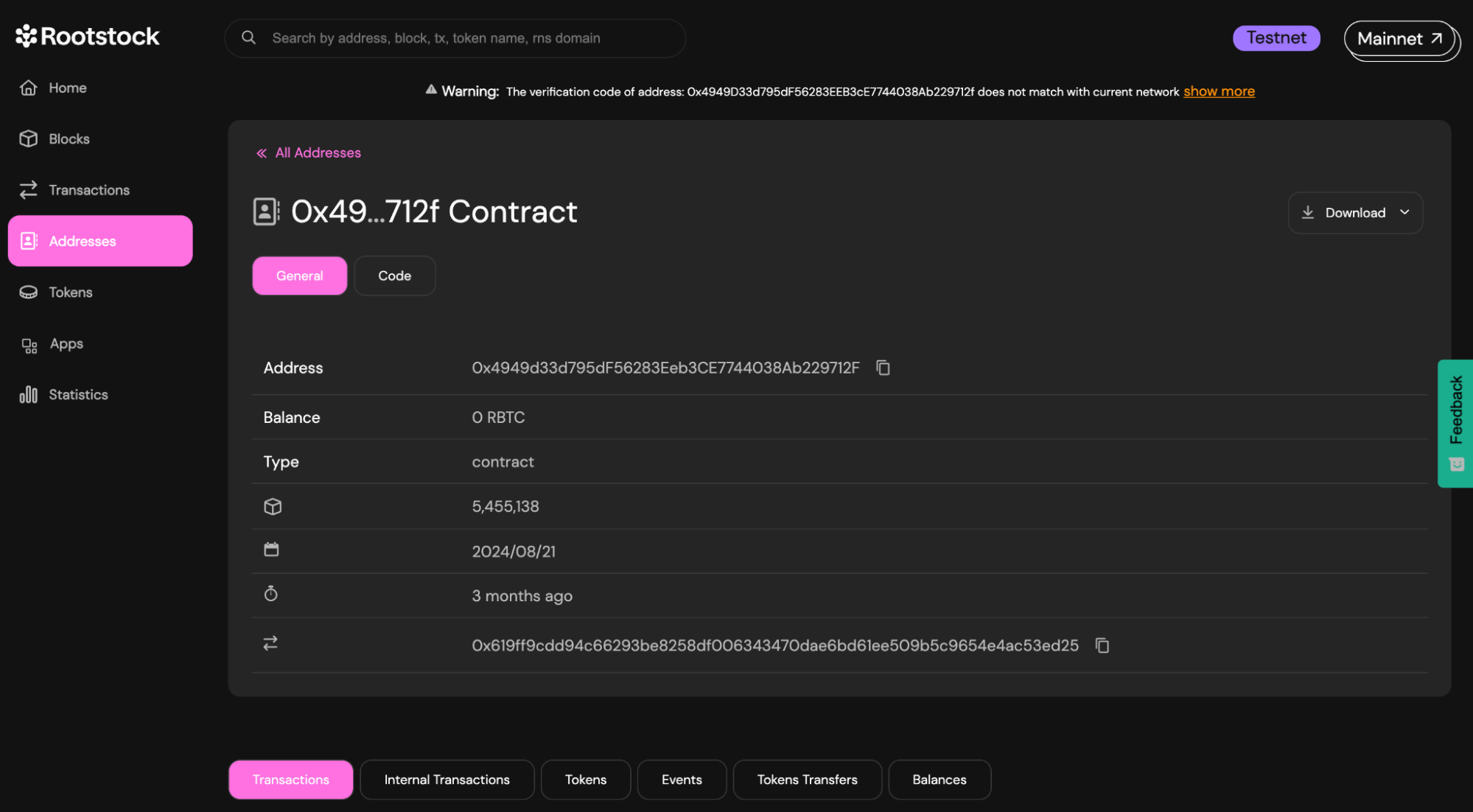
*Rootstock Testnet Explorer (fig 1.)*
:::warning[Troubleshooting]
1. **Reconciliation failed:** If you encounter this error, delete the ignition folder and artifacts folder, because they may have stored your previous deployment
**Error**
- `First`.
```
[ BoxModule ] reconciliation failed ⛔
The module contains changes to executed futures:
BoxModule#Box:
- From account has been changed from 0xb4eb1352ac339766727df550a24d21f90935e78c to 0xb0f22816750851d18ad9bd54c32c5e09d1940f7d
Consider modifying your module to remove the inconsistencies with deployed futures.
```
- `Second`.
```
IgnitionError: IGN401: Error while executing BoxModule#Box: all the transactions of its network interaction 1 were dropped. Please try rerunning Hardhat Ignition.
```
2. **Gas Fees**: If deployment fails, ensure your wallet has enough funds. Use the faucet for test tokens.
3. **Incorrect URLs**: Double-check your .env file for the correct RPC URLs.
4. **Compile Errors**: Review your smart contract code for mistakes.
:::
---
## Deploy Smart Contracts with Hardhat on Rootstock
Whether you’re a seasoned developer or just starting your journey into smart contract development, the hardhat starter kit provides a solid foundation for building decentralized applications (dApps) on the Rootstock network.
Rootstock is fully EVM (Ethereum Virtual Machine) compatible. It brings the power of smart contracts to Bitcoin, allowing developers to leverage Bitcoin’s security while benefiting from Ethereum’s ecosystem.
## What you'll achieve
- Clone and configure the Hardhat starter kit for Rootstock testnet
- Deploy ERC-20, ERC-721, and ERC-1155 smart contract examples
- Run tests and verify contracts on Rootstock Explorer
## Prerequisites
Before starting the dApp, make sure to have the following prerequisites:
1. **Familiarity with Smart Contracts:**
- If you’re new to smart contracts, consider learning the basics. Understanding how smart contracts work will enhance your experience with Rootstock development.
2. **Node.js and Hardhat Installed:**
- Ensure you have Node.js installed on your system. See the [prerequisites section](/developers/requirements/#installing-nodejs-and-npm).
3. **MetaMask set up for Rootstock:**
- Install the MetaMask browser extension if you haven’t already.
- Configure MetaMask to connect to the Rootstock network. See [MetaMask integration](/dev-tools/wallets/metamask/).
4. **Basic knowledge of Hardhat:**
- Familiarity with Hardhat's core concepts and functionalities is recommended. If you're new to Hardhat, refer to the [Rootstock Hardhat Guide](/developers/smart-contracts/hardhat/).
:::tip[Rootstock Blockchain Developer Course]
Learn how to write, test, secure, deploy and verify smart contracts on the Rootstock blockchain network. Enroll for the [Rootstock Blockchain Developer Course](/resources/courses/).
:::
## Setting Up the Sample dApp
### Clone the Repository
Open your terminal or command prompt and run the following command to clone the repository from GitHub:
```bash
git clone https://github.com/rsksmart/rootstock-hardhat-starterkit.git
```
### Install Dependencies
Navigate to the cloned repository folder:
```bash
cd rootstock-hardhat-starterkit
```
Install all required dependencies using npm:
```bash
npm install
```
### Obtain Rootstock Testnet and Mainnet RPC URLs
This section will walk you through adding Rootstock Testnet and Mainnet RPC URLs to your development environment. These URLs are essential for connecting your application to the Rootstock network and interacting with smart contracts.
There are two ways to obtain RPC URLs:
#### Using Public RPC URLs
- Visit the [MetaMask Integration on the Rootstock Dev Portal](/dev-tools/wallets/metamask/). This guide provides instructions on setting up MetaMask for Rootstock. While following these steps, pay close attention to the sections on adding custom networks. You'll find the RPC URLs for Rootstock Testnet and Mainnet listed.
#### Using RPC API
- Create an account at the [Rootstock RPC API](https://rpc.rootstock.io/). Once logged in, navigate to your dashboard and copy the API Key.
### Adding the URLs to your project
After obtaining the RPC URLs, create a file named `.env` in your project's root directory (important: this file should not be committed to version control). Add the necessary environment variables to the `.env` file:
```
WALLET_PRIVATE_KEY= Your private key (e.g., from your Metamask account details).
RSK_MAINNET_RPC_URL= The RPC URL for the Rootstock mainnet.
RSK_TESTNET_RPC_URL= The RPC URL for the Rootstock testnet.
```
## Deploying an ERC721 Token Contract
This section uses the Hardhat development framework to deploy an ERC721 token (a non-fungible token) on the Rootstock network.
Run the following command, replacing `` with either `rskTestnet` or `rskMainnet` depending on your desired deployment environment:
```bash
hh deploy --network --tags 721
```
Example command:
```bash
hh deploy --network rskTestnet --tags 721
```
This command will compile your Solidity contracts, generate type information, and deploy your ERC721 contract to the specified Rootstock network. The output will display the deployed contract address and the amount of gas used.
The above command will return an output similar to the following:
```bash
Generating typings for: 36 artifacts in dir: typechain-types for target: ethers-v6
Successfully generated 106 typings!
Compiled 34 Solidity files successfully (evm target: paris).
deploying "MockERC721" (tx: 0x9ad1dbc047b78594cf2cad105ded54c851fc0895ae69e4381908fecedd0ee3fc)...: deployed at 0x2E027a3a05f3de6777B23397a50a60ecd04fe34C with 2849621 gas
```
## Interacting with the Contract - Minting a Token
On contract deployment, you can interact with it using Hardhat's `erc721-mint` command. This command allows you to mint (create) new ERC721 tokens.
### Minting a Token:
In your terminal, run the following command, replacing the placeholders with actual values:
```bash
hh erc721-mint \
--contract \
--recipient \
--network rskTestnet
```
Example command:
```bash
hh erc721-mint --contract 0x2E027a3a05f3de6777B23397a50a60ecd04fe34C --recipient 0xB0f22816750851D18aD9bd54c32C5e09D1940F7d --network rskTestnet
```
- ``: Replace this with the address of your deployed ERC721 contract obtained from the previous step.
- ``: Replace this with the wallet address to receive the newly minted token.
- ``: Replace this with either `rskTestnet` or `rskMainnet`, depending on the network where your contract is deployed.
This command will initiate a transaction to mint a new ERC721 tokens and send it to the specified recipient address.
The output will display the transaction details:
```bash
Transaction Hash: 0xa127ff008e20d8b3944cecb374f28535cd84555881cde157708ec5545603a4e4
Transaction confirmed
```
---
## Quick Starts
````mdx-code-block
````
---
## Deploy and Interact with Rootstock using the MCP Server
Rootstock MCP Server is a Model Context Protocol (MCP) server that provides tools for interacting with the Rootstock blockchain. AI clients connect through it to run blockchain operations.
In this tutorial, you will learn how to connect AI clients to Rootstock to automate builds and deploy dApps.
## What you'll achieve
Complete these outcomes by the end of this guide:
- Install and configure the Rootstock MCP Server for mainnet or testnet
- Connect Cursor or Claude to Rootstock blockchain tools
- Query balances, deploy contracts, and run on-chain operations from an AI client
:::info[Model Context Protocols on Rootstock]
Not sure what MCPs are or how they work? Read the [guide to MCPs on Rootstock](/use-cases/ai-automation/mcp-rootstock/).
:::
## Who is it for?
* For non-developers: You can interact with Rootstock from an AI client without writing code.
* For developers: Integrate Rootstock into Cursor or Claude to speed up your workflow and simplify on-chain tasks.
## Prerequisites
* Node.js v18 or higher.
* `npm` or `yarn`
* TypeScript (included in dev dependencies)
\> See [how to install Node and NPM](https://dev.rootstock.io/developers/requirements/#installing-nodejs-and-npm).
## Supported Networks
The Rootstock MCP Server is supported on Mainnet and Testnet.
* RPC URL: `https://public-node.rsk.co`/
* Chain ID: 30
* Explorer: [https://explorer.rootstock.io/](https://explorer.rootstock.io/)
* RPC URL: `https://public-node.testnet.rsk.co`/
* Chain ID: 31
* Explorer: [https://explorer.testnet.rsk.co/](https://explorer.testnet.rsk.co/)
## Project Structure
-- ==src/==
------ handlers/
-------- responsesHandler.ts
---- tools/
-------- constants.ts
-------- handlers.ts
-------- schemas.ts
-------- types.ts
---- utils/
-------- responses.ts
---- index.ts
---- server-config.ts
---- types.d.ts
-- build/
-- ==package.json==
-- tsconfig.json
-- ==README.md==
## Installation and Build
### Clone the Repository
```bash
git clone https://github.com/rsksmart/rsk-mcp-server
cd rsk-mcp-server
```
\> See the [NPM Package](https://www.npmjs.com/package/@rsksmart/rsk-mcp-server)
### Install Dependencies
```bash
npm install
```
### Build the Project
```bash
npm run build
```
This command:
- Compiles TypeScript to JavaScript in the `build/` folder
- Makes the main file executable (`build/index.js`)
### Verify Installation
```bash
node build/index.js
```
You should see the following response:
```bash
# node build/index.js
DevX MCP Server running on stdio
```
> **Important Note:** For local running this MCP, your client will point to the `index.js` file created on the `build` folder after building it.
## Configuring the MCP Server
There are two ways to configure the MCP Server:
* Local Configuration using AI clients such as Claude or Cursor
* Remote Configuration using publicly available endpoint
Note: You will use this Model Context Protocol Server from a LLM Client (e.g Cursor, Claude, Warp, etc) which needs to be compatible with the MCP standard.
For detailed set up instructions, please refer to the [MCP Server README](https://github.com/rsksmart/rsk-mcp-server?tab=readme-ov-file#%EF%B8%8F-ai-client-configuration) AI Client configuration guide.
:::tip[Connect Remotely to MCP Server using NPM]
For remote configurations with AI clients like cursor and claude, connect using the [NPM Package](https://www.npmjs.com/package/@rsksmart/rsk-mcp-server).
:::
## Interact with MCP
**Prompt: I want to interact with Rootstock**
\> This requests permission to use the MCP tool, you click on **Allow Once** or **Always Allow**:
**AI Response:**
* “Great\! Now you have access to all the Rootstock CLI functions. Here are the available options:”
Next Step:
* **Create a new wallet** \- Generate a fresh wallet with new private keys
### Deploying a Contract with the MCP
To perform complex operations like Contract Deployment. You will prompt the AI to do the following:
* Prepare Contract Files
* Compile and Deploy Your Contract on Remix
* Fetch the ABI and Bytecode
**Prompt: I want to deploy a contract on Rootstock Testnet**
**AI Response**: “Excellent\! I'll help you deploy a smart contract to the Rootstock blockchain using your imported TestWallet.”
**Next Step:**
To deploy a contract, I need the following information:
```text
Required Information:
**Network Selection:**
* **Testnet** (recommended for testing) \- Free transactions
* **Mainnet** \- Real transactions with costs
**Contract ABI:**
* The JSON ABI (Application Binary Interface) of your contract
* This defines the contract's functions and structure
**Contract Bytecode:**
* The compiled bytecode of your contract (hexadecimal)
* This is the actual contract code that gets deployed
**Constructor Arguments (Optional):**
* If your contract constructor requires parameters
```
## MCP Operations
This section explains the core functions of the MCP server and how to use or integrate into your application.
### Wallet Management:
This section shows you how to manage your wallets, including creating new ones, importing existing ones, and switching between them. Your wallet holds your crypto assets and is needed to sign transactions on the blockchain.
**Create a New Wallet:** You can create a new wallet by giving it a name and a secure password. This will generate a new address for you to use on Rootstock.
**Reference**:`validateCreateWallet(params)`, `processWalletOperation(params)`
```ts
// In WalletService.ts
// Example parameters for creating a new wallet
{
walletOption: "🆕 Create a new wallet",
walletName: "MyNewWallet",
walletPassword: "secure_password",
replaceCurrentWallet: false
}
```
**Import an Existing Wallet**: If you already have a wallet, you can import it using its private key. You'll also need to set a new password to keep it secure on the server.
**Reference**:
* `validateImportWallet(params)`
* `processWalletOperation(params)`
```ts
// In WalletService.ts
// Example parameters for importing a wallet
{
walletOption: "🔑 Import existing wallet",
walletName: "ImportedWallet",
privateKey: "0x...",
walletPassword: "secure_password"
}
```
**List Saved Wallets**: This shows a list of all the wallets you've previously saved on the server.
**Reference**:
* `validateListWallets(params)`
* `processWalletOperation(params)`
```ts
// In WalletService.ts
// Example parameters for listing wallets
{
walletOption: "🔍 List saved wallets",
walletData: "my-wallets.json_content"
}
```
**Switch Wallets:** If you have multiple wallets, you can use this function to change which one is currently active for your next operation.
**Reference**:
* `validateSwitchWallet(params)`
* `processWalletOperation(params)`
```ts
// In WalletService.ts
// Example parameters for switching wallets
{
walletOption: "🔁 Switch wallet",
newMainWallet: "WalletName",
walletData: "my-wallets.json_content"
}
```
### Balance Queries:
This function checks the balance of a specific token in your wallet. It is handled within the `WalletService.ts` file using the `balanceCommand`.
**Reference**: `checkBalanceFromCreation(params)`
```ts
// In WalletService.ts
// Example parameters for checking rBTC balance
{
testnet: true,
token: "rBTC",
walletCreationResult: "..." // JSON result from a wallet creation
}
// Example parameters for a custom token balance
{
testnet: true,
token: "Custom Token",
customTokenAddress: "0x...", // contract address of the token
walletCreationResult: "..."
}
```
**Supported Tokens:** You can check the balance for `rBTC` (Rootstock's native token) and other popular ERC20 tokens like `USDT`, `DOC`, and `RIF`. You can also check the balance of any other ERC20 token by providing its contract address.
**How to check a balance:** Simply tell the AI which token you want to check and for which wallet. For example, you can ask for the `rBTC` balance in your wallet named MyWallet.
**Custom Tokens:** For a token that isn't on the standard list, you'll need to provide its unique contract address on the blockchain.
### Transaction Tracking:
This tool lets you check the status of a transaction on the Rootstock blockchain. To use it, you need the unique transaction hash (also called a TXID).
How it works: You provide the transaction hash, and the server checks the blockchain to give you information like:
* Whether the transaction is `pending`, `confirmed`, or `failed`.
* The block number where the transaction was included.
* Details about the transfer.
* The exact time of the transaction.
### Contract Deployment:
This function allows you to deploy a smart contract on the Rootstock network. A smart contract is a self-executing program that runs on the blockchain.
**Requirements:** To deploy a contract, you'll need three main things:
* The **ABI** (Application Binary Interface): A file that explains the contract's functions in a human-readable format.
* The **Bytecode**: The compiled, machine-readable version of your contract's code.
* Your **Wallet**: The wallet you use for deployment must have enough rBTC to cover the transaction fees.
**Process:** You provide the ABI and bytecode, along with any arguments the contract's constructor needs, and the server handles sending it to the network.
**Reference**:
* `processContractDeployment(params)`
* `executeDeployment(...)`
```ts
// In ContractDeploymentService.ts
// Example parameters for deploying a contract
{
testnet: true,
abiContent: `[{"inputs":[],"name":"myFunction"...}]`, // The contract's ABI
bytecodeContent: "0x...", // The contract's compiled bytecode
constructorArgs: ["arg1", "arg2"], // Optional constructor arguments
walletData: "my-wallets.json_content",
walletPassword: "wallet_password"
}
```
### Contract Verification:
Verifying a contract makes its code public and visible to everyone. This builds trust by proving that the code you deployed matches the original source code. The core logic is in the `ContractVerificationService.ts` file.
**Requirements:** To verify a contract, you'll need:
* The **contract address** where it was deployed.
* The original **Solidity source code**.
* The **compilation metadata** (a JSON file that describes how your code was compiled).
* The **constructor arguments** used when you first deployed the contract.
**Outcome:** After verification, anyone can view the contract's code on a blockchain explorer and confirm it's correct.
**Reference**:
* `processContractVerification(params)`
* `executeVerification(...)`
```ts
// In ContractVerificationService.ts
// Example parameters for verifying a contract
{
testnet: true,
contractAddress: "0x...",
contractName: "MyContract",
jsonContent: `{"language":"Solidity","sources":{...}}`, // Compilation metadata
constructorArgs: ["arg1", "arg2"] // Arguments used during deployment
}
```
### Read Contracts
This tool lets you interact with smart contracts that have already been deployed and verified. You can use it to get information from the contract without sending a transaction.
* **List Functions:** You can start by asking the AI to list all the available functions within a verified contract.
* **Call a Function:** You can then call a specific function, providing any required arguments. For example, you could call the balanceOf function to check the token balance of a specific address within that contract.
**Reference**:
* `processContractRead(params)`
* `executeContractRead(...)`
```ts
// In ContractReadService.ts
// Example parameters for calling a function on a contract
{
testnet: true,
contractAddress: "0x...",
functionName: "balanceOf", // The name of a 'view' or 'pure' function
functionArgs: ["0x..."] // Arguments for the function
}
```
See detailed functionality and supported operations in the [README](https://github.com/rsksmart/rsk-mcp-server?tab=readme-ov-file#-detailed-functionality) or the [Rootstock CLI documentation](https://dev.rootstock.io/developers/smart-contracts/rsk-cli/).
## Troubleshooting
_Error: `rsk-mcp-server disconnected`_
\> Ensure to edit and replace Arguments in .json text file with the correct absolute path to the `index.js` file, delete the current config pointing to incorrect path and add the text file.
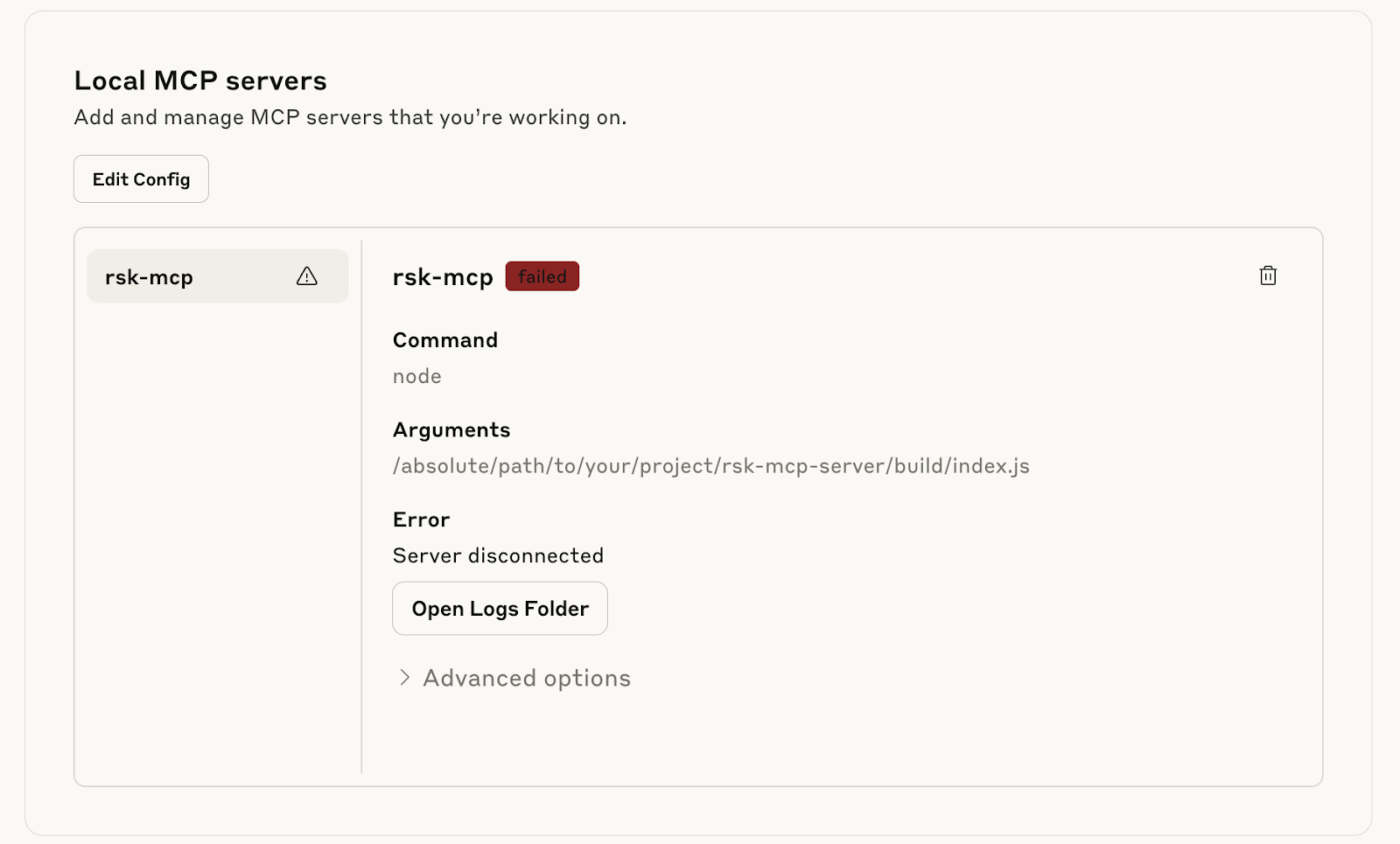
**Verify that the MCP is running:**
**Verify that the MCP is enabled:**
## Related Resources
* [MCP Starter Kit NPM Package](https://www.npmjs.com/package/@rsksmart/rsk-mcp-server)
* [MCP Server Starter Kit](https://github.com/rsksmart/rsk-mcp-server)
* [Conversational app with on-chain actions on Rootstock](/use-cases/ai-automation/ai-agent-rootstock/)
---
## Onboard Users with Privy on Rootstock
The [Rootstock Privy Starter Kit](https://github.com/rsksmart/rsk-privy-starter-kit) empowers developers to onboard users with social logins and self custodial wallets while preserving control, privacy, and flexibility for dApps when building on Rootstock.
Privy handles security at the infrastructure level. Private keys are split using advanced cryptography and never stored in full. Sensitive operations run in Trusted Execution Environments (TEEs) for deep isolation, and the system is backed by SOC 2 certification and regular third party audits.
With Privy, you can:
- Design wallet flows
- Integrate authentication and wallet management directly into your app
- Multiple sign in methods, including email, social logins, and OAuth
- Provision embedded, self custodial wallets with crosschain support that fits your product’s needs
- Manage permissions, and choose between out of the box UI components or low level API access depending on your choice of control.
In this guide, you'll learn how to set up a React project that uses Privy for authentication and Wagmi for on-chain interactions.
## What you'll achieve
- Configure Privy authentication with social logins and embedded wallets
- Connect users to Rootstock through Wagmi hooks
- Send transactions and read contract state from your dApp frontend
## Getting Started
Clone the pre-configured starter kit project:
```bash
git clone https://github.com/rsksmart/rsk-privy-starter-kit
```
Create an account and get a project ID from the [Privy dashboard](https://dashboard.privy.io/), this will be used to set up the Privy provider with Wagmi config.
Once logged in, create a new project for a client environment and web platform.
Navigate to the App settings to find the App ID. Keep the App ID handy; you'll need it to set up the context next. This setup gives access everything Privy can do.
### Configure Environment Variables
Locate the file `.env.example` and rename to `.env`. Replace the App ID previously configured:
```text
VITE_PRIVY_APP_ID='your Privy App ID'
```
### Integrating Wagmi and Privy
### Configuring the Providers Component
Privy will be used for auth and wallet creation, and Wagmi is used to manage blockchain interactions and account state.
```javascript
export default function Providers({ children }: { children: React.ReactNode }) {
return (
{children}
);
}
```
To make this work, the `WagmiProvider` and `PrivyProvider` each require their own configuration objects. Let’s take a closer look at the setup.
#### Configuring Wagmi
The createConfig from @privy-io/wagmi is used to define a wagmiConfig object that connects our app to the Rootstock mainnet and testnet using viem's HTTP transport. This configuration is then passed to the WagmiProvider, enabling the app to interact with the blockchain and access Wagmi’s React hooks for account state, transactions, and other on-chain operations.
```javascript
export const wagmiConfig = createConfig({
chains: [rootstock, rootstockTestnet],
transports: {
[rootstock.id]: http(),
[rootstockTestnet.id]: http(),
},
});
```
#### Configuring Privy
The `privyConfig` object defines how Privy behaves in your app, including authentication methods, wallet behavior, and appearance settings. This configuration is passed into the `PrivyProvider` from the `@privy-io/react-auth` package, enabling Privy’s authentication and wallet features across your application. Explore additional options and advanced configurations in [Privy's React docs](https://docs.privy.io/basics/react) to tailor the experience to your needs.
```javascript
const privyConfig: PrivyClientConfig = {
embeddedWallets: {
createOnLogin: 'users-without-wallets', // just for social login
},
loginMethods: ['wallet', 'email', 'sms', 'google', 'apple'],
appearance: {
showWalletLoginFirst: false, // Social login first
theme: 'dark',
loginMessage: 'Please sign this message to confirm your identity',
walletChainType: 'ethereum-only',
},
defaultChain: rootstockTestnet,
supportedChains: [rootstock, rootstockTestnet],
};
```
### Creating a custom connect button
This custom connect button will be used to trigger wallet connections with your own UI.
This `ConnectButton` component allows users to connect their wallet using Privy's built in login popup and then displays a custom UI once they're authenticated. It shows key account details like their wallet address, current network, and balance. All retrieved using Wagmi hooks. Users can also easily disconnect via the dropdown.
#### Component Setup and Imports
This sets up the necessary React state and hooks from `Privy` and `Wagmi`. These libraries provide authentication state, wallet info, on chain account data, and balance retrieval.
```text
```
### Handling Authentication
When handling authentication on Privy, the following applies:
- `usePrivy()` gives access to core auth functions. Use it to check if the user is ready or authenticated, and to handle login and logout.
- `useWallets()` returns wallets managed by Privy, including addresses and connection status.
```javascript
const { ready, authenticated, login, logout } = usePrivy();
const { wallets } = useWallets();
const activeWallet = wallets?.[0]; // Connected wallet
```
Before the user is connected, the button triggers the Privy login modal. After connection, it shows a custom button with wallet info and toggles the dropdown.
```javascript
{!authenticated ? (
Connect Wallet
) : (
{formatAddress(activeWallet.address)}
)}
```
### Additional Configuration
Based on the use case for your dApp, the authentication UI has some customizable configs such as external wallets.
On default the privy config prioritizes the `showWalletLoginFirst: false`, but some app could be web3 users centered and might need to have them as default.
#### Customizing App’s Logo
To customize your app’s logo by defining it in the Privy configuration.
```javascript
appearance: {
showWalletLoginFirst: true,
theme: 'dark',
loginMessage: 'Please sign this message to confirm your identity',
walletChainType: 'ethereum-only',
logo: 'src/assets/rootstock&privy.png'
}
```
### Blockchain Account Data
Using Wagmi’s `useAccount()` and `useBalance()`, we grab the connected wallet’s current network and token balance, enabling us to display real time on chain data in the dropdown.
```javascript
const { address, chain } = useAccount();
const { data: balanceData } = useBalance({ address });
```
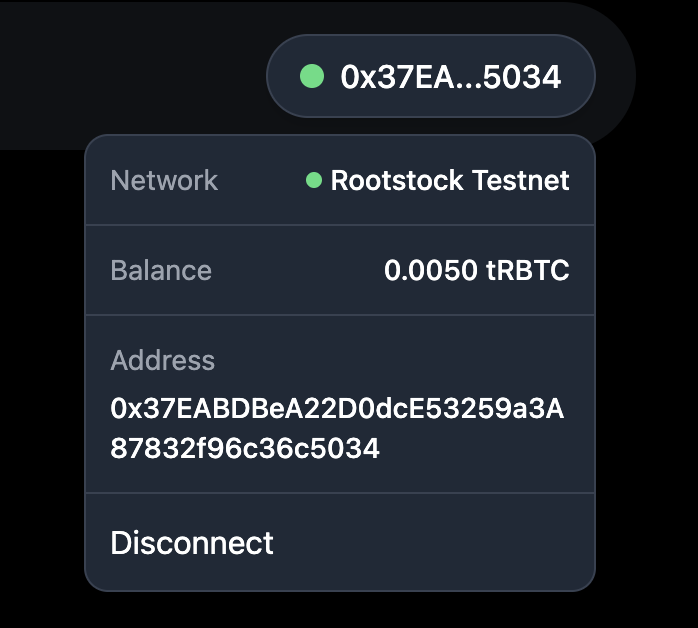
#### 1. Using the custom connect button
The custom connect button preserves Privy's built-in login flow while giving you full control over what users see once they're connected. It is a clean way to personalize wallet interactions and display key account details in your app's interface. You can explore the full implementation in `ConnectButton.tsx`.
```javascript
{chain?.name}
{balanceData?.formatted}
{activeWallet?.address}
Disconnect
```
#### 2. Enabling social logins (Optional) using providers like Google or Twitter for smoother onboarding
To enable social login options like Google, Twitter, or Apple in your Privy-powered app, you can configure them directly through the Privy Dashboard. This allows users to authenticate using their existing social accounts, enhancing the onboarding experience.
##### Access the Privy Dashboard
Navigate to your app's settings in the Privy Dashboard:
To keep onboarding simple, start by enabling email login in Privy’s Basics tab under Authentication.
Users can authenticate without a separate wallet or external identity provider. Social logins and other methods (SMS, passkeys) can be configured later from the Socials and Advanced tabs. For full details, refer to [Privy’s guide](https://docs.privy.io/basics/get-started/dashboard/configure-login-methods#email-login) to login methods.
Congratulations, we have successfully learnt how to setup Privy, configure components like Wagmi, handle authentication, customize app logo, enable social logins, etc.
With extensive configuration options, support for multiple login strategies, and direct integration with embedded wallets, Privy adapts to a wide range of environments and use cases. As a secure and customizable solution, Privy is well suited for onboarding users and powering reliable wallet experiences. Integrating it into your app is a strong step toward bringing more users into the Rootstock ecosystem with simplicity and confidence.
---
## Deploy and Verify Smart Contracts with Remix on Rootstock
The process of writing, compiling and deploying Solidity contracts can be tedious or a bit obscure at the beginning, if you try to do it programmatically or using terminals. Get started writing, compiling, and deploying Solidity contracts quickly with Remix. Remix offers an [online IDE](https://remix.ethereum.org/) that allows for writing, compiling, interacting and deploying smart contracts to any network.
In this guide, we will use the Remix online IDE to write, compile, deploy, interact and verify a smart contract on the [Rootstock Testnet Explorer](https://explorer.testnet.rootstock.io/).
## What you'll achieve
- Write and compile a Solidity contract in Remix IDE
- Deploy the contract to Rootstock testnet through MetaMask
- Verify the contract on Rootstock Explorer
## Prerequisites
1. Remix online IDE, go to the [Remix online IDE](https://remix.ethereum.org/)
2. MetaMask Wallet. See how to [Configure MetaMask Wallet for Rootstock](https://dev.rootstock.io/dev-tools/wallets/metamask/)
3. Rootstock Testnet Explorer
## Setting up Remix
In the left menu, click on **Deploy and run transactions**, and under **Environment** select **Injected provider - MetaMask**, this will trigger the MetaMask Wallet, confirm connection, and ensure you are logged in to Metamask and connected to the Testnet or Mainnet Rootstock network.
Once selected, under Account, select the account you want to deploy the contract with.
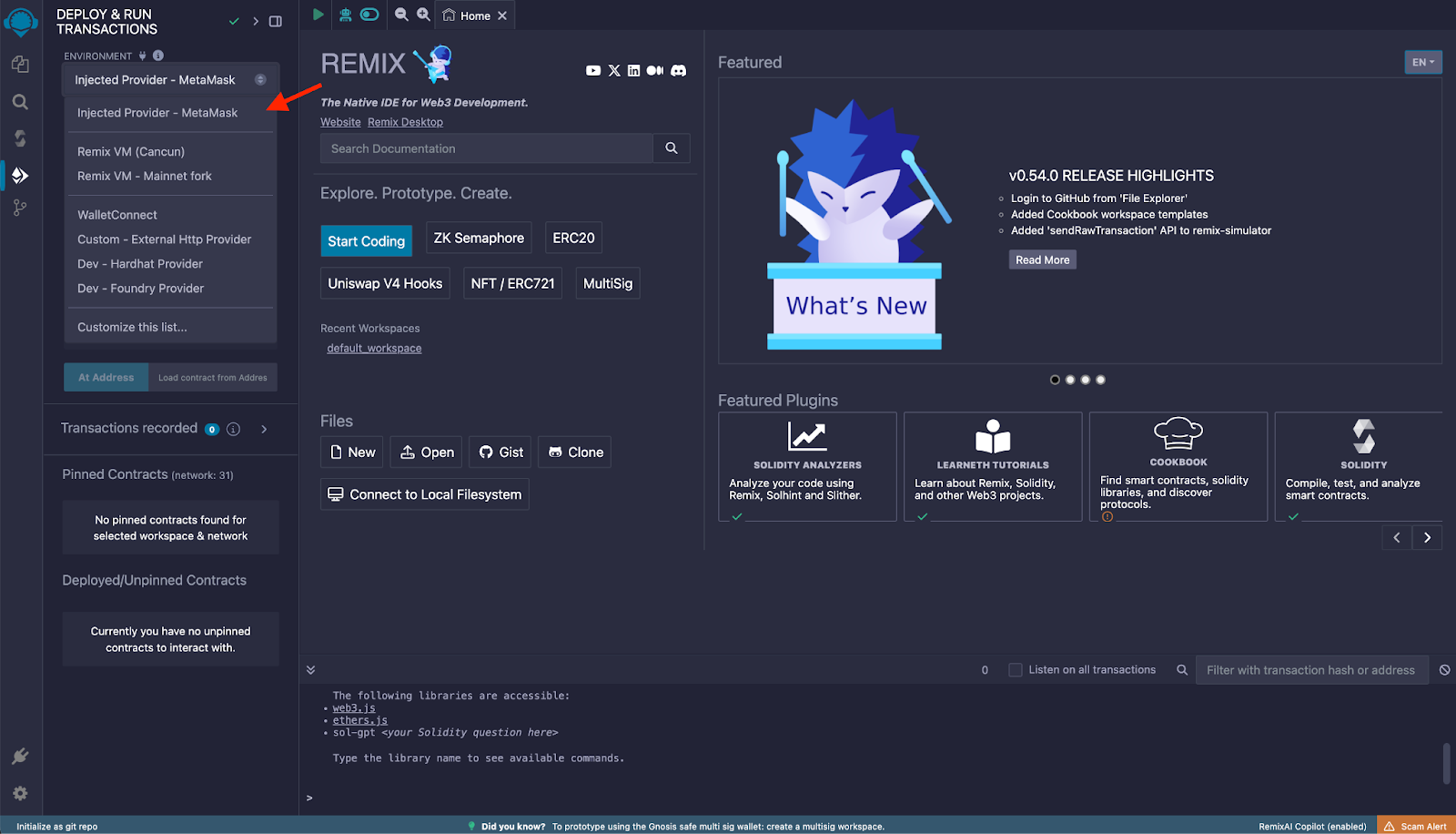
## Writing a Smart Contract
In the left menu, click on **File explorer**, and under **Workspaces**, you can create separate workspaces with different templates, like `ERC20`, `ERC1155`, an empty one, or use the default one that comes with a simple set of example contracts.
Inside the **contracts** folder, put all the contracts you want that satisfy the dependencies of the main contract you want to deploy, if any.
In this guide, we’ll use one of the example contracts that Remix provides in the default workspace, `1_Storage.sol`.
> ⚠️ Note: for the sake of the verification process some steps after, ensure the `.sol` filename of the main contract matches exactly its declared name. So we’ll rename it to `Storage.sol`.
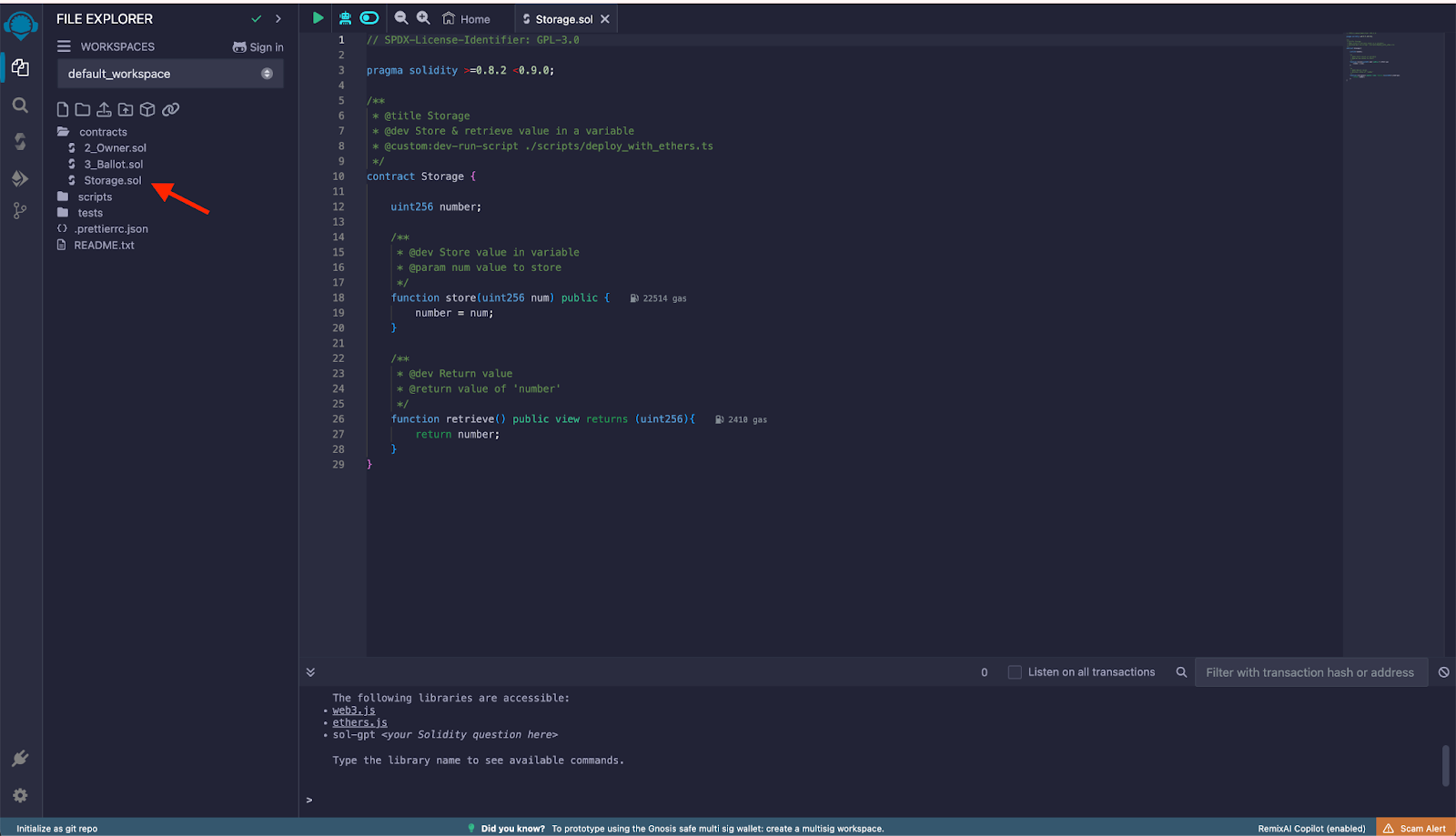
## Compiling the Contract
In the left menu, click on **Solidity compiler** and set the compilation parameters:
* Compiler: ensure the commit version is accurate for what you defined in the pragma of the contract.
* Under Advanced Configurations you can specify the EVM version and the optimization runs. You can also disregard this form and use a custom JSON with the configuration options.
:::tip[Tip]
Current supported Solidity and EVM versions are listed in [Development Prerequisites](/developers/requirements/). For opcode-level detail and Ethereum porting notes, use the [EVM Compatibility Explorer](https://rskj-evm-compatibility.rsk.co/).
:::
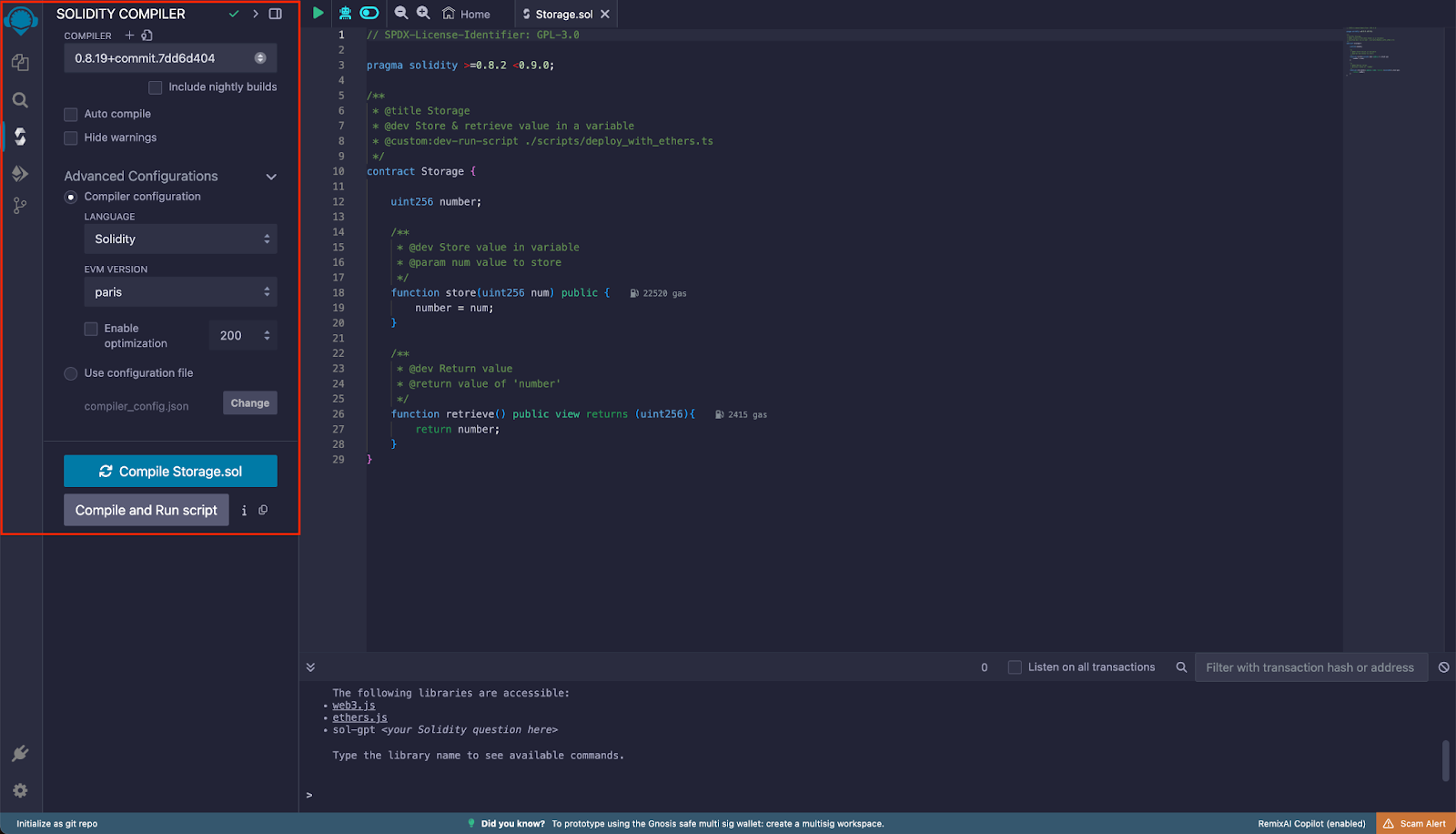
Return to File explorer and right click on the contract you want to deploy, and click on **Compile Storage.sol**. Note that you can also compile the contract by clicking the Compiler Options button in the left menu, and clicking `Compile (currentFileOpenInEditor).sol`
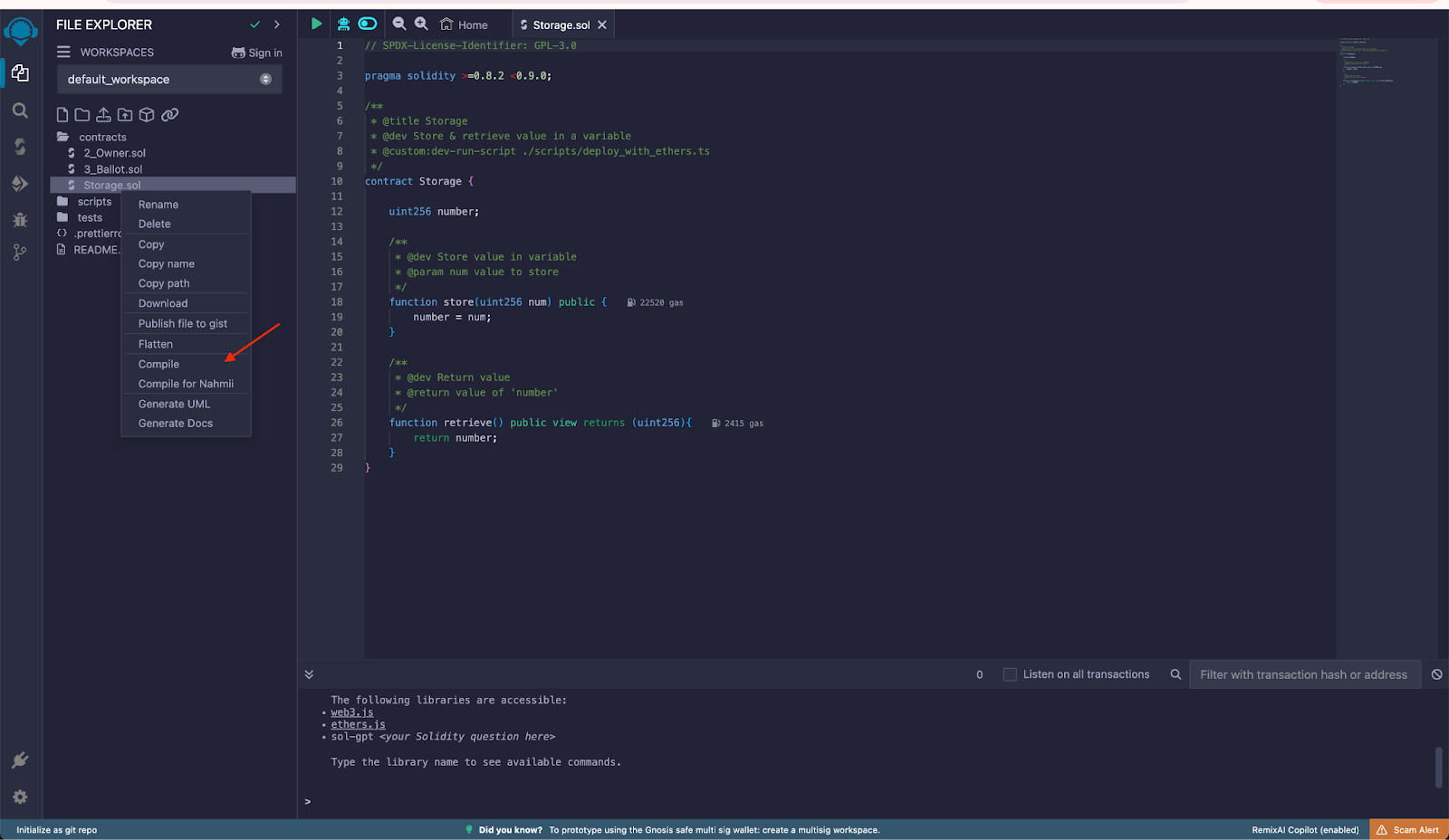
If successful, you will see a green checkmark (highlighted as selected), this is necessary so that in the next step the compiled contracts can be detected for deployment.
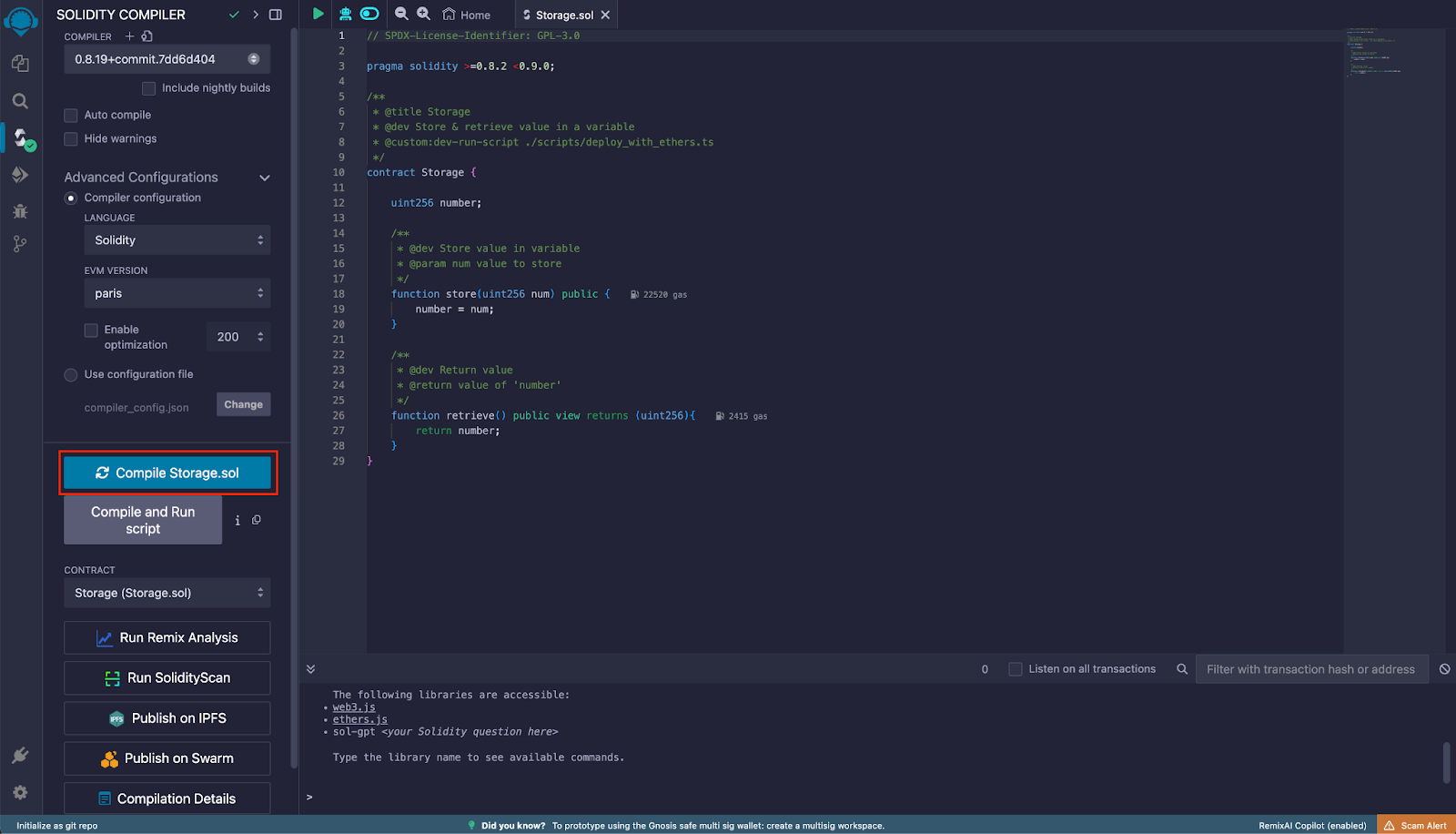
## Deploying the Contract
In the left menu, click on **Deploy and run transactions**. Under Contract, ensure the contract is selected. Click on Deploy and MetaMask will then prompt you to sign the deploy transaction.
> Ensure the Environment and Account are correctly set as explained in the previous step. If the contract had any constructor arguments, those inputs would appear next to the Deploy button for you to fill them.
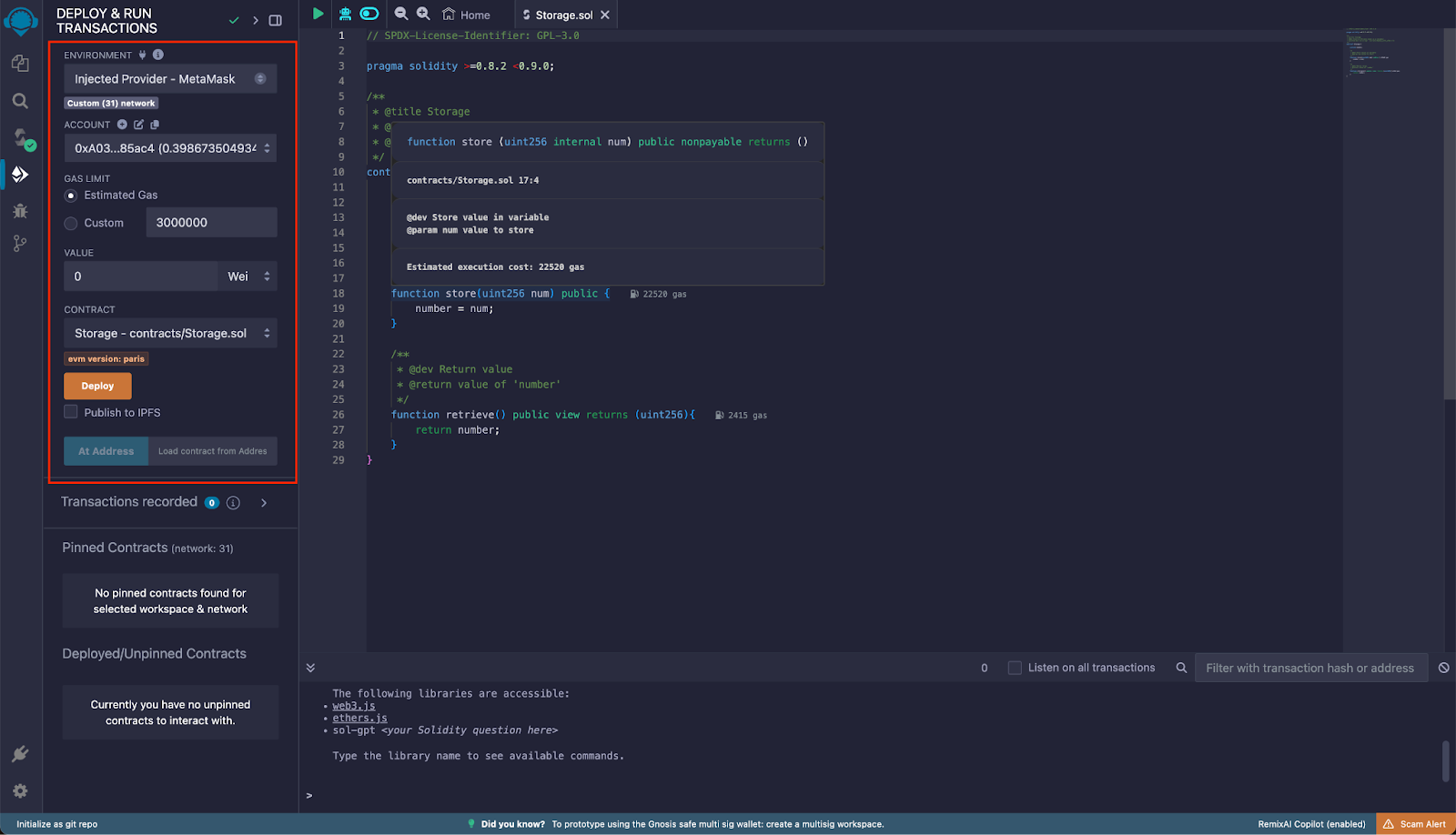
Confirm the transaction in MetaMask:
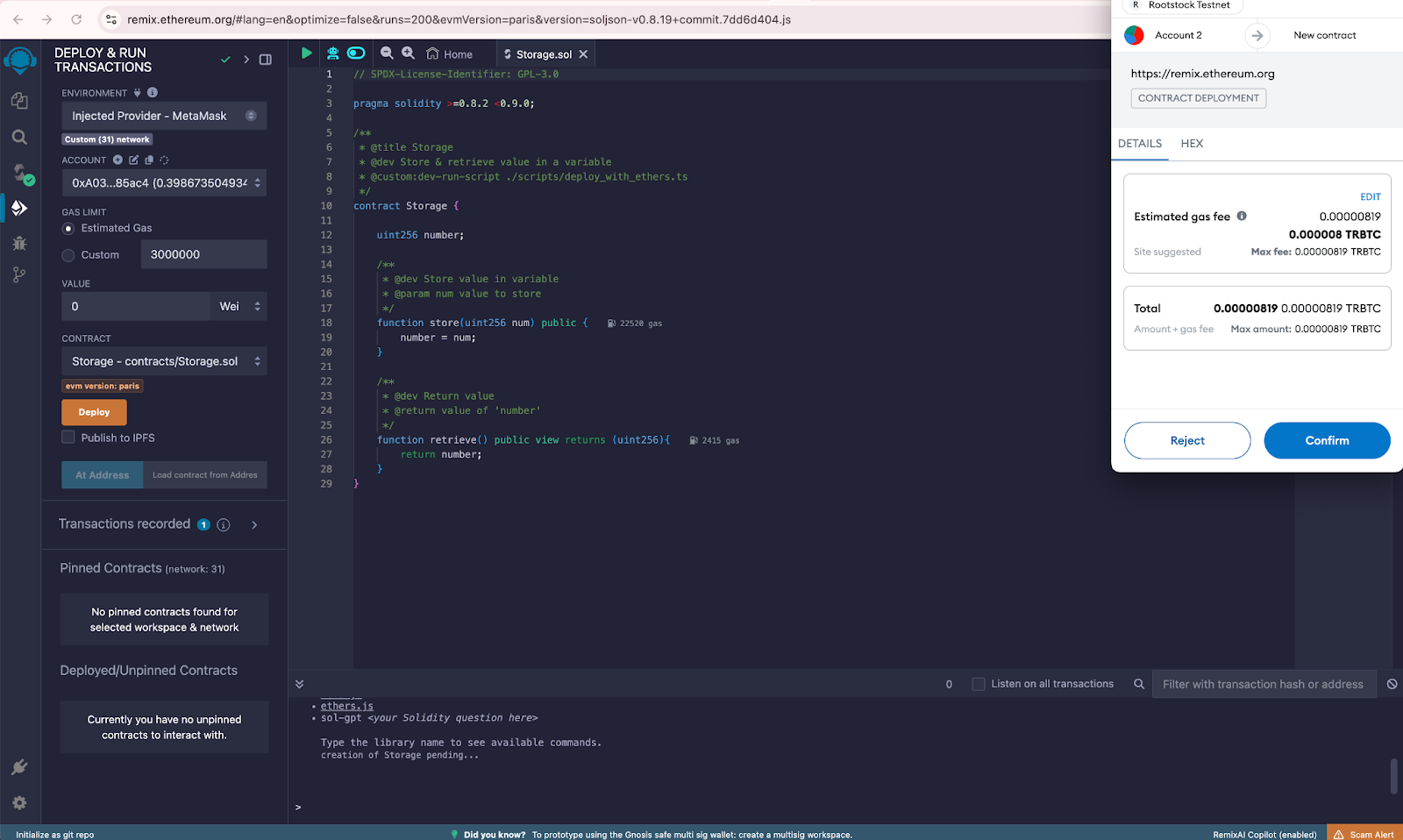
If deployment is successful, it will appear under **Deployed/Unpinned Contracts** section
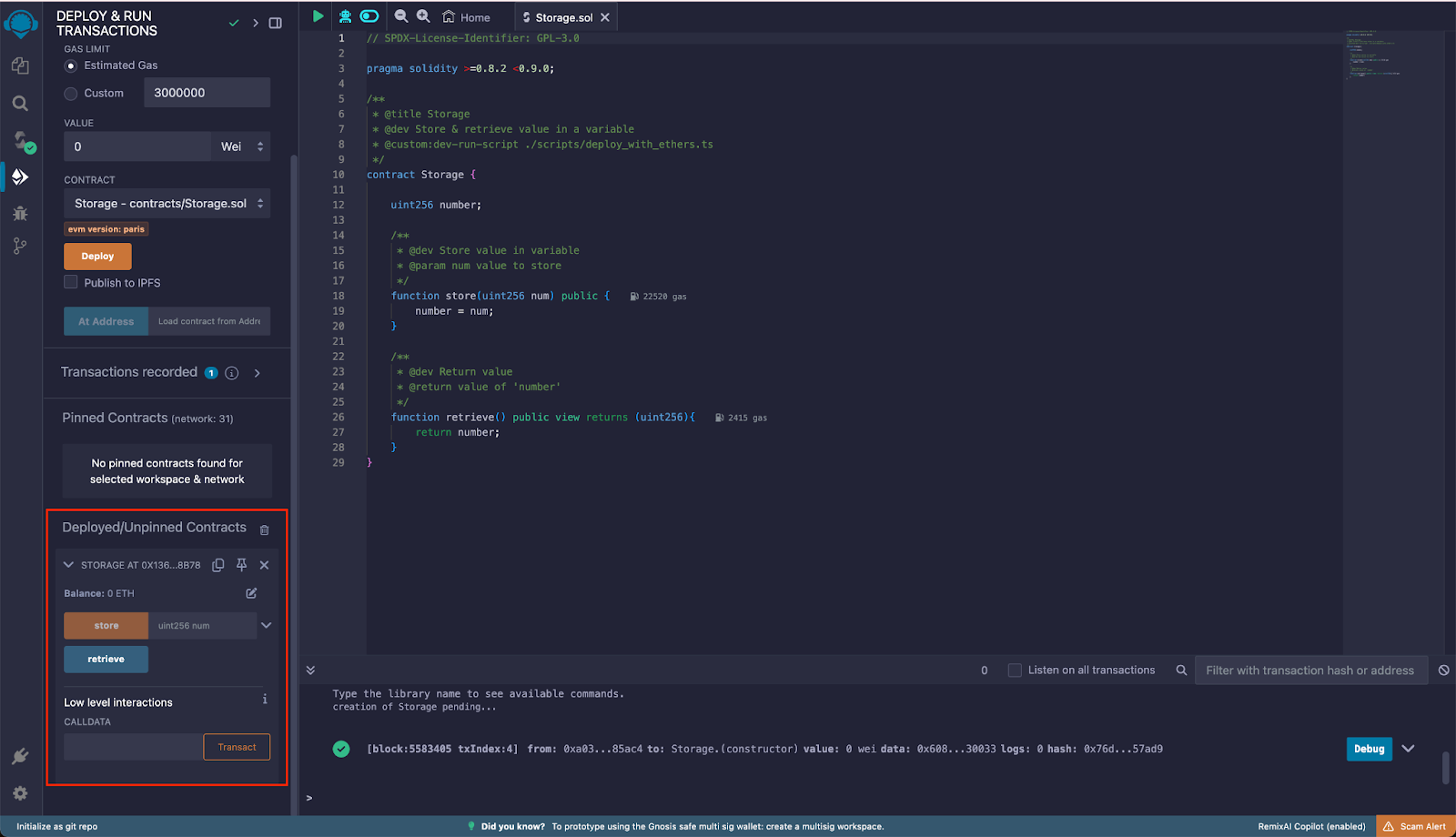
## Interacting with the Contract
As shown in the previous step after deploying the contract, you can expand the desired contract and interact with it, calling the available functions by entering the required arguments, if any. Once entered the arguments, click on the method name and, in the event that it’s a writing method, Metamask will prompt you to sign the transaction. If the method is read only, it will show the return value under the method name.
## Verifying the Contract on Rootstock Explorer
Smart contracts are the backbone of decentralized applications (dApps). They automate agreements and processes, but their code can be complex and prone to errors. Verifying your smart contracts is crucial to ensure they function as intended.
The [Rootstock Explorer](https://explorer.rootstock.io/) provides a UI for exploring and verifying transactions, blocks, addresses, tokens, stats, and interacting with smart contracts.
To verify the deployed contract on the explorer, go back to Remix file explorer and go to `contracts -> artifacts -> build-info`. In this folder there will be a json file containing the information of the compilation process. You’ll need this in order to verify the contract on the [Rootstock Testnet Explorer](https://explorer.testnet.rootstock.io/). Copy the value of the input attribute and save it as a json file in your computer.
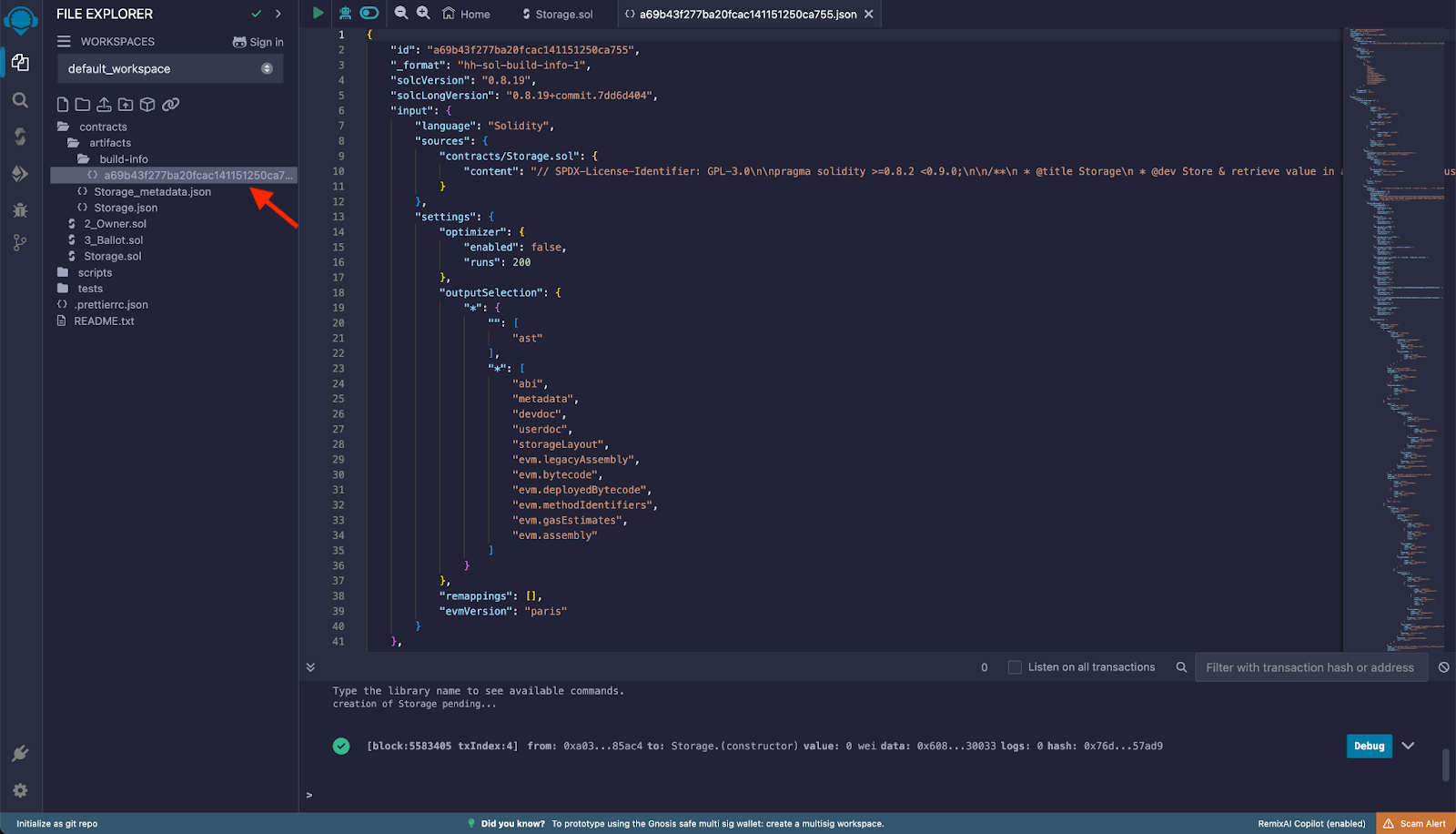
Copy the contract's address from the Remix deployment output, you can find the contract address under the **Deployed/Unpinned** Contracts.
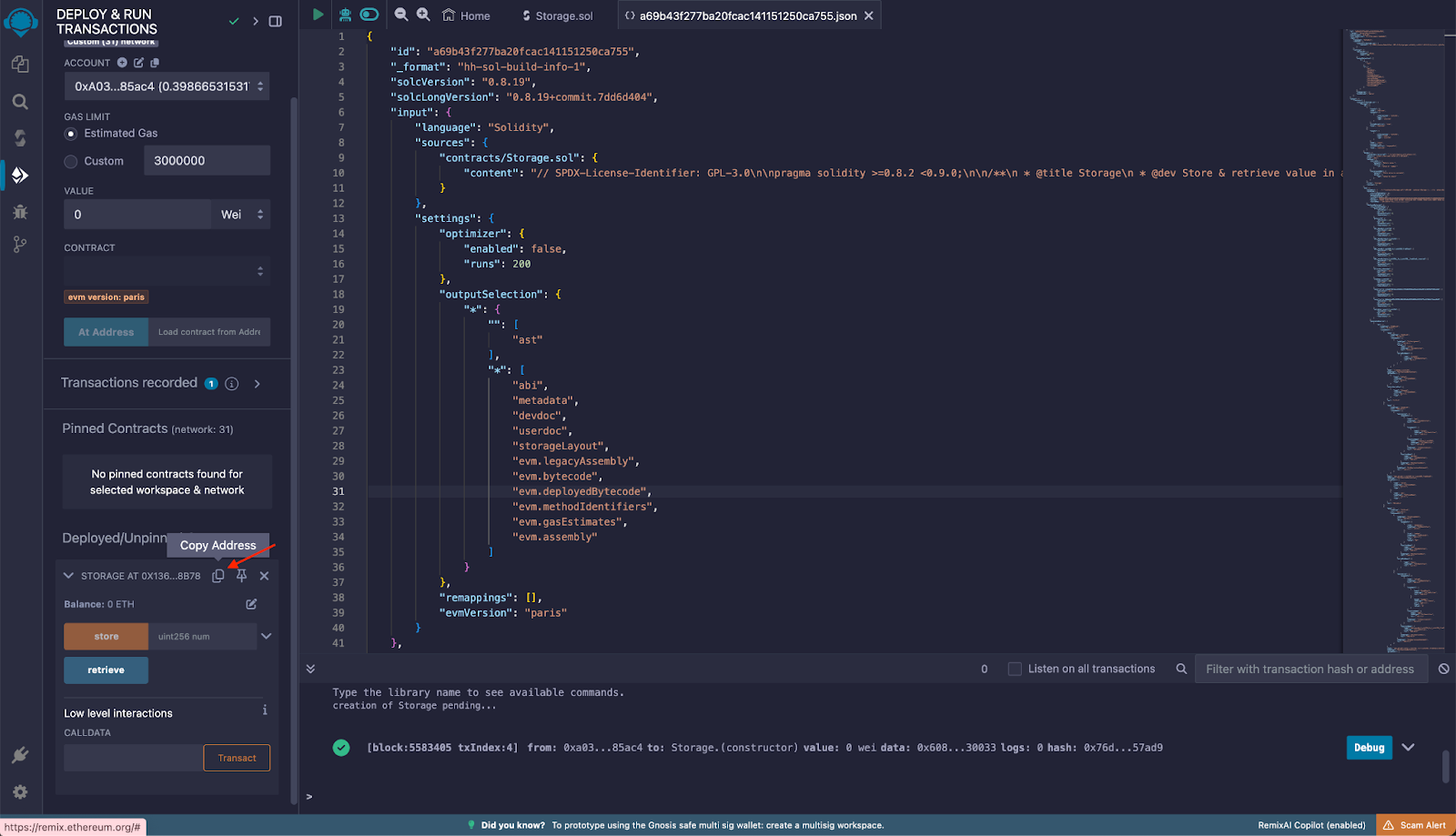
Visit the [Rootstock Testnet Explorer](https://explorer.testnet.rootstock.io/) and paste the Contract Address in the search field.
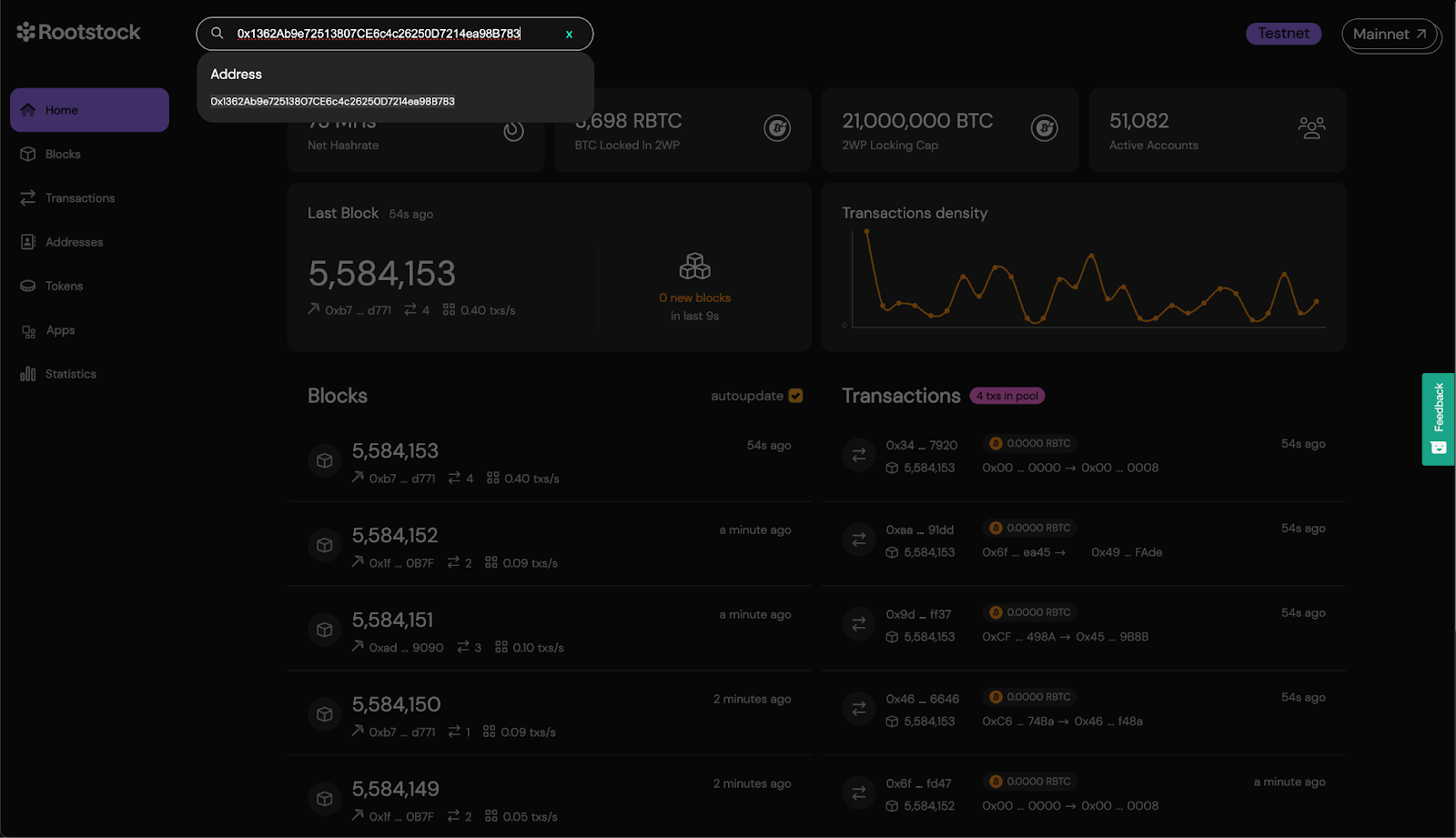
Click on the Code tab and click the button to **Verify Contract**.
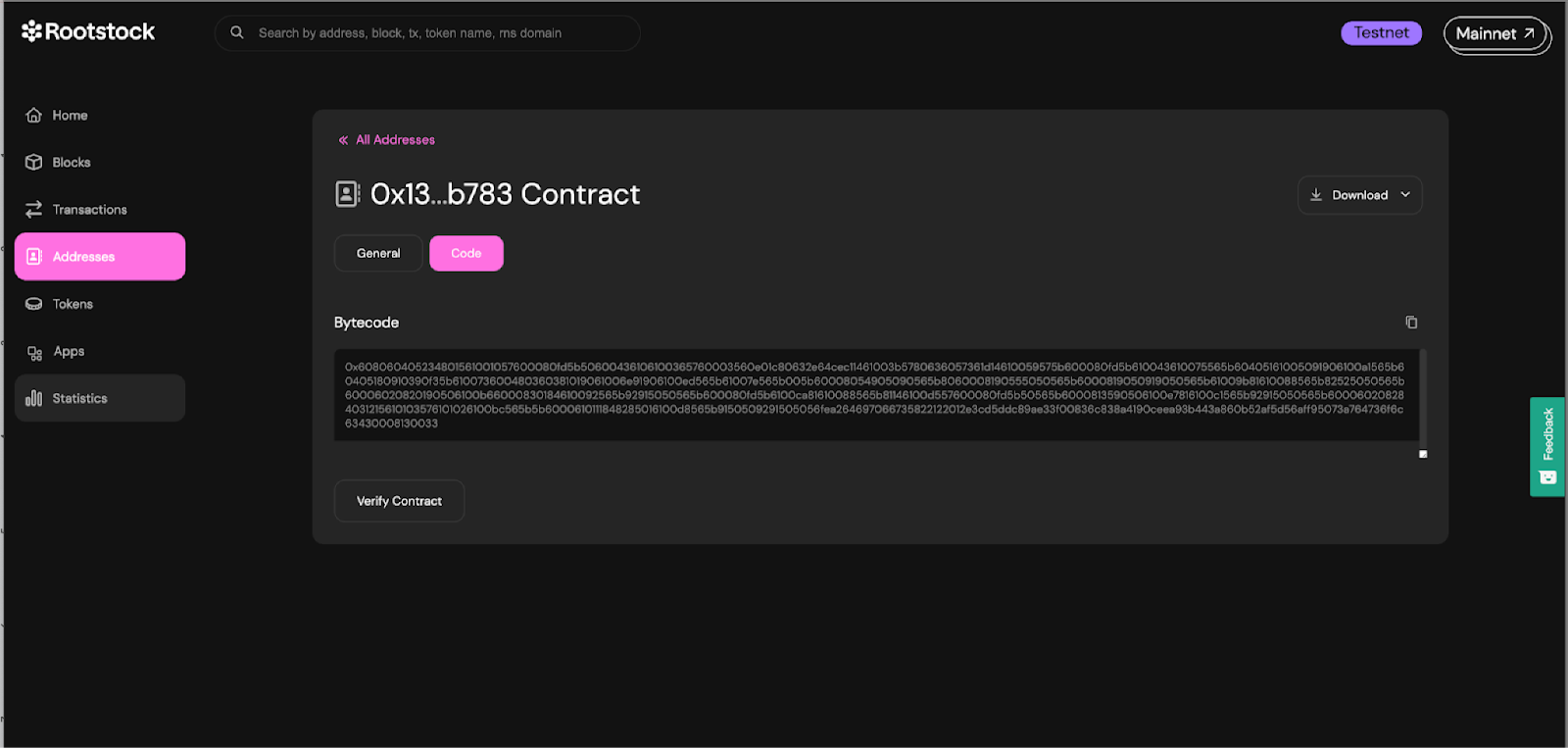
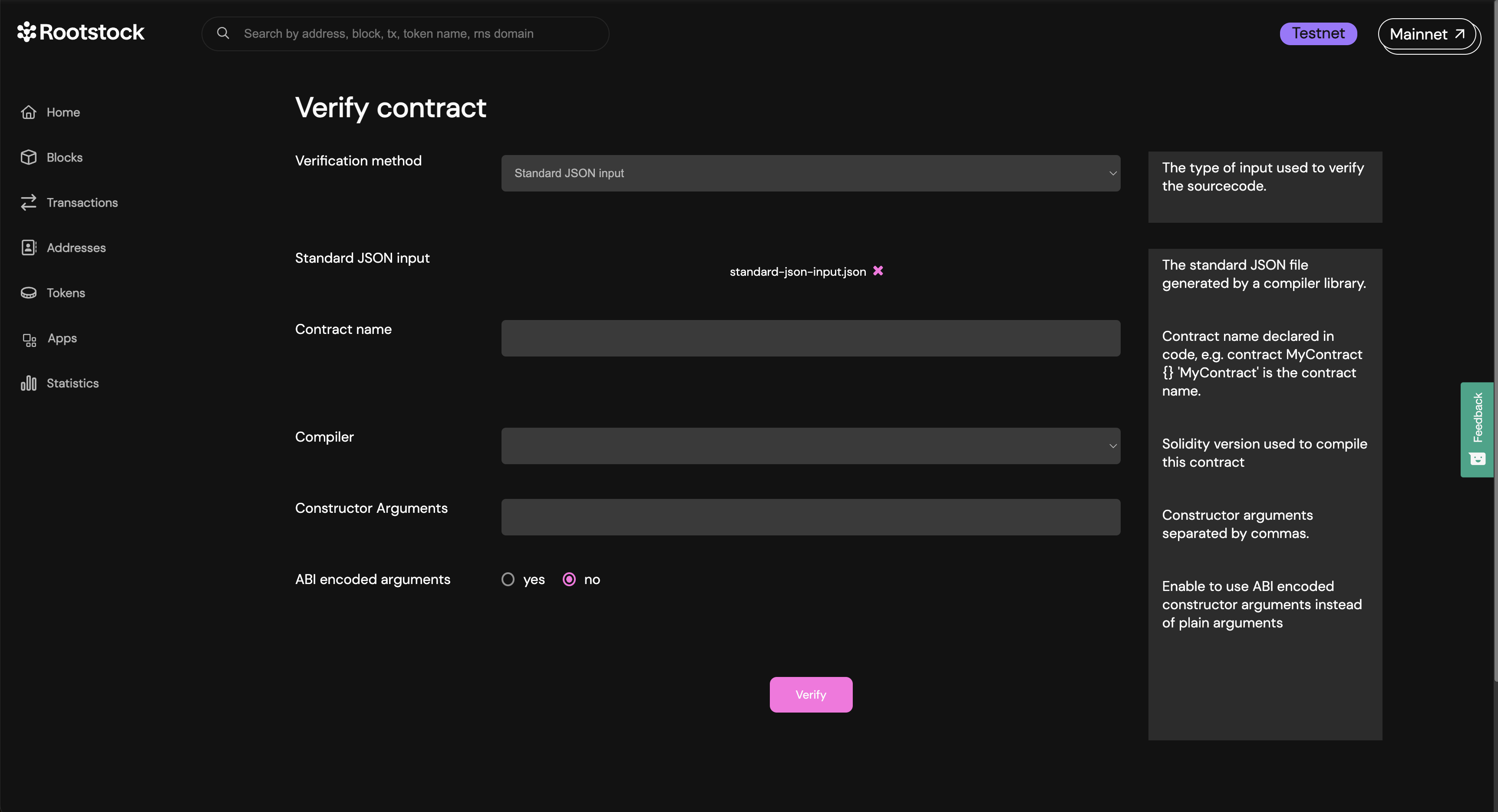
Select **Standard JSON Input** as the verification method and fill the form:
1. Standard JSON input: In the standard JSON input, upload the file you created from the build info of the contract.
2. Contract name: The name of the contract which you declared it with. Remember that it’s important the file of the contract has the same matching name as the standard-json-input.json. Now, click on add file to upload.
3. Compiler: This is the compiler version the contract has been compiled with. For example
Constructor arguments: The constructor arguments of the contract, if any. If you don’t know the arguments at first, continue with the process and the explorer will attempt to identify the constructor arguments from the bytecode and suggest them, if possible.
4. ABI encoded arguments: if the arguments provided are ABI encoded, check this option.
Copy only the input value (curly braces included), see [verifying contract on the explorer](#verifying-the-contract-on-rootstock-explorer) and paste the code into a file named `standard-json-input.json`, then click on add file:
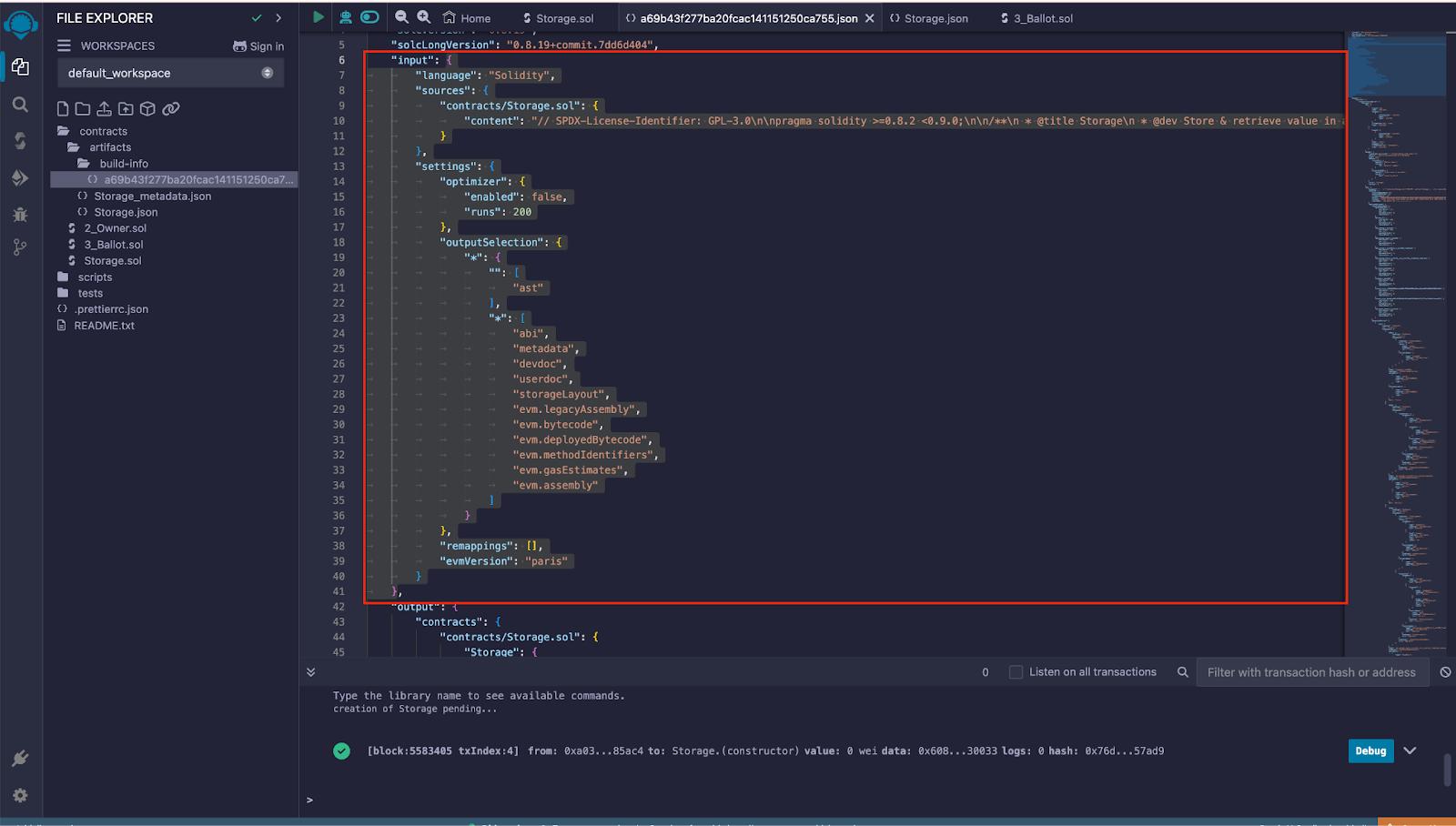
Here’s the example code of an input value:
```solidity
{
"language": "Solidity",
"sources": {
"contracts/Storage.sol": {
"content": "// SPDX-License-Identifier: GPL-3.0\n\npragma solidity >=0.8.2 <0.9.0;\n\n/**\n * @title Storage\n * @dev Store & retrieve value in a variable\n * @custom:dev-run-script ./scripts/deploy_with_ethers.ts\n */\ncontract Storage {\n\n uint256 number;\n\n /**\n * @dev Store value in variable\n * @param num value to store\n */\n function store(uint256 num) public {\n number = num;\n }\n\n /**\n * @dev Return value \n * @return value of 'number'\n */\n function retrieve() public view returns (uint256){\n return number;\n }\n}"
}
},
"settings": {
"optimizer": {
"enabled": false,
"runs": 200
},
"outputSelection": {
"*": {
"": [
"ast"
],
"*": [
"abi",
"metadata",
"devdoc",
"userdoc",
"storageLayout",
"evm.legacyAssembly",
"evm.bytecode",
"evm.deployedBytecode",
"evm.methodIdentifiers",
"evm.gasEstimates",
"evm.assembly"
]
}
},
"remappings": [],
"evmVersion": "cancun"
}
}
```
* Enter the Contract name, this can be found in the Contract declaration.
```solidity
contract Storage {
// code
}
```
* Select the compiler version, note to use the same compiler version used when compiling the contracts on Remix.
At the bottom, below the form, click on the **verify** button and wait for the verification attempt to finish. If successfull, you’ll see a success screen.
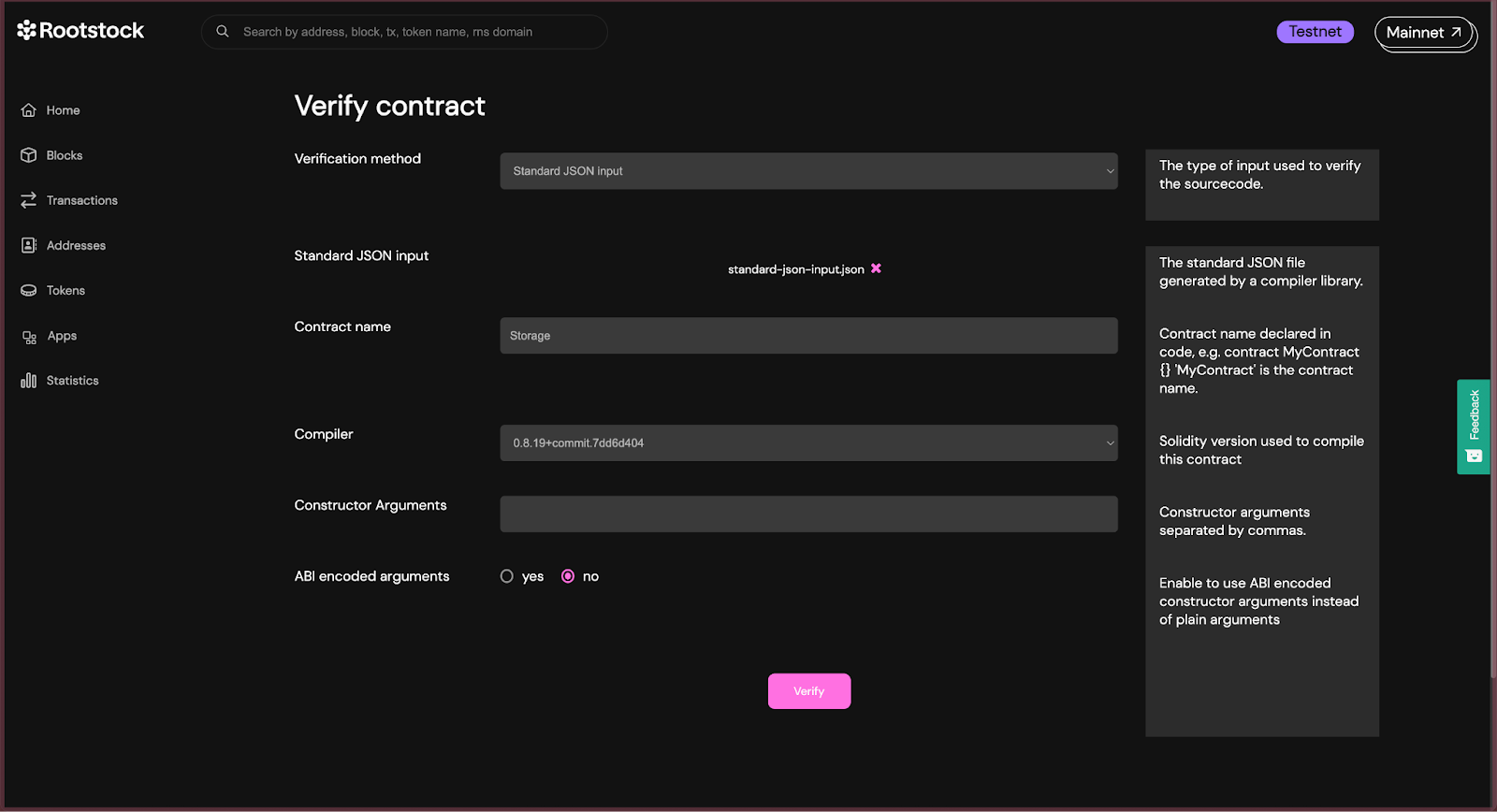
You can view all the solidity code of the contract and its dependencies.
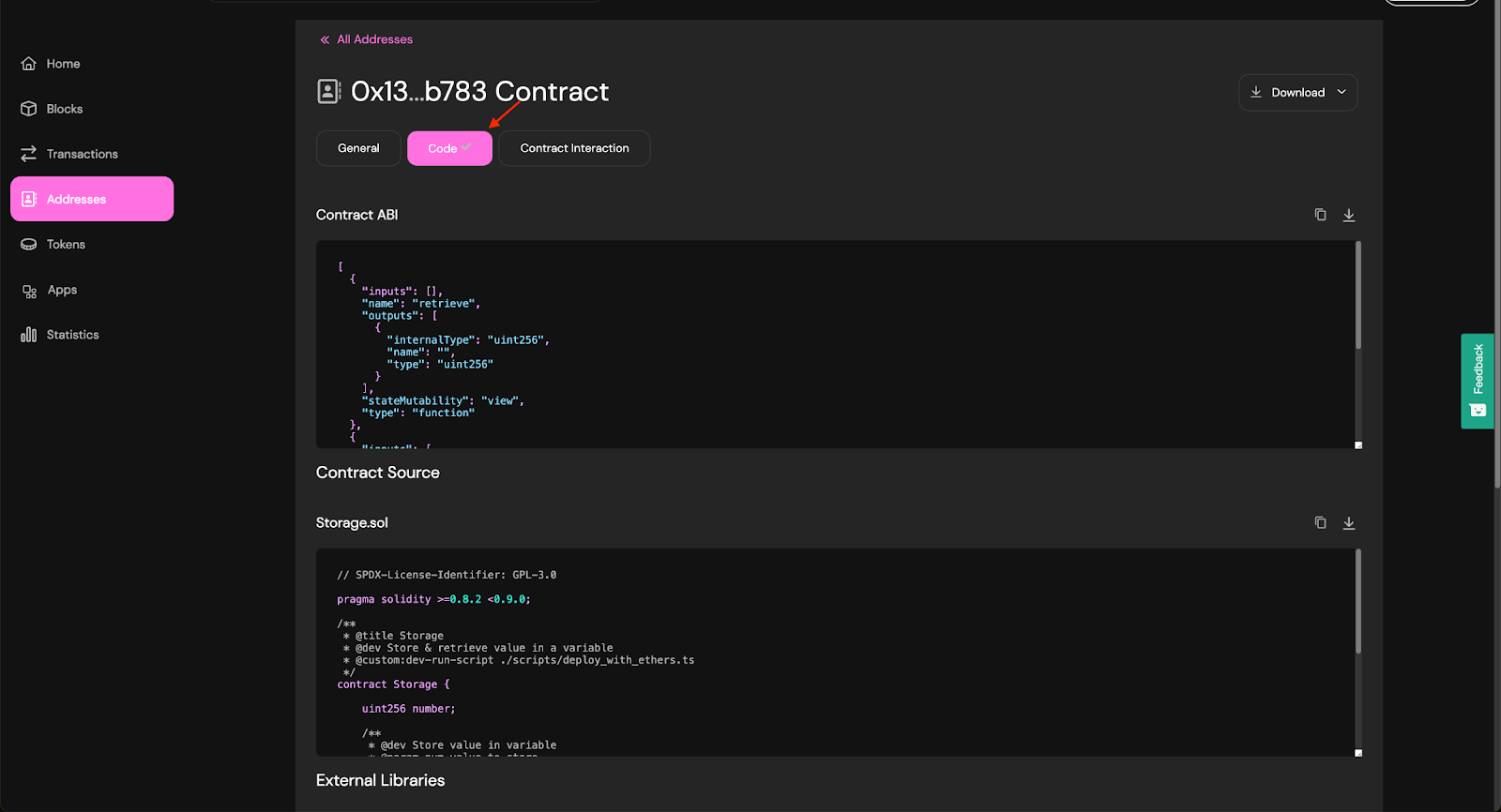
Congratulations, we have successfully compiled, deployed, interacted and verified a smart contract using Remix and the Rootstock Explorer.
## Troubleshooting
````mdx-code-block
Error: Missing contract verifier data
FIX: Ensure to refresh your tab and verify the contract again.
````
## Resources
* [Getting Started with Wagmi](/developers/quickstart/wagmi/)
* [Getting Started with Hardhat](/developers/quickstart/hardhat/)
* [Verify a Smart Contract using the Hardhat Verification Plugin](/developers/smart-contracts/verify-smart-contracts/hardhat-verify-plugin/)
* [Verify a Smart Contract using Foundry and Blockscout](/developers/smart-contracts/verify-smart-contracts/foundry-blockscout/)
---
## Build a dApp with Reown and Wagmi on Rootstock
The Rootstock Reown-Wagmi starter kit provides a foundation for building decentralized applications (dApps) on the Rootstock blockchain.
It leverages the security of Bitcoin and the flexibility of Ethereum.
The kit uses [Reown](https://reown.com/) (previously WalletConnect) to handle wallet management, [Wagmi](https://wagmi.sh/), a React Hooks library, to simplify smart contracts and blockchain network interactions, and [Shadcn libraries](https://ui.shadcn.com/), a set of customizable and accessible UI components for React, designed to streamline frontend development.
> This starter kit is designed to help developers jump-start their dApp development journey on Rootstock.
## What you'll achieve
- Configure Reown AppKit and connect wallets to Rootstock
- Read contract state and send transactions from a React frontend
- Customize the UI with Shadcn components for your dApp
## Prerequisites
- **Node.js and Git:** Ensure that Node.js and Git are installed on your system.
- See the [Prerequisites](/developers/requirements/#installing-nodejs-and-npm) section for how to download Node.js using NVM.
- **Package Manager:** You can use either Yarn or npm to manage your project dependencies:
- **Yarn:** Install Yarn, a package manager for Node.js projects. You can do this by running the following command in your terminal:
```bash
npm install -g yarn
```
- **npm:** npm comes bundled with the Node.js installation. To verify your npm installation, run:
```bash
npm -v
```
If you need to update npm to the latest version, you can run:
```bash
npm install -g npm@latest
```
- **Basic Knowledge:**
- [React](https://react.dev/) (a JavaScript library for building user interfaces)
- [Solidity](https://soliditylang.org/) (a programming language for Ethereum smart contracts).
:::tip[Rootstock Blockchain Developer Course]
Learn how to write, test, secure, deploy, and verify smart contracts on the Rootstock blockchain network. Enroll in the [Rootstock Blockchain Developer Course](/resources/courses/).
:::
## Setup
### 1. Clone the Repository
First, you’ll need to clone the Rootstock Reown Starter Kit repository. Open your terminal and run the following commands:
```bash
git clone https://github.com/rsksmart/rsk-reown-starter-kit
cd rsk-reown-starter-kit
```
### 2. Get Project ID
Every dApp that relies on Reown (previously WalletConnect) now needs to obtain a project ID from [Reown Cloud](https://cloud.reown.com/). This is free and only takes a few minutes.
To get the key:
1. Go to [Reown](https://cloud.reown.com/sign-in) and sign up.
2. Create a new project by clicking on **Create Project**.
3. Add a name and link to your project, on the product selection screen, select **WalletKit** and continue.
4. Your project ID is shown in the left menu under your project name. Click to copy it
### 3. Environment Setup
To set up your environment, follow these steps:
- Create a `.env` file and add environment variables.
```text
VITE_WC_PROJECT_ID=Your project ID from Reown Cloud
VITE_BUNDLER_API_KEY='etherspot_public_key'
VITE_CUSTOM_BUNDLER_URL=https://rootstocktestnet-bundler.etherspot.io/
```
- Enter your project ID. For testnet purposes, you can keep the Etherspot Bundler API key and Bundler URL. If you need a production environment, please go to [Etherspot](https://etherspot.io/), create an account, and obtain your API key.
### 4. Install Dependencies
Before running the project, make sure to have the necessary dependencies installed. You can use NPM or Yarn. Run the following command to install dependencies:
```bash
yarn
```
### 5. Run the Project
Now that you’ve cloned the repository and installed dependencies, it’s time to run the project. Execute the following command:
```bash
yarn dev
```
This will start the Rootstock Reown Starter dApp locally, allowing you to develop and test your smart contracts. You can access the Vite server at [http://localhost:5173/](http://localhost:5173/).
## Result
:::info[Info]
After successfully running your project using the command above, do the following:
- Click the “Connect” button to log in. Once connected, you can:
- **Switch Networks:** Easily switch between Mainnet and Testnet.
- **View and Copy Your Address:** Access your wallet address.
- **Check Your tRBTC Balance:** See your tRBTC balance.
- **Disconnect:** Log out from the project.
:::
## Test Project
To test the project, follow these simple steps:
1. **Connect Your Wallet:** Click the “Connect” button.
2. **Navigate to the Reown-Wagmi Section:** Scroll down and find the card labeled “Contract Interaction with Reown Starter Kit.” Click it.
3. **Explore the Tabs:** In the Wagmi section, you’ll see three tabs: ERC-20, ERC-721, and ERC-1155. Click on any of these tabs to explore further.
## Understanding the Codebase
### Folder Structure
```
public
src
Src
.env
.env.example
```
The `src` folder is organized to streamline the development process and facilitate locating specific code or assets. Here's a detailed breakdown:
#### `.src` Folder Structure
- **Assets:** Contains the ABIs (Application Binary Interfaces) for ERC20, ERC721, and ERC1155.
- **Components:**
- **AccountAbstraction:** Contains code related to account abstraction.
- **Home:** Holds components specific to the homepage.
- **Icons:** Contains various icon components.
- **Tokens:** Includes components for different token types.
- **UI:** General UI components used across the application.
- **Footers.tsx:** Footer component.
- **Navbar.tsx:** Navbar component.
- **Config:**
- **config.ts:** Holds the Wagmi configuration for Reown (WalletConnect) implementation.
- **provider.tsx:** Configuration for web3 providers.
- **wagmiProviderConfig.ts:** Configuration for Wagmi providers.
- **Lib:** Contains various utility folders for easy organization:
- **Constants:** Application constants.
- **Functions:** General functions used across the app.
- **Types:** Type definitions.
- **Utils:** Utility functions.
- **Pages:**
- **index.ts:** Main entry point.
- **Etherspot.tsx:** Page component for Etherspot.
- **Home.tsx:** Homepage component.
- **Wagmi.tsx:** Wagmi-related page component.
### Code for ERC20, ERC721, and ERC1155 Tabs
The code responsible for the tabs corresponding to ERC20, ERC721, and ERC1155 can be found within the components folder:
- **ERC20:** Located in the `components/tokens/ERC20` directory.
- **ERC721:** Located in the `components/tokens/ERC721` directory.
- **ERC1155:** Located in the `components/tokens/ERC1155` directory.
This structured approach ensures that code and assets are logically grouped, facilitating ease of navigation and maintainability.
#### Understanding the ERC20 Tab Code
The code interacts with a smart contract to mint tRSK tokens. Here's a detailed breakdown of how this is achieved:
1. **Smart Contract Reference:**
- **Address:** The smart contract's address is specified by the `ERC20_ADDRESS` constant.
- **ABI:** The contract's ABI (Application Binary Interface), which defines the contract functions and their parameters, is provided by the `abi` constant.
2. **Reading Contract Data:**
```javascript
const { data, isLoading, isError, refetch } = useReadContract({
abi,
address: ERC20_ADDRESS,
functionName: "balanceOf",
args: [address],
});
```
3. **Writing to the Contract:**
The `useWriteContract` hook from the wagmi library is used to interact with the contract's write functions (functions that modify the state).
4. **Minting Tokens:**
The `mintTokens` function calls `writeContractAsync` to mint tRSK tokens.
- Arguments:
- abi: Defines the contract functions and their parameters.
- address: The address of the deployed ERC-20 contract.
- functionName: The name of the function to call, which is "mint" in this case.
- args: An array containing the user's wallet address and the amount to mint (100 in this case).
```javascript
const mintTokens = async () => {
setLoading(true);
try {
const txHash = await writeContractAsync({
abi,
address: ERC20_ADDRESS,
functionName: "mint",
args: [address, 100],
});
await waitForTransactionReceipt(config, {
confirmations: 1,
hash: txHash,
});
setLoading(false);
toast({
title: "Successfully minted tRSK tokens",
description: "Refresh the page to see changes",
});
refetch();
} catch (e) {
toast({
title: "Error",
description: "Failed to mint tRSK tokens",
variant: "destructive",
});
setLoading(false);
console.error(e);
}
};
```
This sends a transaction to the blockchain to execute the "mint" function on the smart contract, thereby minting tRSK tokens and depositing them into the user's wallet.
## Understanding the ERC721 Tab Code
This code defines a React component named `ERC721Tab`, which provides a user interface for interacting with an ERC-721 smart contract.
The Key Functions Within This Component:
1. `useReadContract`:
This hook is used to read data from the ERC-721 contract. It fetches the balance of NFTs held by the connected user's address.
- **Parameters**:
- `abi`: The ABI (Application Binary Interface) of the ERC-721 contract.
- `address`: The address of the ERC-721 contract.
- `functionName`: The name of the function to call on the contract (balanceOf).
- `args`: The arguments to pass to the contract function ([address]).
2. `useWriteContract`:
This hook is used to write data to the ERC-721 contract, specifically to mint a new NFT.
**Function**:
- `writeContractAsync`: Asynchronously writes to the contract by calling the `safeMint` function of the ERC-721 contract.
3. `mintNFT`:
This is an asynchronous function that handles the minting process of a new NFT.
- **Steps**:
- Sets the loading state to true.
- Attempts to call the `safeMint` function on the ERC-721 contract using `writeContractAsync`.
- Waits for the transaction to be confirmed using `waitForTransactionReceipt`.
- Displays a success toast message if the minting is successful.
- Refetches the user's NFT balance by calling `refetch`.
- Catches any errors, logs them, and displays an error toast message.
- Sets the loading state to false.
4. `refetch`:
This function is part of the `useReadContract` hook and is used to refresh the balance of NFTs after a successful minting operation.
5. `toast`:
This function is used to display toast notifications for success or error messages.
The rest of the component contains JSX to render the UI elements, including a button to mint the NFT, a balance display, and a link to view the minted NFTs on a block explorer.
## Understanding the ERC1155 Tab Code
The code provided is a React component that interacts with a smart contract using the ERC-1155 standard. It allows users to mint tokens and check their balances.
The Key Functions Within This Component:
1. `ERC1155Tab` Component:
**State Variables**:
- `loading`: Boolean to manage the loading state during token minting.
- `value`: Number to store the selected token type for minting.
- `address`: The user's wallet address obtained from the `useAccount` hook.
2. `useReadContract` Hooks:
These hooks are used to read data from the smart contract.
- `useReadContract` for checking the balance of Type A tokens (with ID 1).
- `useReadContract` for checking the balance of Type B tokens (with ID 2).
3. `mintTokens` Function:
An asynchronous function that handles the minting of tokens.
- **Steps**:
- Calls `writeContractAsync` to interact with the smart contract and mint tokens.
- Waits for the transaction receipt using `waitForTransactionReceipt`.
- Displays success or error toasts based on the outcome.
- Refetches the balance data after minting.
## Join the Community
Building dApps can be challenging, but you’re not alone.
Join the [Rootstock Discord](http://discord.gg/rootstock) community for help, questions, and collaboration.
---
## Deploy Account Abstraction dApps with Etherspot on Rootstock
In this guide, you will learn how to use the Etherspot Prime SDK to deploy an Account Abstraction dApp on the Rootstock network.
By following these steps, you'll empower your users to interact with your dApp without managing private keys directly.
## What you'll achieve
- Integrate the Etherspot Prime SDK with a Wagmi starter kit on Rootstock
- Create smart accounts for users without direct private key management
- Send transactions through account abstraction flows on Rootstock testnet
## Prerequisites
- Ensure git is installed
- Basic understanding of React and JavaScript
- Node.js and npm (or yarn) installed on your machine
- A code editor of your choice (e.g., Visual Studio Code)
- Familiarity with the [Wagmi starter kit](https://github.com/rsksmart/rsk-wagmi-starter-kit/tree/aa-sdk)
:::info[Info]
*This guide assumes you have a [Wagmi starter kit](https://github.com/rsksmart/rsk-wagmi-starter-kit/tree/aa-sdk) already set up.*
:::
## Understanding Account Abstraction
Abstraction involves hiding unnecessary data about an "object" to simplify the system and improve efficiency. When applied to Ethereum's blockchain technology, Account Abstraction aims to create a single account type that includes only relevant aspects.
There are two main types of Ethereum accounts: User Accounts (EOA) and Contracts. User Accounts are designed for individuals and are controlled by private keys. These accounts, also known as externally owned accounts (EOA), can hold a balance in Ether and conduct transactions with other EOAs using Ether and other ERC-supported tokens.
On the other hand, Contracts are controlled by code and can perform various functions, including interacting with external accounts and initiating activities such as exchanging tokens or creating new contracts.
With account abstraction, a single account can hold both code and Ether, enabling it to execute transactions and smart contract functions. This eliminates the need for a separate EOA to manage transactions, allowing contracts to handle funds directly.
Etherspot Prime, an open-source SDK, simplifies the implementation of Account Abstraction for dApp developers. Using an Etherspot smart wallet, users can enjoy a seamless web2-like experience through social logins or transaction batching.
## Getting Started
To explore Account Abstraction with Etherspot, follow these steps:
### Using a Different Branch:
1. Clone the Wagmi starter kit repository:
```sh
git clone https://github.com/wagmi-dev/wagmi-starter-kit.git
```
2. Navigate to the project directory:
```javascript
cd wagmi-starter-kit
```
3. Instead of using the main branch, switch to the branch containing the Account Abstraction functionalities:
```javascript
git checkout aa-sdk
```
4. Run the project:
Now that you’ve cloned the repository and installed dependencies, it’s time to run the project. Execute the following command:
```javascript
yarn dev
```
This will start your Rootstock Wagmi dApp locally, allowing you to develop and test your smart contracts. You can access the Vite server at `http://localhost:5173.`
## Interact with Account abstraction
1. **Generate a Random Account:**
- Click the “Generate” button to create a random account.
2. **Generate a Payment Address:**
- Click the “Generate” button to obtain a payment address.
3. **Check Account Balance:**
- Clicking the Get Balance will show the balance of the payment address.
4. **Estimate and Send a Transaction:**
- This section has two fields:
- **Receipt Address:** This field is where you specify the recipient’s Ethereum address. It’s the address where you want to send the transaction. Think of it as the destination for your funds. Make sure you enter a valid Ethereum address here.
- **Value (in Eth):** In this field, you indicate the amount of Ether (ETH) you want to send in the transaction. Enter the value you wish to transfer. For example, if you want to send 0.5 ETH, input “0.5” in this field.
- Click the “Estimate and Send” button to initiate the transaction.
## Understanding the codebase
This code defines a React component named Demo, which provides a user interface for interacting with blockchain functionalities through the Etherspot SDK.
The component allows users to generate a random externally owned account (EOA), generate an Etherspot wallet, check the balance of the Etherspot wallet, and estimate and send transactions using the Arka Paymaster.
The component handles various states and interactions, making it easier to manage wallets and perform blockchain transactions without directly dealing with private keys.
1. **generateRandomEOA**
- This function generates a random externally owned account (EOA).
- **Function:**
This Asynchronously generates a private key and derives an account address from it, setting the EOA wallet address and private key state variables.
2. **getBalance**
- This function fetches the balance of the current Etherspot wallet.
- **Function:**
This Asynchronously uses the SDK to retrieve the native balance of the account and updates the balance state variable.
3. **generateEtherspotWallet**
- This function generates a counterfactual address for the Etherspot wallet.
- **Function:**
This Asynchronously interacts with the SDK to generate an Etherspot wallet address and fetches its balance.
4. **estimateAndTransfer**
- This function estimates the transaction cost and sends a specified value to a recipient using the Arka Paymaster.
- **Function:**
This Validates recipient address and value inputs.
Uses the SDK to set up the transaction, estimate the gas cost, send the transaction, and waits for the transaction receipt.
5. **useEffect Hook**
- This hook initializes the Prime SDK when the EOA private key is set.
**Parameters:**
**eoaPrivateKey:** The private key of the externally owned account (EOA).
- **Function:**
**useEffect:**
Sets up the Prime SDK instance with the eoaPrivateKey.
Configures the SDK with the specified bundler provider.
## Resources
- [Rootstock Account Abstraction Starter Kit](https://github.com/rsksmart/rsk-wagmi-starter-kit/tree/aa-sdk)
- [Using Prime SDK Examples](https://etherspot.fyi/prime-sdk/examples/intro)
- [Etherspot Prime SDK Repo](https://github.com/etherspot/etherspot-prime-sdk/)
---
## Deploy Vyper Smart Contracts on Rootstock
Rootstock is Bitcoin's financial infrastructure. It is an open-source, EVM-compatible Bitcoin sidechain secured by over 85% of Bitcoin's hash power through merge mining. Some benefits for developers building Bitcoin-secured products include:
- **Bitcoin Compatibility**: Deploy smart contracts while leveraging Bitcoin's network security
- **EVM Compatibility**: Use familiar Ethereum tools and practices while building on Bitcoin
- **Lower Fees**: Benefit from low transaction fees on Rootstock
- **Scalability**: Handle a higher volume of transactions without congestion
This guide demonstrates how to deploy smart contracts written in Vyper to the Rootstock testnet using Python and Web3.py. We'll create a simple Vyper contract and deploy it to the Rootstock network, set up the environment, and configure the network for Rootstock.
Whether you're an experienced Ethereum developer looking to deploy smart contracts on Bitcoin (Rootstock), or just starting your blockchain journey, this guide will help you get up and running with deploying Vyper Smart Contracts on the Rootstock network.
## What you'll achieve
- Set up a Python environment with Vyper and Web3.py for Rootstock
- Write and compile a Vyper smart contract
- Deploy the contract to Rootstock testnet and verify the deployment
## Prerequisites
- [uv](https://docs.astral.sh/uv/)
- To confirm installation, run `uv --version`, it should return a version number.
- [git](https://git-scm.com/)
- To confirm installation, run `git --version`, it should return a version number.
- Helpful shortcuts:
````mdx-code-block
echo "source $HOME/.bashrc >> $HOME/.bash_profile"
echo "source $HOME/.zshenv >> $HOME/.zprofile"
````
## Install Python
````mdx-code-block
1. Visit the [Python downloads page](https://www.python.org/downloads/)
2. Click on the "Download Python 3.12.x" button
3. Run the downloaded installer
4. Important: Check the box that says "Add Python 3.12 to PATH"
5. Click "Install Now"
6. Once installation is complete, open Command Prompt and verify the installation:
```bash
python --version
```
1. Visit [python.org](https://www.python.org/downloads/)
2. Under Downloads, go to macOS and download the latest Python 3.12 release
3. Click the link for the **Python 3.12.x macOS 64-bit universal2 installer**
4. Open the installer file and agree to the license agreement
5. Click **Continue**, then **Install**
6. Once complete, open Terminal and verify the installation:
```bash
python3 --version
# or
python --version
```
Most Linux distributions come with Python pre-installed. To verify, open Terminal and run:
```bash
python3 --version
```
If Python is not installed, you can install it using your distribution's package manager:
For Ubuntu/Debian:
```bash
sudo apt update
sudo apt install python3
```
For Fedora:
```bash
sudo dnf install python3
```
For Arch Linux:
```bash
sudo pacman -S python
```
````
## Install the Vyper Starter Kit
```bash
git clone https://github.com/rsksmart/rootstock-vyper.git
cd rootstock-vyper
```
### Syncing uv
```bash
uv sync
```
> `uv sync` is a fast package management command that downloads and installs your project's Python dependencies while creating a lockfile for reproducible installations.
### Pip/python
```bash
python -m venv ./venv
source ./venv/bin/activate
pip install -r requirements.txt
```
> The pip/python creates a virtual environment (python -m venv ./venv), activates it (source ./venv/bin/activate), and installs the project dependencies from requirements.txt (pip install -r requirements.txt).
## Starting a basic script
Both `uv run hello.py` and `python hello.py` will run the script and output "Hello from web3py-Vyper-RootStock!", with UV being preferred for faster, modern projects and pip for traditional Python setups.
```bash
uv run hello.py # for UV
# or
python hello.py # for pip/python
```
## Setting up the Python Environment
To set up our Python environment and install the necessary packages, we will do the following:
```bash
# Create and activate virtual environment
python3 -m venv .venv
source .venv/bin/activate
# Install required packages
pip install python-dotenv web3 vyper
```
## Configure Environment Variables
Create a `.env` file in the project root and specify your custom configuration:
```text
RPC_URL="https://rpc.testnet.rootstock.io/[YOUR-API-KEY]"
PRIVATE_KEY="your-private-key"
MY_ADDRESS="your-wallet-address"
```
:::warning[Warning]
THIS KEY IS ONLY FOR TESTING - TYPICALLY YOU SHOULD NEVER SHARE YOUR PRIVATE KEY.
:::
## Getting Test RBTC
Before deploying, you'll need some tRBTC:
1. Visit the [Rootstock faucet](https://faucet.rootstock.io/)
2. Enter your wallet address
3. Complete the captcha and request funds
4. Wait a few minutes for the transaction to be confirmed
## Writing the Smart Contract
Here's a simple Vyper contract (`favorites.vy`):
```python
# @version ^0.3.7
favorite_number: public(uint256)
owner: public(address)
@external
def __init__():
self.owner = msg.sender
self.favorite_number = 0
@external
def store(new_number: uint256):
self.favorite_number = new_number
```
## Deployment Script
Here's a Python script to deploy the contract (`deploy_favorites_unsafe.py`):
```python
from web3 import Web3
from dotenv import load_dotenv
from vyper import compile_code
load_dotenv()
RPC_URL = os.getenv("RPC_URL")
def main():
print("Let's read in the Vyper code and deploy it to the blockchain!")
w3 = Web3(Web3.HTTPProvider(RPC_URL))
with open("favorites.vy", "r") as favorites_file:
favorites_code = favorites_file.read()
compliation_details = compile_code(
favorites_code, output_formats=["bytecode", "abi"]
)
chain_id = 31 # Rootstock testnet chain ID
print("Getting environment variables...")
my_address = os.getenv("MY_ADDRESS")
private_key = os.getenv("PRIVATE_KEY")
# Check balance before deployment
balance = w3.eth.get_balance(my_address)
balance_in_rbtc = w3.from_wei(balance, "ether")
print(f"Account balance: {balance_in_rbtc} RBTC")
if balance == 0:
print("Your account has no RBTC! Please get some testnet RBTC from the faucet:")
print("1. Go to https://faucet.rsk.co/%22)
print("2. Enter your address:", my_address)
print("3. Complete the captcha and request funds")
print("4. Wait a few minutes for the transaction to be confirmed")
return
# Create the contract in Python
favorites_contract = w3.eth.contract(
abi=compliation_details["abi"], bytecode=compliation_details["bytecode"]
)
# Submit the transaction that deploys the contract
nonce = w3.eth.get_transaction_count(my_address)
print("Building the transaction...")
transaction = favorites_contract.constructor().build_transaction(
{
"chainId": chain_id,
"from": my_address,
"nonce": nonce,
"gas": 3000000, # Higher gas limit for Rootstock
"gasPrice": w3.eth.gas_price * 2, # Double the gas price to ensure transaction goes through
}
)
print("Signing transaction...")
signed_txn = w3.eth.account.sign_transaction(transaction, private_key=private_key)
print("Deploying contract...")
tx_hash = w3.eth.send_raw_transaction(signed_txn.rawTransaction)
tx_receipt = w3.eth.wait_for_transaction_receipt(tx_hash)
print(f"Contract deployed! Address: {tx_receipt.contractAddress}")
if __name__ == "__main__":
main()
```
:::tip[Considerations when deploying smart contracts on Rootstock]
1. **Chain ID**: Rootstock testnet uses chain ID: 31
2. **Gas Settings**:
- Use a higher gas limit (e.g, 3,000,000) for Rootstock
- The gas price is multiplied to ensure the transaction is successful. Read more about [Gas on Rootstock](/developers/blockchain-essentials/overview/#gas-differences).
3. **Transaction Type**:
- Rootstock is optimized for legacy transactions, utilizing `gasPrice` rather than EIP-1559 parameters.
:::
## Running the deployment script
To execute the deployment script, run the following command:
````mdx-code-block
```bash
python deploy_favorites_unsafe.py
```
```bash
python3 deploy_favorites_unsafe.py
```
````
## Troubleshooting
:::danger[ModuleNotFoundError: No module named 'web3']
```bash
python3 deploy_favorites_unsafe.py
Traceback (most recent call last):
File "/{User}/rootstock-vyper/deploy_favorites_unsafe.py", line 1, in
from web3 import Web3
ModuleNotFoundError: No module named 'web3'
```
> Fix: The error occurs because the web3 package is not installed in your virtual environment. To fix it, you should run pip install web3 or pip install -r requirements.txt while your virtual environment is activated to install all required dependencies.
:::
:::info[Credit]
This content and boilerplate project originates from the [Cyfrin Updraft @cyfrinupdraft](https://updraft.cyfrin.io/courses/intermediate-python-vyper-smart-contract-development) Python and [Vyper Starter Kit](https://github.com/rsksmart/devportal/pull/196), developed and written by [@EdwinLiavaa](https://github.com/EdwinLiavaa) during the [Rootstock Hacktivator](/resources/contribute/hacktivator/).
For full details, please review the [Hacktivator Terms and Conditions](https://docs.google.com/document/d/1i95IIgBccohELezcrBraXWBtWEH1LaPLe3p_Zf1LzPQ/edit?tab=t.0).
:::
---
## Build a dApp with Wagmi on Rootstock
The Rootstock Wagmi starter kit provides a foundation for building decentralized applications (dApps) on the Rootstock blockchain.
It leverages the security of Bitcoin and the flexibility of Ethereum.
The kit uses [Wagmi](https://wagmi.sh/), a React Hooks library, to simplify smart contracts and blockchain network interactions and and [Shadcn libraries](https://ui.shadcn.com/).
> This starter kit is designed to help developers jump-start their dApp development journey on Rootstock.
## What you'll achieve
- Set up the Wagmi starter kit and connect a wallet to Rootstock
- Read contract state and send transactions from a React frontend
- Customize the UI with Shadcn components for your dApp
## Prerequisites
- **Node.js and Git:** Ensure to have Node.js and Git installed on your system.
- See the [Prerequisites](/developers/requirements/#installing-nodejs-and-npm) section for how to download Node.js using NVM.
- **Yarn:** Install Yarn, a package manager for Node.js projects. You can do this by running the following command in your terminal:
```bash
npm install -g yarn
```
- **Basic Knowledge:**
- [React](https://react.dev/) (a JavaScript library for building user interfaces)
- [Solidity](https://soliditylang.org/) (a programming language for Ethereum smart contracts).
:::tip[Rootstock Blockchain Developer Course]
Learn how to write, test, secure, deploy and verify smart contracts on the Rootstock blockchain network. Enroll for the [Rootstock Blockchain Developer Course](/resources/courses/).
:::
## Setup
### 1. Clone the Repository
First, you’ll need to clone the Rootstock Wagmi Starter Kit repository. Open your terminal and run the following commands:
```bash
git clone https://github.com/rsksmart/rsk-wagmi-starter-kit
cd rsk-wagmi-starter-kit
```
### 2. Get Project ID
Every dApp that relies on WalletConnect now needs to obtain a projectId from [WalletConnect Cloud](https://cloud.walletconnect.com/). This is free and only takes few minutes.
To get the key:
1. Go to [Walletconnect](https://cloud.walletconnect.com/sign-up) and sign up.
2. Create a new project by clicking on **Create Project**.
3. Add a Name and Link to your project, select a product (AppKit or WalletKit), select **WalletKit**.
4. Now you will see the project ID, copy it.
### 3. Environment Setup
To set up your environment, follow these steps:
1. Create a `.env` file and add environment variables.
```text
VITE_WC_PROJECT_ID=Your projectid from cloud Walletconnect
```
### 4. Install Dependencies
Before running the project, make sure to have the necessary dependencies installed. We recommend using the yarn package manager due to potential conflicts with npm packages. Run the following command to install dependencies:
```bash
yarn
```
### 5. Run the Project
Now that you’ve cloned the repository and installed dependencies, it’s time to run the project. Execute the following command:
```bash
yarn dev
```
This will start the Rootstock Wagmi Starter dApp locally, allowing you to develop and test your smart contracts. You can access the Vite server at [http://localhost:5173/](http://localhost:5173/).
## Result
:::info[Info]
After successfully running your project using the command above, do the following:
- Click the “Connect Wallet” button to log in. Once connected, you can:
- **Switch Networks:** Easily switch between Mainnet and Testnet.
- **View and Copy Your Address:** Access your wallet address.
- **Check Your tRBTC Balance:** See your tRBTC balance.
- **Disconnect:** Log out from the project.
:::
## Test Project
To test the Wagmi project, follow these simple steps:
1. **Connect Your Wallet:** Click the “Connect Wallet” button.
2. **Navigate to the Wagmi Section:** Scroll down and find the card labeled “Contract Interaction with Wagmi Starter Kit.” Click on it.
3. **Explore the Tabs:** In the Wagmi section, you’ll see three tabs: ERC-20, ERC-721, and ERC-1155. Click on any of these tabs to explore further.
## Understanding the Codebase
### Folder Structure
```
Public
Src
.env
.env.example
```
The `src` folder is organized to streamline the development process and make it easy to locate specific code or assets. Here's a detailed breakdown:
#### `.src` Folder Structure
- **Assets:** Contains the ABIs (Application Binary Interfaces) for ERC20, ERC721, and ERC1155.
- **Components:**
- **AccountAbstraction:** Contains code related to account abstraction.
- **Home:** Holds components specific to the homepage.
- **Icons:** Contains various icon components.
- **Tokens:** Includes components for different token types.
- **UI:** General UI components used across the application.
- **Footers.tsx:** Footer component.
- **Navbar.tsx:** Navbar component.
- **Config:**
- **provider.tsx:** Configuration for providers.
- **rainbowkitConfig.ts:** Configuration for RainbowKit.
- **wagmiProviderConfig.ts:** Configuration for WAGMI providers.
- **Lib:** Contains various utility folders for easy organization:
- **Constants:** Application constants.
- **Functions:** General functions used across the app.
- **Types:** Type definitions.
- **Utils:** Utility functions.
- **Pages:**
- **index.ts:** Main entry point.
- **Etherspot.tsx:** Page component for Etherspot.
- **Home.tsx:** Homepage component.
- **Wagmi.tsx:** Wagmi-related page component.
### Code for ERC20, ERC721, and ERC1155 Tabs
The code responsible for the tabs corresponding to ERC20, ERC721, and ERC1155 can be found within the components folder:
- **ERC20:** Located in the `components/tokens/ERC20` directory.
- **ERC721:** Located in the `components/tokens/ERC721` directory.
- **ERC1155:** Located in the `components/tokens/ERC1155` directory.
This structured approach ensures that code and assets are logically grouped, facilitating ease of navigation and maintainability.
#### Understanding the ERC20 Tab Code
The code interacts with a smart contract to mint tRSK tokens. Here's a detailed breakdown of how this is achieved:
1. **Smart Contract Reference:**
- **Address:** The smart contract's address is specified by the `ERC20_ADDRESS` constant.
- **ABI:** The contract's ABI (Application Binary Interface), which defines the contract functions and their parameters, is provided by the `abi` constant.
2. **Reading Contract Data:**
```javascript
const { data, isLoading, isError, refetch } = useReadContract({
abi,
address: ERC20_ADDRESS,
functionName: "balanceOf",
args: [address],
});
```
3. **Writing to the Contract:**
The `useWriteContract` hook from the wagmi library is used to interact with the contract's write functions (functions that modify the state).
4. **Minting Tokens:**
The `mintTokens` function calls `writeContractAsync` to mint tRSK tokens.
- Arguments:
- abi: Defines the contract functions and their parameters.
- address: The address of the deployed ERC-20 contract.
- functionName: The name of the function to call, which is "mint" in this case.
- args: An array containing the user's wallet address and the amount to mint (100 in this case).
```javascript
const mintTokens = async () => {
setLoading(true);
try {
const txHash = await writeContractAsync({
abi,
address: ERC20_ADDRESS,
functionName: "mint",
args: [address, 100],
});
await waitForTransactionReceipt(rainbowkitConfig, {
confirmations: 1,
hash: txHash,
});
setLoading(false);
toast({
title: "Successfully minted tRSK tokens",
description: "Refresh the page to see changes",
});
refetch();
} catch (e) {
toast({
title: "Error",
description: "Failed to mint tRSK tokens",
variant: "destructive",
});
setLoading(false);
console.error(e);
}
};
```
This sends a transaction to the blockchain to execute the "mint" function on the smart contract, thereby minting tRSK tokens and depositing them into the user's wallet.
## Understanding the ERC721 Tab Code
This code defines a React component named `ERC721Tab`, which provides a user interface for interacting with an ERC-721 smart contract.
The Key Functions Within This Component:
1. `useReadContract`:
This hook is used to read data from the ERC-721 contract. It fetches the balance of NFTs held by the connected user's address.
- **Parameters**:
- `abi`: The ABI (Application Binary Interface) of the ERC-721 contract.
- `address`: The address of the ERC-721 contract.
- `functionName`: The name of the function to call on the contract (balanceOf).
- `args`: The arguments to pass to the contract function ([address]).
2. `useWriteContract`:
This hook is used to write data to the ERC-721 contract, specifically to mint a new NFT.
**Function**:
- `writeContractAsync`: Asynchronously writes to the contract by calling the `safeMint` function of the ERC-721 contract.
3. `mintNFT`:
This is an asynchronous function that handles the minting process of a new NFT.
- **Steps**:
- Sets the loading state to true.
- Attempts to call the `safeMint` function on the ERC-721 contract using `writeContractAsync`.
- Waits for the transaction to be confirmed using `waitForTransactionReceipt`.
- Displays a success toast message if the minting is successful.
- Refetches the user's NFT balance by calling `refetch`.
- Catches any errors, logs them, and displays an error toast message.
- Sets the loading state to false.
4. `refetch`:
This function is part of the `useReadContract` hook and is used to refresh the balance of NFTs after a successful minting operation.
5. `toast`:
This function is used to display toast notifications for success or error messages.
The rest of the component contains JSX to render the UI elements, including a button to mint the NFT, a balance display, and a link to view the minted NFTs on a block explorer.
## Understanding the ERC1155 Tab Code
The code provided is a React component that interacts with a smart contract using the ERC-1155 standard. It allows users to mint tokens and check their balances.
The Key Functions Within This Component:
1. `ERC1155Tab` Component:
**State Variables**:
- `loading`: Boolean to manage the loading state during token minting.
- `value`: Number to store the selected token type for minting.
- `address`: The user's wallet address obtained from the `useAccount` hook.
2. `useReadContract` Hooks:
These hooks are used to read data from the smart contract.
- `useReadContract` for checking the balance of Type A tokens (with ID 1).
- `useReadContract` for checking the balance of Type B tokens (with ID 2).
3. `mintTokens` Function:
An asynchronous function that handles the minting of tokens.
- **Steps**:
- Calls `writeContractAsync` to interact with the smart contract and mint tokens.
- Waits for the transaction receipt using `waitForTransactionReceipt`.
- Displays success or error toasts based on the outcome.
- Refetches the balance data after minting.
## Join the Community
Building dApps can be challenging, but you’re not alone.
Join the [Rootstock Discord](http://discord.gg/rootstock) community for help, questions, and collaboration.
---
## Deploy and Interact with Smart Contracts using Web3.py on Rootstock
[Web3.py](https://web3py.readthedocs.io/en/stable/) is a Python library that allows developers to interact with Ethereum-based blockchains with Python. Rootstock has an Ethereum-like API available that is fully compatible with Ethereum-style JSON-RPC invocations. Therefore, developers can leverage this compatibility and use the `Web3.py` library to interact with Rootstock similar to how developers interact with smart contracts on Ethereum.
In this guide, you'll learn how to use the Web3.py library to deploy and interact with smart contracts on Rootstock.
## What you'll achieve
- Configure Web3.py to connect to Rootstock testnet
- Compile and deploy a Solidity smart contract from Python
- Read contract state and send transactions programmatically
:::tip[Interact with Rootstock using Rust]
See tutorial on how to [interact with Rootstock using Rust](/resources/tutorials/rootstock-rust/)
:::
## Prerequisites
- A testnet account with tRBTC funds.
- [Get tRBTC](https://faucet.rootstock.io/).
- An API KEY from the [Rootstock RPC Service](https://rpc.rootstock.io/).
- Set up the project
- A Solidity Compiler installed -> see [solidity compiler installation instructions](https://docs.soliditylang.org/en/latest/installing-solidity.html)
Set up the project and install dependencies:
```bash
# create a directory for the project
mkdir web3-python-guide && cd web3-python-guide
# install python 3.10
brew install python@3.10
# set up the development virtual environment
python3.10 -m venv env
source env/bin/activate
# install dependencies
pip install Web3 py-solc-x
```
Solidity compiler installation instructions for MacOs:
```bash
brew install solc-select
# See supported versions: /developers/requirements/
# EVM matrix: https://rskj-evm-compatibility.rsk.co/
solc-select use 0.8.34 --always-install
solc --version
# Version: 0.8.34+commit...
```
### Set Up Secrets for the Project
We will be using sensitive data that doesn’t have to be stored in the code, and instead we will store them in a `.env` file.
For that, first lets install the package to read data from the `.env` file:
```python
pip install python-dotenv
```
Then, we will create a `.env` file and add the secrets:
```bash
touch .env
```
add the following variables to the file:
Replace `YOUR_APIKEY` with the API key from your dashboard.
```bash
# get this YOUR_APIKEY from the Rootstock RPC Service.
RPC_PROVIDER_APIKEY = '{YOUR_APIKEY}'
# this is the private key of the account from which you will deploy the contract
ACCOUNT_PRIVATE_KEY = '{YOUR_PRIVATE_KEY}'
```
## Deploy a smart contract
### Write the smart contract
The contract to be compiled and deployed in the next section is a simple contract that stores a message, and will allow for setting different messages by sending a transaction.
You can get started by creating a file for the contract:
```bash
touch Greeter.sol
```
Next, add the Solidity code to the file:
```s
// SPDX-License-Identifier: MIT
pragma solidity >0.5.0;
contract Greeter {
string public greeting;
constructor() public {
greeting = 'Hello';
}
function setGreeting(string memory _greeting) public {
greeting = _greeting;
}
function greet() view public returns (string memory) {
return greeting;
}
}
```
The constructor function, which runs when the contract is deployed, sets the initial value of the string variable stored on-chain to “Hello”. The setGreeting function adds the `_greeting` provided to the greeting, but a transaction needs to be sent, which modifies the stored data. Lastly, the `greet` function retrieves the stored value.
### Compile the smart contract
We will create a script that uses the Solidity compiler to output the bytecode and interface (ABI) for the `Greeter.sol` contract. To get started, we will create a `compile.py` file by running:
```bash
touch compile.py
```
Next, we will create the script for this file and complete the following steps:
Import the `solcx` package, which will compile the source code
Compile the `Greeter.sol` contract using the `solcx.compile_files` function
Export the contract's ABI and bytecode
Code and paste the code below into `compile.py`;
```s
solcx.install_solc('0.8.34')
# Compile contract
temp_file = solcx.compile_files(
'Greeter.sol',
output_values=['abi', 'bin'],
solc_version='0.8.34'
)
# Export contract data
abi = temp_file['Greeter.sol:Greeter']['abi']
bytecode = temp_file['Greeter.sol:Greeter']['bin']
```
You can now run the script to compile the contract:
```python
python compile.py
```
### Deploy the smart contract
With the script for compiling the `Greeter.sol` contract in place, you can then use the results to send a signed transaction that deploys it. To do so, you can create a file for the deployment script called `deploy.py`:
```bash
touch deploy.py
```
Next, you will create the script for this file and complete the following steps:
1. Add imports, including `Web3.py` and the ABI and bytecode of the `Greeter.sol` contract
2. Set up the Web3 provider
In order to set up the Web3 Provider, we have to read the environment variables that we previously added to the .env file.
```text
# Add the Web3 Provider
RPC_PROVIDER_APIKEY = os.getenv('RPC_PROVIDER_APIKEY')
RPC_PROVIDER_URL = 'https://rpc.testnet.rootstock.io/' + RPC_PROVIDER_APIKEY
web3 = Web3(Web3.HTTPProvider(RPC_PROVIDER_URL))
```
3. Define the `account_from`. The private key is required to sign the transaction. Note: This is for example purposes only. Never store your private keys in your code
```text
# Set the default account
PRIVATE_KEY = os.getenv('ACCOUNT_PRIVATE_KEY')
account_from = {
'private_key': PRIVATE_KEY,
'address': web3.eth.account.from_key(PRIVATE_KEY).address
}
```
4. Create a contract instance using the `web3.eth.contract` function and passing in the ABI and bytecode of the contract
5. Set the [gas price strategy](https://web3py.readthedocs.io/en/stable/gas_price.html#gas-price) using the `web3.eth.set_gas_price_strategy` function, which will allow us to fetch the gasPrice from the RPC Provider. This is important because otherwise the Web3 library will attempt to use `eth_maxPriorityFeePerGas` and `eth_feeHistory` RPC methods, which are only supported by post-London Ethereum nodes.
6. Build a constructor transaction using the contract instance. You will then use the `build_transaction` function to pass in the transaction information including the `from` address and the `nonce` for the sender. To get the `nonce` you can use the `web3.eth.get_transaction_count` function
7. Sign the transaction using the `web3.eth.account.sign_transaction` function and pass in the constructor transaction and the `private_key` of the sender
8. Using the signed transaction, you can then send it using the `web3.eth.send_raw_transaction` function and wait for the transaction receipt by using the `web3.eth.wait_for_transaction_receipt` function
Code and paste the code below into `deploy.py`;
```bash
from compile import abi, bytecode
from web3 import Web3
from web3.gas_strategies.rpc import rpc_gas_price_strategy
from dotenv import load_dotenv
load_dotenv()
# Add the Web3 Provider
RPC_PROVIDER_APIKEY = os.getenv('RPC_PROVIDER_APIKEY')
RPC_PROVIDER_URL = 'https://rpc.testnet.rootstock.io/' + RPC_PROVIDER_APIKEY
web3 = Web3(Web3.HTTPProvider(RPC_PROVIDER_URL))
# Set the default account
PRIVATE_KEY = os.getenv('ACCOUNT_PRIVATE_KEY')
account_from = {
'private_key': PRIVATE_KEY,
'address': web3.eth.account.from_key(PRIVATE_KEY).address
}
print("Attempting to deploy from account: ", account_from['address'])
# Create contract instance
Greeter = web3.eth.contract(abi=abi, bytecode=bytecode)
# Set the gas price strategy
web3.eth.set_gas_price_strategy(rpc_gas_price_strategy)
# Build the transaction
construct_txn = Greeter.constructor().build_transaction({
'from': account_from['address'],
'nonce': web3.eth.get_transaction_count(account_from['address']),
'gasPrice': web3.eth.generate_gas_price()
})
# Sign the transaction that deploys the contract
signed_txn = web3.eth.account.sign_transaction(construct_txn, account_from['private_key'])
# Send the transaction that deploys the contract
txn_hash = web3.eth.send_raw_transaction(signed_txn.rawTransaction)
# Wait for the transaction to be mined, and get the transaction receipt
txn_receipt = web3.eth.wait_for_transaction_receipt(txn_hash)
print(f"Transaction successful with hash: { txn_receipt.transactionHash.hex() }")
print(f"Contract deployed at address: { txn_receipt.contractAddress }")
```
Now you can run the script and get the result.
```python
python deploy.py
>> Attempting to deploy from account: 0x3b32a6463Bd0837fBF428bbC2A4c8B4c022e5077
>> Transaction successful with hash: 0x98a256c106bdb65e4de6a267e94000acdfe0d6f23c3dc1444f14dccf00713a69
>> Contract deployed at address: 0xba39f329255d55a0276c695111b2edc9250C2341
```
Note: Save the contract address, as we will use it later in the guide.
## Interact with a smart contract
### Read Contract Data (Call Methods)
Call methods are the type of interaction that don't modify the contract's storage (change variables), meaning no transaction needs to be sent. They simply read various storage variables of the deployed contract.
To get started, you can create a file and name it `getMessage.py`:
```text
touch getMessage.py
```
Then you can take the following steps to create the script:
1. Add imports, including `Web3.py` and the ABI of the `Greeter.sol` contract
2. Set up the Web3 provider and replace YOUR_APIKEY
3. De fine the `contract_address` of the deployed contract
4. Create a contract instance using the `web3.eth.contract` function and passing in the ABI and address of the deployed contract
5. Using the contract instance, you can then call the `greet` function
Code and paste the code below into `getMessage.py`;
```bash
from compile import abi
from web3 import Web3
from dotenv import load_dotenv
load_dotenv()
# Add the Web3 Provider
RPC_PROVIDER_APIKEY = os.getenv('RPC_PROVIDER_APIKEY')
RPC_PROVIDER_URL = 'https://rpc.testnet.rootstock.io/' + RPC_PROVIDER_APIKEY
web3 = Web3(Web3.HTTPProvider(RPC_PROVIDER_URL))
# Create address variable (use the address of the contract you just deployed)
contract_address = '0xba39f329255d55a0276c695111b2edc9250C2341'
print(f"Making a call to contract at address: { contract_address }")
# Create contract instance
Greeter = web3.eth.contract(address=contract_address, abi=abi)
# Call the contract
call_result = Greeter.functions.greet().call()
print(f"Contract returned: { call_result }")
```
If successful, the response will be displayed in the terminal:
```python
python getMessage.py
>> Making a call to contract at address: 0xba39f329255d55a0276c695111b2edc9250C2341
>> Contract returned: Hello
```
### Write data to the contract (Write Methods)
Write methods are the type of interaction that modify the contract's storage (change variables), meaning a transaction needs to be signed and sent. In this section, you'll create the script to change the text stored in the Greeter contract.
To get started, you can create a file for the script and name it `setMessage.py`:
```bash
touch setMessage.py
```
Open the `setMessage.py` file and take the following steps to create the script:
1. Add imports, including Web3.py and the ABI of the Incrementer.sol contract
2. Set up the Web3 provider
3. Define the `account_from` variable, including the `private_key`, and the `contract_address` of the deployed contract. The private key is required to sign the transaction. Note: This is for example purposes only. Never store your private keys in your code
4. Create a contract instance using the `web3.eth.contract` function and passing in the ABI and address of the deployed contract
5. Set the gas price strategy using the `web3.eth.set_gas_price_strategy` function, which will allow us to fetch the gasPrice from the RPC Provider. This is important because otherwise the Web3 library will attempt to use `eth_maxPriorityFeePerGas` and `eth_feeHistory` RPC methods, which are only supported by post-London Ethereum nodes.
6. Build the `setGreeting` transaction using the contract instance and passing in the new message. You'll then use the `build_transaction` function to pass in the transaction information including the `from` address and the `nonce` for the sender. To get the `nonce` you can use the `web3.eth.get_transaction_count` function
7. Sign the transaction using the `web3.eth.account.sign_transaction` function and pass in the `setGreeting` transaction and the `private_key` of the sender
8. Using the signed transaction, you can then send it using the `web3.eth.send_raw_transaction` function and wait for the transaction receipt by using the `web3.eth.wait_for_transaction_receipt` function
Code and paste the code below into `setMessage.py`;
```bash
from compile import abi
from web3 import Web3
from web3.gas_strategies.rpc import rpc_gas_price_strategy
from dotenv import load_dotenv
load_dotenv()
# Add the Web3 Provider
RPC_PROVIDER_APIKEY = os.getenv('RPC_PROVIDER_APIKEY')
RPC_PROVIDER_URL = 'https://rpc.testnet.rootstock.io/' + RPC_PROVIDER_APIKEY
web3 = Web3(Web3.HTTPProvider(RPC_PROVIDER_URL))
# Set the default account
PRIVATE_KEY = os.getenv('ACCOUNT_PRIVATE_KEY')
account_from = {
'private_key': PRIVATE_KEY,
'address': web3.eth.account.from_key(PRIVATE_KEY).address
}
# Create address variable
contract_address = '0xba39f329255d55a0276c695111b2edc9250C2341'
# Create contract instance
Greeter = web3.eth.contract(address=contract_address, abi=abi)
# Set the gas price strategy
web3.eth.set_gas_price_strategy(rpc_gas_price_strategy)
# Build the transaction
txn = Greeter.functions.setGreeting('Hello, World!').build_transaction({
'from': account_from['address'],
'nonce': web3.eth.get_transaction_count(account_from['address']),
'gasPrice': web3.eth.generate_gas_price()
})
# Sign the transaction
signed_txn = web3.eth.account.sign_transaction(txn, account_from['private_key'])
# Send the transaction
txn_hash = web3.eth.send_raw_transaction(signed_txn.rawTransaction)
txn_receipt = web3.eth.wait_for_transaction_receipt(txn_hash)
print(f"Transaction successful with hash: { txn_receipt.transactionHash.hex() }")
```
If successful, the transaction hash will be displayed in the terminal.
```python
python setMessage.py
>> Transaction successful with hash: 0x95ba4e13269aba8e51c3037270c0ee90f4872c36e076fc94e51226c1597f6d86
```
You can now run the `getMessage.py` script to get the new value stored at the contract.
```python
python getMessage.py
>> Making a call to contract at address: 0xba39f329255d55a0276c695111b2edc9250C2341
>> Contract returned: Hello, World!
```
## Sending transactions
Here you will understand how to check the balance of an account, and how to send `tRBTC` from one account to another.
### Check the balance of an account
Here you will create a script that checks the balance of an account.
First, start by creating a file for the script.
```python
touch balances.py
```
Next, you will create the script for this file and complete the following steps:
1. Set up the Web3 provider
2. Define the `address_from` and `address_to` variables
3. Get the balance for the accounts using the `web3.eth.get_balance` function and format the 3. results using the `web3.from_wei`
Code and paste the code below into `balances.py`;
```bash
from web3 import Web3
from dotenv import load_dotenv
load_dotenv()
# Add the Web3 Provider
RPC_PROVIDER_APIKEY = os.getenv('RPC_PROVIDER_APIKEY')
RPC_PROVIDER_URL = 'https://rpc.testnet.rootstock.io/' + RPC_PROVIDER_APIKEY
web3 = Web3(Web3.HTTPProvider(RPC_PROVIDER_URL))
# Create address variables
address_from = '0x3b32a6463Bd0837fBF428bbC2A4c8B4c022e5077'
address_to = '0xcff73226883c1cE8b3bcCc28E45c3c92C843485c'
# Get the balance of the sender
balance_from = web3.from_wei(web3.eth.get_balance(address_from), 'ether')
print(f"Balance of sender address {address_from}: { balance_from } TRBTC")
# Get the balance of the receiver
balance_to = web3.from_wei(web3.eth.get_balance(address_to), 'ether')
print(f"Balance of receiver address {address_to}: { balance_to } TRBTC")
```
Run the script:
```python
python balances.py
# >> Balance of sender address 0x3b32a6463Bd0837fBF428bbC2A4c8B4c022e5077: 0.192538506119378425 TRBTC
# >> Balance of receiver address 0xcff73226883c1cE8b3bcCc28E45c3c92C843485c: 0.407838671951567233 TRBTC
```
### Send TRBTC
Here you will create a script to send tRBTC from one account to another.
First, start by creating a file for the script.
```bash
touch transaction.py
```
Next, you will create the script for this file and complete the following steps:
1. Add imports, including `Web3.py` and the `rpc_gas_price_strategy`, which will be used in the following steps to get the gas price used for the transaction
2. Set up the Web3 provider
3. Define the `account_from`, including the `private_key`, and the `address_to` variables. The private key is required to sign the transaction. Note: This is for example purposes only. Never store your private keys in your code
4. Use the `Web3.py` Gas Price API to set a gas price strategy. For this example, you'll use the imported `rpc_gas_price_strategy`. This is important because otherwise the Web3 library will attempt to use `eth_maxPriorityFeePerGas` and `eth_feeHistory` RPC methods, which are only supported by post-London Ethereum nodes.
5. Create and sign the transaction using the `web3.eth.account.sign_transaction` function. Pass in the `nonce`, `gas`, `gasPrice`, `to`, and value for the transaction along with the sender's `private_key`. To get the `nonce` you can use the `web3.eth.get_transaction_count` function and pass in the sender's address. To predetermine the `gasPrice` you'll use the `web3.eth.generate_gas_price` function. For the value, you can format the amount to send from an easily readable format to Wei using the `web3.to_wei` function
6. Using the signed transaction, you can then send it using the `web3.eth.send_raw_transaction` function and wait for the transaction receipt by using the `web3.eth.wait_for_transaction_receipt` function
Code and paste the code below into `transaction.py`;
```bash
from web3 import Web3
from web3.gas_strategies.rpc import rpc_gas_price_strategy
from dotenv import load_dotenv
load_dotenv()
# Add the Web3 Provider
RPC_PROVIDER_APIKEY = os.getenv('RPC_PROVIDER_APIKEY')
RPC_PROVIDER_URL = 'https://rpc.testnet.rootstock.io/' + RPC_PROVIDER_APIKEY
web3 = Web3(Web3.HTTPProvider(RPC_PROVIDER_URL))
# Set the default account
PRIVATE_KEY = os.getenv('ACCOUNT_PRIVATE_KEY')
account_from = {
'private_key': PRIVATE_KEY,
'address': web3.eth.account.from_key(PRIVATE_KEY).address
}
address_to = '0xcff73226883c1cE8b3bcCc28E45c3c92C843485c'
print(f"Attempting to send transaction from { account_from['address'] } to { address_to }")
# Set the gas price strategy
web3.eth.set_gas_price_strategy(rpc_gas_price_strategy)
# Build the transaction
txn = {
'to': address_to,
'value': web3.to_wei(0.0001, 'ether'),
'gas': 21000,
'gasPrice': web3.eth.generate_gas_price(),
'nonce': web3.eth.get_transaction_count(account_from['address'])
}
# Sign the transaction
signed_txn = web3.eth.account.sign_transaction(txn, account_from['private_key'])
# Send the transaction
txn_hash = web3.eth.send_raw_transaction(signed_txn.rawTransaction)
# Wait for the transaction to be mined, and get the transaction receipt
txn_receipt = web3.eth.wait_for_transaction_receipt(txn_hash)
print(f"Transaction successful with hash: { txn_receipt.transactionHash.hex() }")
```
Run the script:
```python
python transaction.py
Attempting to send transaction from 0x112621448Eb148173d5b00edB14B1f576c58cCEE to 0xcff73226883c1cE8b3bcCc28E45c3c92C843485c
Transaction successful with hash: 0x79ab8be672b0218d31f81876c34321ee7b08e6a4ec8bfff5249f70c443cbce00
```
## Summary
In this guide, we learnt how to use the Web3.py library to deploy, interact with a smart contract and send transactions on Rootstock.
## Troubleshooting
````mdx-code-block
1. Error message: eth_sendTransaction method does not exist
- When deploying a smart contract, or when trying to interact with it, you may receive the “method not found” message:
```bash
web3.exceptions.MethodUnavailable: {'code': -32601, 'message': 'The method eth_sendTransaction does not exist/is not available. See available methods at https://dev.rootstock.io/developers/rpc-api/methods'%7D
```
- Note: The cause of the error on the deployment is that the Web3.py module is set to use the private keys of the RPC provider (Hosted Keys), which is a legacy way to use accounts, and is not supported by modern RPC providers, as they do not store private keys.
- Methods like `web3.eth.send_transaction` do not work with RPC providers, because they rely on a node state and all modern nodes are stateless, which underneath make JSON-RPC calls to methods like `eth_accounts` and `eth_sendTransaction`. You must always use local private keys when working with nodes hosted by someone else.
- If unfamiliar, note that you can [export your private keys from MetaMask](https://support.metamask.io/configure/accounts/how-to-export-an-accounts-private-key/) and other wallets. Remember to never share your private keys, and do not put it on your code or repository.
- In order to successfully deploy the contract, the developer needs to set up Web3.py to use his Local Private Keys, and to build and pre-sign the transaction before sending it, so the module uses `eth_sendRawTransaction` instead.
- To allow Web3.py to use the local keys, we have to use the Signing middleware to add the Private Key to the signing keychain.
```bash
from eth_account import Account
from eth_account.signers.local import LocalAccount
from web3 import Web3, EthereumTesterProvider
from web3.middleware import construct_sign_and_send_raw_middleware
w3 = Web3(EthereumTesterProvider())
private_key = os.environ.get("PRIVATE_KEY")
assert private_key is not None, "You must set PRIVATE_KEY environment variable"
assert private_key.startswith("0x"), "Private key must start with 0x hex prefix"
account: LocalAccount = Account.from_key(private_key)
w3.middleware_onion.add(construct_sign_and_send_raw_middleware(account))
print(f"Your hot wallet address is {account.address}")
```
- Now you can use web3.eth.send_transaction(), Contract.functions.xxx.transact() functions with your local private key through middleware and you no longer get the error "ValueError: The method eth_sendTransaction does not exist/is not available.
2. Error message: eth_feeHistory or eth_maxPriorityFeePerGas method does not exist
- Web3.js will try to use these methods because the Ethereum London fork introduced `maxFeePerGas` and `maxPriorityFeePerGas` transaction parameters that can be used instead of `gasPrice`, which Rootstock uses. For that reason, we have to define Web3’s behavior for populating the gas price. This is done using a “Gas Price Strategy” - a method which takes the Web3 object and a transaction dictionary and returns a gas price (denominated in wei).
- A gas price strategy is implemented as a python method with the following signature, and by setting the gas price strategy by calling [set_gas_price_strategy()](https://web3py.readthedocs.io/en/stable/web3.eth.html#web3.eth.Eth.set_gas_price_strategy).
- Setting a specific gas price:
```bash
from web3 import Web3, HTTPProvider
# specify Gas Price in wei
GAS_PRICE = 60000000
def gas_price_strategy(web3, transaction_params=None):
return GAS_PRICE
# set the gas price strategy
w3.eth.set_gas_price_strategy(gas_price_strategy)
```
- Using `eth_gasPrice` method:
- Makes a call to the [JSON-RPC eth_gasPrice method](https://ethereum-json-rpc.com/?method=eth_gasPrice) which returns the gas price configured by the connected Ethereum node.
```bash
from web3.gas_strategies.rpc import rpc_gas_price_strategy
from web3 import Web3, HTTPProvider
RPC_PROVIDER = 'https://rpc.testnet.rootstock.io/%7BAPI_KEY%7D'
w3 = Web3(HTTPProvider(RPC_PROVIDER))
w3.eth.set_gas_price_strategy(rpc_gas_price_strategy)
gasPrice = w3.eth.generate_gas_price()
print('gasPrice: ', gasPrice)
```
````
#### Resources
- [Web3.py: Gas Price Strategy](https://web3py.readthedocs.io/en/stable/gas_price.html#gas-price)
- [eth_accounts](https://docs.metamask.io/wallet/reference/json-rpc-methods/eth_accounts/)
- [eth_sendTransaction](https://docs.metamask.io/wallet/reference/json-rpc-methods/eth_sendtransaction/)
- [Web3.py: Working with Local Private Keys](https://web3py.readthedocs.io/en/stable/web3.eth.account.html#working-with-local-private-keys)
- [Web3.py: Contract Deployment Example](https://web3py.readthedocs.io/en/stable/web3.contract.html)
- [Web3.py: Sign a Contract Transaction](https://web3py.readthedocs.io/en/stable/providers.html)
- [Web3.py: Setting up an RPC Provider](https://web3py.readthedocs.io/en/stable/providers.html)
---
## Build Passwordless dApps with Web3Auth on Rootstock
The [blockchain trilemma](https://www.coinbase.com/en-gb/learn/crypto-glossary/what-is-the-blockchain-trilemma) states that a blockchain can only optimally achieve two out of three desirable properties: decentralization, security, and scalability. This inherent limitation often translates into challenges for dApp developers and, more importantly, for users. It complicates user onboarding (setting up wallets and acquiring cryptocurrency), makes interactions cumbersome (managing wallets and transaction fees), raises security concerns (protecting private keys), and can lead to slow performance due to transaction speeds and fees which directly impacts the user experience of dApps.
Web3Auth bridges this gap by offering a streamlined Single Factor Authentication (SFA) solution that simplifies user onboarding and wallet connections on Rootstock. Whether you're developing a decentralized application (dApp) for experienced crypto users or beginners new to blockchain, Web3Auth makes user interactions intuitive and secure.
By the end of this guide, you will learn how to use the starter kit to integrate Web3Auth and configure your dApp for Rootstock.
## What you'll achieve
- Configure Web3Auth for passwordless login on Rootstock
- Connect embedded wallets through Wagmi hooks
- Deploy and interact with smart contracts from your Next.js dApp
## Who is this guide for?
This guide is designed for developers who:
* Are new to blockchain development and want to build user-friendly decentralized applications (dApps).
* Have experience with JavaScript and frameworks like Next.js but are unfamiliar with integrating blockchain functionalities.
* Want to simplify authentication and onboarding for their dApps using Web3Auth.
## Why use Web3Auth?
Web3Auth enhances the dApp experience:
1. Enhanced User Experience
* Provide passwordless logins, eliminating the need for users to remember complicated credentials.
* Simplify wallet management for both technical and non-technical users.
2. Secure Authentication
* Implement robust Single Factor Authentication to protect user data and assets.
3. Seamless Blockchain Interaction
* Enable direct integration with Rootstock blockchain using Wagmi, optimizing interactions like transaction signing and contract interaction.
## Prerequisites
Before getting started, ensure to have the following tools installed:
1. Node.js
* Install **Node.js** (version **19.x** or later recommended).
* Verify your installation by running:
```shell
node -v
```
2. Package Manager (Yarn or Bun)
* Use Yarn (preferred for Next.js projects) or Bun for package management.
* Install Yarn globally using:
```shell
npm install -g yarn
```
Confirm installation:
```shell
yarn -v
```
3. Fund Your Rootstock Blockchain Wallet
* **Get test rBTC (tRBTC)** from the [Rootstock Faucet](https://faucet.rootstock.io/) to fund your test account.
4. Web3Auth Account
* Sign up on the [Web3Auth Dashboard](https://web3auth.io/).
* Create a project to generate your **unique Client ID**.
* Keep your **Client ID** handy for integration.
5. WalletConnect Account
* Sign up on [WalletConnect Cloud](https://cloud.walletconnect.com/).
* Create a project and obtain your **WalletConnect Project ID**.
## Set up the Project
To set up the sample dApp project, follow the steps below:
````mdx-code-block
Begin by cloning the [Web3 Auth Sample dApp Starter Kit](https://github.com/rsksmart/w3a-rsk-starter-kit) to set up your project environment.
```shell
git clone https://github.com/rsksmart/w3a-rsk-starter-kit.git
```
> This will create a local copy of the starter kit, providing a solid foundation for development.
1. Copy the Client ID
- After creating a project, view the project details screen.
- Copy the Client ID from the dashboard. This will be used for initializing Web3Auth.
2. Add Client ID in page.tsx
- Open `page.tsx` file in your project.
- Copy and paste the copied Client ID into the appropriate configuration field in your code.
3. Create a .env.local File
- In the root directory of your project, create a file named `.env.local`.
- Use this env file to store sensitive project information, including the client secret and Project ID.
```shell
NEXT_PUBLIC_WEB3AUTH_CLIENT_ID=your-client-id
```
4. Get the WalletConnect Project ID
- Visit https://cloud.reown.com/ and create a WalletConnect project if you don’t already have one.
- Copy the **Project ID** provided by WalletConnect.
5. Add WalletConnect to Web3Auth
* Go to the Web3Auth dashboard, and navigate to `Dashboard > Project > Add-ons`
* Select WalletConnect v2 and input the WalletConnect Project ID.
Save changes. Ensure all configurations are saved in the Web3Auth dashboard and project files.
1. Run your project locally using:
```shell
npm run dev
```
OR;
```shell
yarn dev
```
- Open browser and go to http://localhost:3000/
- You should see the Rootstock & Web3Auth Starter Kit welcome screen.
````
## Interacting with the dApp
1. Click the "Log In / Sign Up" button.
2. A Web3Auth authentication modal will appear, offering multiple sign-in options:
* Social logins: Google, Facebook, Reddit, Discord, and others.
* Phone number or email authentication.
* Wallet-based authentication (connect with a crypto wallet).
* Once logged in, your connected wallet address will be displayed at the top.
> Tip: You can copy your wallet address by clicking on the copy icon next to it.
3. Choose a Login Method
* Select the preferred login method from the available options.
* Follow the on-screen instructions to authenticate.
4. Successfully Sign In
* Once authenticated, you will be redirected to a new screen.
* This screen will allow you to interact with blockchain features, such as:
- Checking balances.
- Signing messages.
- Sending transactions.
## Interacting with Rootstock
To interact with Rootstock using the sample dApp, we will do the following:
- Check balances
- Sign a message
- Send transactions on the Rootstock blockchain using Web3Auth authentication
### Check Balances
The "Check Balances" section displays the token balances in your connected wallet.
It shows the balances for the following Rootstock-based tokens:
- tRIF (Test Rootstock Infrastructure Framework token)
- tRBTC (Test Rootstock Bitcoin token)
- USDRIF (USD-pegged Rootstock token)
- DoC (Dollar on Chain stablecoin)
If you have any of these tokens in your wallet, the token balances will be updated automatically.
> Tip: To add more tokens, use the "Custom token" input field and enter the token contract address.
### Sign a Message
Click the "Sign a Message" button to sign a message with the connected Web3Auth wallet.
This feature can be used to verify ownership of your wallet or perform off-chain authentication.
Once signed, the message will be securely linked to your wallet.
> Tip: Signing a message attracts _Zero_ gas fees.
### Send a Transaction
1. Select a Token
* Click the "Select Token" dropdown to choose the token you want to send (e.g., tRBTC, tRIF, USDRIF, DOC, or Custom token).
2. Enter Recipient Address
Paste the recipient’s wallet address into the "To" field.
3. Specify the Amount
* Enter the amount of tokens you want to send in the "Amount" field.
4. Send Transaction
* Click the "Send Transaction" button to initiate the transfer.
5. Confirm the transaction in your Web3Auth wallet.
> Tip: Ensure you have enough [tRBTC](https://faucet.rootstock.io/) in your wallet to cover gas fees before sending transactions.
## Resources
- [Wagmi starter kit](/developers/quickstart/wagmi/)
- [Rootstock Faucet](https://faucet.rootstock.io/)
- [Rootstock Explorer](https://explorer.rootstock.io/)
---
## Configure Hardhat for Rootstock
## Prerequisites
1. Rootstock-compatible accounts/address.
- You can use existing accounts or create new ones. See [Account Based Addresses](/concepts/account-based-addresses/).
2. Wallet
- Set up a [Metamask wallet](/dev-tools/wallets/metamask/) and get a [private key](/developers/blockchain-essentials/browser#private-keys-and-public-keys).
## Getting Started
### Step 1: Set up Your Hardhat Environment
- Install dotenv
To manage environment variables, install `dotenv` using the following command:
```shell
npm install dotenv
```
- Create a `.env` file
- In the `rootstock-quick-start-guide` project root, create a `.env` file and add your private keys (do not share this file):
```shell
ROOTSTOCK_MAINNET_PRIVATE_KEY="your_mainnet_private_key"
ROOTSTOCK_TESTNET_PRIVATE_KEY="your_testnet_private_key"
```
:::info[Note]
Depending on your desired network, using a Testnet and Mainnet private key is optional, as you're not required to have separate private keys in your environment variable.
:::
### Step 2: Configure Private Keys
To configure your `rskMainnet` and `rskTestnet` private keys, you'll need to update your `hardhat.config.js` file in the root directory with your private keys.
- Copy the code snippet below and replace the existing code in your `hardhat.config.js` file. See [diff file](https://github.com/rsksmart/rootstock-quick-start-guide/blob/d018514628c4888cdba8bcdcf307cc5a2077e496/hardhat.config.js#L1) for initial code.
```js
require("@nomiclabs/hardhat-ethers");
require('dotenv').config();
module.exports = {
solidity: {
version: "0.8.34",
settings: {
// Match the EVM target for Rootstock. See Development Prerequisites
// and the EVM Compatibility Explorer for the current matrix.
evmVersion: "cancun",
},
},
networks: {
rskMainnet: {
url: "https://rpc.mainnet.rootstock.io/%7BYOUR_APIKEY%7D%22,
chainId: 30,
gasPrice: 60000000,
accounts: [process.env.ROOTSTOCK_MAINNET_PRIVATE_KEY]
},
rskTestnet: {
url: "https://rpc.testnet.rootstock.io/%7BYOUR_APIKEY%7D%22,
chainId: 31,
gasPrice: 60000000,
accounts: [process.env.ROOTSTOCK_TESTNET_PRIVATE_KEY]
}
}
};
```
> See how to [Get an API Key from the RPC API](/developers/rpc-api/rootstock/setup/)
> Replace `"your_mainnet_private_key"` and `"your_testnet_private_key"` with your private keys. For information on how to retrieve your private keys, see [How to export an account's private key](https://support.metamask.io/configure/accounts/how-to-export-an-accounts-private-key/).
### Step 3: Fund Your Accounts
- Mainnet
- You'll need RBTC, which you can obtain from an exchange. See [Get RBTC using Exchanges](https://rootstock.io/rbtc/).
- Testnet
- You can get tRBTC from the [Rootstock Faucet](https://faucet.rootstock.io/). Additional faucet options include; [Thirdweb](https://thirdweb.com/rootstock-testnet) and [Blast](https://blastapi.io/faucets/rootstock-testnet) Faucets.
---
## Create a Hardhat Project
In this section, you will learn how to create a hardhat project and verify hardhat installation.
## Clone the Project Repository
To get started, clone the [rootstock-quick-start-guide](https://github.com/rsksmart/rootstock-quick-start-guide.git) repository:
```shell
git clone https://github.com/rsksmart/rootstock-quick-start-guide.git
```
## Install Dependencies
Run the following command in the project root.
```shell
npm install
```
> The quick start repo already comes pre-installed with hardhat. The `master` branch has the initial setup and barebones project and the `feat/complete` branch has the complete state of the hardhat project. You can view the diff in the initial and complete state branches of the repo at any point in time while going through this material. To run the full project, checkout into feat/complete branch, install the dependencies and run the command: `npx http-server`.
### Verify Hardhat Installation
Here, we will verify the installation of hardhat in your project.
- To verify hardhat installation:
- The [quickstart](https://github.com/rsksmart/rootstock-quick-start-guide) repository comes with Hardhat pre-installed. To check if Hardhat is installed, execute `npx hardhat` in the `rootstock-quick-start-guide` directory.
- `npx hardhat` not only verifies installation but also allows you to initiate a new Hardhat project if it doesn't exist. For a new project, you'll be prompted to choose from several options. To create a blank project, select **Create an empty hardhat.config.js**, or pick one of the other options to begin with a pre-set template.
Once setup is complete, you can verify Hardhat is installed correctly by running `npx hardhat` again. It should display a help message with available tasks, indicating that Hardhat is installed and ready to use.
---
## Deploy Smart Contracts
In this section, we'll deploy your token contract to your local environment and also deploy and interact with the contract on the Rootstock network.
## Step 1: Configure Deployment File
To configure your deployment file:
- Navigate to the `scripts` directory in the root directory of the quick start repo:
```shell
cd scripts
```
- In the scripts directory, open the `deploy.js` deployment file:
To deploy `myToken` contract, copy the deployment script below and paste it in your deployment file or see the [`deploy.js` file](https://raw.githubusercontent.com/rsksmart/rootstock-quick-start-guide/feat/complete/scripts/deploy.js) on GitHub.
```js
async function main() {
const [deployer] = await ethers.getSigners();
console.log("Deploying contracts with the account:", deployer.address);
const MyToken = await ethers.getContractFactory("MyToken");
const myToken = await MyToken.deploy(1000);
console.log("Token address:", myToken.address);
}
main().catch((error) => {
console.error(error);
process.exitCode = 1;
});
```
## Step 2: Run the Hardhat Network Locally
> Note: You need to have sufficient RBTC in your deploying account for gas fees. See section on [Fund your account](/developers/smart-contracts/hardhat/configure-hardhat-rootstock#step-3-fund-your-accounts).
To run the Hardhat network locally:
- Start the Hardhat network
- Hardhat comes with a built-in Ethereum network for development. Run the following command in your project's root directory to start it.
```shell
npx hardhat node
```
This command will start a local blockchain network and display a list of available accounts and private keys:
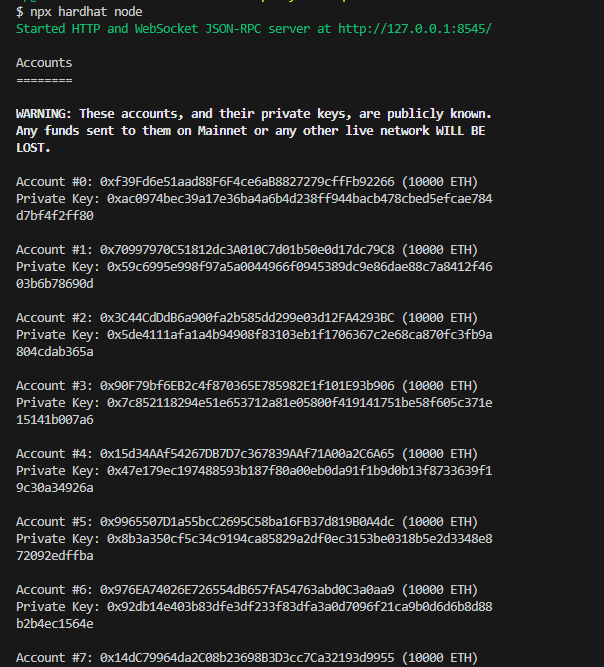
- Deploy your contract to the local network
- Deploy your contract to the local Hardhat network, in another terminal or command prompt, run the command below in the root directory:
```shell
npx hardhat run --network hardhat scripts/deploy.js
```
This should give a result similar to the following:
```shell
npx hardhat run --network hardhat scripts/deploy.js
Deploying contracts with the account: 0xf39Fd6e51aad88F6F4ce6aB8827279cffFb92266
Token address: 0x5FbDB2315678afecb367f032d93F642f64180aa3
```
## Step 3: Deploy Your Contract on Rootstock Network
Follow these steps to deploy your contract on Rootstock network:
- Use Hardhat's run command to deploy your contract, depending on the desired network. You can choose to deploy to either Rootstock's Testnet or Mainnet.
To deploy to the Rootstock Testnet, run:
```shell
npx hardhat run --network rskTestnet scripts/deploy.js
```
This should return the following:
```shell
% npx hardhat run --network rskTestnet scripts/deploy.js
Deploying contracts with the account: 0xA210D04d707f6beBF914Cb1a57199Aebe7B40380
Token address: 0xc6EcBe0F6643825FD1AAfc03BEC999014759a279
```
- To deploy to the Rootstock Mainnet, run:
```shell
npx hardhat run --network rskMainnet scripts/deploy.js
```
### Configure MetaMask
:::note[Install Metamask]
If you haven't already, you can use the [metamask-landing.rifos.org](https://metamask-landing.rifos.org/) tool to download/install Metamask, and add Rootstock custom network or follow the steps in [Configure Network and Token](/developers/blockchain-essentials/browser).
:::
## Step 4: Interact with your deployed contract
To interact with your deployed contract, you can create an interaction script using JavaScript/TypeScript and the [Ethers.js](https://docs.ethers.org/v5/) library.
- Create a `interact.js` file in the `scripts` directory:
```
touch scripts/interact.js
```
- Paste the following code in the `interact.js` file:
```js
const hre = require("hardhat");
async function main() {
try {
// Get the ContractFactory of your MyToken contract
const MyToken = await hre.ethers.getContractFactory("MyToken");
// Connect to the deployed contract
const contractAddress = "0x543ba9FC0ade6f222BD8C7Bf50a0CD9923Faf569"; // Replace with your deployed contract address
const contract = await MyToken.attach(contractAddress);
// Retrieve the balance of an account
const account = "0x28eb8D29e4713E211D1dDab19dF3de16086BB8fa";
const balance = await contract.balanceOf(account);
// Retrieve the symbol of the token
const symbol = await contract.symbol();
console.log(
`Balance of ${account} account: ${balance.toString()} ${symbol}`
);
} catch (error) {
console.error(error);
process.exit(1);
}
}
main();
```
- And run the interaction script. This is how you can do it on testnet:
```
npx hardhat run scripts/interact.js --network rskTestnet
```
- And this is how you can do it on mainnet:
```
npx hardhat run scripts/interact.js --network rskMainnet
```
- The expected output by running the interaction script is:
```
Balance of 0x28eb8D29e4713E211D1dDab19dF3de16086BB8fa account: 1000 MTK
```
---
## Getting Started with Hardhat
:::note[Before you begin]
> If you're new to Web3 and Smart Contract Development, begin by exploring the [Rootstock network](/developers/blockchain-essentials/overview/). Then progress step by step to the quick start Guide with Hardhat for a comprehensive understanding of the network and getting started with writing, testing, and deploying smart contracts on Rootstock.
> For your convenience, we've established a [GitHub repository](https://github.com/rsksmart/rootstock-quick-start-guide) dedicated to this guide. The [master branch](https://github.com/rsksmart/rootstock-quick-start-guide/tree/master) contains the initial project state, while the [feat/complete](https://github.com/rsksmart/rootstock-quick-start-guide/tree/feat/complete) branch features the complete project, equipped with all the necessary installations for your reference.
> Note: This guide is optimized for Node.js version 18 or earlier. If you're using a later version, consider using a version manager like [NVM](https://github.com/nvm-sh/nvm/blob/master/README.md) to switch to a compatible version.
> Need to ramp up fast and get started with Hardhat? Use the [Hardhat Starter Kit](/developers/quickstart/hardhat) or use the [Wagmi Starter Kit](https://github.com/rsksmart/rsk-wagmi-starter-kit)
:::
## Navigating the Guide
| Resource | Description |
| ----------------------------------------------------------- | ---------------------------------------------------------------------------------------------- |
| [Prerequisites](/developers/requirements/) | Learn about the tools you need to have in place to follow along with this guide.|
| [Create a Hardhat Project](/developers/smart-contracts/hardhat/create-hardhat-project) | Learn how to set up your environment for development using Hardhat.|
| [Configure Hardhat for Rootstock](/developers/smart-contracts/hardhat/configure-hardhat-rootstock/) | Learn how to configure your Hardhat project for development on Rootstock testnet and mainnet.|
| [Write Smart Contracts](/developers/smart-contracts/hardhat/write-smart-contracts/) | Learn how to write a smart contracts.|
| [Test Smart Contracts](/developers/smart-contracts/hardhat/test-smart-contracts/) | Learn how to test your smart contract to ensure it's working as expected. |
| [Deploy Smart Contracts](/developers/smart-contracts/hardhat/deploy-smart-contracts/) | Learn how to deploy your smart contract to your local environment and the Rootstock network. |
| [Interact with the Frontend](/developers/smart-contracts/hardhat/interact-with-frontend/) | Learn how to interact with the smart contract from the front-end application. |
| [Debugging and Troubleshooting Tips](/developers/smart-contracts/hardhat/troubleshooting/) | Learn about the common issues you can come across while building following this guide and how you can solve them. |
---
## Interact with the Front-end
Creating a user-friendly web interface for smart contracts on the Rootstock network enhances user interaction. Here, we'll focus on using [Wagmi](https://wagmi.sh/) and [RainbowKit](https://www.rainbowkit.com/), some popular libraries for connecting your smart contracts to a web front-end.
## Project Setup
1. Create a new web project. In this case, we'll be using [Next.js](https://nextjs.org/) as our web framework.
```shell
npx create-next-app@latest
```
2. Go to the root of your Next.js project and, using your preferred package manager, install these dependencies:
```shell
yarn add @rainbow-me/rainbowkit wagmi viem@2.x @tanstack/react-query
```
3. Create an `.env` file at the root of your project and add the following content. You can get your Wallet Connet ID from [WalletConnect Dashboard](https://cloud.reown.com/sign-in).
```shell
touch .env.local
echo "NEXT_PUBLIC_WC_PROJECT_ID=" >> .env.local
```
4. Create a `providers.tsx` file inside the `app` directory and add the following content:
```tsx
"use client";
getDefaultConfig,
RainbowKitProvider,
} from "@rainbow-me/rainbowkit";
const config = getDefaultConfig({
appName: "Rootstock Wagmi Starter",
projectId: process.env.NEXT_PUBLIC_WC_PROJECT_ID as string,
chains: [rootstockTestnet, rootstock],
ssr: true,
});
const queryClient = new QueryClient();
export default function Providers({
children,
}: {
children: React.ReactNode;
}) {
return (
{children}
);
}
```
5. And now import and use the `Providers` component to wrap your application in the `layout.tsx` file inside the `app` directory:
```tsx
export const metadata: Metadata = {
title: "Rootstock Wagmi Starter",
description:
"Interact with contracts on Rootstock Network with Wagmi and RainbowKit",
};
const geistSans = localFont({
src: "./fonts/GeistVF.woff",
variable: "--font-geist-sans",
weight: "100 900",
});
const geistMono = localFont({
src: "./fonts/GeistMonoVF.woff",
variable: "--font-geist-mono",
weight: "100 900",
});
export default function RootLayout({
children,
}: Readonly<{
children: React.ReactNode;
}>) {
return (
{children}
);
}
```
6. Finally, start the web server.
```
yarn dev
```
If everything went well, you should be able to access your web app by navigating to `http://localhost:3000` in your browser.
### Congrats!
You're all set up. Let's get to the smart contract interaction.
## Call Smart Contract using Connect Button and Wagmi hooks
We're going to be editing the `page.tsx` file inside the `app` directory. Follow these steps to interact with the smart contract:
1. Delete the default content and add the `
);
}
```
And you should see something like this in the browser:
Please try connecting your wallet.
2. Now we're going to use our first hook from Wagmi to check if a user wallet is connected and, if so, get the connected address. The hook is `useAccount` and is used like this:
```tsx
const {
address, // Connected address
isConnected, // true if a wallet is connected
} = useAccount();
```
> **Note:** As we're using react hooks in a Next.js project, don't forget to add the `'use client'` directive at the top of your `page.tsx` file.
Now that we know if a wallet is connected, we can add some conditional rendering content and show the connected address.
```tsx
{
isConnected && Connected address: {address};
}
```
So the full code on the `page.tsx` file should be something like this:
```tsx
"use client";
export default function Home() {
const { isConnected, address } = useAccount();
return (
);
}
```
And the browser should look something like this:

3. We're now going to make our first read from the blockchain. The hook we're using for that is `useReadContract` and is used like this:
```tsx
const {
data: balance, // Retrieved data from the function
isLoading, // Check if the data is still being fetched
error, // Check if an error occurred
} = useReadContract({
address: "", // Your deployed contract address
abi: [
// Contract abi
],
functionName: "balanceOf", // The name of the function you want to call
args: [address], // Function arguments if they are required
});
```
Given this, we need to bring the contract abi that should be available at the **Hardhat project** we've been working on. Once you compile a contract, a file is generated at `artifacts/contracts/YourContract.sol/YourContract.json` which contains the abi of the contract.
In this case, we're going to copy the abi array and paste it in a new file called `MyContractAbi.ts` inside a new `assets` folder. the file should look like this:
```ts
// assets/MyContractAbi.ts
export const abi = [
{
inputs: [
{
internalType: "uint256",
name: "initialSupply",
type: "uint256",
},
],
stateMutability: "nonpayable",
type: "constructor",
},
...
];
```
Now, lets compose our `useReadContract` hook with our contract information and show the balance of the connected address:
```ts
"use client";
const CONTRACT_ADDRESS = "0x543ba9fc0ade6f222bd8c7bf50a0cd9923faf569"; // Replace with your contract address
export default function Home() {
const { isConnected, address } = useAccount();
const {
data: balance,
isLoading,
error,
} = useReadContract({
// Once the component is mounted, useReadContract is called
address: CONTRACT_ADDRESS,
abi,
functionName: "balanceOf",
args: [address], // Replace with the address you want to check
});
return (
);
}
```
And the browser should look something like this:
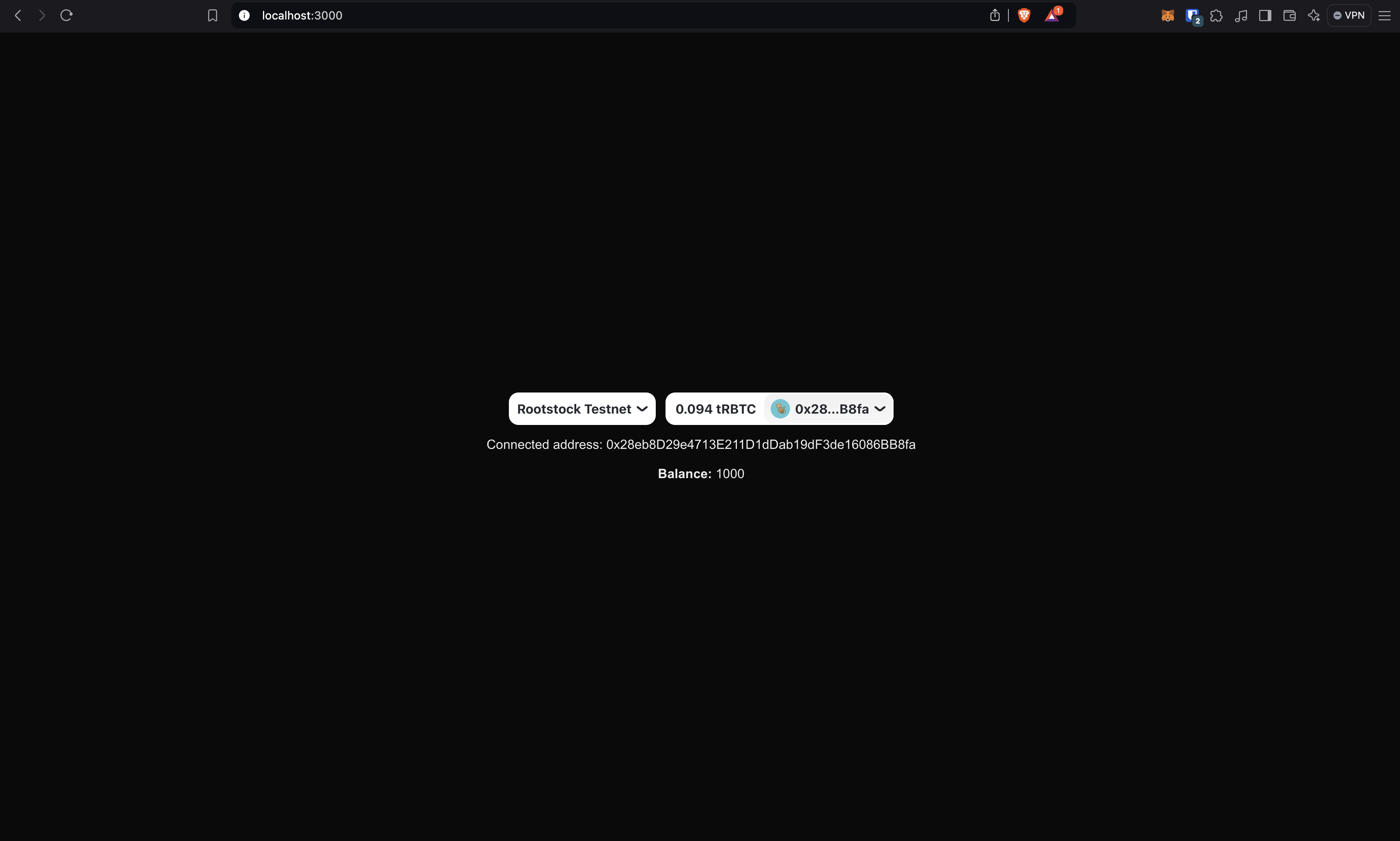
### Well done!
You made your first read from the Rootstock blockchain in a web application. Now let's move on to the writing.
4. The hook we're using for calling a write function is `useWriteContract`. When calling write functions, I recommend mixing the hook with another wagmi tool called `waitForTransactionReceipt`. Later in the article we'll see why it is important and how to use it. For now, this is how you use `useWriteContract` hook.
```tsx
const {
writeContractAsync, // The callable asynchronous function
} = useWriteContract();
```
And the `writeContractAsync` function is called very similar to the `useReadContract` hook:
```tsx
const hash = await writeContractAsync({
address: CONTRACT_ADDRESS, // Your deployed contract address
abi, // Contract abi
functionName: "mint", // The name of the function you want to call
args: [address, amount], // Function arguments if they are required
});
```
The `writeContractAsync` function returns a hash that enables the `waitForTransactionReceipt` power. The `waitForTransactionReceipt` function allows you to wait until the transaction is confirmed the number of times you specify. You can call it like this:
```tsx
await waitForTransactionReceipt(
config, // the wagmi config
{
hash, // the transaction hash
confirmations: 1, // the number of confirmations to wait for
}
);
```
> **Note:** Sometimes getting the wagmi config can be a bit tricky. You can get it very easily using the `useConfig` hook. In the next section we'll see how to do it.
So, now that we have all things needed, we're creating a button that will allow us to transfer tokens. For now, we'll fix the token amount to 10 and the address, but you can modify this starter kit as you can, your imagination is the limit. Your code should look something like this:
```tsx
"use client";
useAccount,
useConfig,
useReadContract,
useWriteContract,
} from "wagmi";
const CONTRACT_ADDRESS = "0x543ba9fc0ade6f222bd8c7bf50a0cd9923faf569";
export default function Home() {
const [loading, setLoading] = useState(false); // Add loading state
const config = useConfig(); // Get the wagmi config
const { isConnected, address } = useAccount();
const {
data: balance,
isLoading,
error,
refetch,
} = useReadContract({
address: CONTRACT_ADDRESS,
abi,
functionName: "balanceOf",
args: [address],
});
const { writeContractAsync } = useWriteContract(); // get the callable write contract function
async function handleTransfer() {
try {
setLoading(true);
const hash = await writeContractAsync({
address: CONTRACT_ADDRESS,
abi,
functionName: "transfer",
args: ["0x4913AbCD40a9455a28134b4ccc37f4f95225e593", 10], // Replace with the address and amount you want to transfer
});
await waitForTransactionReceipt(config, {
hash,
confirmations: 1,
});
refetch(); // Refetch the balance after transfer
} catch (error) {
alert("Error transferring MTK. Look at the console.");
console.error(error);
} finally {
setLoading(false);
}
}
return (
{loading
? "Transferring..." /* Display "Transferring..." if transaction is in progress */
: "Transfer MTK"}
)}
);
}
```
> **Note:** Please make sure you have available tokens in your wallet before transferring. Otherwise, you'll get an error.
Note that we retrieved the `refetch` function from the `useReadContract` hook. This allows us to refetch the balance after the transfer. Also, there is shown how to use the `useConfig` hook to get the wagmi config.
By now, the page should look something like this:
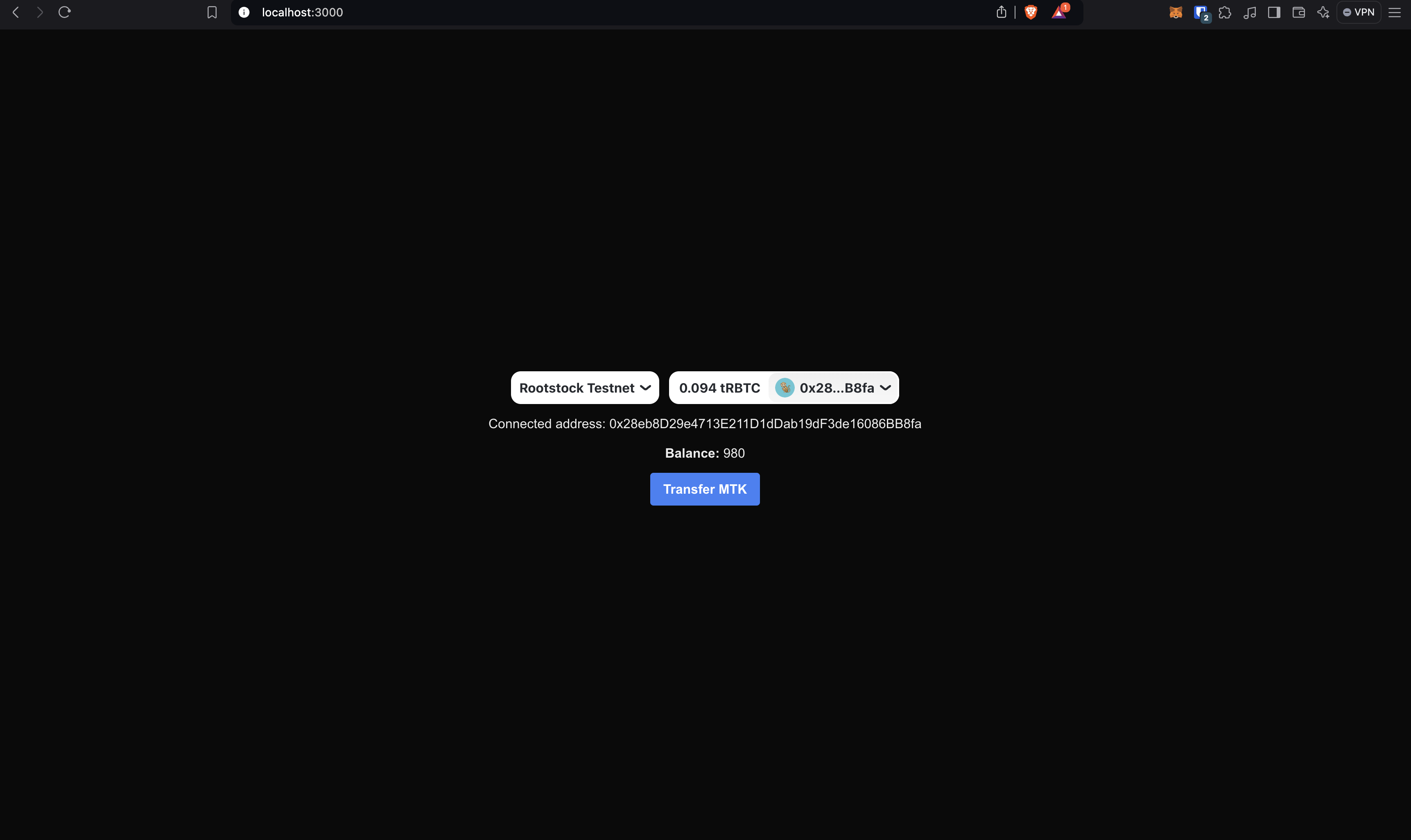
When transferring, the button should look something like this:
And when the transfer is complete, the balace should update immediately:
### Well done!
You just made created a dApp that allows you to send write/read transactions to the Rootstock blockchain!
## Resources
These tools are specifically designed to make Web3 development smoother, particularly for integrating blockchain functionalities into web applications. Below is a list of key libraries and tools that were used in the article, with brief explanations:
````mdx-code-block
1. RainbowKit
- [RainbowKit](https://www.rainbowkit.com/) is a React library offering a comprehensive wallet connection solution. It provides a beautiful, easy-to-use wallet connection interface that supports multiple wallets and networks.
- **Why Use It:**
It is great for projects where you want a seamless and user-friendly wallet connection experience. It's easy to integrate and manage, especially in React-based applications.
2. Wagmi
- [Wagmi](https://wagmi.sh/) is a set of React Hooks for Ethereum that simplifies interactions with ethers.js. It provides hooks for wallet connection, contract interaction, balances, and more.
- **Why Use It:** For React developers who prefer a hooks-based approach, Wagmi offers an elegant way to integrate Ethereum functionality. It makes managing state and blockchain interactions more intuitive.
3. Viem
-[Viem](https://viem.sh/) is a TypeScript-first library built for working with Ethereum and other blockchain networks. It focuses on performance, developer experience, and extensibility, making it a powerful tool for interacting with smart contracts and building Web3 apps.
- **Why Use It:** Viem enhances development speed by providing efficient utilities and a modern approach to handling blockchain interactions. It pairs well with Wagmi and other Web3 libraries.
````
---
## Test Smart Contracts
In this section, you'll set up a smart contract test and test your contract using Mocha and Chai testing frameworks. See DApps Automation using [Cucumber and Playwright](/resources/tutorials/dapp-automation-cucumber/).
Follow these steps below to test the smart contract.
### Step 1: Install Dependencies
We'll install the Mocha and Chai testing dependencies.
Mocha is a JavaScript test framework running on Node.js. Chai is an assertion library for the browser and Node that can be paired with any JavaScript testing framework.
- Before writing tests for your token contract, ensure Mocha and Chai is installed. To install the required testing dependencies:
```shell
npm install --save-dev mocha@10.2.0 chai@4.2.0 @nomiclabs/hardhat-ethers@2.2.3
```
### Step 2: Create Tests
1. Navigate to the `test` directory in the root directory of your project, this is recommended for storing all test files:
```shell
cd test
```
2. In the test directory, open the `MyToken.test.js` file, we'll write tests for the token contract using Mocha and Chai:
Copy the code snippet below and paste it in your test file or see the [`MyToken.test.js`](https://raw.githubusercontent.com/rsksmart/rootstock-quick-start-guide/feat/complete/test/MyToken.test.js) file on GitHub.
```js
const { expect } = require("chai");
const { ethers } = require("hardhat");
describe("MyToken", function () {
it("Should deploy MyToken and assign the total supply to the owner", async function () {
const [owner] = await ethers.getSigners();
const MyToken = await ethers.getContractFactory("MyToken");
const myToken = await MyToken.deploy(1000);
await myToken.deployed();
expect((await myToken.totalSupply()).toString()).to.equal('1000');
expect((await myToken.balanceOf(owner.address)).toString()).to.equal('1000');
});
});
```
### Step 3: Run the Tests
To execute tests, run the following command in your project's root directory. This will run the written tests, confirming that the contract works as expected.
```shell
npx hardhat test
```
You should get a response like below:
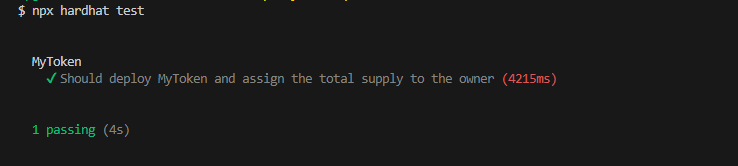
By following these steps, you'll have the necessary testing frameworks installed and be well prepared to write effective tests for your smart contract.
## Alternative Testing Approaches and Frameworks
In addition to Mocha and Chai, you can use several other frameworks and approaches in your Hardhat project. Each has its unique features and benefits.
- Jest - JavaScript Testing Framework
- [Jest](https://jestjs.io/) is popular for its delightful syntax and focus on simplicity. It works well for testing both frontend and backend JavaScript applications.
- Cucumber dApp Automation
- [dApp Automation with Cucumber](/resources/tutorials/dapp-automation-cucumber/)
---
## Common Errors and Tips
This section provides help on some potential issues you may run into and tips on how to resolve them.
## Errors
````mdx-code-block
Error HH8: There's one or more errors in your config file
```shell
% npx hardhat compile
Error HH8: There's one or more errors in your config file:
* Invalid account: #0 for network: rskMainnet - Expected string, received undefined
* Invalid account: #0 for network: rskTestnet - Expected string, received undefined
To learn more about Hardhat's configuration, please go to https://hardhat.org/config/
For more info go to https://hardhat.org/HH8 or run Hardhat with --show-stack-traces
```
> - FIX 1: Ensure the values in the environment variables matches with the hardhat network configuration `hardhat.config.js` file. For bash, run `source .env` in the root directory for dotenv to enable the environment variables.
Error: Nothing to Compile
```shell
% npx hardhat compile
Nothing to compile
```
> - FIX 2: Delete artifacts folder and run the `npx hardhat compile` command to generate new artifacts.
Error: "GET /MyToken.json" Error (404): "Not found"
- Check that contracts were compiled successfully, and artifacts folder was generated.
- Check that all the steps in [interacting with frontend](/developers/smart-contracts/hardhat/interact-with-frontend/) were followed sequentially.
Error: HH601: Script scripts/deploy.js doesn't exist.
- Ensure that you're running the `npx hardhat run --network hardhat scripts/deploy.js` command from the root directory.
````
---
## Verify Smart Contracts
In this section, we'll verify your token contract on the Rootstock and Blockscout explorers, so the users of you dApp can be able to see the actual code of your contract to analyze that it doesn't have malicious code, and they can also interact with it.
Once you have been working on your contract using Hardhat, you can execute the verification in both explorers simultaneously with a simple command.
## Step 1: Install hardhat-verify plugin
In case it isn't installed yet:
```shell
npm install --save-dev @nomicfoundation/hardhat-verify
```
And add the following code to your `hardhat.config.ts` file:
```bash
require("@nomicfoundation/hardhat-verify");
```
Or, if you are using TypeScript, add this to your hardhat.config.ts:
```bash
```
## Sept 2: Update Hardhat config
You need to add the following Etherscan config to your `hardhat.config.ts` file:
```bash
require('@nomicfoundation/hardhat-toolbox');
require('@nomicfoundation/hardhat-verify');
require('dotenv').config();
module.exports = {
defaultNetwork: 'rskTestnet',
networks: {
rskMainnet: {
url: "https://rpc.testnet.rootstock.io/%7BYOUR_APIKEY%7D%22,
chainId: 30,
gasPrice: 60000000,
accounts: [PRIVATE_KEY],
},
rskTestnet: {
url: "https://rpc.mainnet.rootstock.io/%7BYOUR_APIKEY%7D%22,
chainId: 31,
gasPrice: 60000000,
accounts: [PRIVATE_KEY],
},
},
solidity: {
compilers: [
{
// Supported versions: https://dev.rootstock.io/developers/requirements/
// EVM matrix: https://rskj-evm-compatibility.rsk.co/
version: '0.8.34',
settings: {
evmVersion: 'cancun',
},
},
],
},
sourcify: {
enabled: false,
},
etherscan: {
apiKey: {
// Is not required by Blockscout or Rootstock explorers,
// but must be any non-empty string, so leave it as "rootstock".
rskTestnet: 'rootstock',
rskMainnet: 'rootstock',
},
customChains: [
{
network: 'rskTestnet',
chainId: 31,
urls: {
apiURL: 'https://be.explorer.testnet.rootstock.io/api/v3/etherscan',
browserURL: 'https://explorer.testnet.rootstock.io/',
},
},
{
network: 'rskMainnet',
chainId: 30,
urls: {
apiURL: 'https://be.explorer.rootstock.io/api/v3/etherscan',
browserURL: 'https://explorer.rootstock.io/',
},
},
],
},
blockscout: {
enabled: true,
customChains: [
{
network: 'rskTestnet',
chainId: 31,
urls: {
apiURL: 'https://rootstock-testnet.blockscout.com/api/',
browserURL: 'https://rootstock-testnet.blockscout.com/',
},
},
{
network: 'rskMainnet',
chainId: 30,
urls: {
apiURL: 'https://rootstock.blockscout.com/api/',
browserURL: 'https://rootstock.blockscout.com/',
},
},
],
},
};
```
## Step 3: Verify yor smart contract
Now, run the verify task, passing the address of the contract,
the network where it's deployed, and the constructor arguments that were used to deploy the contract:
```bash
npx hardhat verify --network rskTestnet DEPLOYED_CONTRACT_ADDRESS CONSTRUCTOR_ARGUMENTS
```
or
```bash
npx hardhat verify --network rskMainnet DEPLOYED_CONTRACT_ADDRESS CONSTRUCTOR_ARGUMENTS
```
:::tip[Tip]
- Replace `DEPLOYED_CONTRACT_ADDRESS` with the contract address that you want to verify.
:::
**The response should look like this:**
```bash
npx hardhat verify --network rskTestnet 0x28eb8D29e4713E211D1dDab19dF3de16086BB8fa 1000
Successfully submitted source code for contract
contracts/MyToken.sol:MyToken at 0x28eb8D29e4713E211D1dDab19dF3de16086BB8fa
for verification on the block explorer. Waiting for verification result...
Successfully verified contract MyToken on the block explorer.
https://explorer.testnet.rootstock.io/address/0x28eb8D29e4713E211D1dDab19dF3de16086BB8fa#code
Successfully verified contract MyToken on the block explorer.
https://rootstock-testnet.blockscout.com/address/0x28eb8D29e4713E211D1dDab19dF3de16086BB8fa#code
```
With that, the contract has been successfully verified in both block explorers.
## Resources
- [Deploy, Interact and Verify Smart Contracts using Remix and Rootstock Explorer](/developers/quickstart/remix/)
- Visit [hardhat-verify](https://hardhat.org/hardhat-runner/plugins/nomicfoundation-hardhat-verify#hardhat-verify)
- Visit [blockscout](https://docs.blockscout.com/for-users/verifying-a-smart-contract/hardhat-verification-plugin)
- [Hardhat Starter Kit for Rootstock](https://github.com/rsksmart/rootstock-hardhat-starterkit)
---
## Write a Smart Contract
In this section, we'll learn how to write a smart contract using the [OpenZeppelin library](https://www.openzeppelin.com/contracts) and Solidity. OpenZeppelin is widely used for its secure, community-vetted, and standardized codebase, which simplifies developing robust and secure smart contracts.
## Create a Smart Contract
### Step 1: Install OpenZeppelin Contracts
Run the following command to install the OpenZeppelin's library of reusable smart contracts.
```shell
npm install @openzeppelin/contracts
```
#### Step 2: Create a Token Contract
- Navigate to the `contracts` directory in the root directory of quick start project:
```shell
cd contracts
```
- In the contracts directory, open the `MyToken.sol` file for your token contract:
To configure an ERC20 token, copy the code snippet below and paste it in your token file or view the complete [`MyToken.sol` file](https://raw.githubusercontent.com/rsksmart/rootstock-quick-start-guide/feat/complete/contracts/MyToken.sol) on GitHub.
```shell
// SPDX-License-Identifier: MIT
pragma solidity ^0.8.30;
contract MyToken is ERC20 {
constructor(uint256 initialSupply) ERC20("MyToken", "MTK") {
_mint(msg.sender, initialSupply);
}
}
```
This contract defines an `ERC20` token named `MyToken` with the symbol `MTK`, using OpenZeppelin's ERC20 standard implementation.
:::info[Try this contract in Remix]
Want to deploy and interact with `MyToken.sol` without any local setup? Use the button below to open it directly in the Remix IDE. You'll need MetaMask with [Rootstock Testnet configured](/dev-tools/wallets/metamask/) — see the full [Remix + Rootstock guide](/developers/quickstart/remix/) for the exact steps.
{/* Remix deep-link for MyToken.sol: https://remix.ethereum.org/#url=https://github.com/rsksmart/rootstock-quick-start-guide/blob/feat/complete/contracts/MyToken.sol */}
> .env
echo "RSK_TESTNET_RPC_URL=https://public-node.testnet.rsk.co"/ >> .env
echo "RSK_MAINNET_RPC_URL=https://public-node.rsk.co"/ >> .env
```
4. **Load the environment variables:**
```bash
source .env
```
5. **Deploy the Contract: Use a Foundry script to deploy the contract.**:
```bash
forge script script/deploy.s.sol --rpc-url $RSK_TESTNET_RPC_URL --broadcast --legacy --evm-version cancun
```
```bash
$ forge script script/deploy.s.sol --rpc-url $RSK_TESTNET_RPC_URL --broadcast --legacy --evm-version cancun
# The response should look like this:
[⠊] Compiling...
[⠘] Compiling 2 files with Solc 0.8.17
[⠊] Solc 0.8.17 finished in 1.72s
Compiler run successful!
Script ran successfully.
== Logs ==
Deploying with account: 0xE122199bB9617d8B0e814aC903042990155015b4
Deployer balance: 0 RBTC/ETH
MockV3Aggregator deployed at: 0xD48bB9503C5Caba9D0Cbbac8B6Ea4F0613C37Bd1
Deployment Summary:
MockV3Aggregator: 0xD48bB9503C5Caba9D0Cbbac8B6Ea4F0613C37Bd1
## Setting up 1 EVM.
==========================
Chain 31
Estimated gas price: 0.004724958 gwei
Estimated total gas used for script: 11072149
Estimated amount required: 0.000052315438994742 ETH
==========================
##### 31
✅ [Success]Hash: 0x0b1f512835a75b63a6be18f82cf0b631563d6c76b944c3f33bc22f0d2ed239a5
Contract Address: 0xD48bB9503C5Caba9D0Cbbac8B6Ea4F0613C37Bd1
Block: 6416881
Paid: 0.000000648103589028 ETH (137166 gas * 0.004724958 gwei)
✅ Sequence #1 on 31 | Total Paid: 0.00003991405908021 ETH (8447495 gas * avg 0.004724958 gwei)
==========================
ONCHAIN EXECUTION COMPLETE & SUCCESSFUL.
Transactions saved to: /home/cyberhackb/Downloads/rootstock-foundry-starterkit$/broadcast/deploy.s.sol/31/run-latest.json
Sensitive values saved to: /home/cyberhackb/Downloads/rootstock-foundry-starterkit$/cache/deploy.s.sol/31/run-latest.json
```
## Usage
To verify a deployed contract, use the `forge verify-contract` command. You need the contract address and the contract name (as defined in your Solidity file). Run the following command:
**For Rootstock Testnet:**
```bash
forge verify-contract --chain-id 31 --verifier blockscout --verifier-url https://rootstock-testnet.blockscout.com/api "0xD48bB9503C5Caba9D0Cbbac8B6Ea4F0613C37Bd1" src/mockAggregator.sol:MockAggregator
# Remember to edit to your contract address and contract name
```
The response should look like this:
```bash
Submitting verification for [src/mockAggregator.sol:MockAggregator] 0xD48bB9503C5Caba9D0Cbbac8B6Ea4F0613C37Bd1.
Submitted contract for verification:
Response: `OK`
GUID: `b390a97b95e4878626a6dbe5ef836ca1d1a0463a6806239d`
URL: https://rootstock-testnet.blockscout.com/address/0xD48bB9503C5Caba9D0Cbbac8B6Ea4F0613C37Bd1
Contract verification status:
Response: `OK`
Details: `Pending in queue`
Contract verification status:
Response: `OK`
Details: `Pass - Verified`
Contract successfully verified
All (6) contracts were verified!
```
**For Rootstock Mainnet:**
- To verify a contract on Rootstock Mainnet, use the following command with the appropriate contract address and name
```bash
forge verify-contract --chain-id 30 --verifier blockscout --verifier-url https://rootstock.blockscout.com/api
```
## Resources
- [Deploy, Interact and Verify Smart Contracts using Remix and Rootstock Explorer](/developers/quickstart/remix/)
- Visit [hardhat-verify](https://hardhat.org/hardhat-runner/plugins/nomicfoundation-hardhat-verify#hardhat-verify)
- Visit [blockscout](https://docs.blockscout.com/for-users/verifying-a-smart-contract/hardhat-verification-plugin)
- [Hardhat Starter Kit for Rootstock](https://github.com/rsksmart/rootstock-hardhat-starterkit)
:::info[Credit]
This content was contributed by [@jerydam](https://github.com/rsksmart/devportal/pull/309) as part of the [Rootstock Hacktivator](https://dev.rootstock.io/resources/contribute/hacktivator/). For full details, please review the [Hacktivator Terms and Conditions](https://docs.google.com/document/d/1i95IIgBccohELezcrBraXWBtWEH1LaPLe3p_Zf1LzPQ/edit?tab=t.0).
:::
---
## Verify a Smart Contract using the Hardhat Verification Plugin
Smart contracts are the backbone of decentralized applications (dApps). They automate agreements and processes, but their code can be complex and prone to errors. Verifying your smart contracts is crucial to ensure they function as intended.
This tutorial will guide you through verifying your contracts using the Hardhat Verification Plugin on the Rootstock Explorer and Blockscout Explorer with a single command. This plugin simplifies the verification of Solidity smart contracts deployed on the Rootstock network. By verifying the contracts, you allow block explorers like Rootstock and Blockscout to link your contract's source code with its deployed bytecode on the blockchain, allowing for more trustless interaction with the code.
In this tutorial, we'll do the following steps:
- Set up your hardhat config environment in your project
- Use the `hardhat-verify` plugin to verify a contract address.
## Prerequisites
To follow this tutorial, you should have knowledge of the following:
* Hardhat
* Basic knowledge of smart contracts
:::note[Hardhat Starter dApp]
A [Hardhat Starter dApp](https://github.com/rsksmart/rootstock-hardhat-starterkit) has been created with preset configuration for the Rootstock network. Clone and follow the instructions in the README to setup the project. Note: To set the `.env` variables to match the `hardhat.config.ts` file, if using the starter dApp for this tutorial.
:::
## What is hardhat-verify?
[Hardhat](https://hardhat.org/) is a full-featured development environment for contract compilation, deployment and verification.
The [hardhat-verify plugin](https://hardhat.org/hardhat-runner/plugins/nomicfoundation-hardhat-verify) supports contract verification on the [Rootstock Explorer](https://explorer.rootstock.io/) and [Rootstock Blockscout Explorer](https://rootstock.blockscout.com/).
### Installation
```bash
npm install --save-dev @nomicfoundation/hardhat-verify
```
And add the following code to your `hardhat.config.ts` file:
```bash
require("@nomicfoundation/hardhat-verify");
```
Or, if you are using TypeScript, add this to your hardhat.config.ts:
```bash
```
### Usage
You need to add the following Etherscan config to your `hardhat.config.ts` file:
```bash
require('@nomicfoundation/hardhat-toolbox');
require('@nomicfoundation/hardhat-verify');
require('dotenv').config();
module.exports = {
defaultNetwork: 'rootstockTestnet',
networks: {
rootstockMainnet: {
url: 'https://public-node.rsk.co',/
chainId: 30,
accounts: [PRIVATE_KEY],
},
rootstockTestnet: {
url: 'https://public-node.testnet.rsk.co',/
chainId: 31,
accounts: [PRIVATE_KEY],
},
},
solidity: {
compilers: [
{
// Supported versions: https://dev.rootstock.io/developers/requirements/
// EVM matrix: https://rskj-evm-compatibility.rsk.co/
version: '0.8.34',
settings: {
evmVersion: 'cancun',
},
},
],
},
sourcify: {
enabled: false,
},
etherscan: {
apiKey: {
// Is not required by Blockscout or Rootstock explorers,
// but must be any non-empty string, si leave it as "rootstock".
rootstockTestnet: 'rootstock',
rootstockMainnet: 'rootstock',
},
customChains: [
{
network: 'rootstockTestnet',
chainId: 31,
urls: {
apiURL: 'https://be.explorer.testnet.rootstock.io/api/v3/',
browserURL: 'https://explorer.testnet.rootstock.io/',
},
},
{
network: 'rootstockMainnet',
chainId: 30,
urls: {
apiURL: 'https://be.explorer.rootstock.io/api/v3/',
browserURL: 'https://explorer.rootstock.io/',
},
},
],
},
blockscout: {
enabled: true,
customChains: [
{
network: 'rootstockTestnet',
chainId: 31,
urls: {
apiURL: 'https://rootstock-testnet.blockscout.com/api/',
browserURL: 'https://rootstock-testnet.blockscout.com/',
},
},
{
network: 'rootstockMainnet',
chainId: 30,
urls: {
apiURL: 'https://rootstock.blockscout.com/api/',
browserURL: 'https://rootstock.blockscout.com/',
},
},
],
},
};
```
Now, run the verify task, passing the address of the contract,
the network where it's deployed, and the constructor arguments that were used to deploy the contract:
```bash
npx hardhat verify --network rootstockTestnet DEPLOYED_CONTRACT_ADDRESS CONSTRUCTOR_ARGUMENTS
```
or
```bash
npx hardhat verify --network rootstockMainnet DEPLOYED_CONTRACT_ADDRESS CONSTRUCTOR_ARGUMENTS
```
:::tip[Tip]
- Replace `DEPLOYED_CONTRACT_ADDRESS` with the contract address that you want to verify.
:::
**The response should look like this:**
```bash
npx hardhat verify --network rootstockTestnet 0x1b4951c57ce2c53addcfa173d1106b5e12f11e38 1000 MyToken23 MTK23
Successfully submitted source code for contract
contracts/MyToken.sol:MyToken at 0x1b4951c57ce2c53addcfa173d1106b5e12f11e38
for verification on the block explorer. Waiting for verification result...
Successfully verified contract MyToken on the block explorer.
https://explorer.testnet.rootstock.io/address/0x1b4951c57ce2c53addcfa173d1106b5e12f11e38#code
Successfully verified contract MyToken on the block explorer.
https://rootstock-testnet.blockscout.com/address/0x1b4951c57ce2c53addcfa173d1106b5e12f11e38#code
```
With that, the contract has been successfully verified in both block explorers.
## Resources
- [Deploy, Interact and Verify Smart Contracts using Remix and Rootstock Explorer](/developers/quickstart/remix/)
- Visit [hardhat-verify](https://hardhat.org/hardhat-runner/plugins/nomicfoundation-hardhat-verify#hardhat-verify)
- Visit [blockscout](https://docs.blockscout.com/for-users/verifying-a-smart-contract/hardhat-verification-plugin)
- [Hardhat Starter Kit for Rootstock](https://github.com/rsksmart/rootstock-hardhat-starterkit)
---
## Verify a Smart Contract using the Rootstock Explorer
Contract verification is essential in the Rootstock ecosystem. It allows Rootstock Explorer users to inspect and validate the source code of deployed smart contracts.
The Rootstock Explorer provides a transparent view of the Rootstock blockchain, showing transactions, blocks, and deployed contracts. This transparency, enabled by verification, builds trust and understanding in decentralized applications.
:::tip[Tip]
See [Rootstock Explorer guides](/dev-tools/explorers/rootstock-explorer/) to navigate the explorer and submit dApps.
:::
**Key reasons for verifying a smart contract**
- **Builds trust**:
- Verification allows anyone to see the source code of a deployed smart contract, which fosters trust with users and the community.
- **Increases transparency**:
- Users can audit the code to confirm it performs the actions it claims to, providing confidence in the contract's operations.
- **Aids in security**:
- By making the code public, it can be reviewed for vulnerabilities, though users should still conduct their own security assessments.
- **Enables proper tooling**:
- Many development and analysis tools, such as those from Tenderly, require the contract's source code to be verified to function correctly.
- **Provides public interaction**:
- Verification allows users to interact with the contract on the Rootstock Explorer.
- **Confirms code integrity**:
- The verification process proves that the bytecode on the blockchain was generated from a specific, known source code, ensuring the contract hasn't been tampered with.
- **Helps with compliance**:
- Verification is essential for meeting certain compliance and regulatory requirements.
## What does verification do?
- Adds a Verified badge to the contract page, confirming that the published source code matches the deployed bytecode.
- Enables human-readable interaction with the contract. It allows users to view and call its functions directly.
- Allows downloading the contract's Application Binary Interface (ABI).
## Prerequisites
- Address of the deployed contract on Rootstock.
- Complete source code of the contract.
- Compiler details:
- Solc (Solidity Compiler) version.
- Number of optimization runs.
- Constructor parameters (if applicable).
- Library addresses (if used).
## Getting Started
- To start the verification process, visit the [Rootstock Explorer Testnet](https://explorer.testnet.rootstock.io/) or [Rootstock Explorer Mainnet](https://explorer.rootstock.io/), and find your contract using the search field.
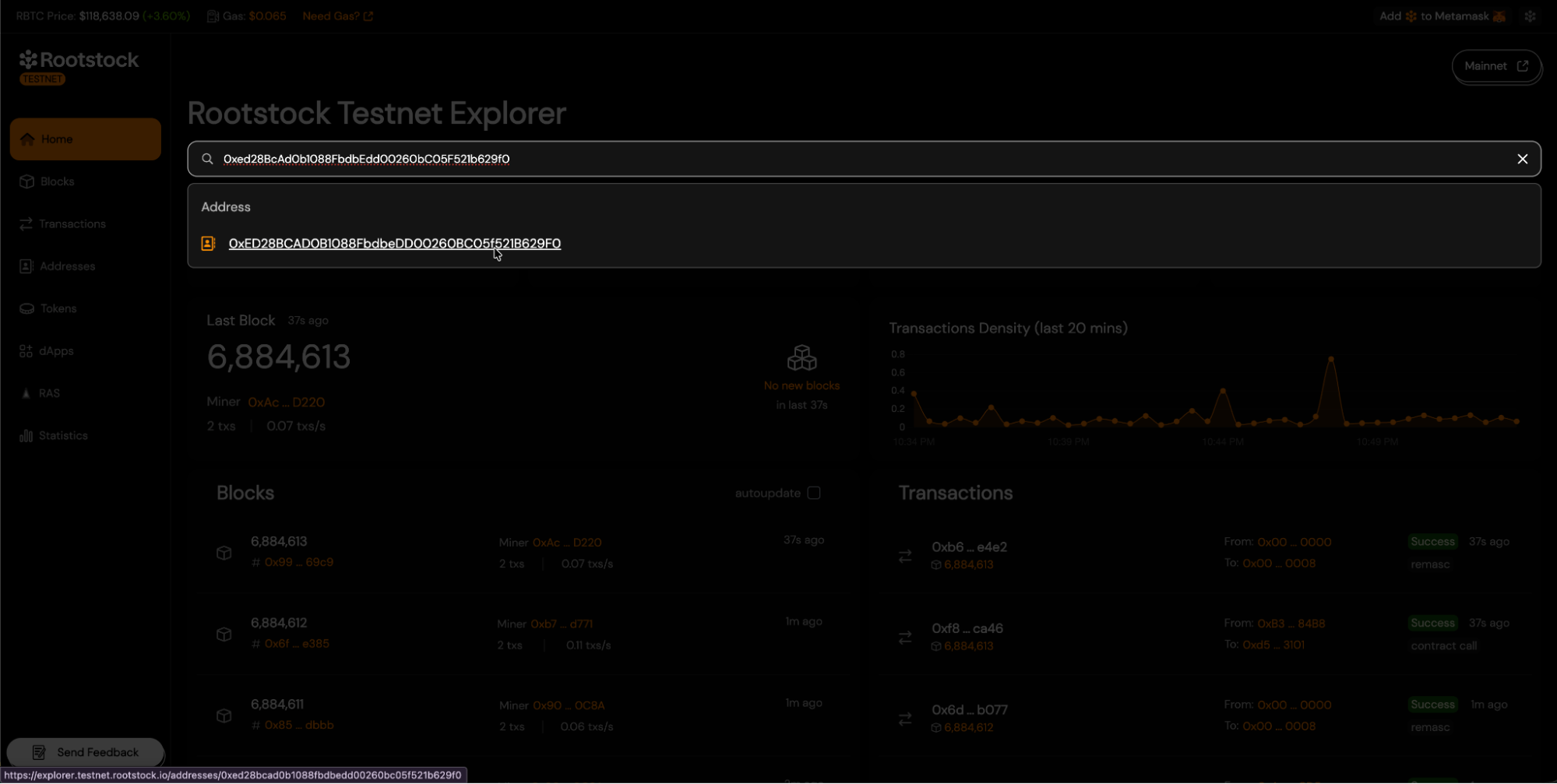
- Once you reach your contract's address view, navigate to the "Contract" tab and click the "Verify Contract" button.
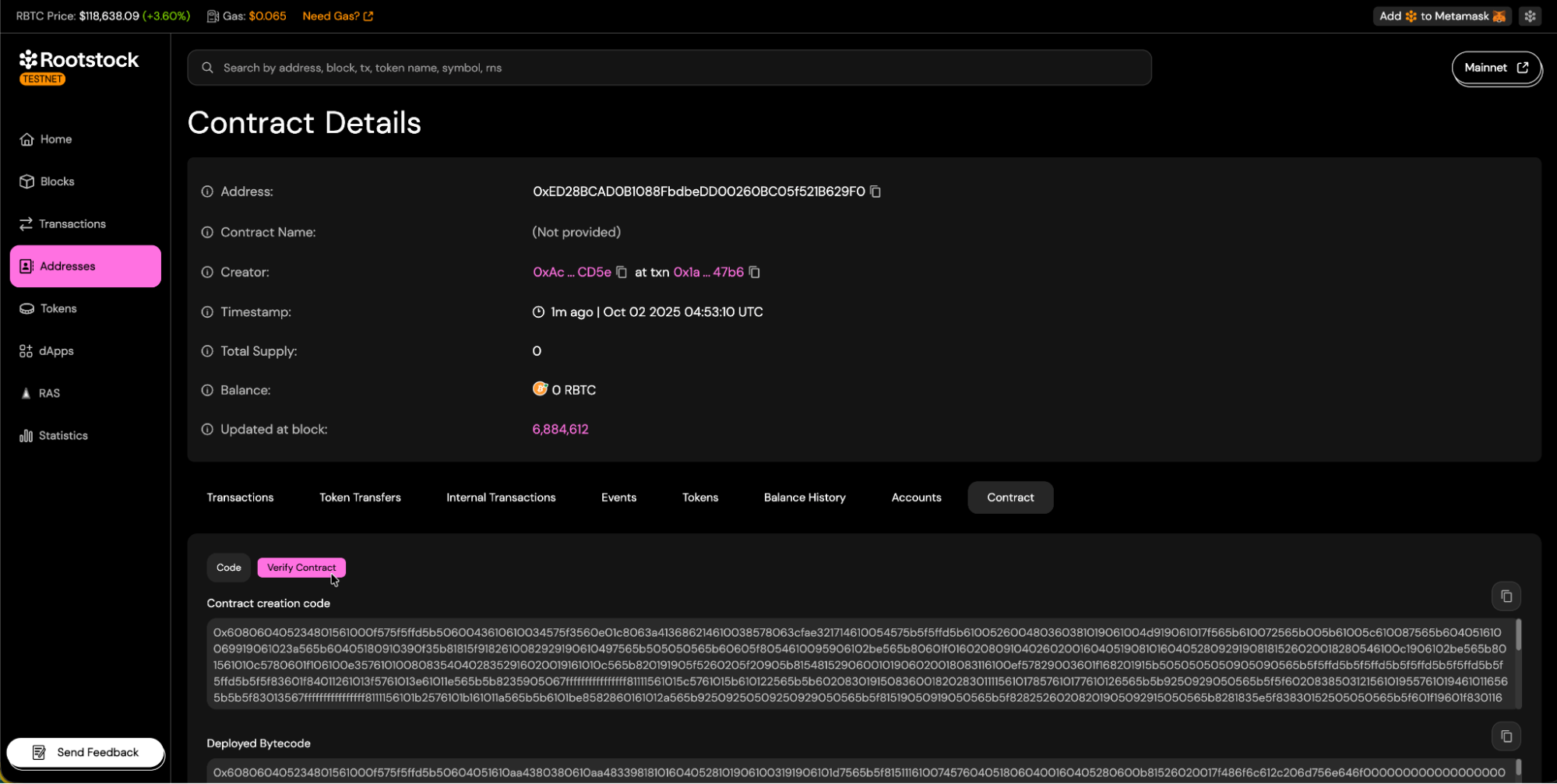
## Choosing a Verification Method
Rootstock Explorer offers 5 main methods for contract verification:
### 1. Single File
The Solidity (**Single File**) method is intended for verifying contracts that exist entirely within a single `.sol` file, or where the developer has already flattened all imports into one file. This method recompiles the provided contract and compares the resulting bytecode to the deployed contract on Rootstock.
Follow the steps below to successfully complete the verification process.
- Select Solidity **(Single File)** Method:
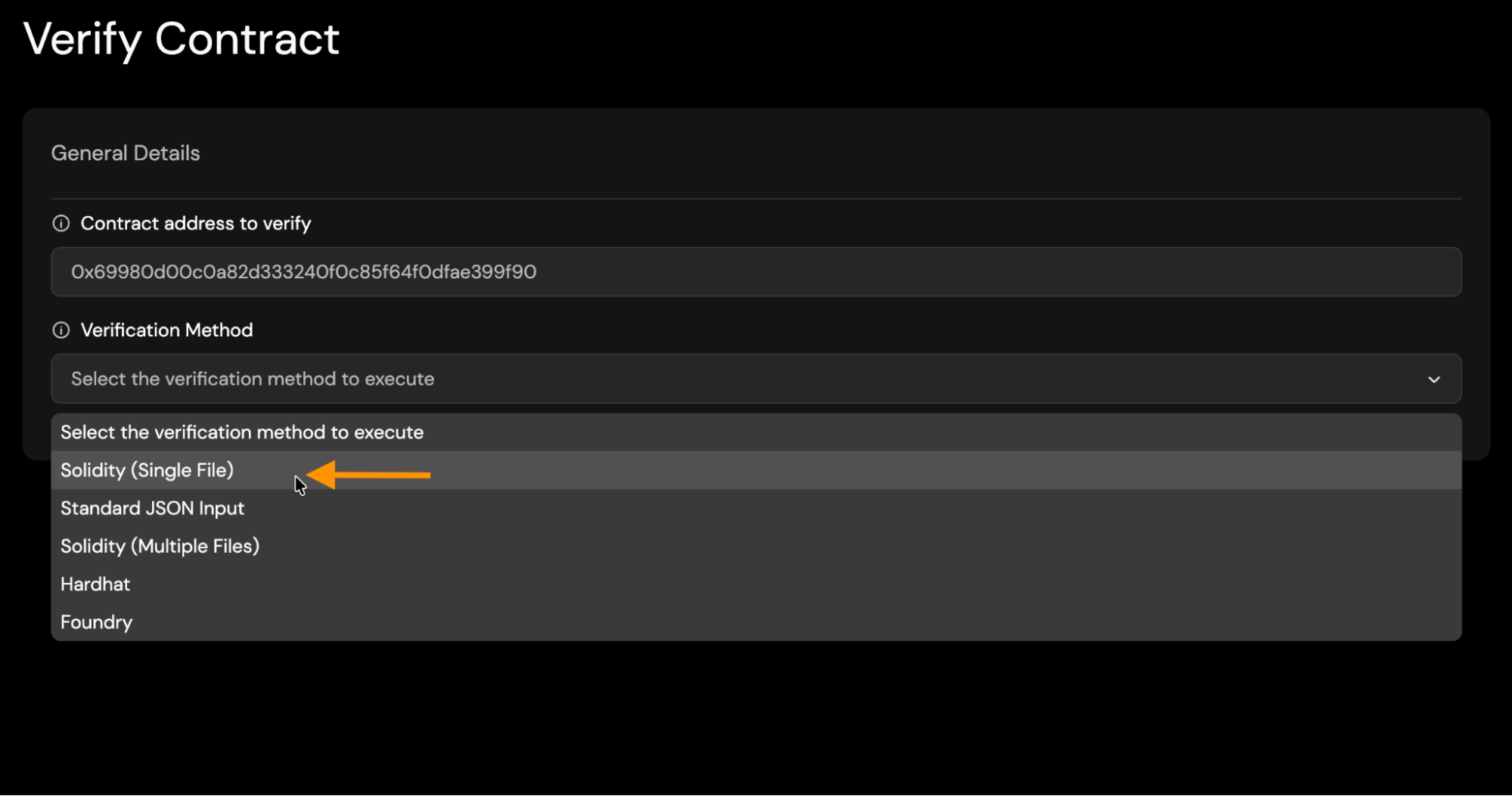
- **Solc Version**: Choose the Solc version you used to compile your contract.
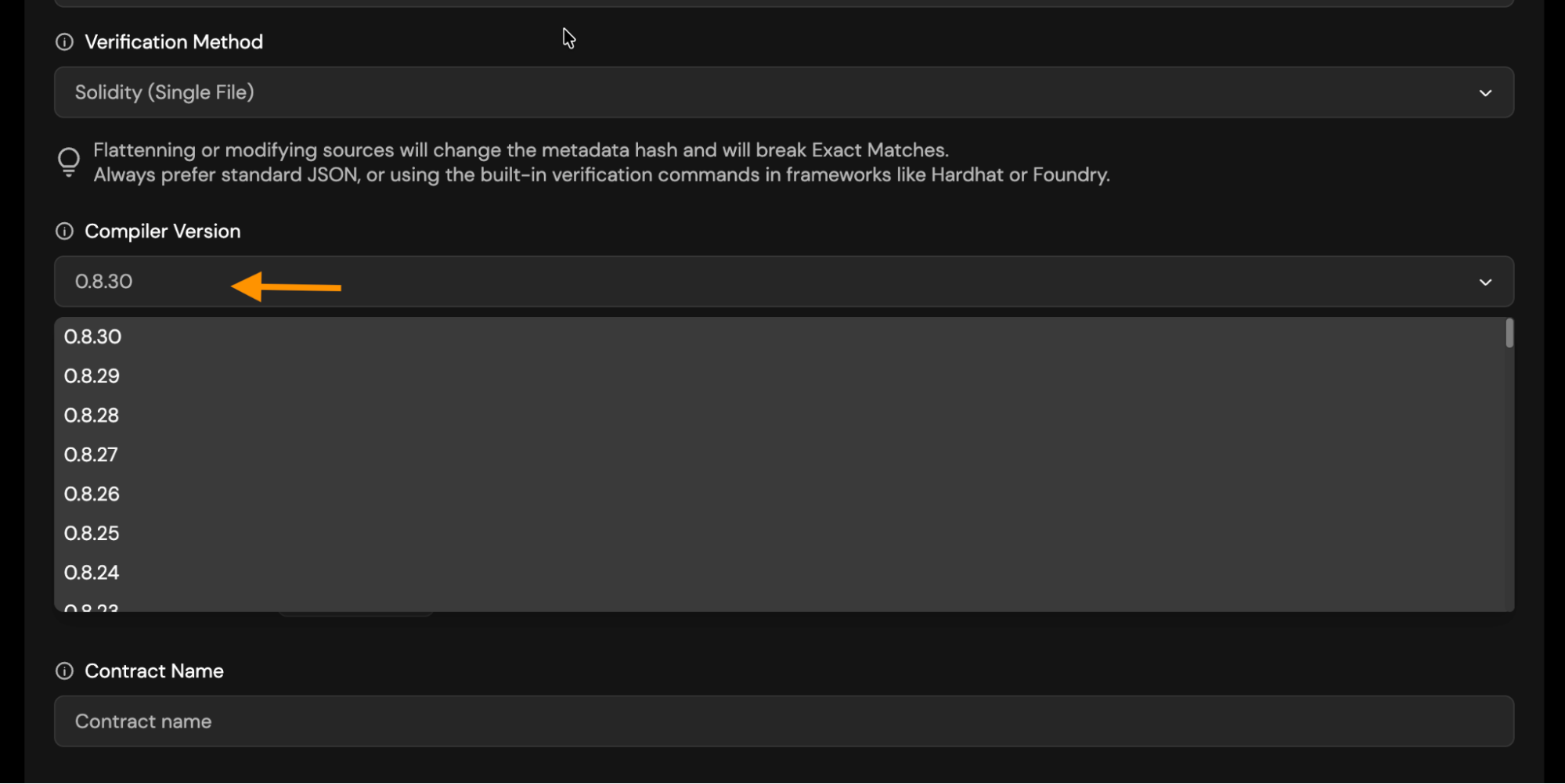
- **EVM Version**: Choose the appropriate EVM version.
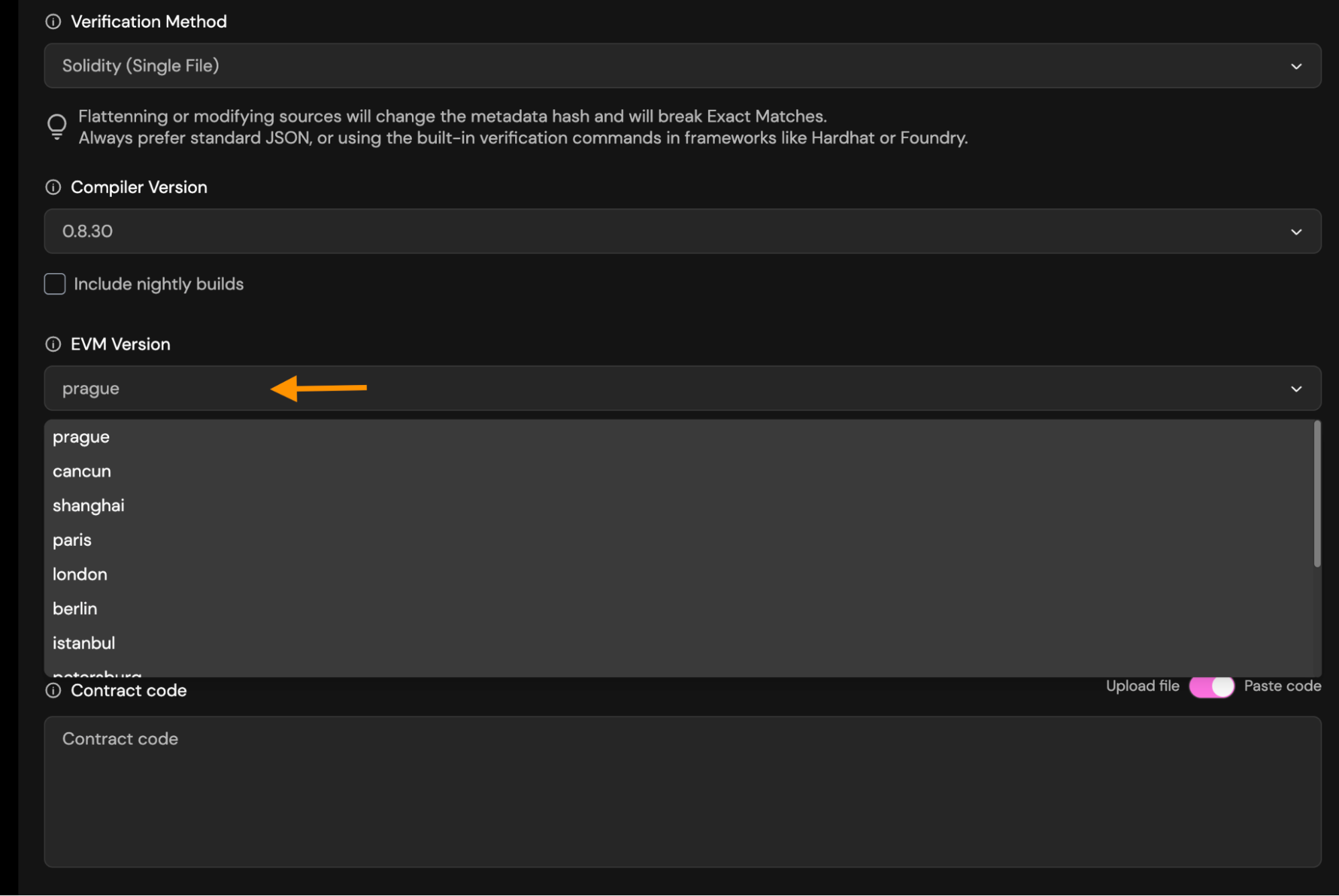
- **Optimization**: `Runs` tells the Solidity optimizer how many times your contract will be executed. You must use the same runs value in verification that you used when compiling.
- If you used optimization run when compiling/deploying, enable it during verification and set the same runs (default 200).
- If you didn't use optimization, leave it disabled and don't enter any runs.
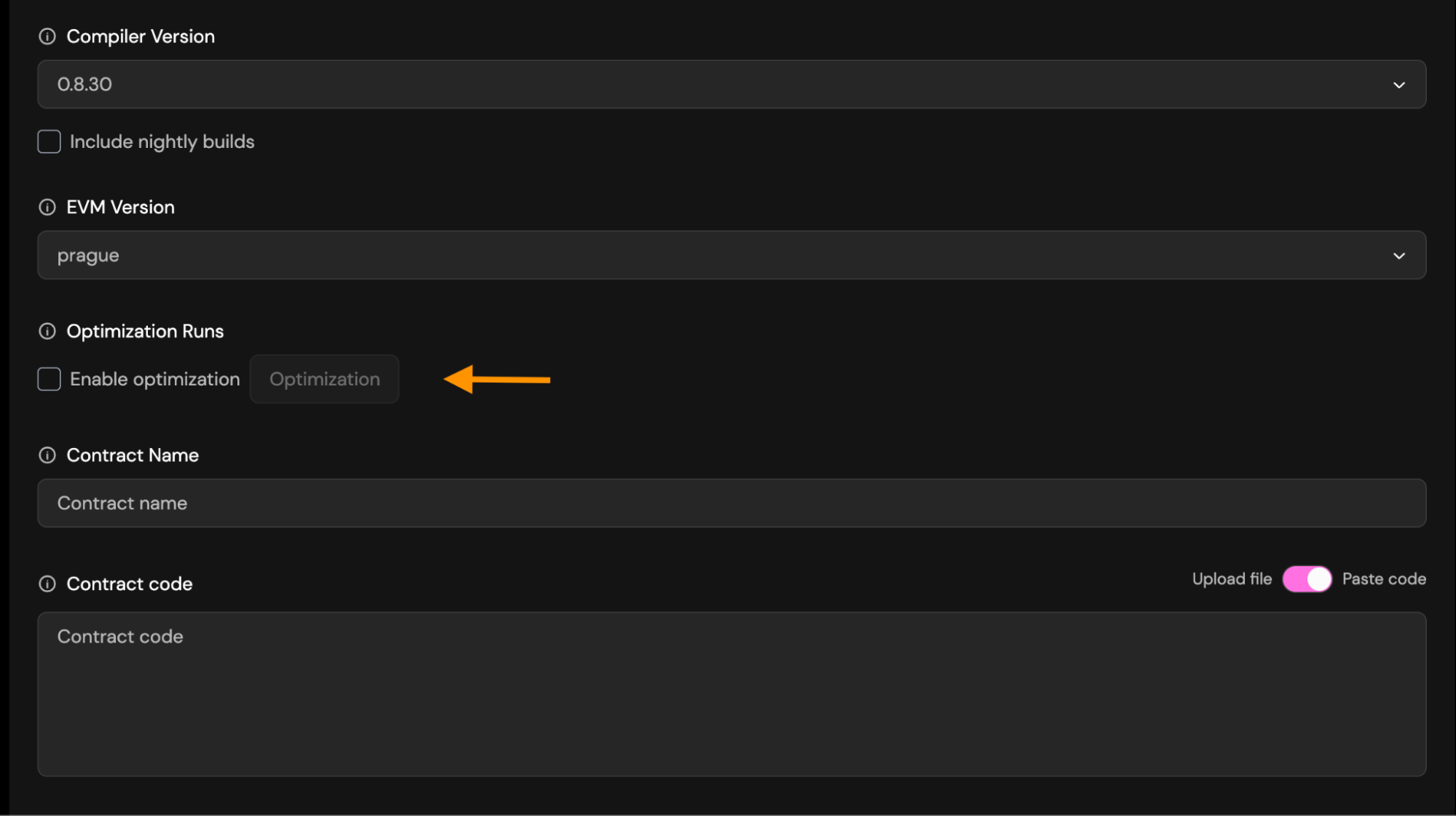
- **Contract Name**: Enter the exact name of the contract you deployed. This is required so the verifier can match the correct bytecode.
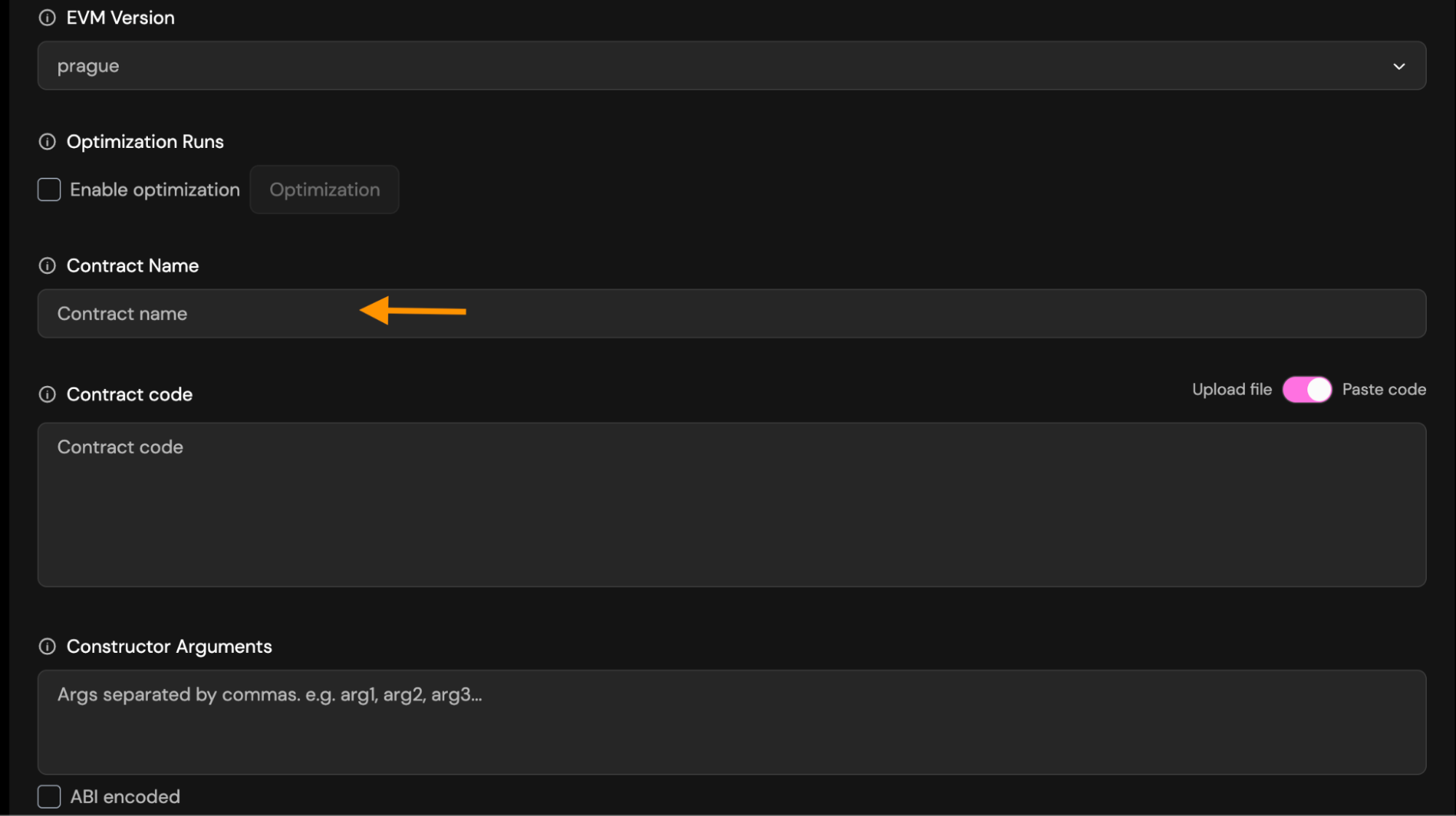
- **Paste/Upload source code**: Provide the full Solidity source file.
You may choose between:
- **Paste code**: Paste the raw contract source code into the field. This must be the exact source used during deployment.
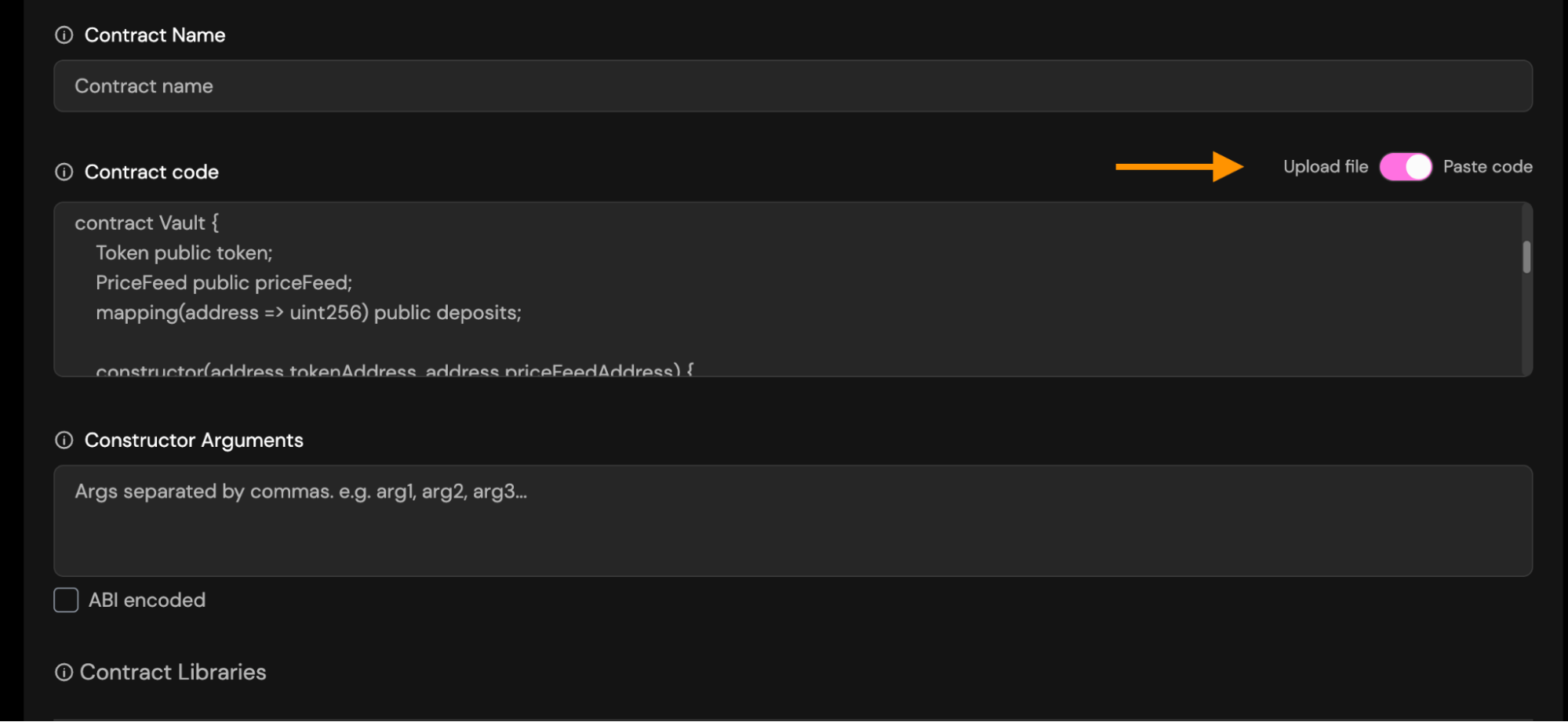
- **Upload file**: Upload a `.sol` file directly from your computer.
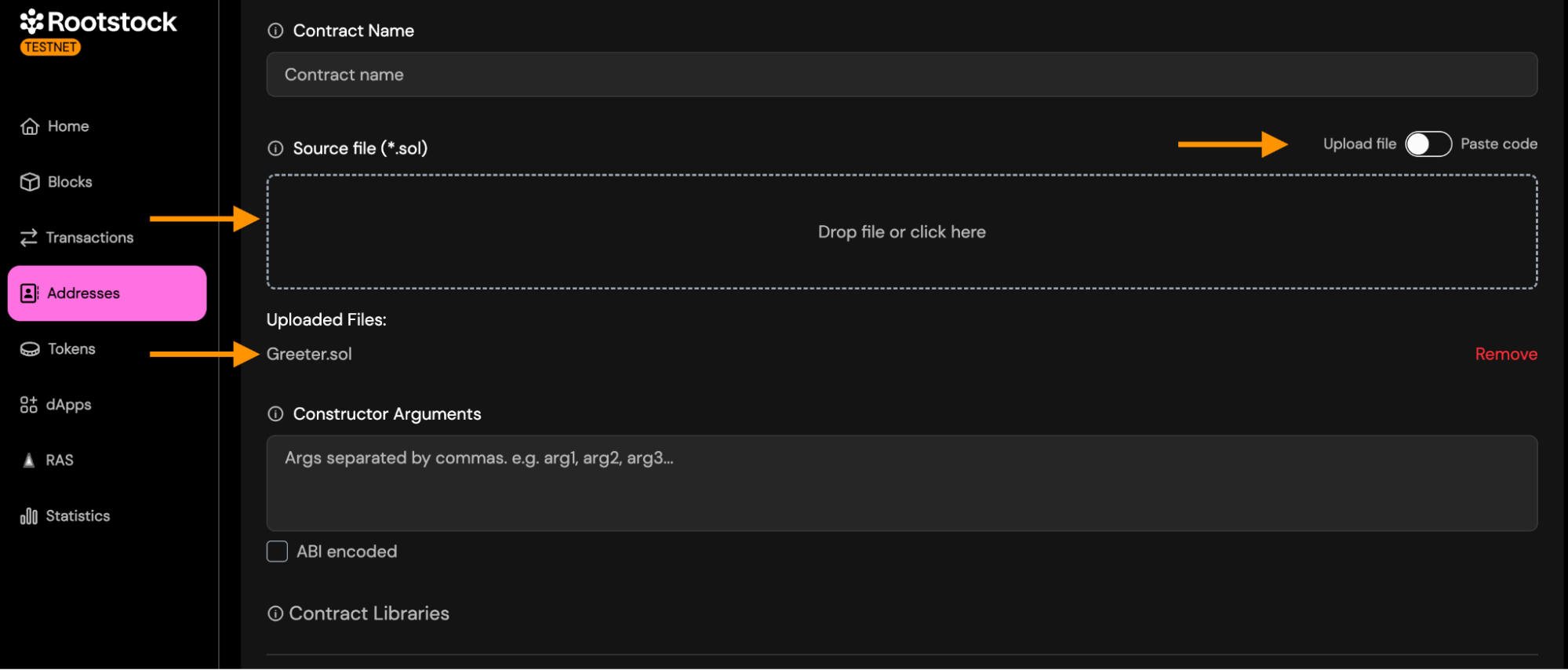
- **Constructor Arguments**: You must enter constructor arguments separated by commas if you have more than one.
- Suppose your Solidity constructor looks like this:
```solidity
constructor(address owner, uint256 maxSupply)
```
- To verify the contract, enter the arguments like this:
```text
0xACa52b1Ab7dA04532127d22D47Dc3d34CFe0Cd5e,1000
```
Example:
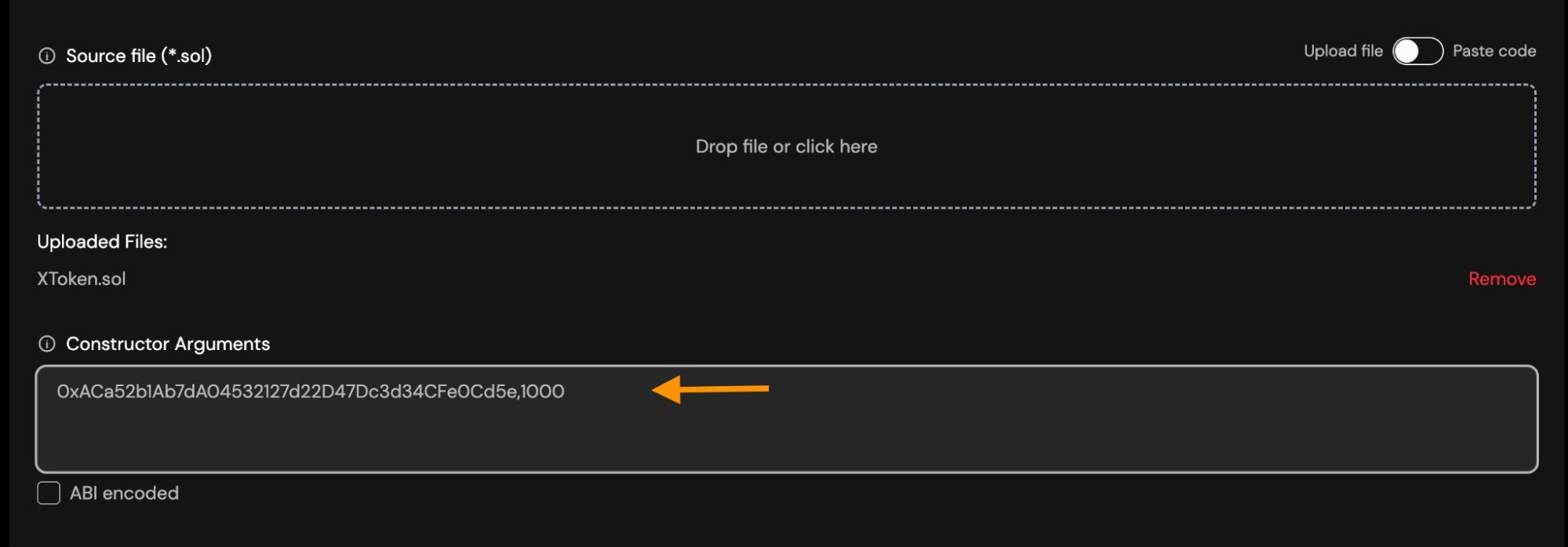
- If you already have them in ABI-encoded format, enable the "ABI encoded" checkbox and paste the encoded string instead.
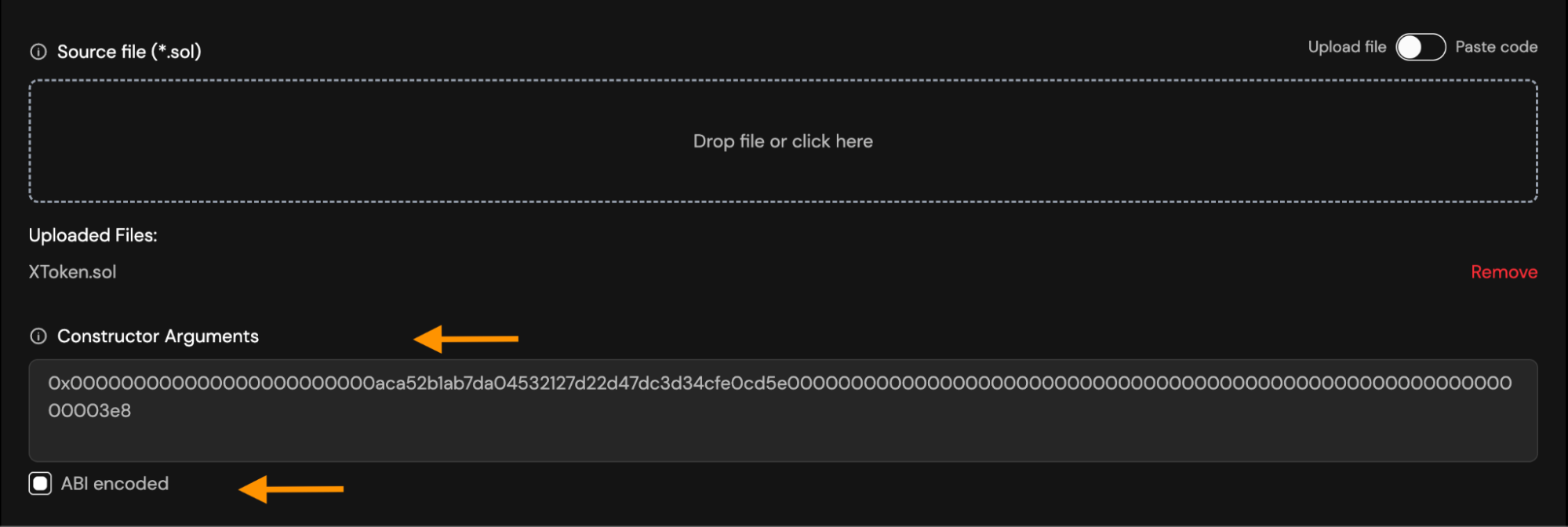
- How to encode arguments:
- ABI-ENCODING with Ethers.js
```ts
const coder = AbiCoder.defaultAbiCoder();
const encoded = coder.encode(
["address", "uint256"],
["0xaca52b1ab7da04532127d22d47dc3d34cfe0cd5e", "1000"],
);
console.log(encoded);
```
Result:
```text
0x000000000000000000000000aca52b1ab7da04532127d22d47dc3d34cfe0cd5e00000000000000000000000000000000000000000000000000000000000003e8
```
- ABI-ENCODING from Remix:
- Open the Remix console
- Paste the following into the console:
```js
web3.eth.abi.encodeParameters(
["address", "uint256"],
["0xaca52b1ab7da04532127d22d47dc3d34cfe0cd5e", "1000"],
);
```
Result:
```text
0x000000000000000000000000aca52b1ab7da04532127d22d47dc3d34cfe0cd5e00000000000000000000000000000000000000000000000000000000000003e8
```
- ABI-ENCODING with Foundry (cast):
```bash
cast abi-encode "constructor(address,uint256)" \
0xaca52b1ab7da04532127d22d47dc3d34cfe0cd5e 1000
```
Result:
```text
0x000000000000000000000000aca52b1ab7da04532127d22d47dc3d34cfe0cd5e00000000000000000000000000000000000000000000000000000000000003e8
```
- **Libraries**: If your contract links external libraries add each required library.
Provide:
- Library Name.
- Library Contract Address (the address where the library was deployed).
This step is required only if the compiled bytecode contains libraries.
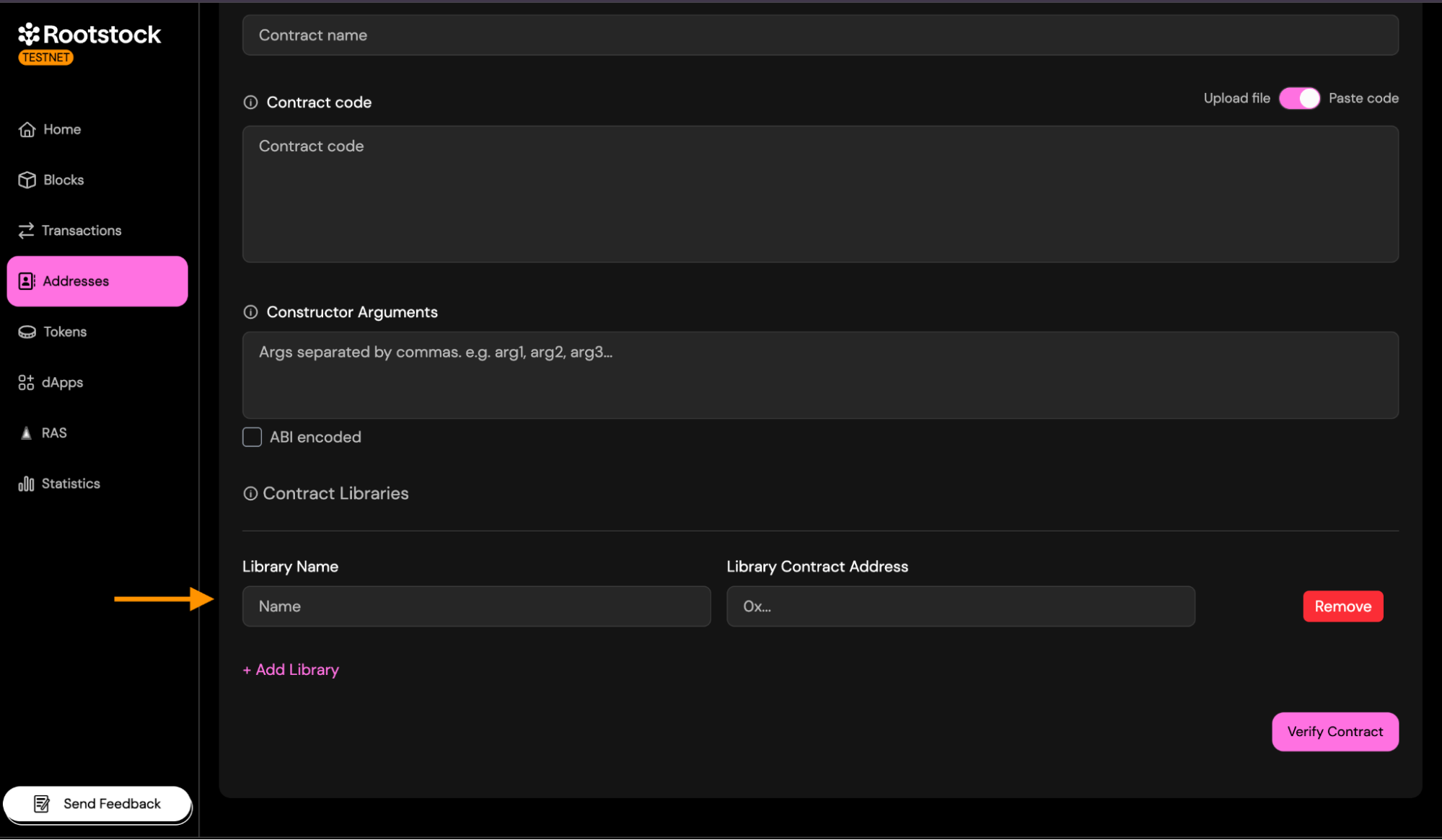
### 2. Multiple Files
The Solidity (**Multiple Files**) method is designed for more complex contracts that use imports, have multiple `.sol` files, or cannot be flattened safely. This method allows you to upload all your Solidity source files exactly as they exist in your project.
Only the parts that differ from **Single File** are described below.
- **Source Files**: Upload all Solidity files required to compile your contract, preserving the original folder structure.
You can:
- Drag and drop multiple `.sol` files.
- Upload an entire folder containing your contracts.
- Combine both approaches if needed.
Important rules:
- Every imported file must be included.
- Filenames must match exactly (case-sensitive).
- Folder structure should reflect your project layout.
- Do not flatten the files. This method expects multi-file compilation.
During verification, the explorer will reconstruct the compilation environment using the files you provide.
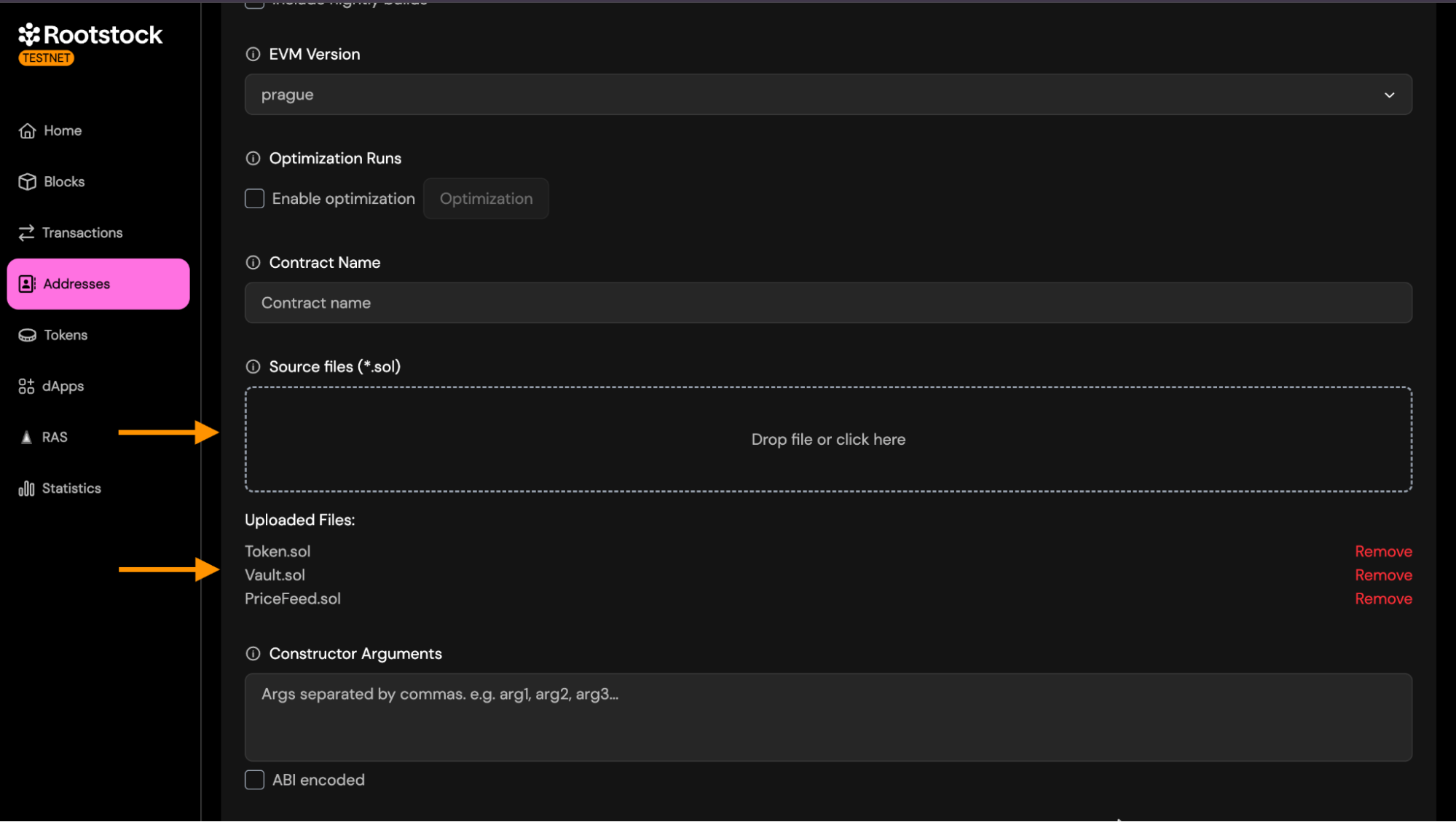
- **Other Settings**:
All other fields (compiler version, EVM version, optimization, contract name, constructor arguments, libraries) work exactly the same as described in the **Single File** section.
### 3. Standard JSON
The **Standard JSON** Input method is the most reliable and exact verification approach. It reproduces the full Solidity compiler configuration used during deployment by providing a complete standard-json object, exactly as consumed by `solc --standard-json`.
This method is strongly recommended for:
- Projects compiled with Hardhat, Foundry, Truffle, or custom build scripts.
- Contracts with complex dependency structures.
- Projects where preserving metadata (AST, settings, compiler options) is essential.
- Ensuring a byte-for-byte deterministic match with the deployed bytecode.
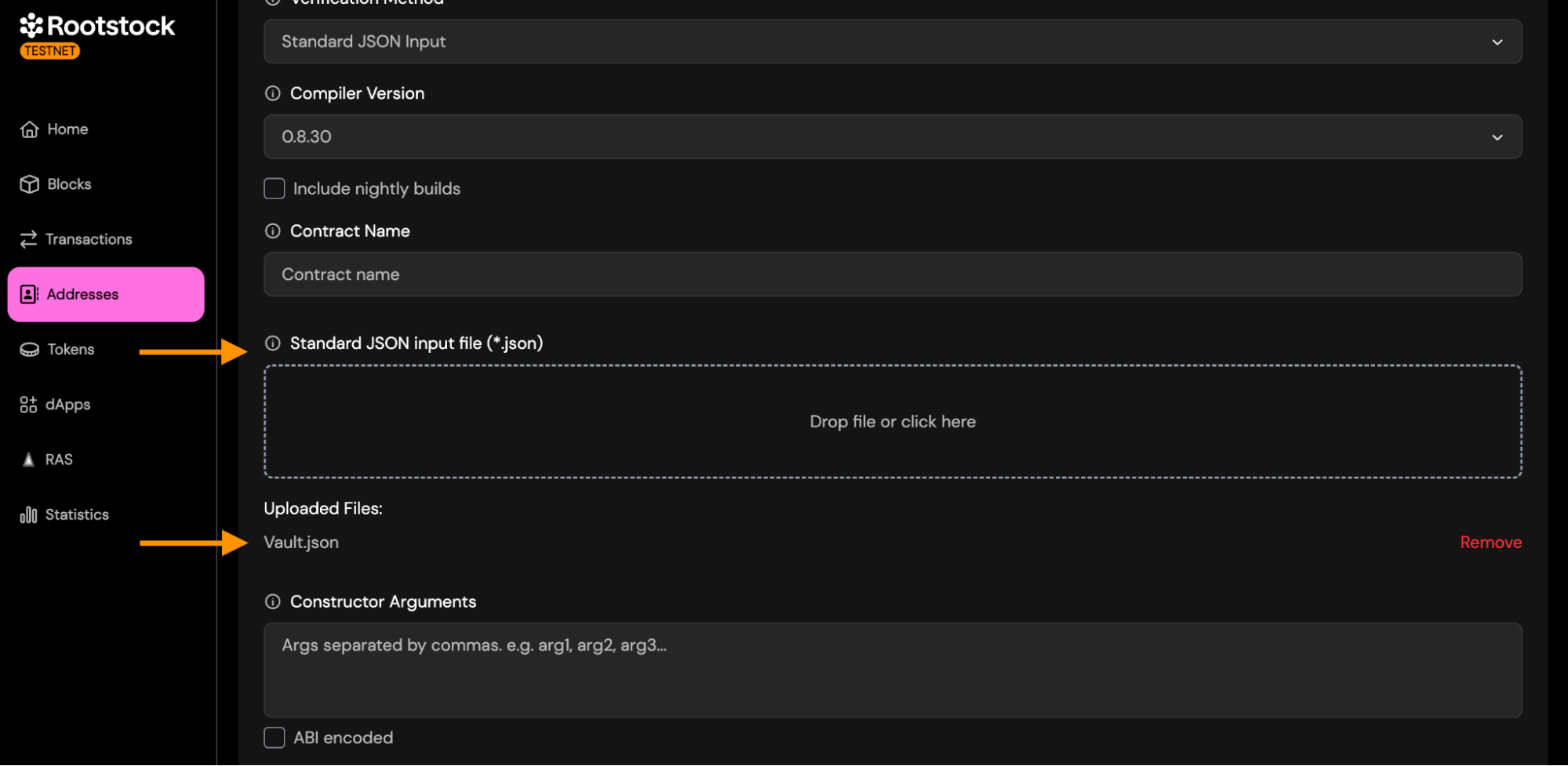
- **Other Settings**: All other fields (compiler version, optimization, contract name, constructor arguments, libraries) work exactly the same as described in the **Single File** section.
**How to Generate Standard JSON Input**
**Hardhat**:
```bash
npx hardhat compile --show-stack-traces
```
Then locate the Hardhat build-info file under `artifacts/build-info/*.json`; this file contains the Standard JSON compiler input in its `input` field.
- How to Extract the Standard JSON Input:
After generating the file from Hardhat:
- Open the JSON file that was produced.
- Inside it, locate the field named "input".
- Copy everything inside the input object. This is the actual Standard JSON Input expected by the verifier.
- Paste it into a new file, and save it using the contract's name.
- Your file should look similar to the following structure:
```json
{
"language": "Solidity",
"sources": {
"Token.sol": {
"content": "..."
},
"PriceFeed.sol": {
"content": "..."
},
"Vault.sol": {
"content": "..."
}
},
"settings": {
"optimizer": {
"enabled": false,
"runs": 200
},
"outputSelection": {
"*": {
"": ["ast"],
"*": [
"abi",
"metadata",
"devdoc",
"userdoc",
"storageLayout",
"evm.legacyAssembly",
"evm.bytecode",
"evm.deployedBytecode",
"evm.methodIdentifiers",
"evm.gasEstimates",
"evm.assembly"
]
}
},
"remappings": [],
"evmVersion": "cancun"
}
}
```
**Foundry**:
```bash
forge verify-contract \
--chain-id 31 \
--watch \
--compiler-version \
--show-standard-json-input \
\
: \
> .json
```
Replace:
- `` → the deployed contract address.
- `` → path to the Solidity file inside your project.
- `` → name of the contract inside that file.
- `` → the Solidity compiler version used to compile and deploy the contract (for example, `v0.8.28`).
> The `> .json` at the end of the command redirects the Standard JSON input output into a file in the current directory, which can then be uploaded as-is to the Rootstock Explorer verification tool.
:::warning[via-IR projects]
`--show-standard-json-input` emits only the target contract and its imports. If your project compiles with `via_ir = true`, that is not the compilation unit that produced your bytecode, so this input is not guaranteed to reproduce it. Submit it, and if it comes back as a bytecode mismatch, rebuild the input from the build info your deploy wrote — see the via-IR entry under [Troubleshooting](#troubleshooting).
:::
If your contract links external libraries, add one `--libraries` flag per library so they are written into `settings.libraries` of the generated JSON:
```bash
--libraries ::
```
### 4. Hardhat Verification
Select Hardhat as your verification method to verify contracts directly from your Hardhat project. This method does not require uploading files through the interface. Instead, verification is performed using the Hardhat CLI.
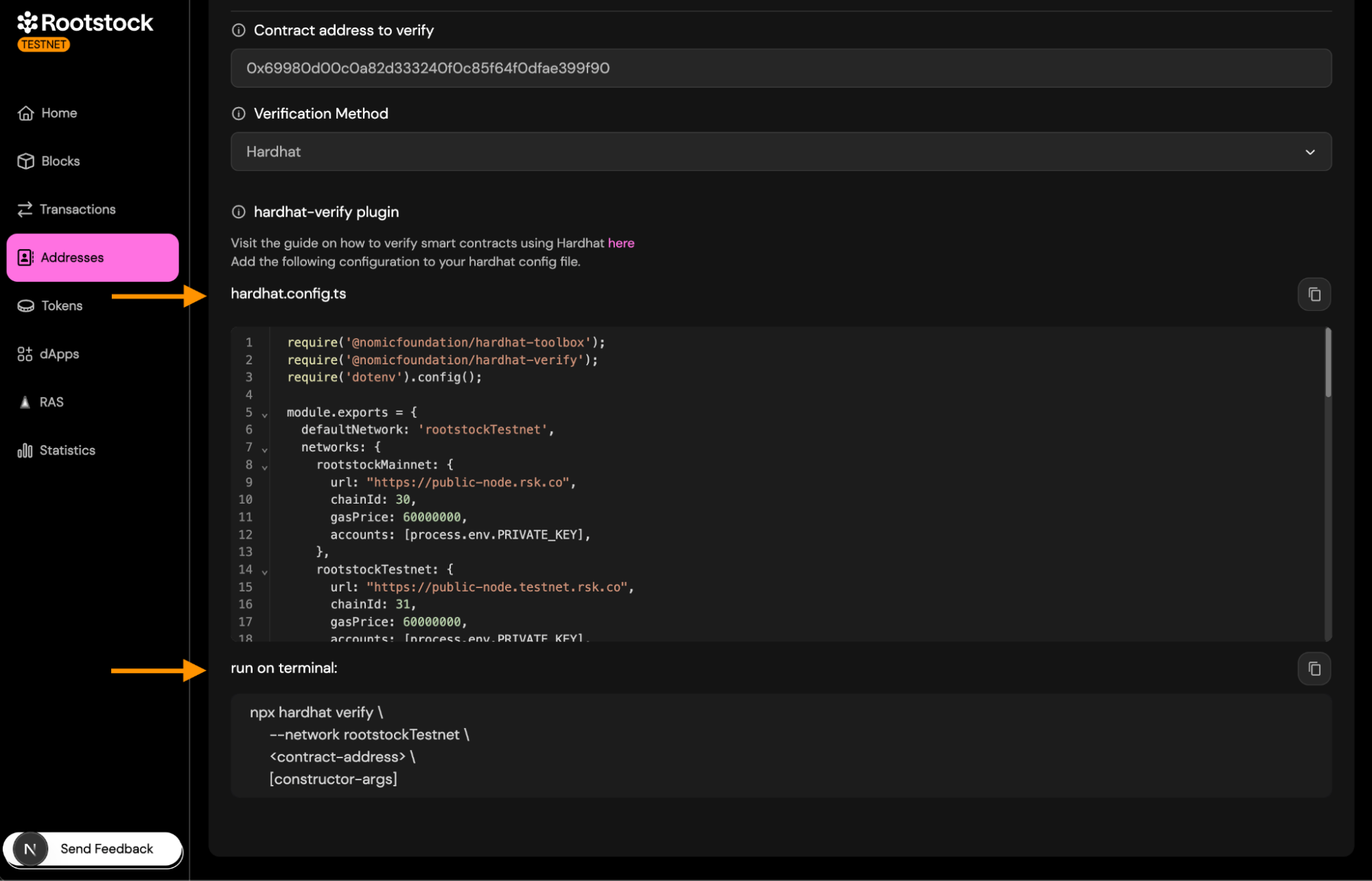
Copy the configuration snippet into your `hardhat.config.ts` file.
This snippet includes:
- The Hardhat Verify plugin
- Rootstock Testnet/Mainnet RPC URLs
- Chain IDs
- Account setup for signing requests
Make sure your `PRIVATE_KEY` is defined in your `.env` file.
Run the verification command in the terminal:
```bash
npx hardhat verify \
--network rootstockTestnet \
\
[constructor-args]
```
Replace:
- `` with your deployed contract address
- `[constructor-args]` with constructor parameters (if any)
> Once it completes successfully, your contract will be verified on the Rootstock Explorer.
For a detailed walkthrough, see [Verify Smart Contracts using the Hardhat Verify Plugin](/developers/smart-contracts/verify-smart-contracts/hardhat-verify-plugin/).
### 5. Foundry Verification
Select **Foundry** as your verification method to verify contracts using the forge verify-contract command.
This method integrates Foundry directly with the Rootstock Explorer's verification API, allowing you to verify a deployed contract from your local environment.
Run the verification command in the terminal:
```bash
forge verify-contract \
--chain-id 31 \
--watch \
--compiler-version \
--verifier custom \
--verifier-url https://be.explorer.testnet.rootstock.io/api/v3/etherscan \
\
:
```
Replace:
- `` → the deployed contract address.
- `` → path to the Solidity file inside your project.
- `` → name of the contract inside that file.
- `` → the Solidity compiler version used to compile and deploy the contract (for example, `v0.8.28`).
If your contract links external libraries, add one `--libraries` flag per library. Verification does not reuse the linking from your deploy, so each library has to be named again:
```bash
--libraries ::
```
Once the command finishes, your contract will appear as Verified on the Rootstock Explorer.
For a detailed walkthrough, see [Verify Smart Contracts using Foundry](/developers/smart-contracts/foundry/verify-smart-contracts/).
## Submit and Validate
Once you have entered all the details, click "Verify Contract".
- **Expected statuses**: The verification status will change from "Pending" to "Success" or "Failure".
- **On successful status**:
a. You will see the `Verified` badge on the contract page.
b. Source code tabs will be visible.
c. You will be able to download the contract ABI.
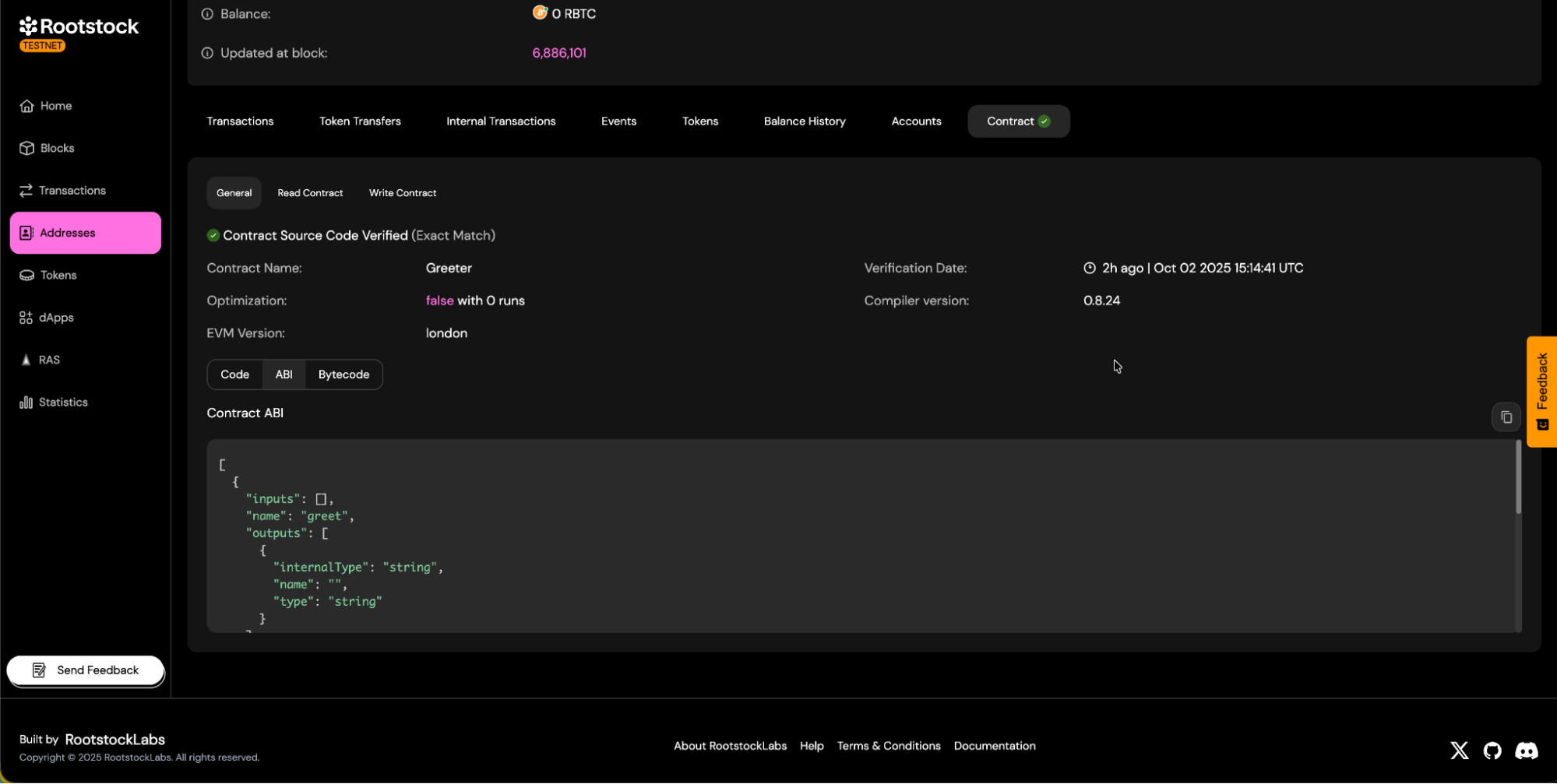
d. Contract read and write panels will be available.
- **Read Methods**:
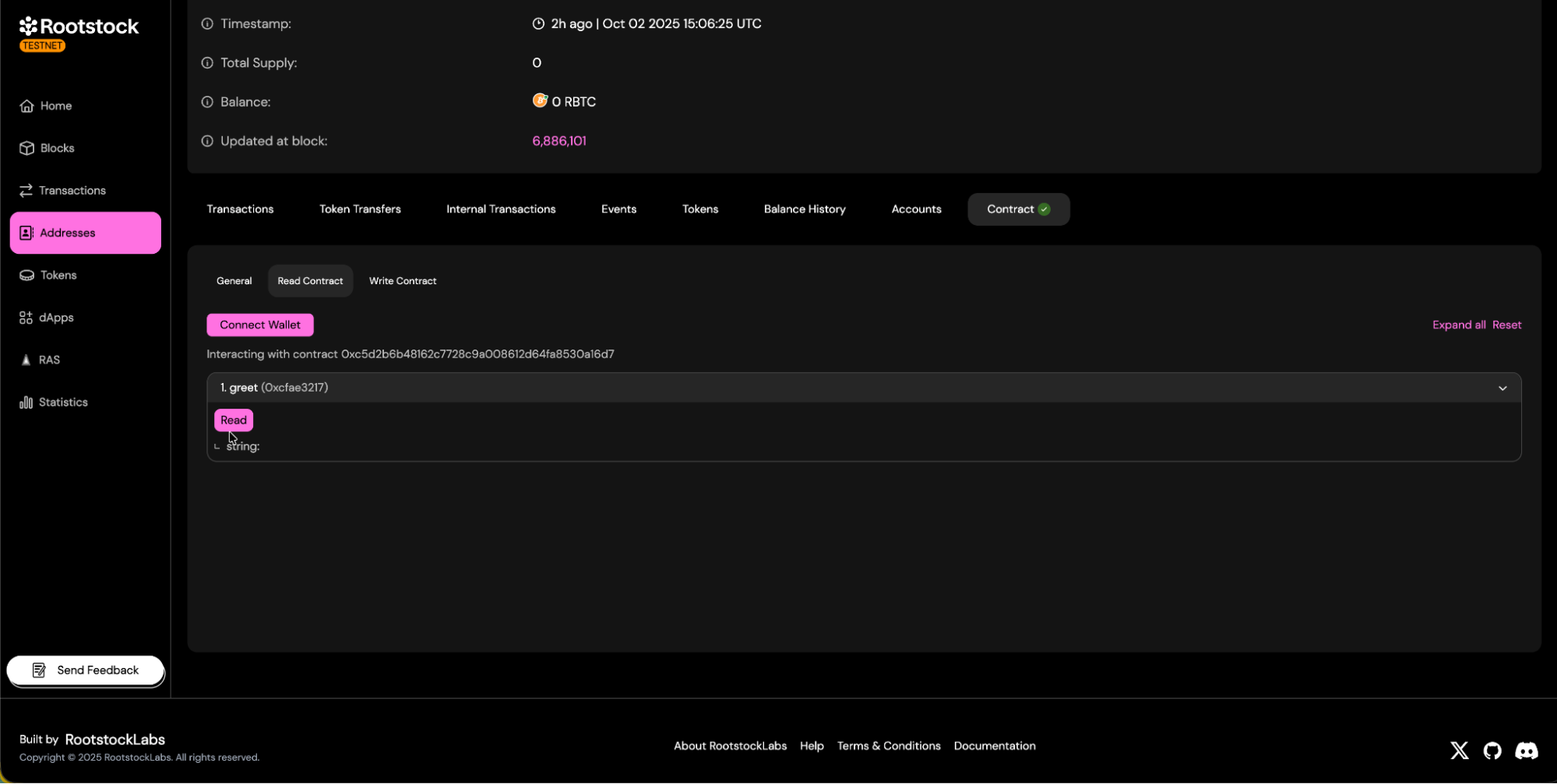
- **Write Methods**:
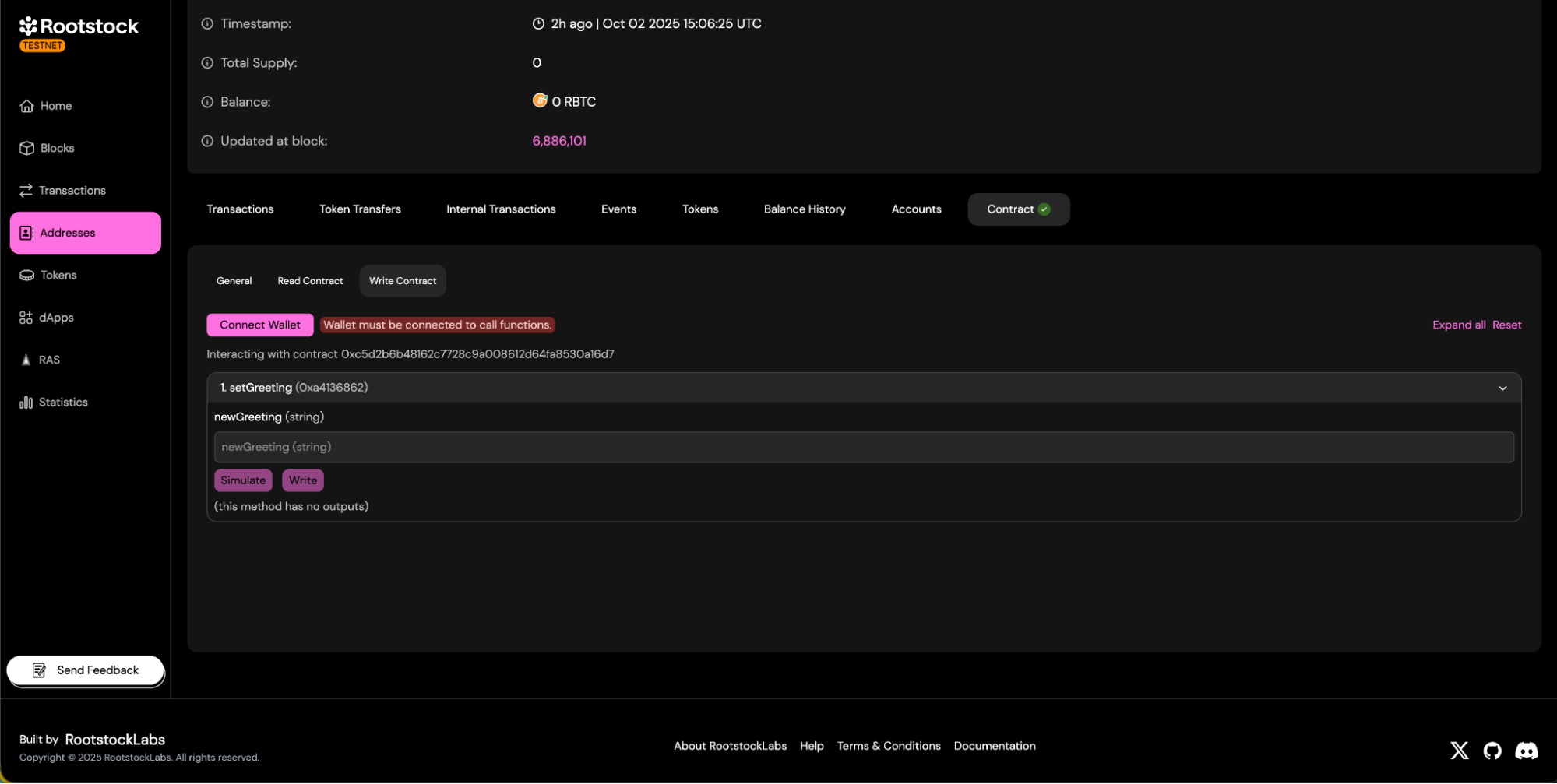
## Troubleshooting
Verification compares the bytecode the explorer recompiles against the bytecode on chain. The code body has to match; a metadata footer that differs is tolerated when it is the same length and still decodes as valid metadata. Every failure below is a real difference between the compilation you submitted and the one that produced the deployed bytecode. The exception is when the failure happens in your local tooling, before anything reaches the explorer.
### Compiler version mismatch
- Use the exact **Solc version** your deploy used, not the version shown in an example command. Do not read it off the `pragma` either: a pragma often only bounds the version, and even when it pins one exactly it omits the `+commit` hash that identifies the build.
- Foundry: read `solc_version` from `foundry.toml` (`solc` is the same setting; Foundry accepts either), or take the full version from `metadata.compiler.version` in `out/.sol/.json`.
- Hardhat: take `solcLongVersion` from the build info under `artifacts/build-info/` — it carries the `+commit.…` suffix that `solcVersion` omits. In your config it lives under `solidity` in Hardhat 2 (a bare version string, `solidity.version`, or an entry in `solidity.compilers[]`), and under the compiler profile in Hardhat 3.
### Bytecode mismatch with via-IR enabled
With `via_ir = true`, Solc output for a contract depends on **which other sources were in the compilation unit**, not only on the contract and its imports. `forge verify-contract` submits just the target's import closure, a smaller set than the one your deploy compiled, so the recompiled bytecode can differ. Run the plain command first: on the project this guidance comes from, thirteen of the fourteen deployed contracts verified with it, and the one that failed was the largest. Once it fails for a given source tree it keeps failing, deterministically, until the input changes.
**For a contract that is already deployed**, the compilation unit it was deployed from is the one input guaranteed to reproduce its bytecode. Recover it from the build info of the deploy — the archived artifact if you kept one, otherwise a build of the exact commit you deployed, since a source added or removed since then can change the output — then drop `test/` and `script/` so the submission fits the explorer's budget:
```bash
forge build --build-info
grep -l '"src/Vault.sol"' out/build-info/*.json
jq '.input | {language, sources: (.sources | with_entries(select((.key | startswith("test/")) or (.key | startswith("script/")) | not))), settings}' out/build-info/.json > standard-input.json
```
- The `grep` picks the build-info file holding your target, since a project can accumulate several. The `jq` filter names three keys because Standard JSON accepts only `language`, `sources`, and `settings`; Foundry also stores `allowPaths`, `basePath`, `includePaths`, and `version` under `.input` for its own use.
- That trim is part of the recipe, not a fallback. This explorer caps a Standard JSON submission at 100 sources and 1.5 MiB (1,572,864 bytes) of source content by default, and over either limit it answers `SOURCE_BUDGET_EXCEEDED` instead of compiling. The build this guidance comes from is 127 sources and 1,694,661 bytes; dropping `test/` and `script/` brings it to 77 sources and 1,209,404 bytes.
- Check the trim before submitting, because under via-IR removing sources can change the output. Recompile it with the same Solc version the deploy used (`solcVersion` in the build-info file) and compare the target's creation bytecode against the build info — the two digests must be equal, and if they differ, put the sources back:
```bash
jq -r '.output.contracts["src/Vault.sol"].Vault.evm.bytecode.object' out/build-info/.json | shasum -a 256
solc --standard-json standard-input.json > recompiled.json && jq -r '.errors // [] | map(select(.severity=="error")) | length' recompiled.json
jq -r '.contracts["src/Vault.sol"].Vault.evm.bytecode.object' recompiled.json | shasum -a 256
```
- Submit the result through **Standard JSON Input**. Redeploying from a smaller tree is not an option here — the address and its state are already live — so reproducing the original compilation unit is the only path.
**Before your next deployment**, put the filters on the command that compiles the deploy and keep the build info that run writes:
```bash
forge script script/Deploy.s.sol --rpc-url --broadcast --build-info --skip 'test/**'
```
- Use globs, not the bare `test` / `script` aliases. `--skip` filters which files compile as *targets*, not what ends up in the unit: anything a surviving target imports comes back. The aliases match only `.t.sol` and `.s.sol`, so a helper like `test/BaseTest.sol` survives and drags its imports with it. On this project, of 127 sources the aliases left 96, `'test/**'` left 83, and `'test/**' 'script/**'` — usable on `forge build`, not on the deploy command — left 55.
- Never pass `--skip script` to `forge script`: it skips the script being run, and the run stops with `Could not find target contract`.
- Keep the `out/build-info/.json` the deploy wrote, **outside** `out/`, since `forge build --force` clears that folder. Without it you are rebuilding from the deployed commit, where anything added or removed since the deploy can change the via-IR output. If the code body does reproduce, a metadata footer that differs by the same length still verifies here, though some other explorers record that as a partial match.
- Turning via-IR off is the other pre-deployment option and it removes the failure mode outright, since legacy codegen is not source-set sensitive. That is a decision about your contracts, not about verification.
### Library not found / address mismatch
`forge verify-contract` submits **only** the libraries in your Foundry configuration for that command — the `--libraries` flags you pass, plus any `libraries` entry in `foundry.toml`. It never reads your deploy's broadcast file or artifacts, so the flags your deploy script passed have to be repeated here. A missing library leaves unresolved placeholders in the recompiled bytecode, so the comparison fails.
- Pass every deployed library, one `--libraries` flag each:
```bash
--libraries src/libraries/MyLib.sol:MyLib:0x1111111111111111111111111111111111111111
```
- The file part is the source path as the compiler sees it, after remappings. For a library that comes from a dependency, that is its path inside the dependency — for example `node_modules/@scope/pkg/contracts/MyLib.sol:MyLib:0x…`.
- The source of truth for names and addresses is the top-level `libraries[]` array in `broadcast/