> For the complete documentation index, see [llms.txt](/llms.txt).
:::tip[Tip]
You need enough balance to cover transfer amount and fees. Check [Minimum Transaction Amounts](/resources/guides/atlas/#minimum-transaction-amounts) before starting.
:::
## Getting Started
1. **Open Atlas Bridge App**
- Go to **[https://atlas.rootstock.io](https://atlas.rootstock.io)** (or testnet if applicable).
- You do **not** need to connect a wallet to start.
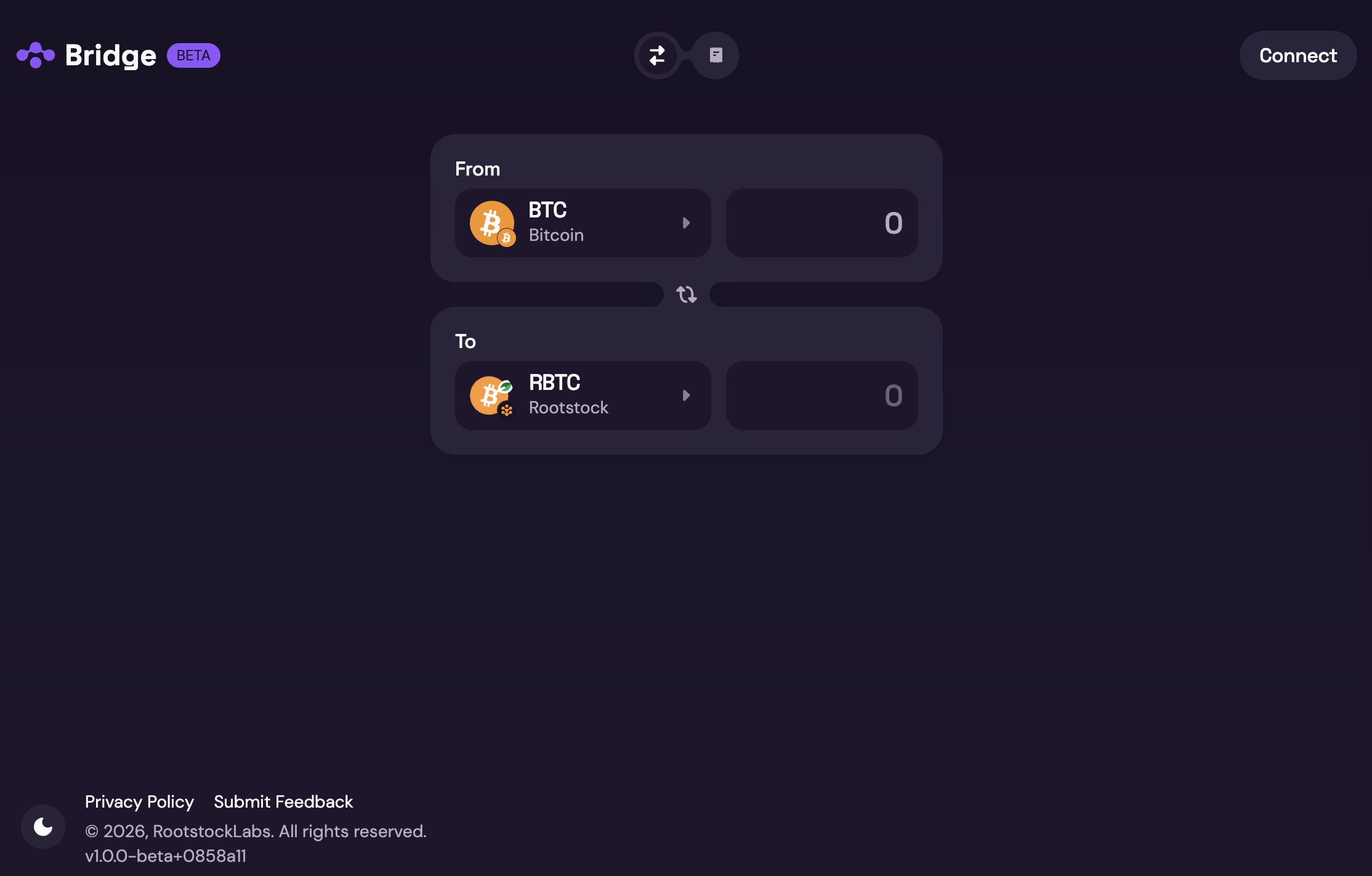 2. **Select the desired pair**
- Choose source and destination assets. One side must always be a Rootstock token (e.g. rBTC, trBTC). The other is the asset on the other chain (e.g. BTC, ETH, USDT).
- See *Mainnet* and *Testnet available swaps* in the [User Guide](/resources/guides/atlas) for supported pairs.
2. **Select the desired pair**
- Choose source and destination assets. One side must always be a Rootstock token (e.g. rBTC, trBTC). The other is the asset on the other chain (e.g. BTC, ETH, USDT).
- See *Mainnet* and *Testnet available swaps* in the [User Guide](/resources/guides/atlas) for supported pairs.
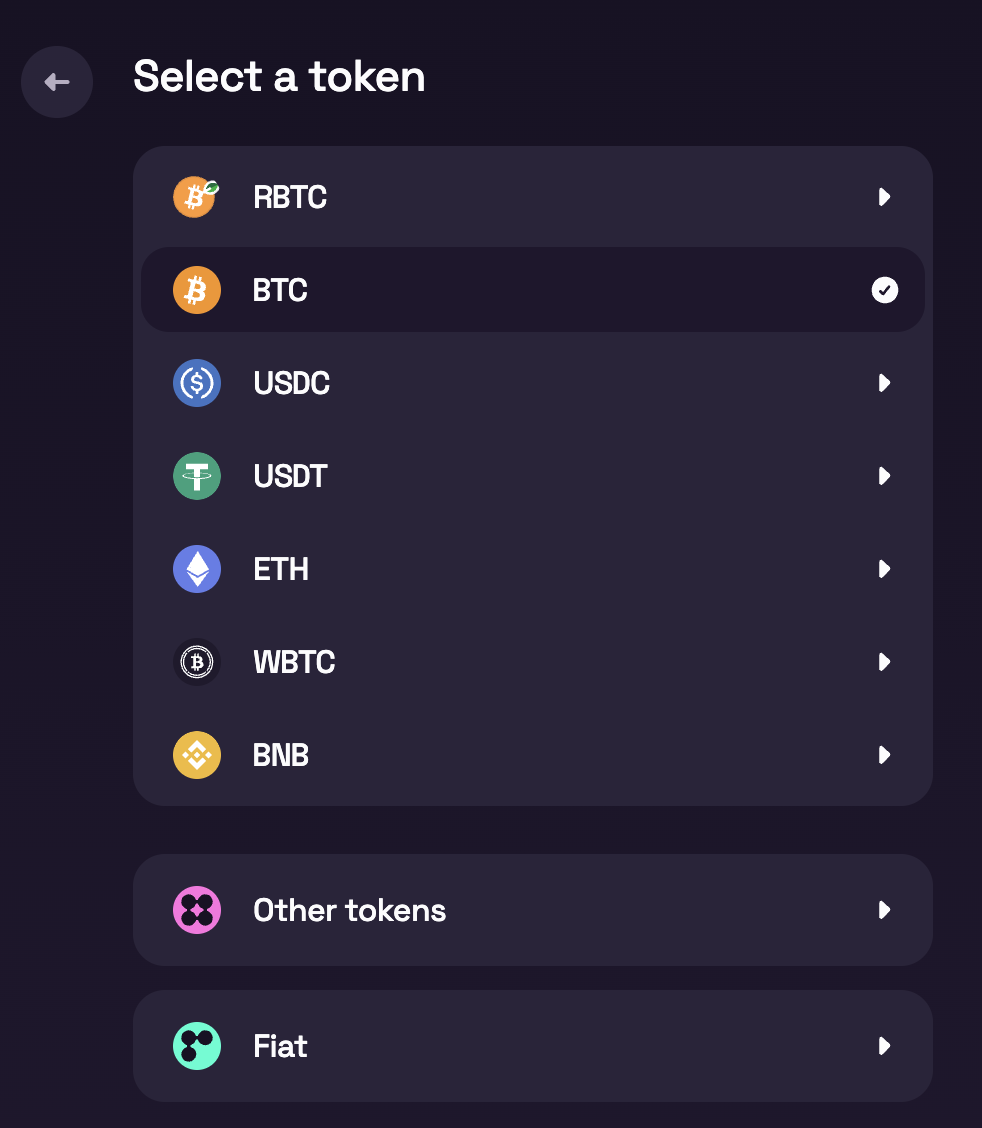 3. **Enter the amount**
- Type the amount you want to bridge.
- If no providers appear, your amount may be below the minimum, confirm [Minimum Transaction Amounts](/resources/guides/atlas) and adjust.
3. **Enter the amount**
- Type the amount you want to bridge.
- If no providers appear, your amount may be below the minimum, confirm [Minimum Transaction Amounts](/resources/guides/atlas) and adjust.
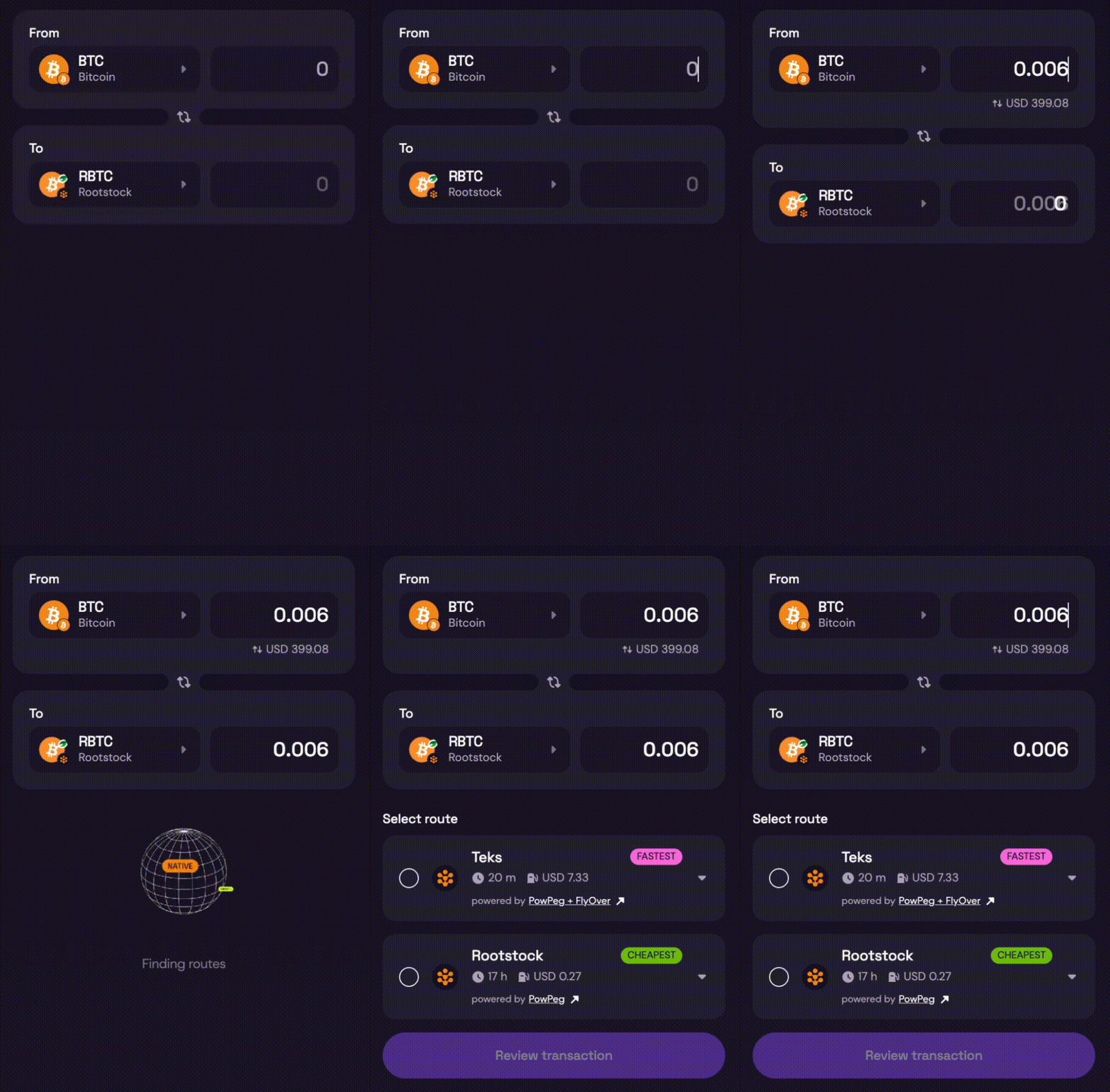 4. **Choose a provider**
- The bridge lists all available providers for your pair and amount.
- Compare rates, fees, and conditions.
- Select a provider, then click **Review transaction**.
5. **Review provider details and add destination address**
- Review fees, minimums, and estimated time for the selected provider.
4. **Choose a provider**
- The bridge lists all available providers for your pair and amount.
- Compare rates, fees, and conditions.
- Select a provider, then click **Review transaction**.
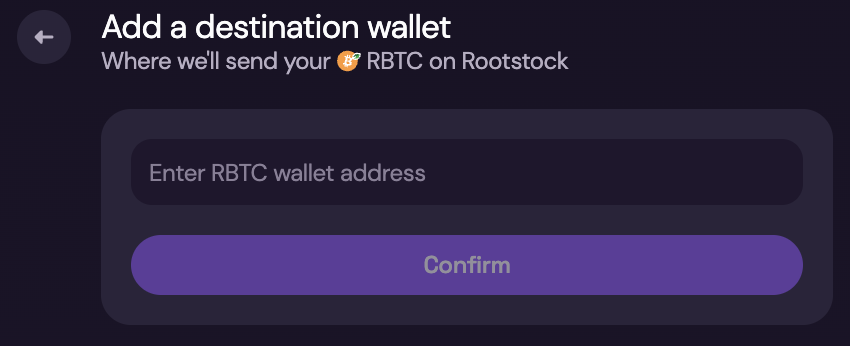
5. **Review provider details and add destination address**
- Review fees, minimums, and estimated time for the selected provider.
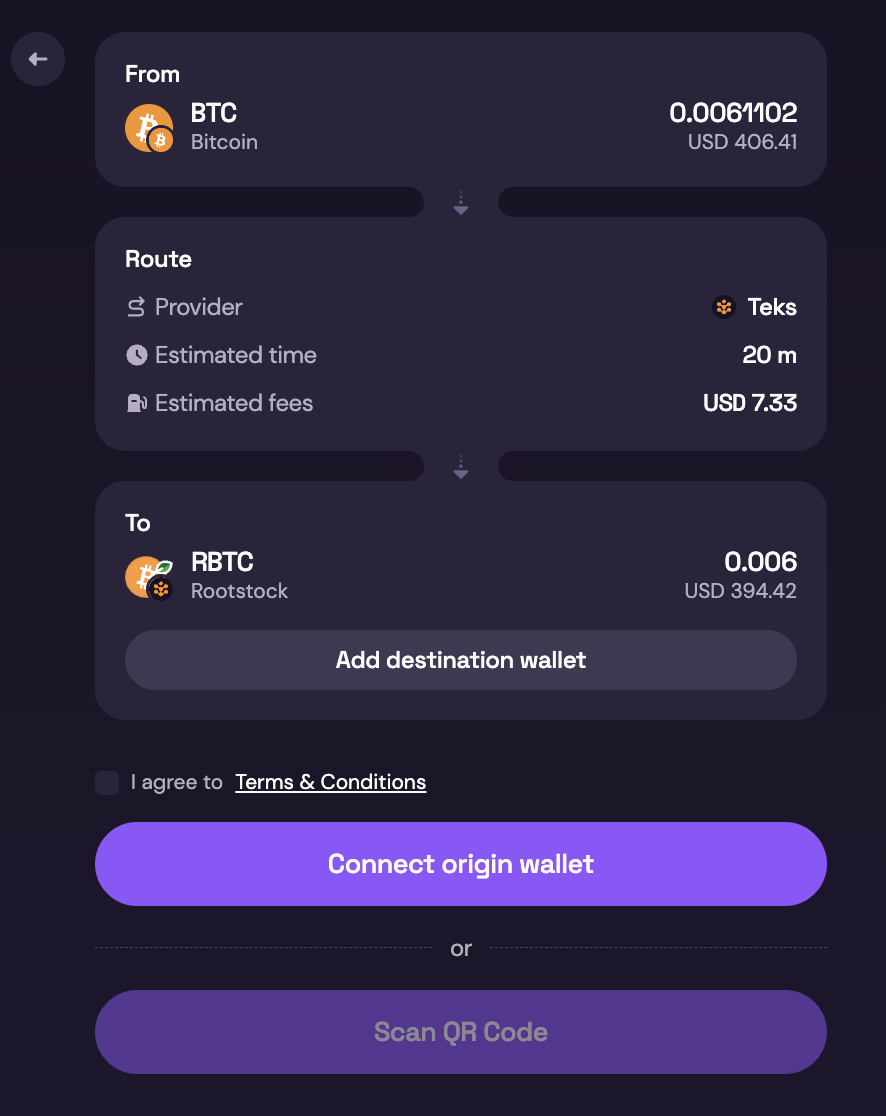 - Click **Add Destination Wallet** and paste the destination address where you want to receive funds.
- Confirm the destination chain matches the address type.
- Click **Add Destination Wallet** and paste the destination address where you want to receive funds.
- Confirm the destination chain matches the address type.
 6. **Complete the transaction**
After selecting a provider and accepting terms, finish in one of two ways:
6. **Complete the transaction**
After selecting a provider and accepting terms, finish in one of two ways:
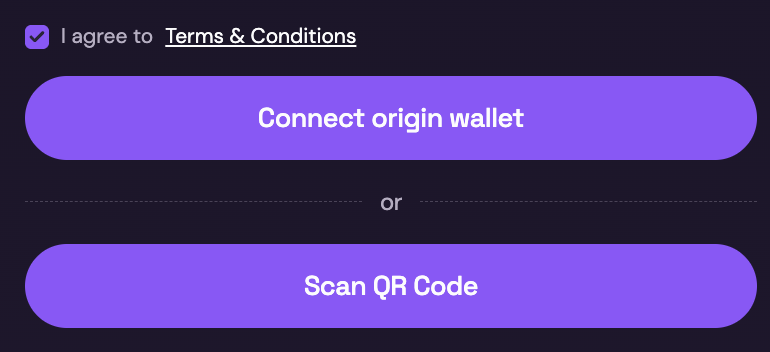 - **With a wallet**: Connect a compatible wallet (for example MetaMask for Rootstock) and authorize the transaction.
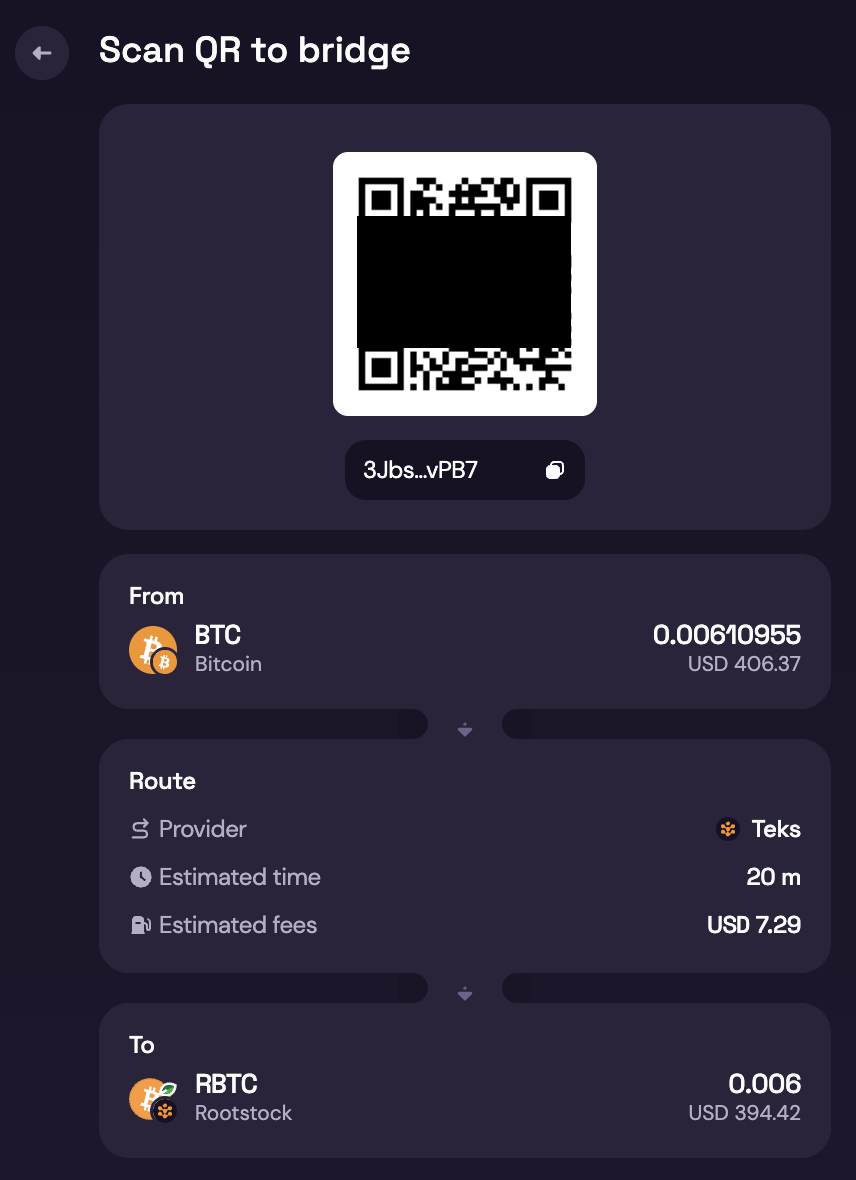
- **Without a wallet**: Complete with **QR code** and follow provider instructions.
- **With a wallet**: Connect a compatible wallet (for example MetaMask for Rootstock) and authorize the transaction.
- **Without a wallet**: Complete with **QR code** and follow provider instructions.
 7. **Review and confirm**
- Check fees, destination address, and final received amount.
- Wait for confirmations. See [Expected Time & Confirmations](/resources/guides/atlas).
- Track progress in the bridge UI.
8. **Done**
- You should receive the asset on the destination network.
- Keep the transaction hash until funds arrive.
## Warning: Important Visual Warnings (UI Callouts)
```text
⚠️ Do NOT send BTC from an exchange
⚠️ Only use wallets you control
⚠️ Always verify the destination address
⚠️ Bitcoin transactions are irreversible
```
## If the transaction looks stuck
First wait for the estimated confirmation window. Then:
- Open the source-chain explorer with your transaction hash.
- Re-open Atlas and check provider status.
- Contact support with transaction hash, provider name, and time submitted.
## Status Indicators Users Will See
* 🟡 **Waiting for network confirmations**
* 🟡 **Processing bridge transaction**
* 🟢 **Completed successfully**
* 🔴 **Action required / error**
7. **Review and confirm**
- Check fees, destination address, and final received amount.
- Wait for confirmations. See [Expected Time & Confirmations](/resources/guides/atlas).
- Track progress in the bridge UI.
8. **Done**
- You should receive the asset on the destination network.
- Keep the transaction hash until funds arrive.
## Warning: Important Visual Warnings (UI Callouts)
```text
⚠️ Do NOT send BTC from an exchange
⚠️ Only use wallets you control
⚠️ Always verify the destination address
⚠️ Bitcoin transactions are irreversible
```
## If the transaction looks stuck
First wait for the estimated confirmation window. Then:
- Open the source-chain explorer with your transaction hash.
- Re-open Atlas and check provider status.
- Contact support with transaction hash, provider name, and time submitted.
## Status Indicators Users Will See
* 🟡 **Waiting for network confirmations**
* 🟡 **Processing bridge transaction**
* 🟢 **Completed successfully**
* 🔴 **Action required / error**