How to access the address derived by a native pegout
This guide explains how to find and access the Bitcoin address that receives your funds after a native pegout on Atlas Bridge, using a hardware wallet and Electrum.
Why derive the address using Electrum?
During a native pegout, the destination Bitcoin address is derived from your Rootstock account using the BIP44 path:
m/44'/60'/0'/0/0
This is the standard Ethereum derivation path (coin type 60'), the same one most Rootstock-compatible wallets, including hardware wallets, already use by default for a Rootstock account.
Atlas doesn't display this derivation path anywhere in its UI. To view or verify the destination address that will receive (or has received) your BTC, you need to browse your hardware wallet's account in Electrum using this path.
Prerequisites
- The same hardware wallet (Trezor or Ledger) you used to sign the native pegout in Atlas.
- Electrum; make sure you download it directly from electrum.org.
If you signed the native pegout with a wallet where you hold the private key directly (for example MetaMask), you don't need a derivation path at all, see Accessing native pegout funds with a private key instead.
How to view a derived address
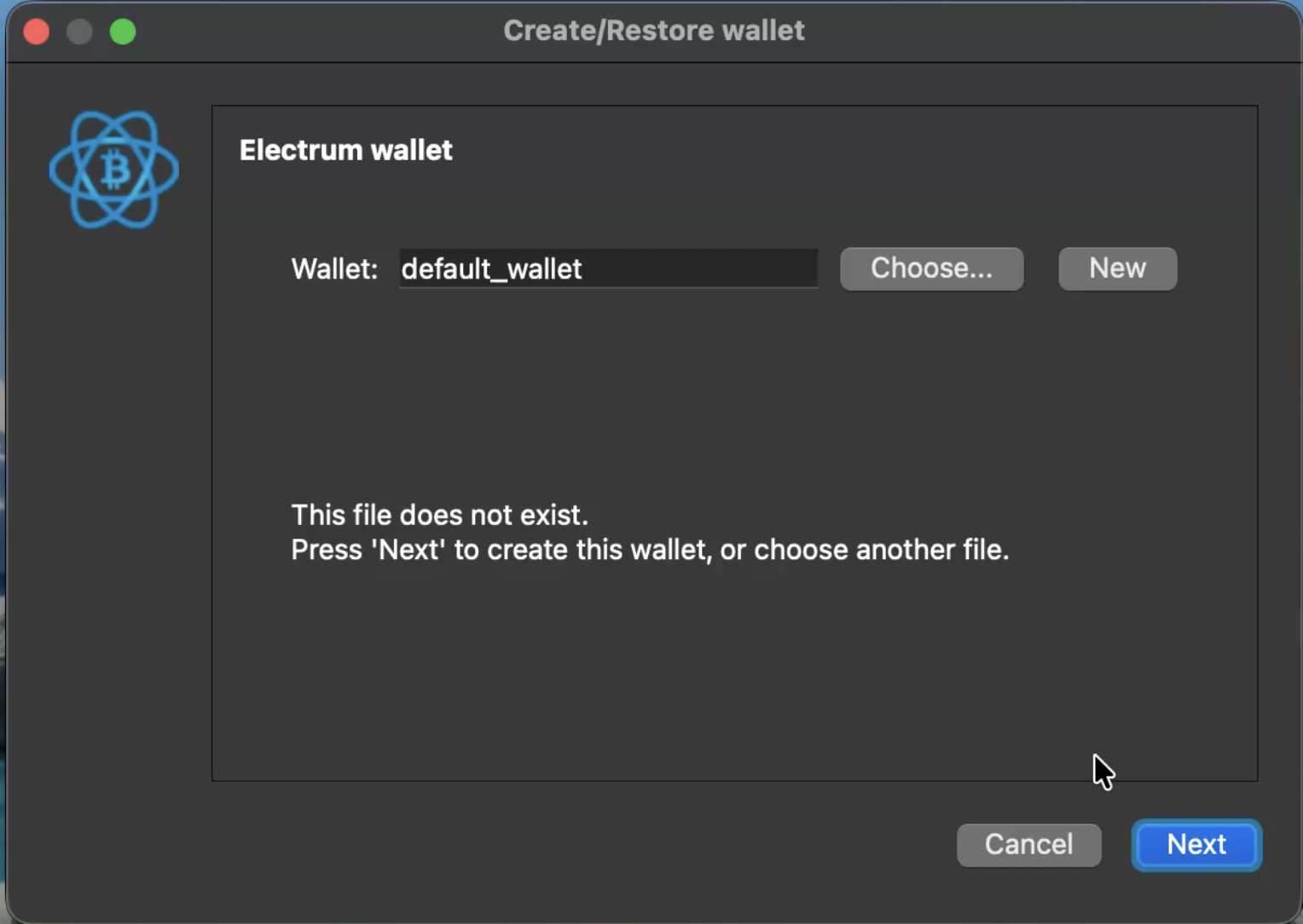
Follow these steps to create a new wallet in Electrum and connect your hardware wallet:
NOTE: If you need to run Electrum on Testnet, execute the following commands:
cd /Applications/Electrum.app/Contents/MacOS
./run_electrum --testnet
The derivation path m/44'/60'/0'/0/0 is the same on both Mainnet and Testnet, only the --testnet flag changes.
Step 1: Download Electrum for your OS from the website.
Step 2: Start with the "Create New Wallet" option.
Step 3: Fill out a name in the "Wallet" field and click "Next".
Step 4: Select "Standard wallet" and click "Next".
Step 5: Select "Use a hardware device" and click "Next".
Step 6: Select your hardware wallet (Trezor or Ledger) and click "Next".
Step 7: Complete the passphrase step if Electrum prompts you. See Hardware wallet passphrase in Electrum below.
Step 8: Select the "legacy (p2pkh)" option, fill out the custom derivation path field, and click "Next":
Custom derivation path:
m/44'/60'/0'
Electrum asks for the account-level path (m/44'/60'/0'), then browses the /0/0, /0/1, etc. addresses under it. Your native pegout destination address is at index /0/0, so it should be the first address Electrum shows.
NOTE: For Ledger, you must approve the custom derivation path on the device.
Step 9: Optionally check "Encrypt wallet file" and click "Next". This password encrypts the Electrum wallet file on your computer, it is not your hardware wallet's PIN or passphrase.
Step 10: Open the "Addresses" tab in Electrum to view the derived address and your funds.
Hardware wallet passphrase in Electrum
During setup, Electrum may show an Enter a passphrase dialog when you connect your device. The BIP39 passphrase is an optional extension to your seed. It's not your device PIN, and it's not a password that only locks the Electrum app.
If you enter a passphrase that you didn't use when signing the pegout, Electrum derives a different wallet. Your funds can look missing even though the Bitcoin transaction succeeded.
If you don't use a passphrase on your device
Leave both passphrase fields empty and click OK. Don't type a new password into these fields.
If you use a BIP39 passphrase
Enter the same passphrase you used on the device when you signed the native pegout in Atlas. A different passphrase shows a different set of addresses.
Troubleshooting: pegout completed but balance is zero
Your BTC may have arrived even when Electrum shows a zero balance. Work through these checks in order:
- Confirm the transaction on a bitcoin block explorer using the destination Bitcoin address from Atlas' transaction status.
- Confirm the custom derivation path in Electrum is
m/44'/60'/0'(see Step 8 preceding). - If you don't use a BIP39 passphrase on your device, leave the Electrum passphrase fields empty.
- If you use a passphrase on your device, enter the same value in Electrum.
- If the balance is still wrong, delete the Electrum wallet file and repeat the steps in this section with the correct passphrase and path.
If you signed the native pegout with an empty passphrase but opened Electrum with a passphrase (or the reverse), you are viewing a different wallet. Your BTC is not lost — find the address on a block explorer and match the passphrase and path you used when signing.