How to submit a dApp to the Explorer
This guide explains how developers and project owners can submit their dApp and associated tokens to be listed on the Explorer dApps page, ensuring the project is displayed correctly with all required data.
Why submit your dApp?
Submitting your dApp allows it to be properly listed on the Explorer dApps page, ensuring accurate data, better visibility, and a trusted experience for users interacting with your project.
1. Visit the Rootstock Explorer
To start submitting a dApp, go to the Rootstock Explorer Testnet or Rootstock Explorer Mainnet
2. Navigate to the dApps Page
From the Explorer navigation menu:
-
Click on dApps
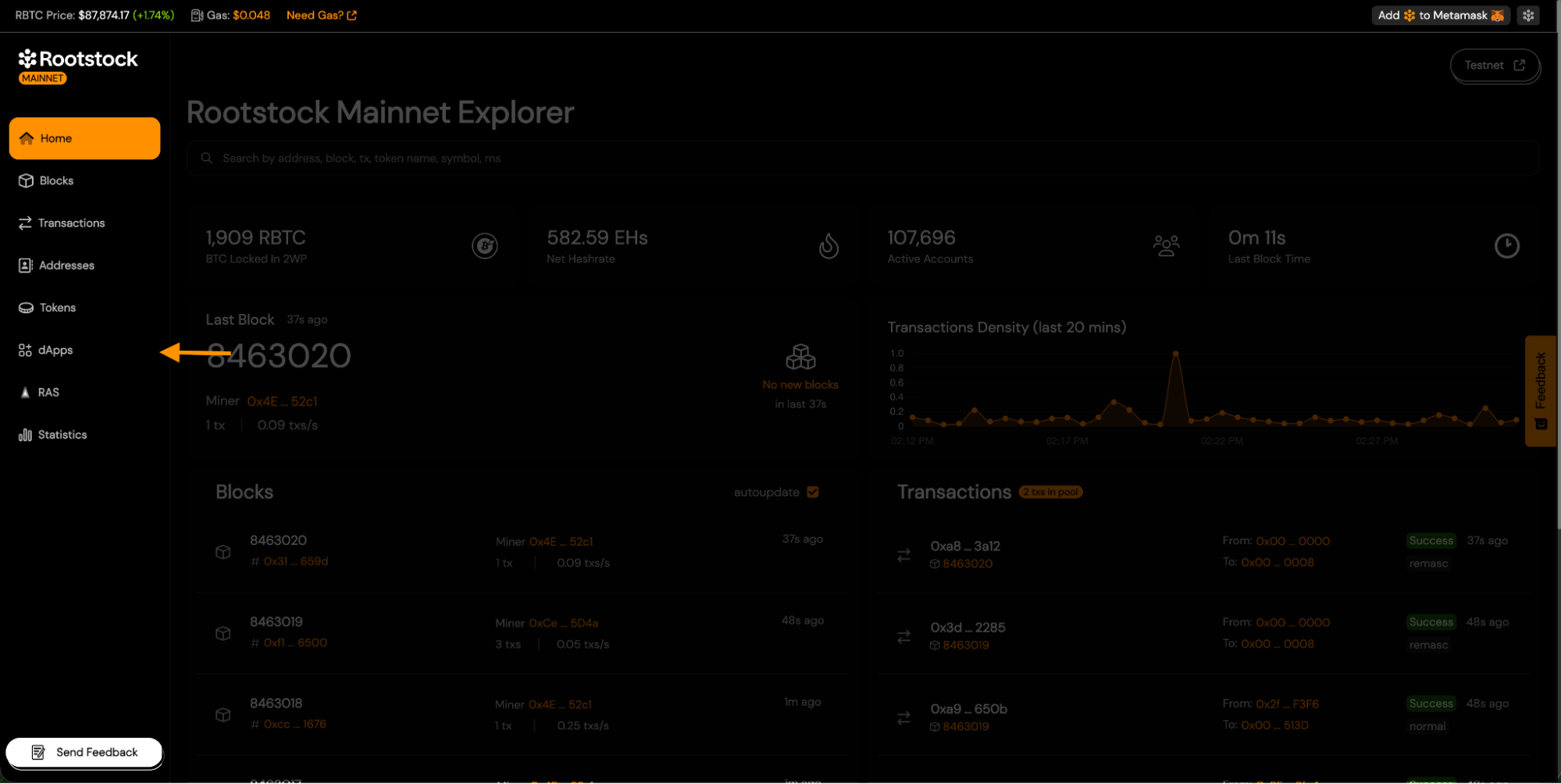
-
You will be taken to the Explorer dApps page.
This page displays all approved dApps, organized by category.
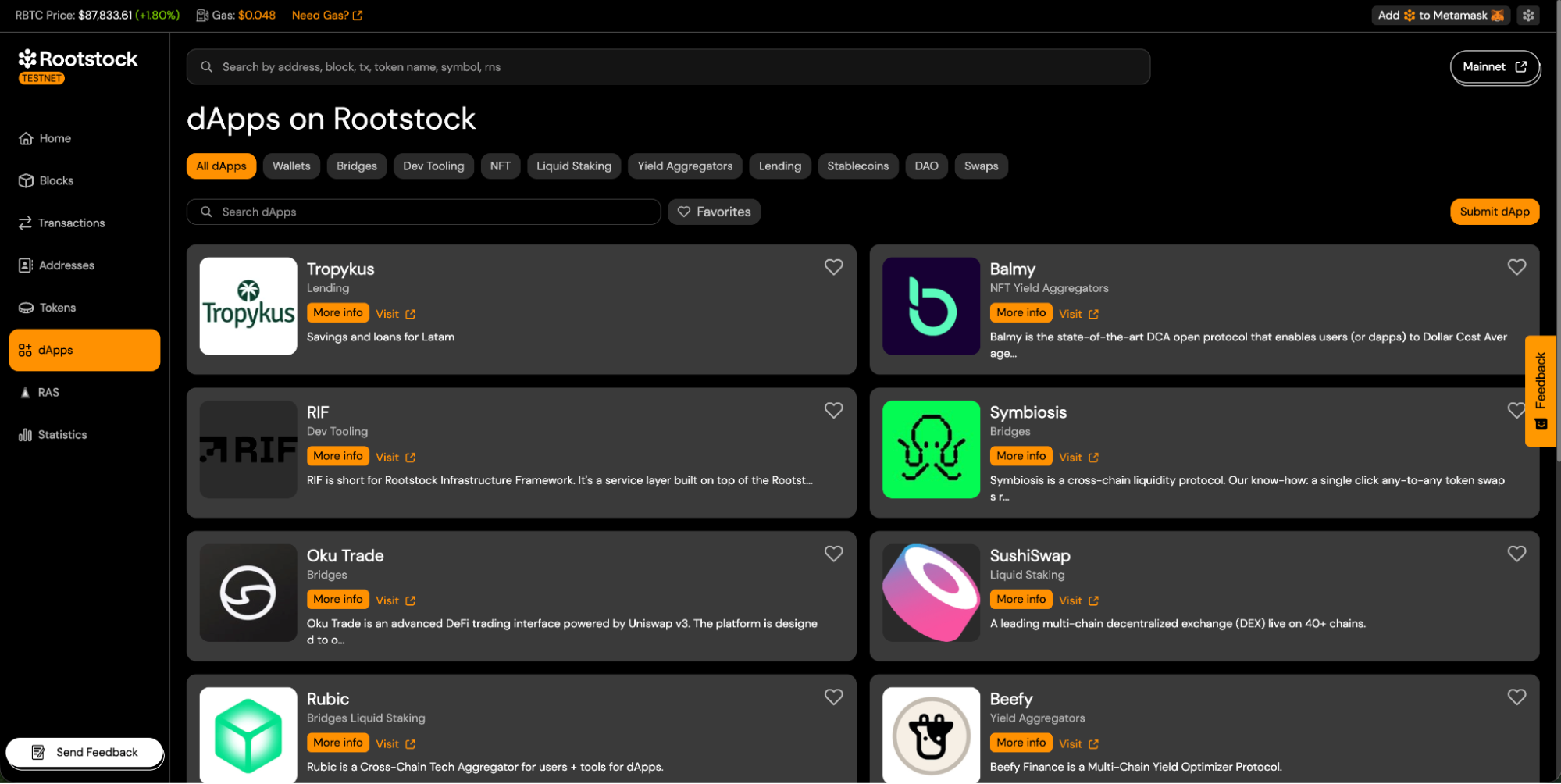
3. Start a New dApp Submission
On the dApps page:
-
Click the Submit dApp button.
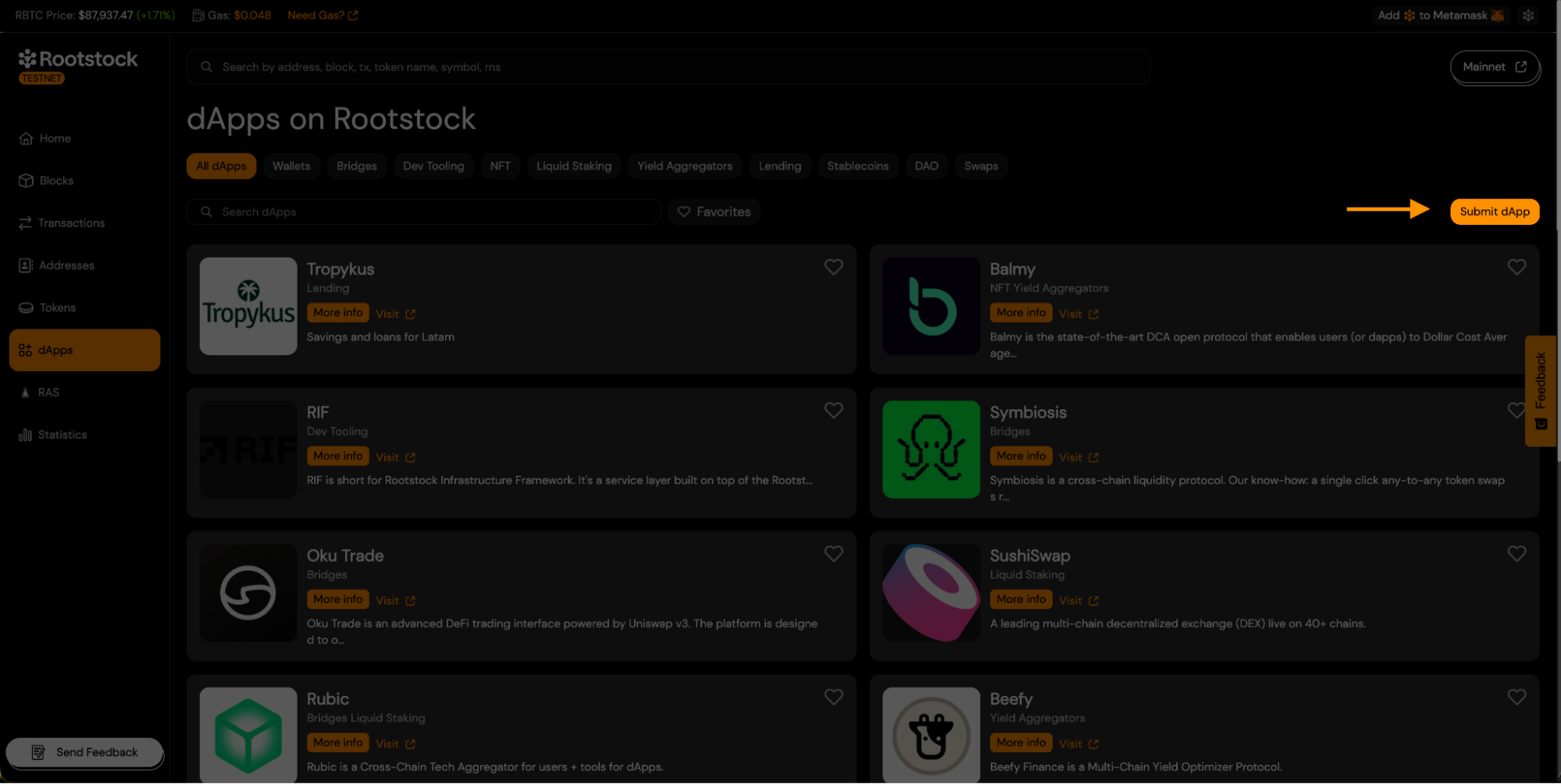
-
This opens the Submit dApp form.
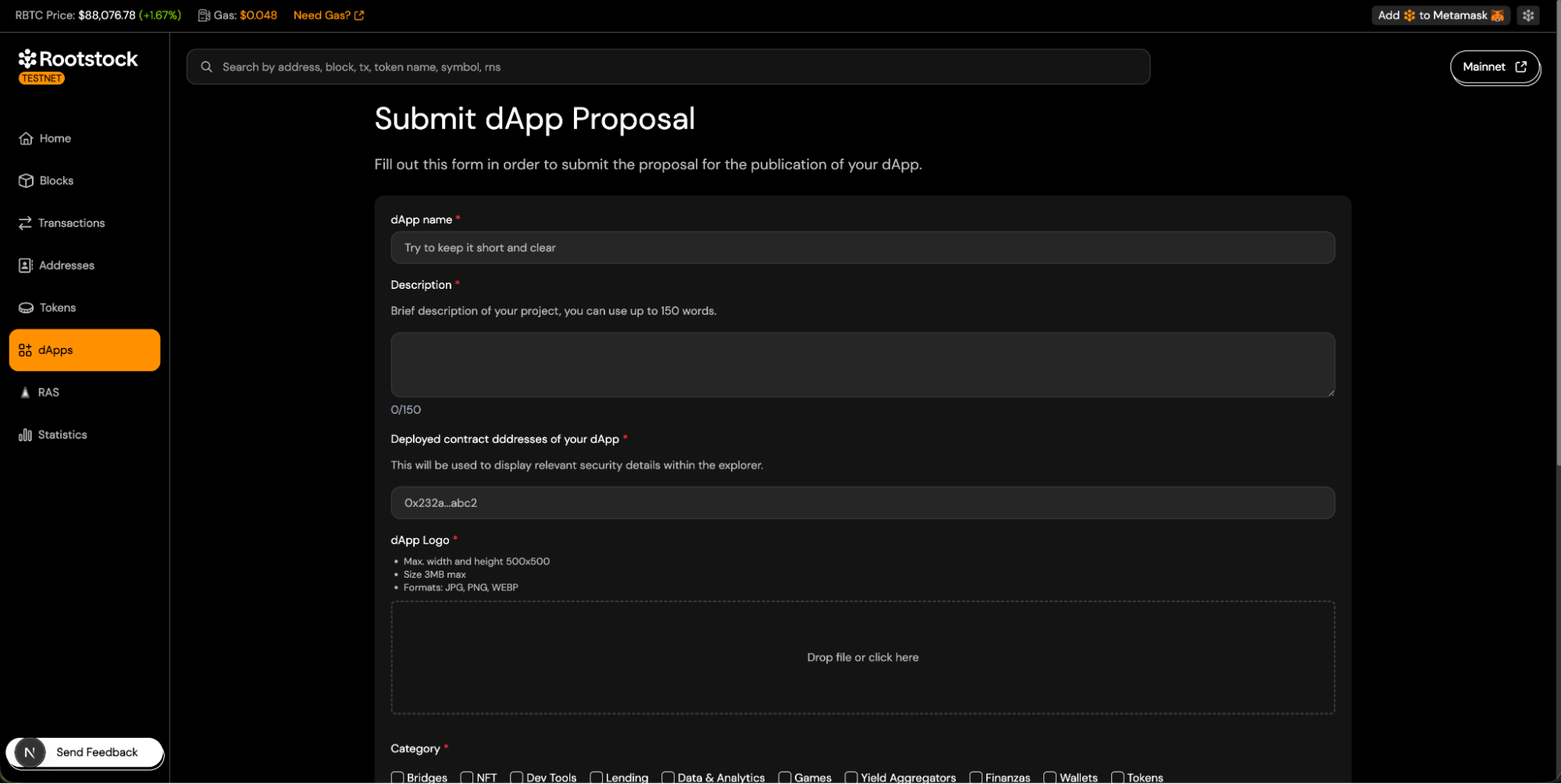
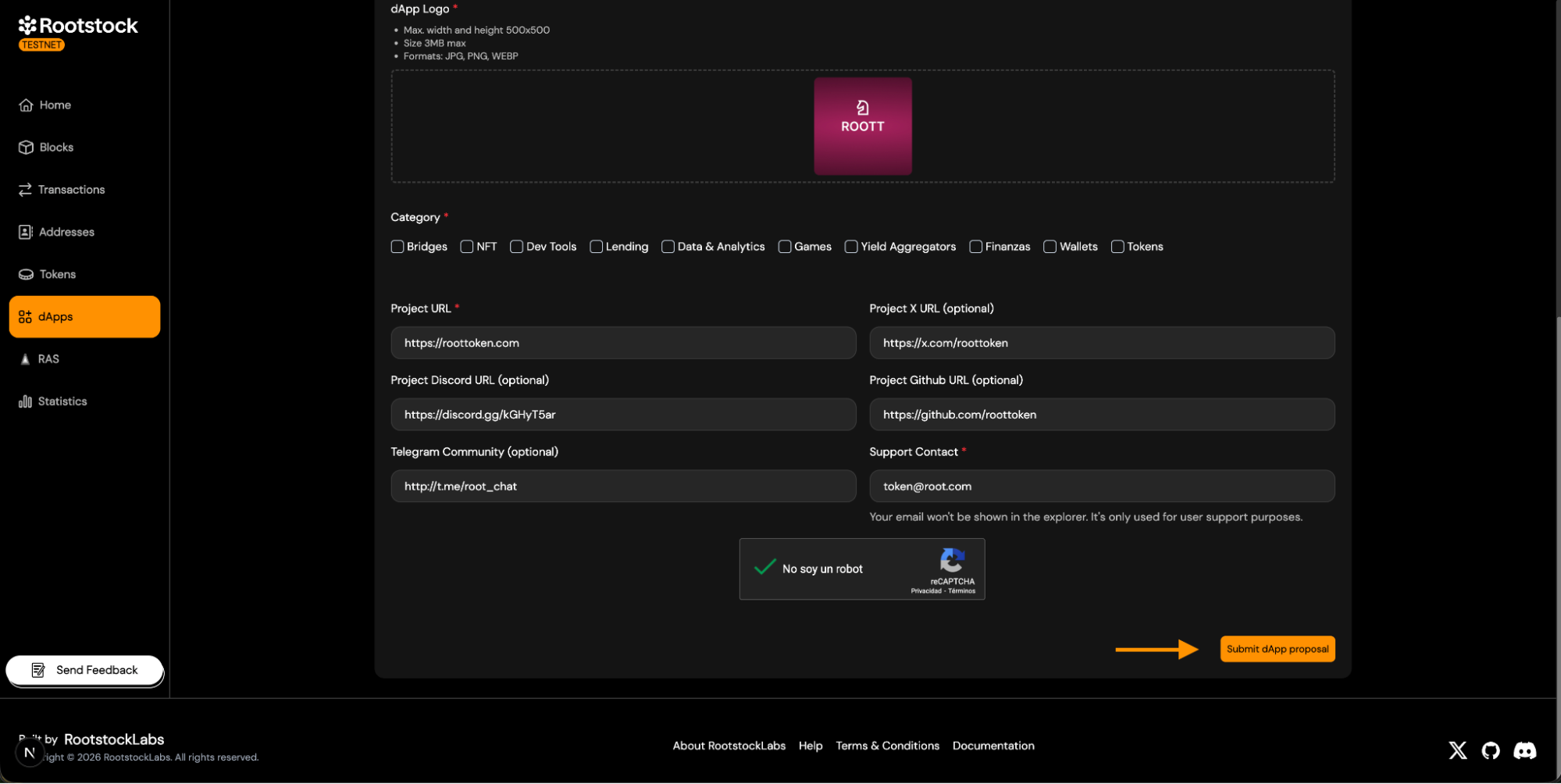
4. Fill Out the Submit dApp Form.
Complete all required fields in the form. The following sections explain each field and the required metadata.
-
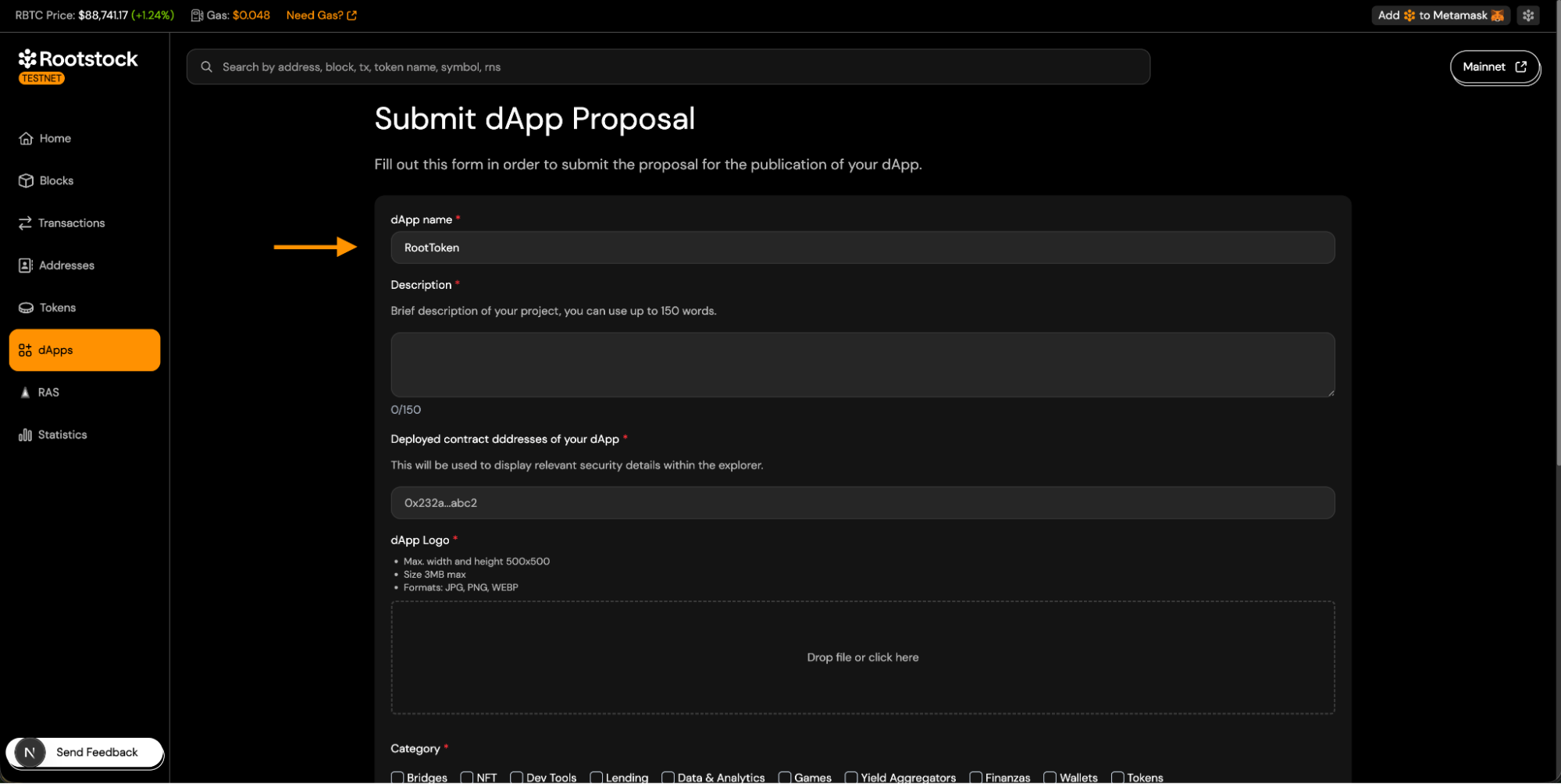
4.1 dApp Name (Required).
- Enter the name of your dApp.
- Keep it short and recognizable.
-
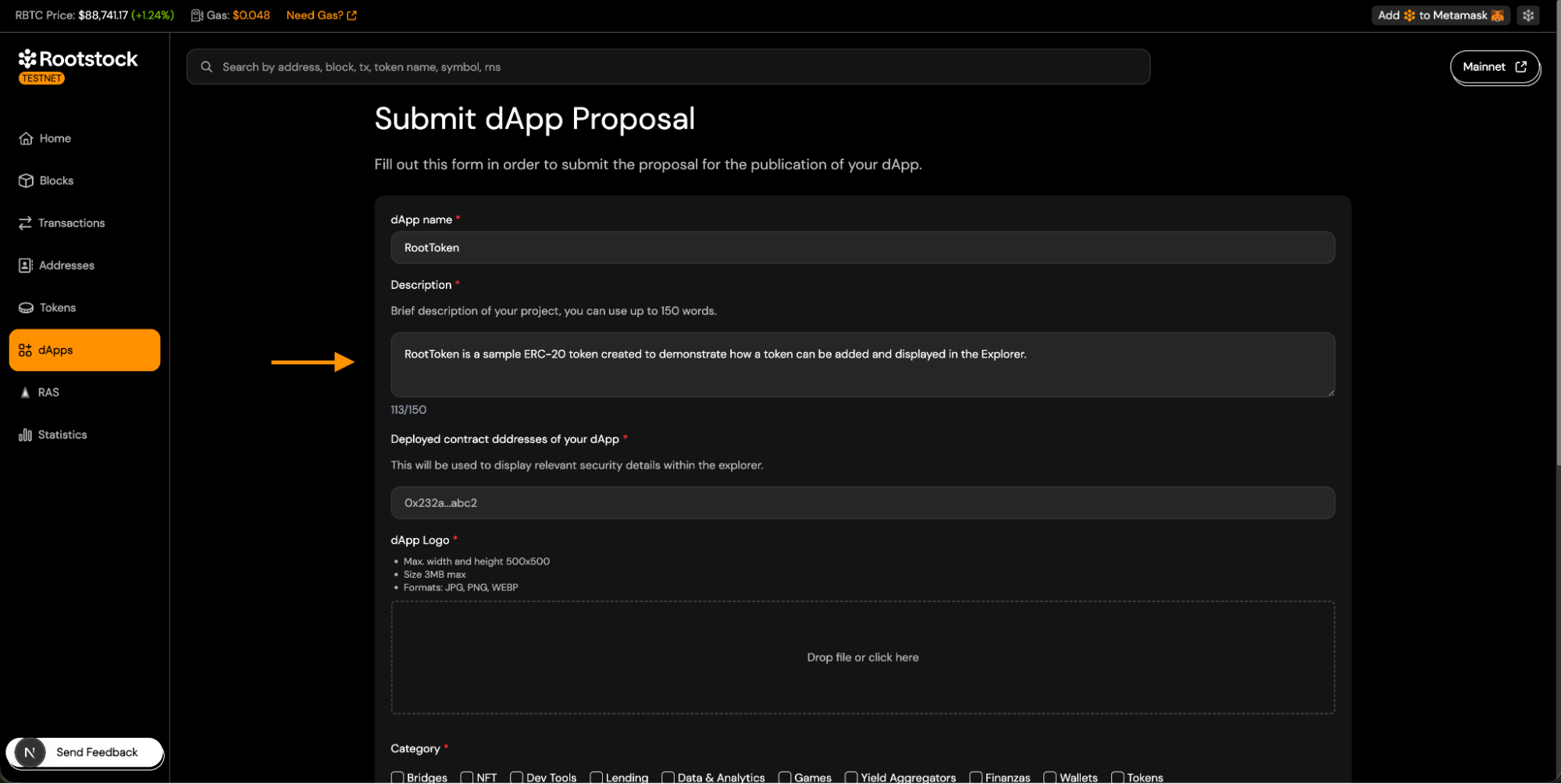
4.2 dApp Description (Required).
- Maximum length: 150 words.
- Describe what your dApp or token does.
-
4.3 Deployed Contract Addresses (Required)
- Provide the contract address related to your dApp.
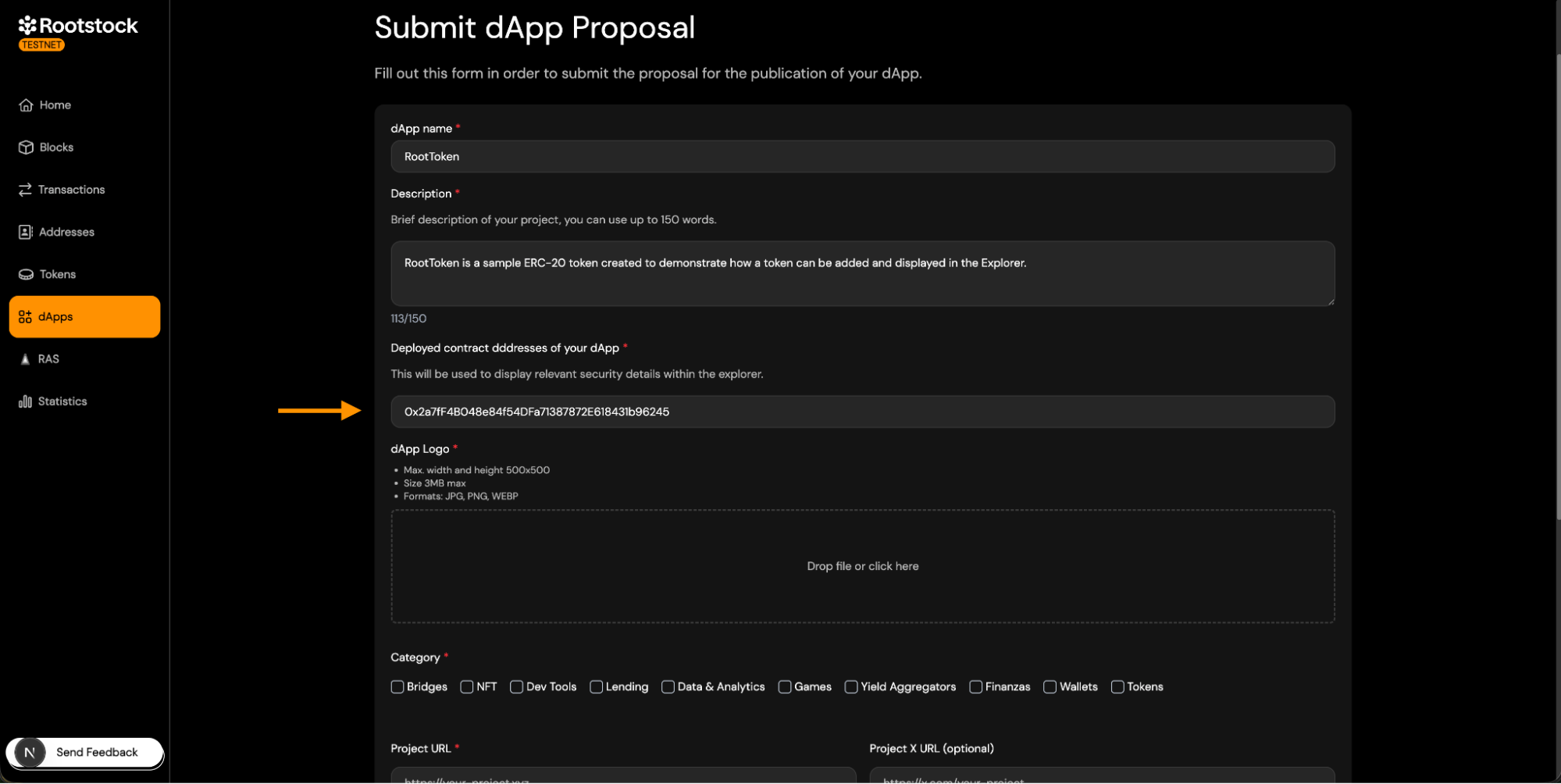
- Provide the contract address related to your dApp.
-
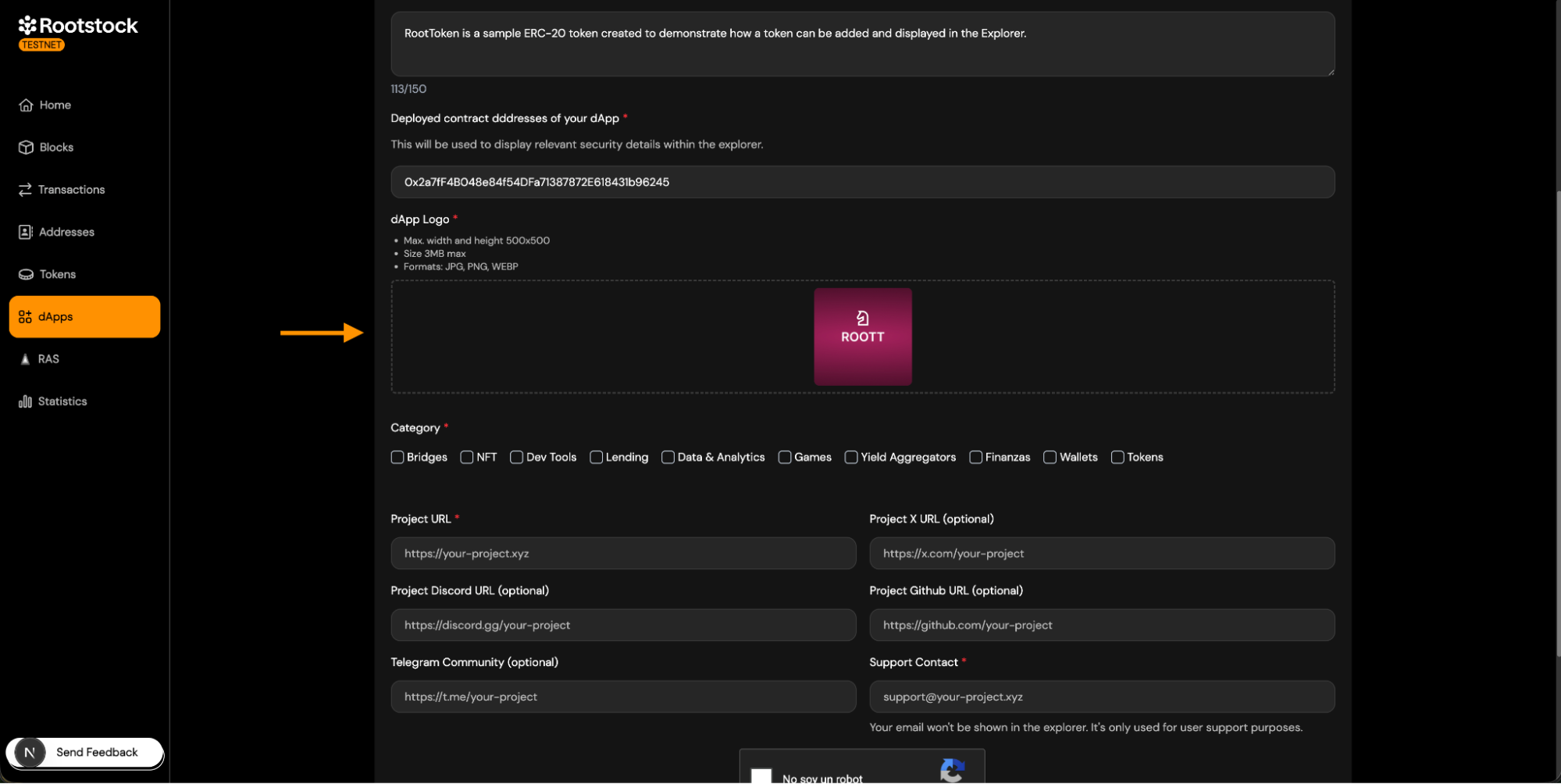
4.4 dApp Logo (Required)
- Logo requirements:
- JPG, PNG, or WEBP.
- Max size: 3 MB.
- Max dimensions: 500 × 500 px.
- Square format recommended.
-
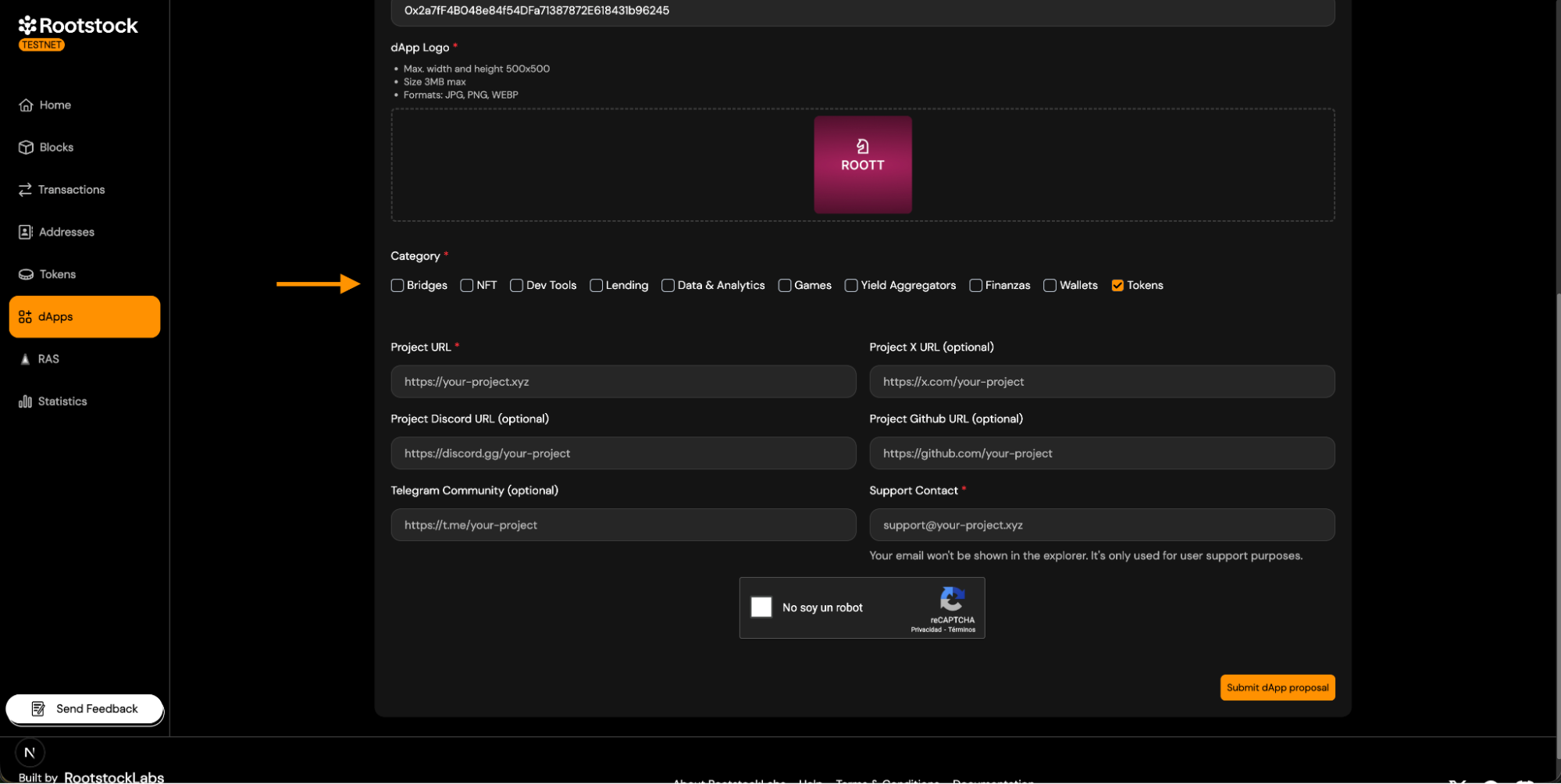
4.5 Category Selection (Required).
- Select one or more categories that describe your dApp.
- Choose the category that best represents the primary functionality.
- If your dApp is a token, select the token category.
-
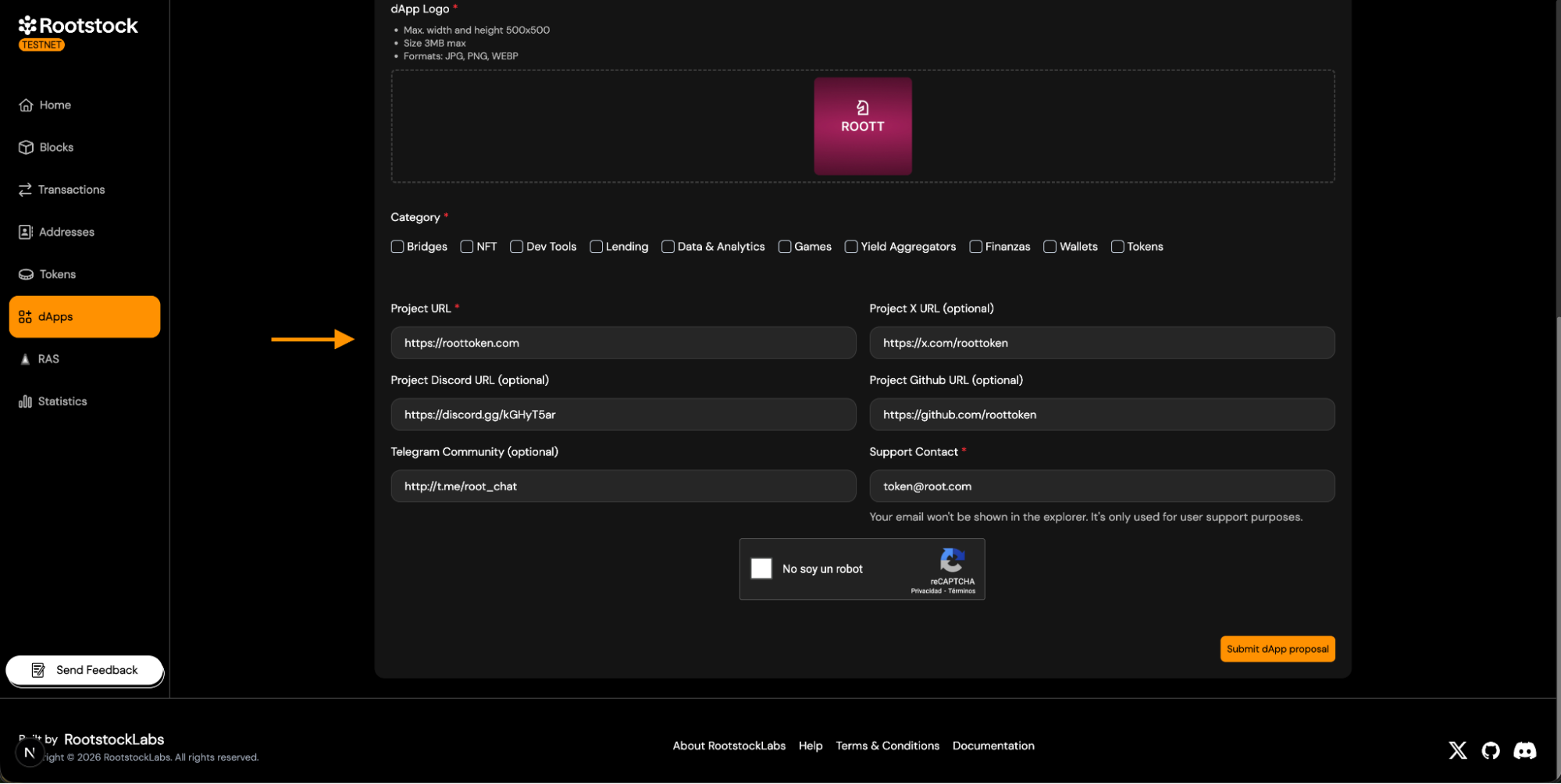
4.6 Project Links
- Project URL (Required).
- X, Discord, GitHub, Telegram (Optional).
-
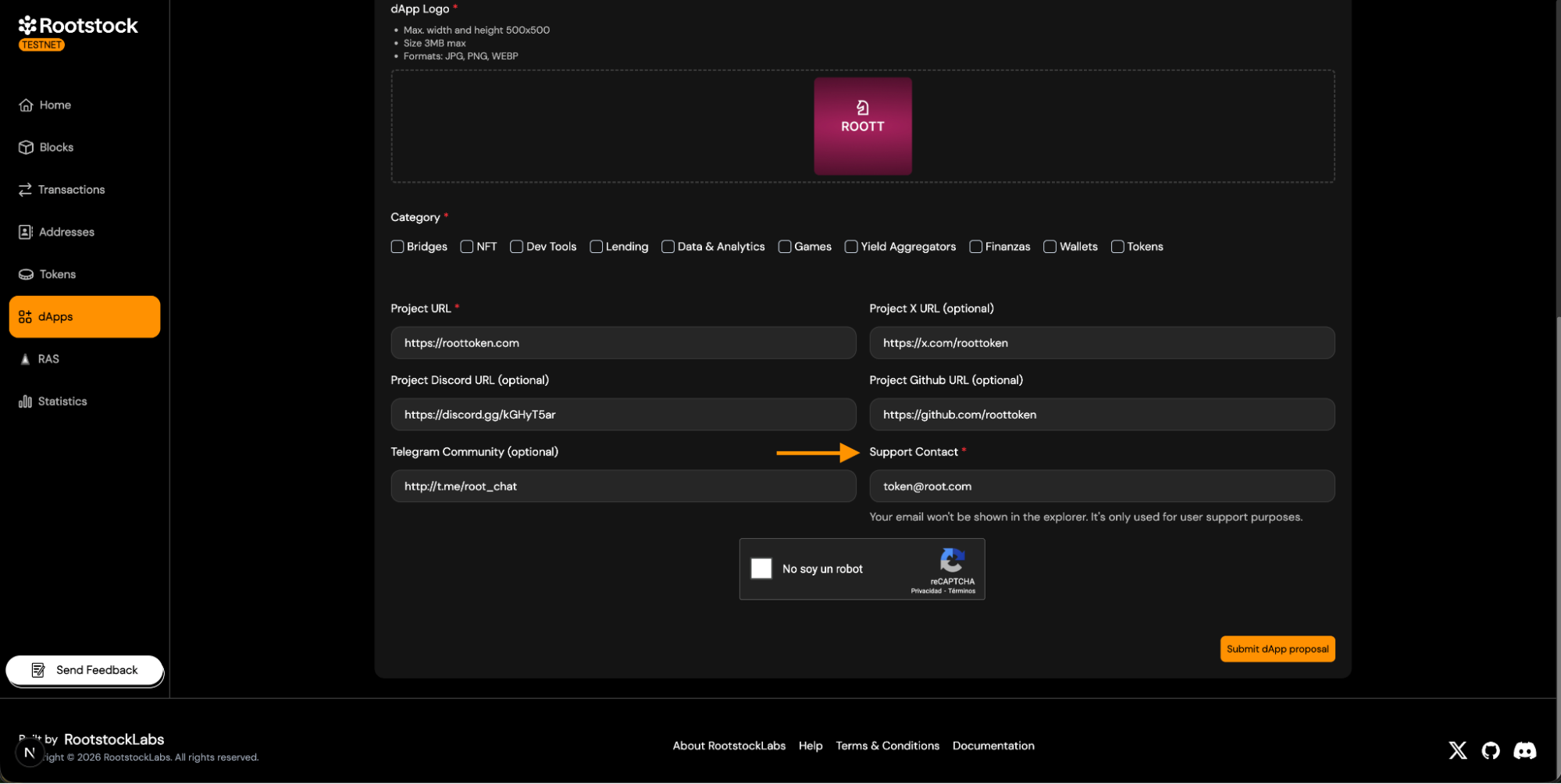
4.7 Support Contact (Required).
- Provide a valid support email address.
- Used for support and internal communication.
- Not publicly displayed.
5. Submit the dApp Proposal.
-
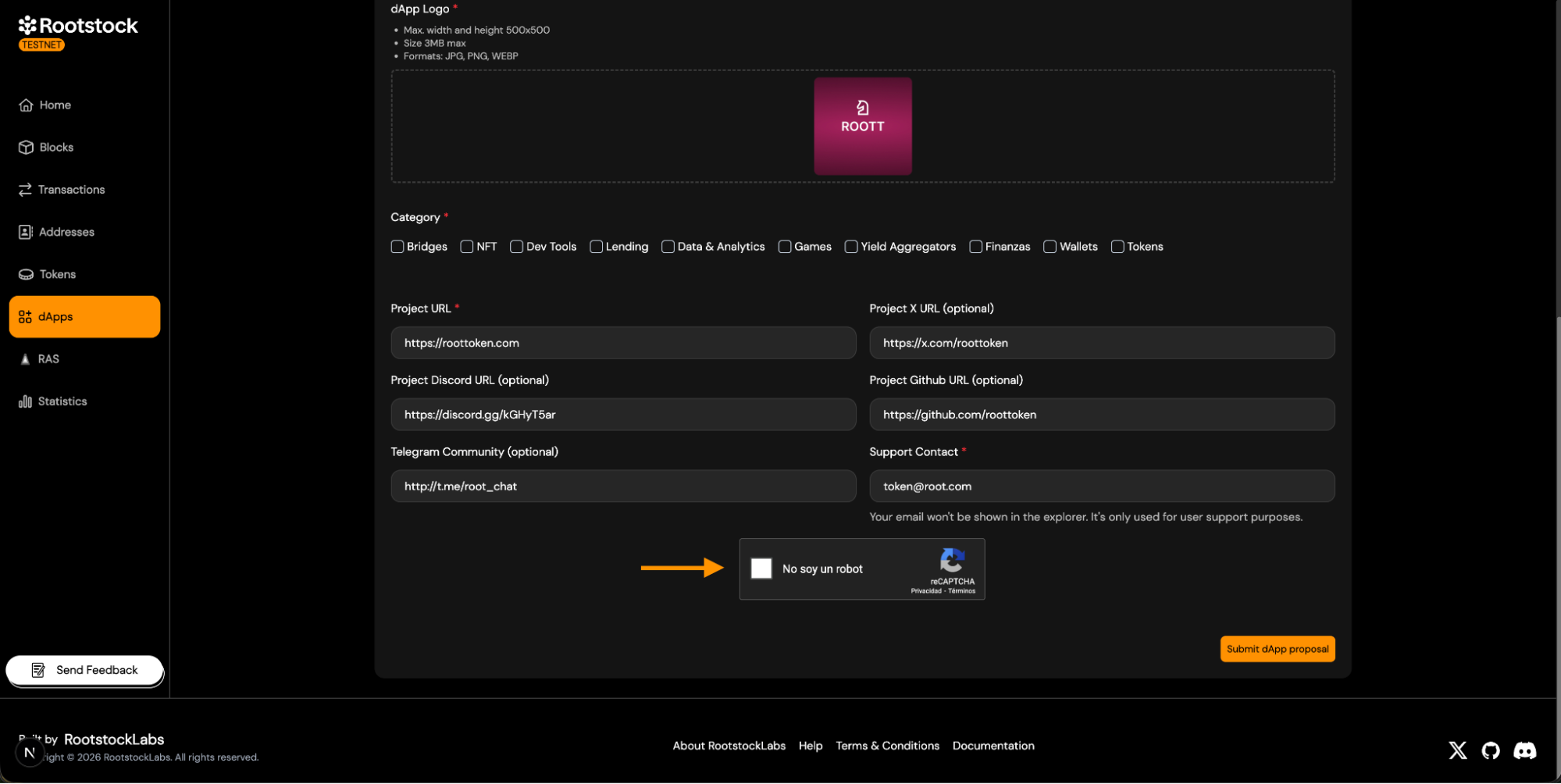
After completing the form:
-
Complete the CAPTCHA verification.
-
Click Submit dApp proposal.
-
Your submission is now sent for review.
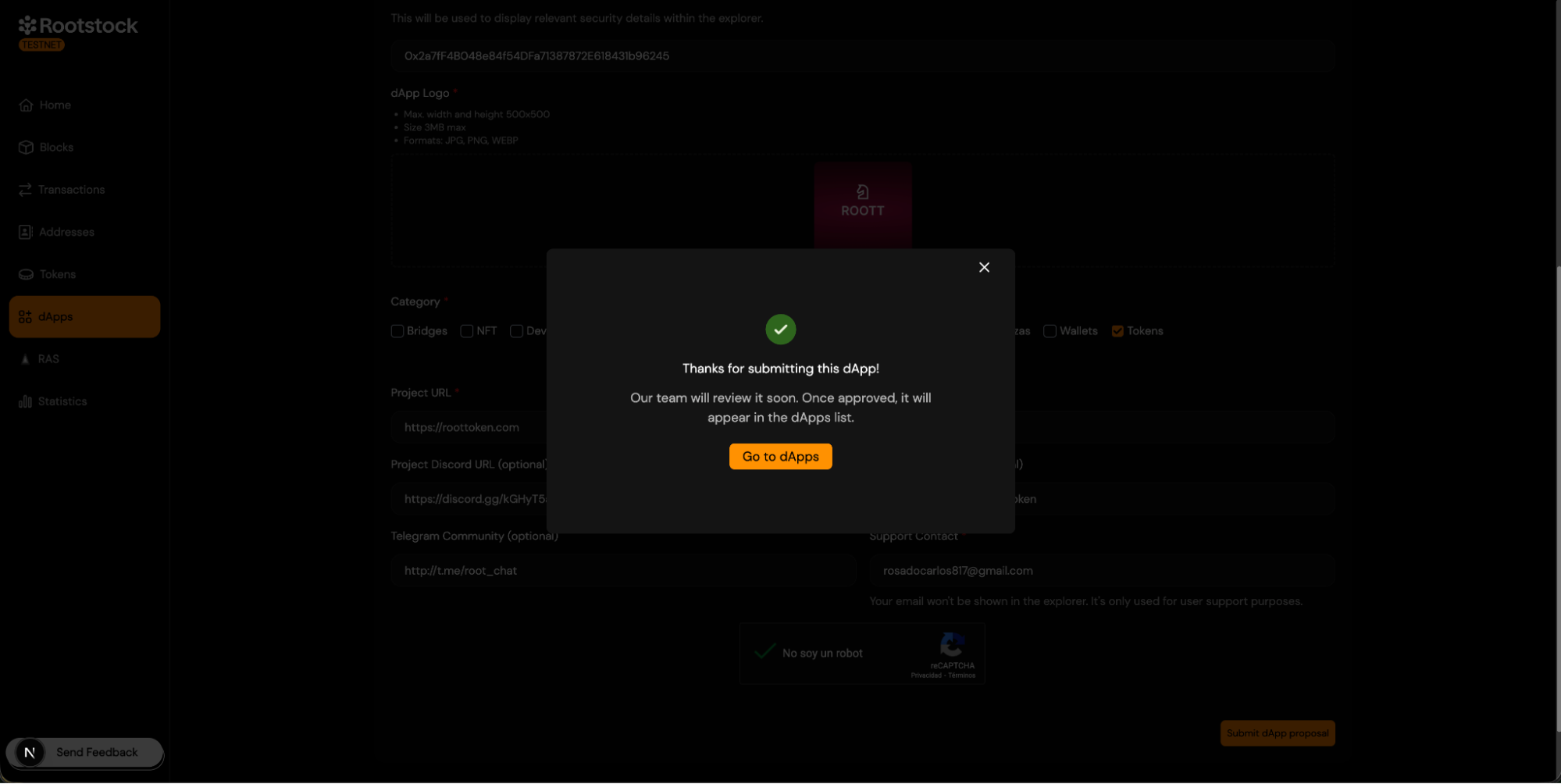
6. Review and Approval Process.
-
Once the dApp proposal is submitted:
- The Explorer team reviews the submission.
- Contract addresses and metadata are verified.
- Logos and external links are validated.
-
If the submission is approved:
- You will receive a confirmation email.
- The dApp will be published on the Explorer.
7. Viewing Your Approved dApp.
After approval:
-
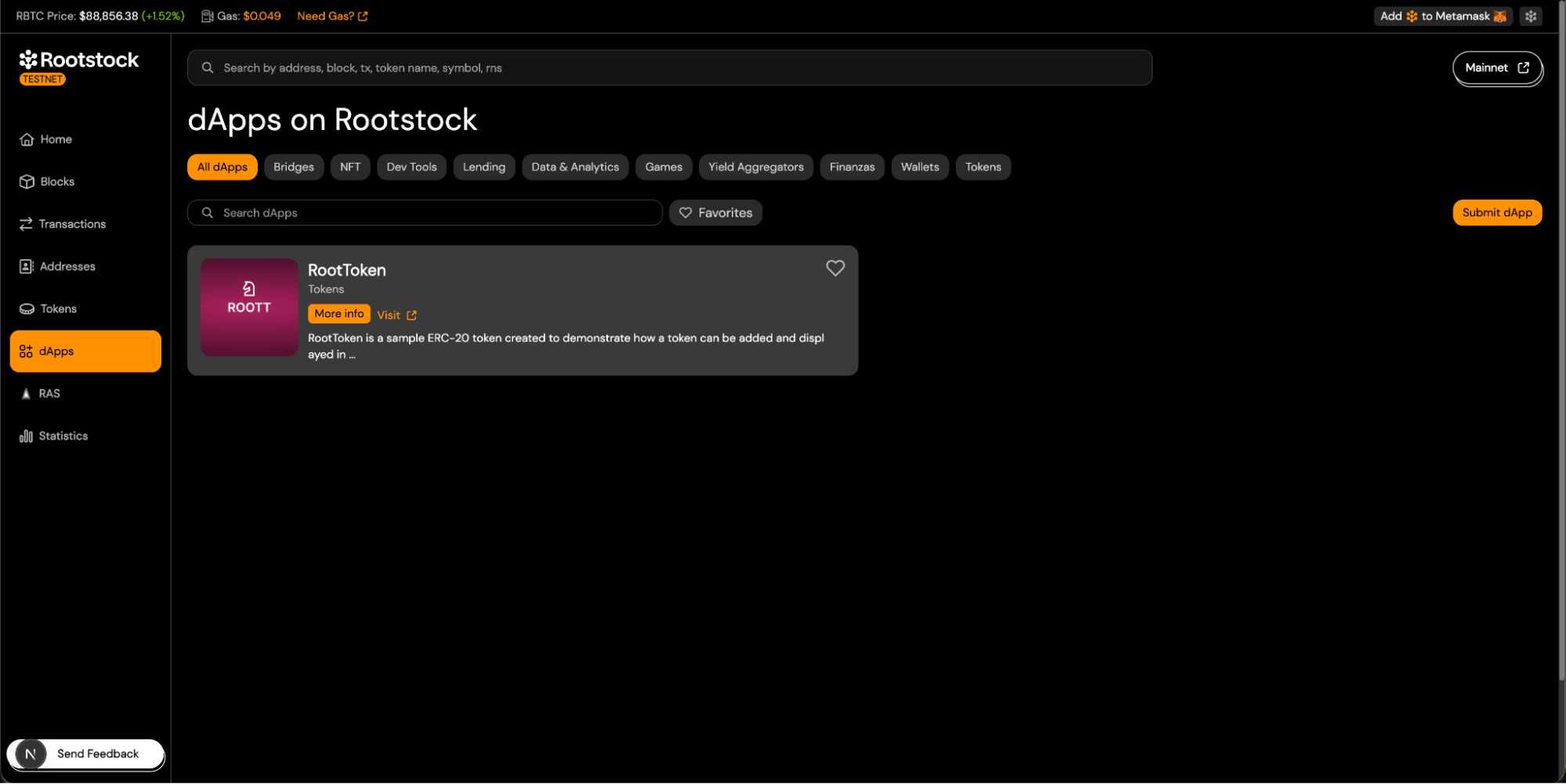
Return to the Explorer dApps page.
-
Your dApp will appear in the selected category.
-
The dApp card will display all submitted information.
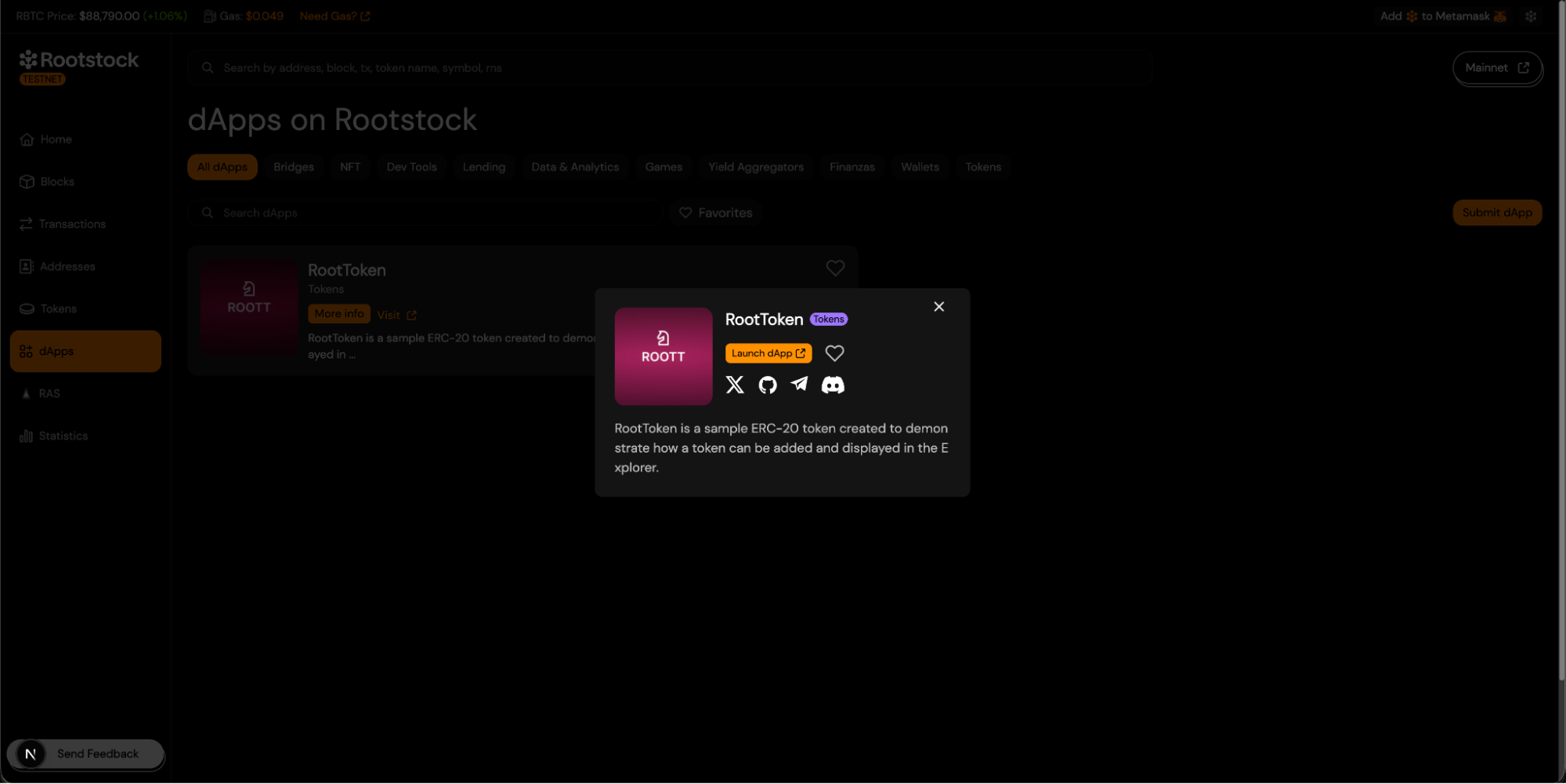
8. Viewing Token Information in the Explorer.
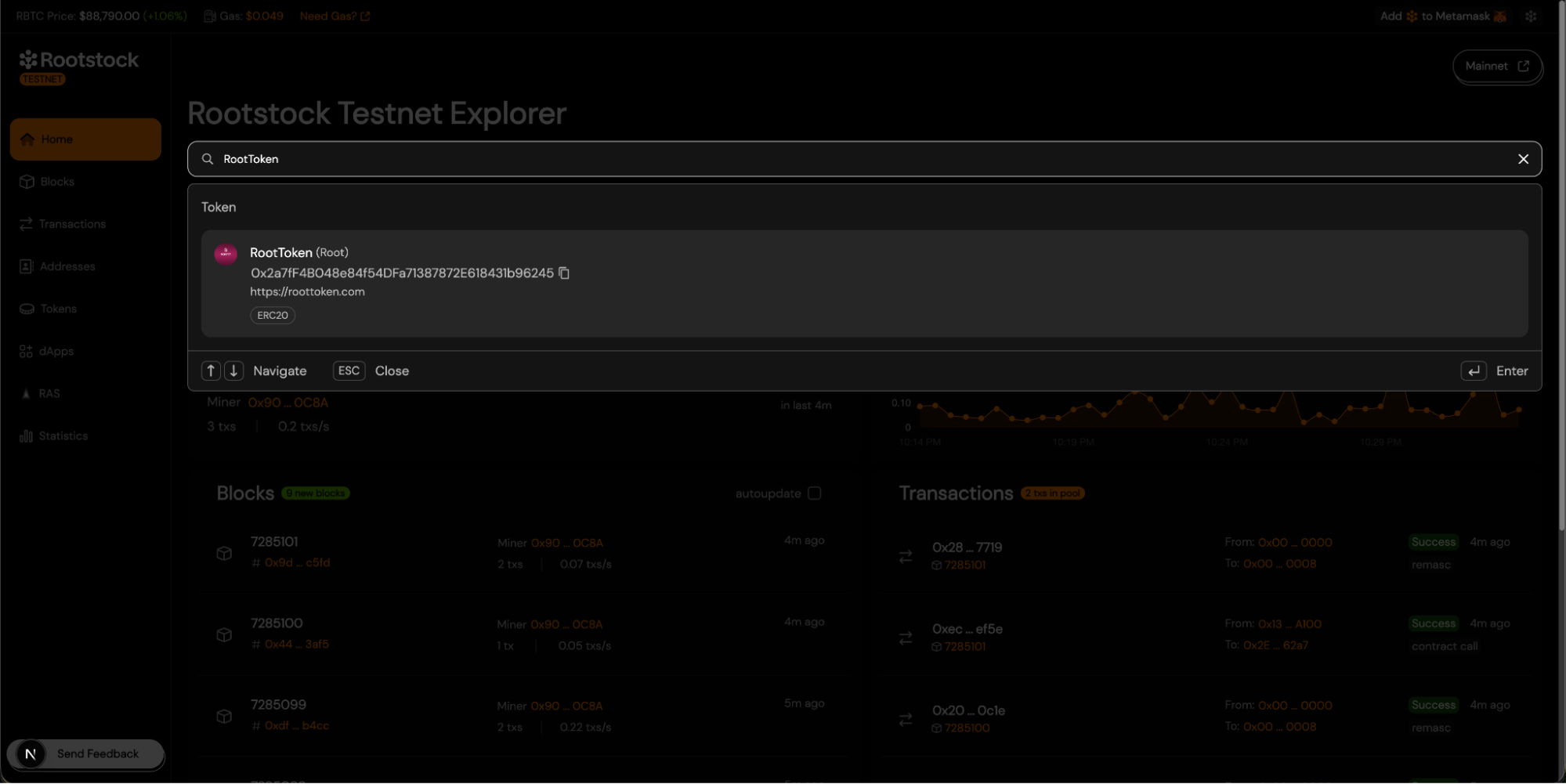
If your dApp is a token-based project, the Explorer will automatically index and display token information based on the submitted contract address. Once the token contract is deployed and included in the dApp submission:
- Users can search for the token by name or by contract address using the Explorer search bar.
- The token will appear as a search result under the Token section.
- Selecting the token opens the token details view, where the following information is displayed:
- Token name and symbol.
- Token contract address.
- Token standard (e.g. ERC-20).
- Token logo.
- Project website.
Troubleshooting
This information must be unique. If any of these details match those of an existing dApp, the submission will be rejected.
- Name.
- Address.
- Project Url.
- Social media.