Add a Token to MetaMask
When interacting with tokens on the Rootstock network, some tokens may not appear automatically in your MetaMask wallet. In these cases, you need to manually add the token so it becomes visible and usable in your wallet.
The Rootstock Explorer simplifies this process by providing a MetaMask icon directly from each token.
Why Add Tokens Manually?
MetaMask does not list every token automatically. After you add a token, you can:
- See your balance for that token.
- Send and receive it.
- Use it with applications that expect that asset in your wallet.
Required Token Information
To add a token manually, MetaMask requires the following details:
- Contract Address.
- Token Symbol (e.g., DOC, RIF, USDRIF).
- Decimals of Precision.
The Rootstock Explorer automatically provides this information, so you don’t need to enter it manually when using the built-in feature.
Find the Token in the Explorer
- Open the Rootstock Explorer Mainnet or Rootstock Explorer Testnet.
- Use the search bar to enter the token name, symbol, or contract address.
- Choose the token from the results and open its token page.
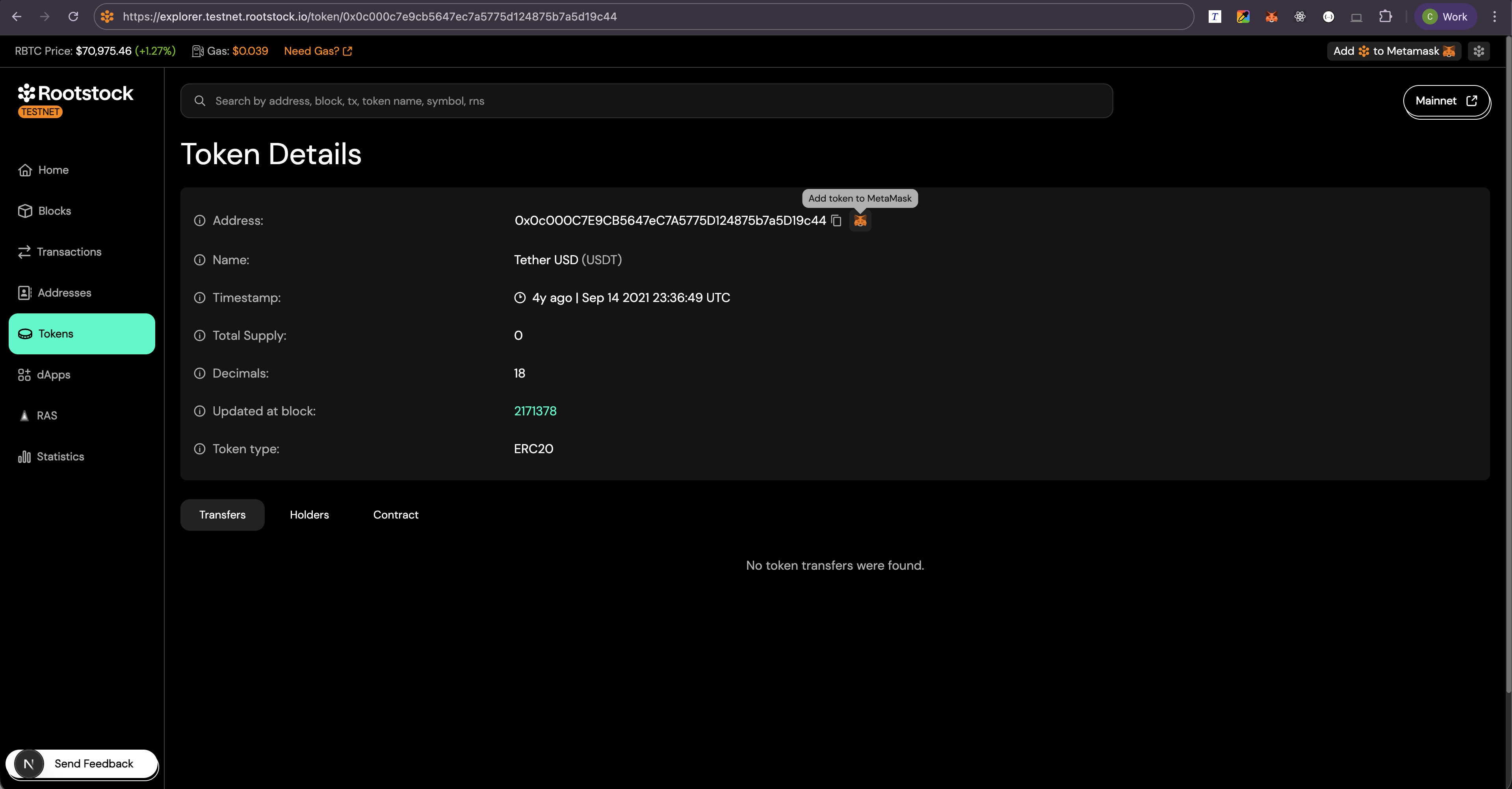
Add the Token to MetaMask
- Stay on the token details page for the asset you want.
- Find the MetaMask icon next to the token contract address on that page.
- Click the icon. MetaMask opens with a prompt to add the token.
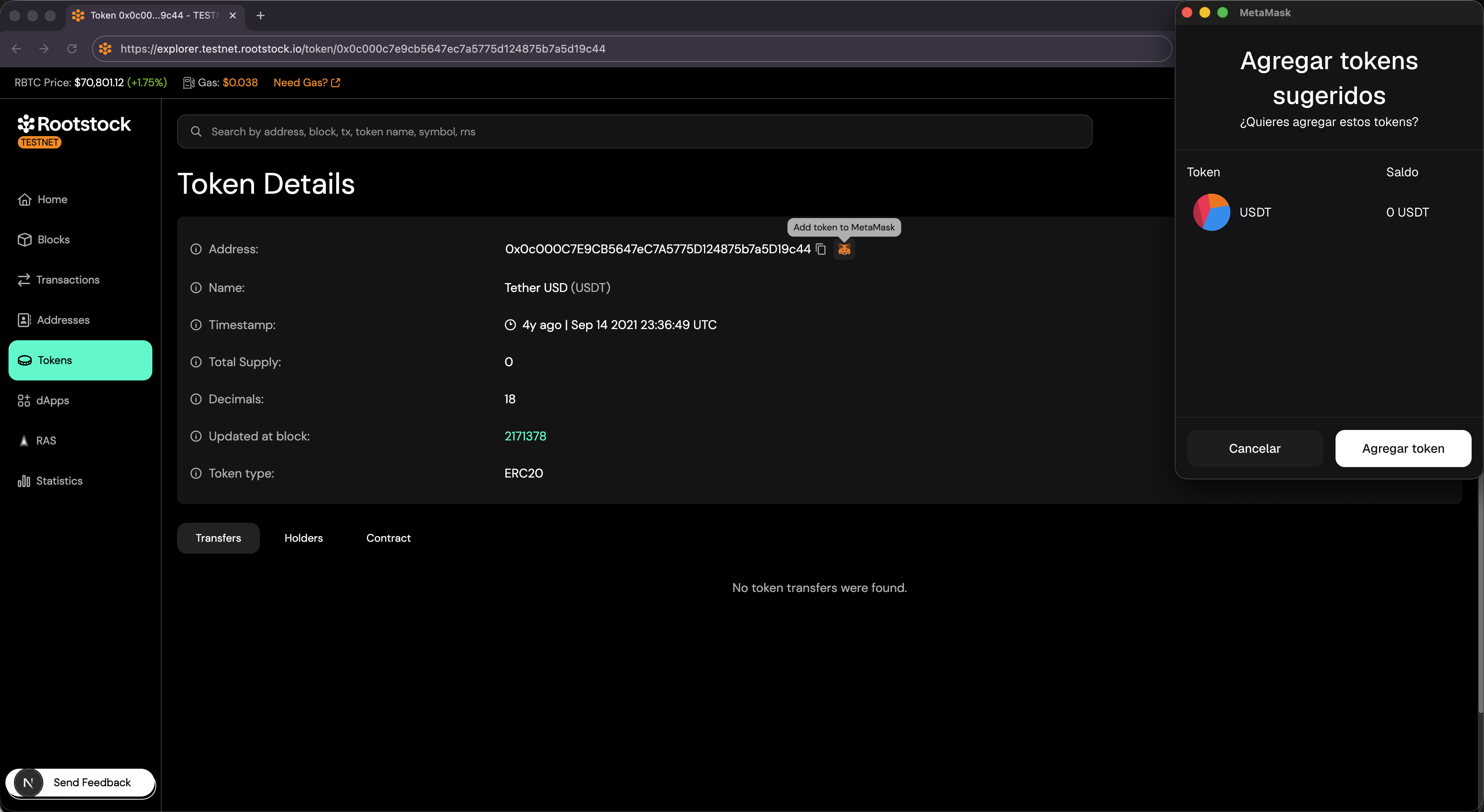
Confirm in MetaMask
- Check that the symbol and decimals match the token you expect.
- Confirm Add token.
If nothing opens, confirm the MetaMask extension is installed and unlocked, and that you selected the correct Rootstock network in MetaMask (mainnet or testnet to match the explorer).
Check Your Wallet
After you confirm:
- The token appears in your asset list for that network.
- You can view balance and send or receive as usual.
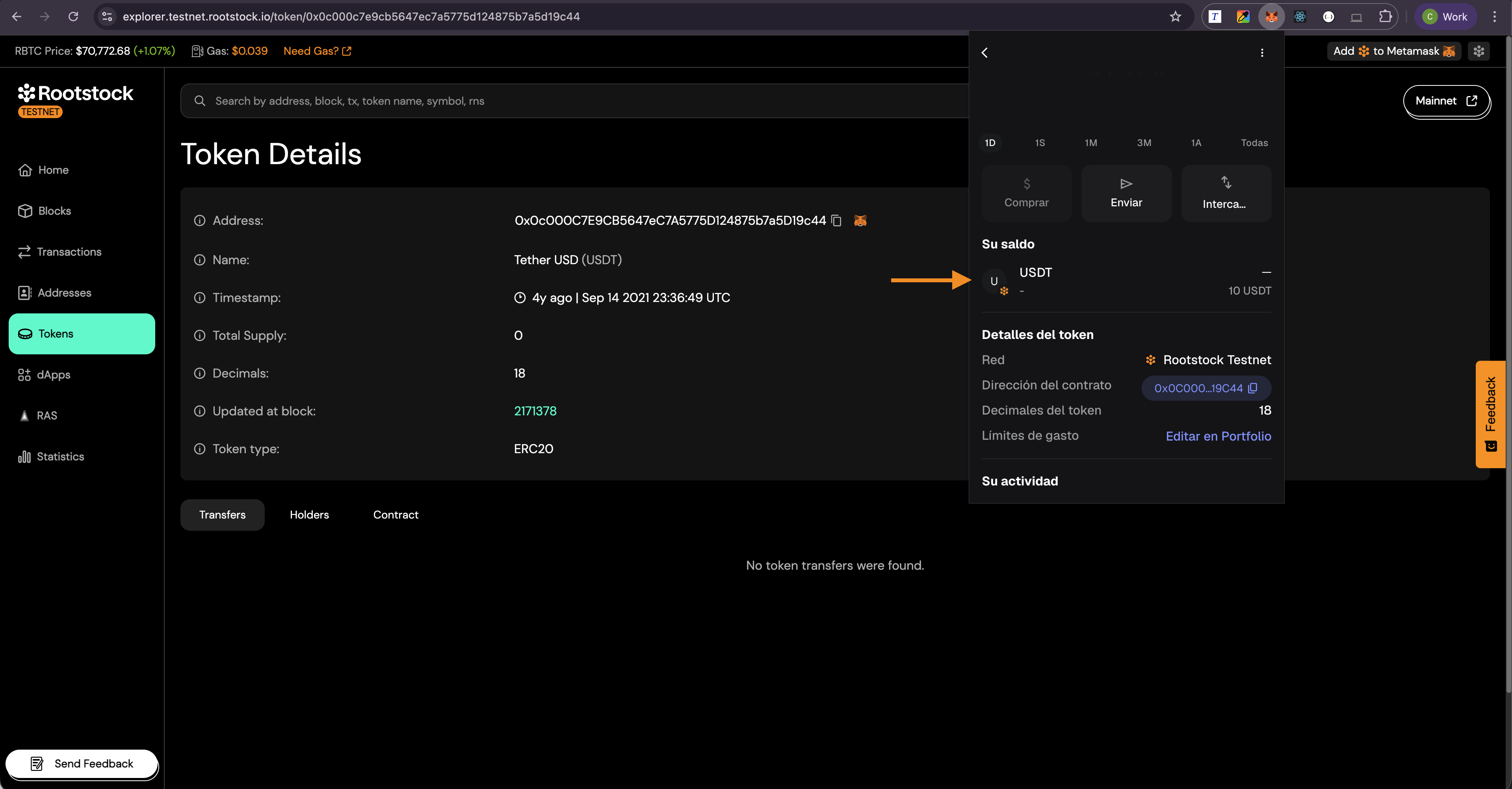
If the token does not show right away, refresh the MetaMask view or switch away from Rootstock and back. Confirm you are on the same network you used in the explorer.
What the Explorer Sends
Clicking the MetaMask icon passes the contract address, symbol, and decimals into MetaMask’s import API. That cuts copy-paste mistakes and matches the on-chain token the explorer lists.
Tips
- Always verify the token contract address to avoid scams.
- Use the official Rootstock Explorer to find trusted tokens.
- Ensure MetaMask is connected to the Rootstock network.
- If you need wallet setup steps, see the MetaMask wallet setup guide.
Conclusion
Adding a token to MetaMask using the Rootstock Explorer is a quick and secure process. By using the built-in feature, users can avoid manual entry and easily manage their tokens on the Rootstock network.