Common errors when using the PowPeg App

You may encounter the following errors when trying out the application:
Trezor will not connect (browser pop-up blocked)
The PowPeg App uses Trezor Connect in a browser pop-up. Chrome and Brave can block that window. When the pop-up is blocked, Trezor may not connect and the PowPeg App can show a generic error.
What to do:
- Connect your Trezor and open the PowPeg App in Chrome or Brave.
- Click Connect wallet and choose Trezor so the browser tries to open Trezor Connect.
- Look for a pop-ups blocked icon in the address bar. Click it.
- Select Always allow pop-ups and redirects from the PowPeg App URL you are using:
- Mainnet:
https://powpeg.rootstock.io - Testnet:
https://powpeg.testnet.rootstock.io
- Mainnet:
- Click Done, reload the page, and try again.
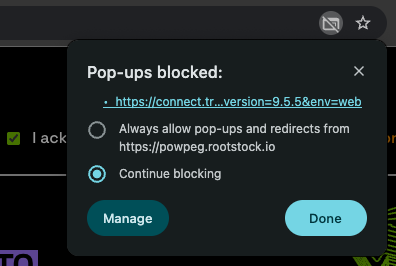
Other Rootstock web apps that use Trezor Connect need the same setting for their own site URL.
If Trezor still does not connect, confirm Perform Safety Checks is set to PROMPT in Trezor Suite. See Peg-in using Trezor or the Forbidden key path FAQ.
BTC not visible after a peg-out (Trezor and Electrum)
The peg-out can succeed on chain while your balance still shows zero in Trezor Suite or Electrum.
Cause: Trezor Suite does not support the custom derivation path for peg-out Bitcoin addresses. Electrum is required to view those funds. A common mistake is to enter a BIP39 passphrase in Electrum when you do not use one on Trezor. That opens a different wallet than the one used for the peg-out.
What to do:
- Confirm the Bitcoin transaction on a block explorer using the destination address from the PowPeg status page.
- Follow Viewing a derived bitcoin address with path
m/44'/137'/0'on Mainnet. - Leave the Electrum passphrase fields empty if you do not use a BIP39 passphrase on Trezor. See Trezor passphrase in Electrum.
Resources
- PowPeg App frontend repo
- PowPeg App backend repo
- Rootstock Testnet Faucet
- Thirdweb Faucet
- Blast Faucet
- Design architecture